Steps in this chapter (7)
Part A: For partners. The approval email, choosing your password, signing in to the partner dashboard, and turning on two-factor authentication.
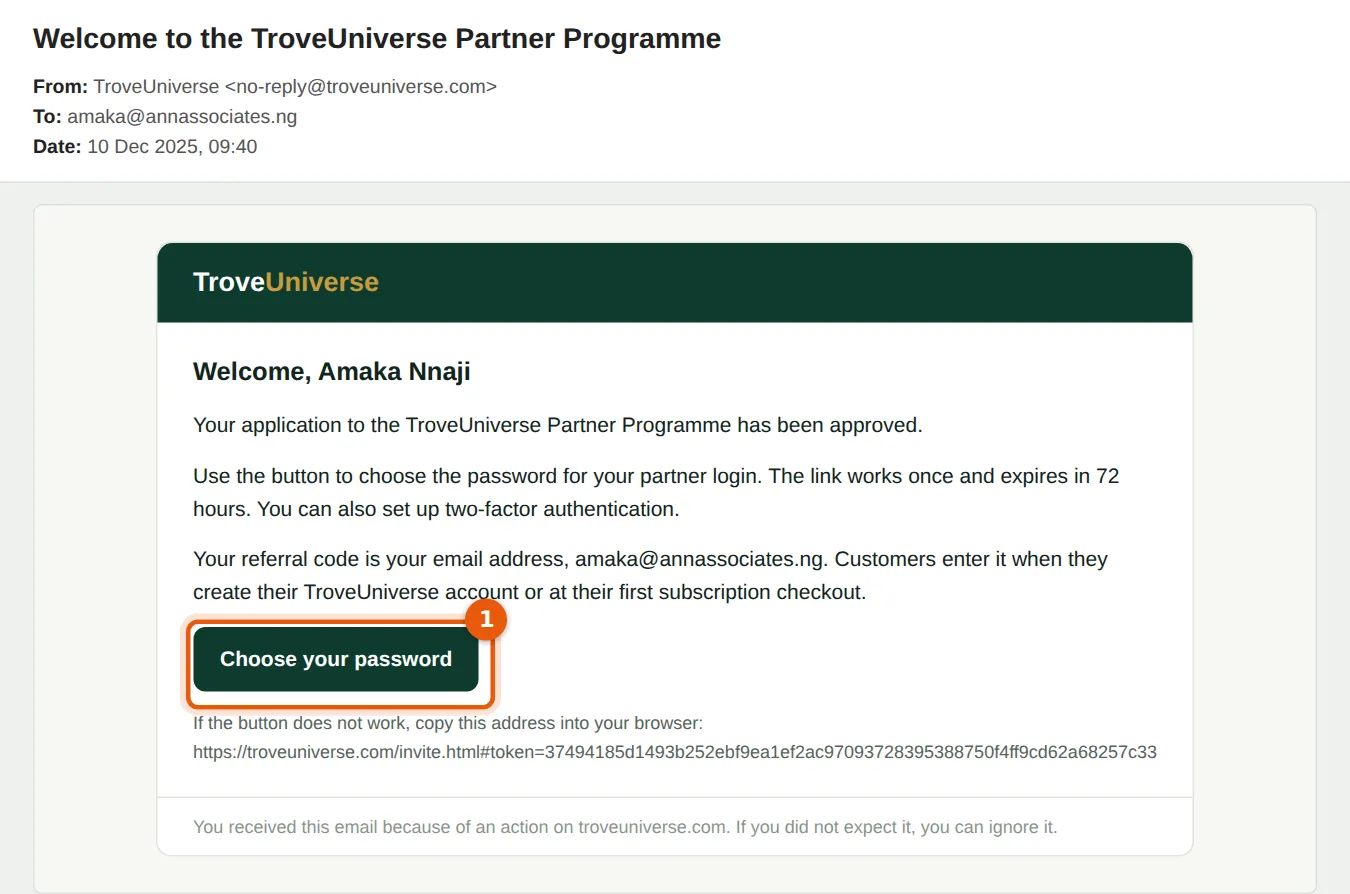
When TroveUniverse approves your application you get an email. If your email address has no TroveUniverse login yet, the email invites you to choose a password for a new partner login. If you already have a customer login with that address (for example as the owner of your own firm's account), the partner profile is linked to it: you sign in as usual and Partner appears in the menu.
Partner sessions last 14 days. Two-factor authentication is optional for partner logins, as for customers, but strongly recommended: your dashboard holds your bank details and client list.
3.1 Open the approval email
Why
The link works once and expires after 72 hours. The email also reminds you that your referral code is your email address.
Who
Partner.
What to do
- Choose Choose your password (1).
- If the link has expired, ask TroveUniverse to resend the invitation (staff have a Resend invitation button).
3.2 Choose your password
Why
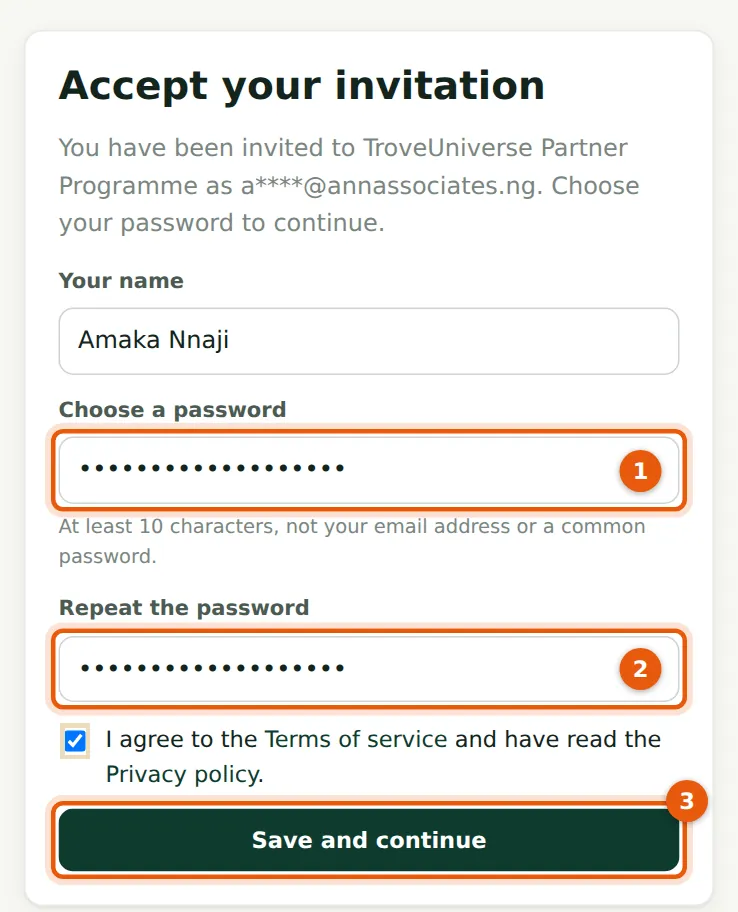
The password must have at least 10 characters and must not be your email address or a common password. If the site's Terms of service and Privacy policy are published, you accept them here too.
Who
Partner.
What to do
- Enter the password (1) and repeat it (2).
- Tick the Terms and Privacy box if shown.
- Choose Save and continue (3).
3.3 Sign in
Why
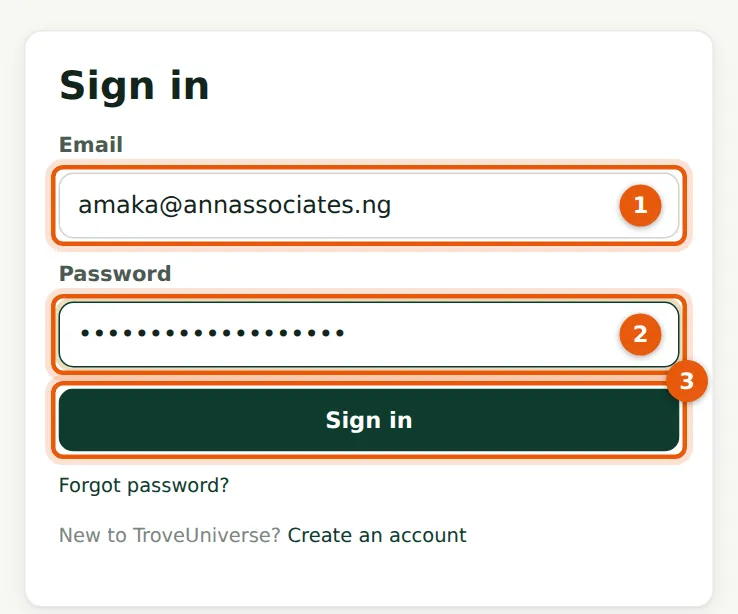
A partner login goes straight to the partner dashboard after signing in.
Who
Partner.
What to do
- Enter your email (1) and password (2).
- Choose Sign in (3).
3.4 Your partner dashboard on the first day
Why
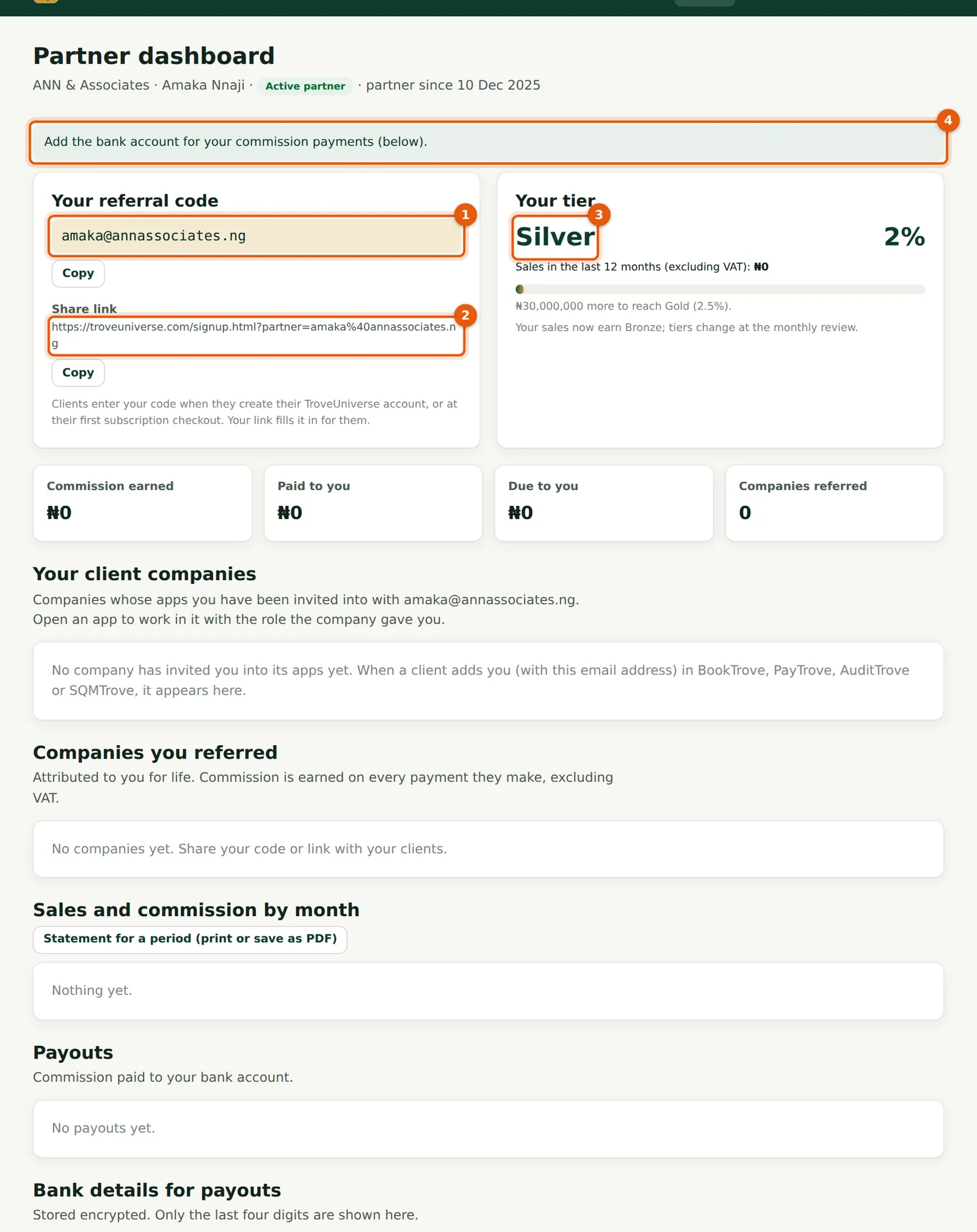
The dashboard is your home in the programme. On the first day it shows your referral code (1) and share link (2), your starting tier (3) and a reminder to add your bank account (4). The sections below it fill up as clients sign up and pay.
Who
Partner.
What to do
- Copy your code or link with the Copy buttons.
- Add your bank details (chapter 9) straight away so payouts are not delayed.
3.5 Turn on two-factor authentication
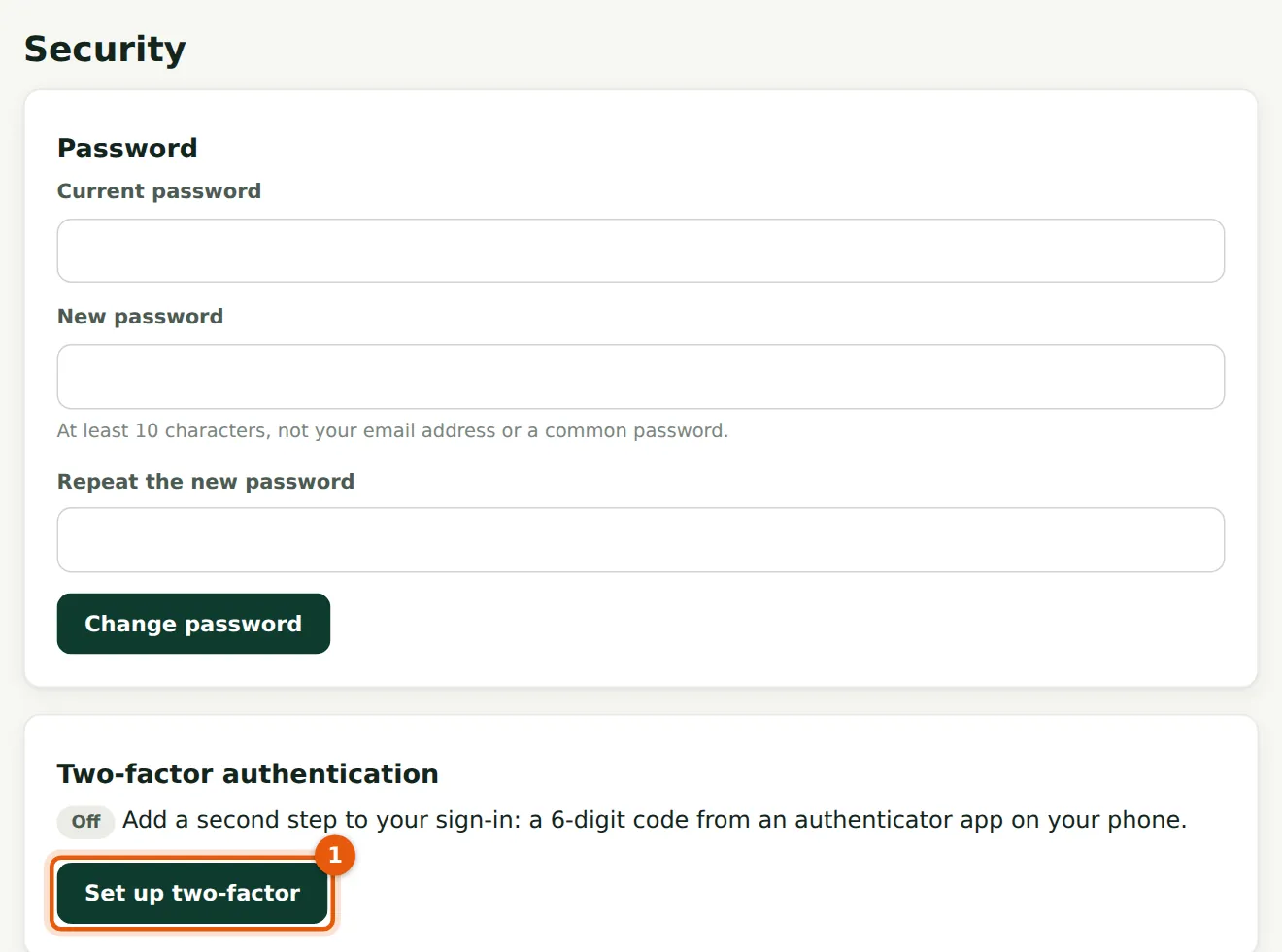
Why
With two-factor, a stolen password is not enough to sign in: you also need a 6-digit code from your phone.
Who
Partner.
What to do
- Choose Settings in the menu, then Security.
- Choose Set up two-factor (1).
3.6 Scan the QR code and enter the code
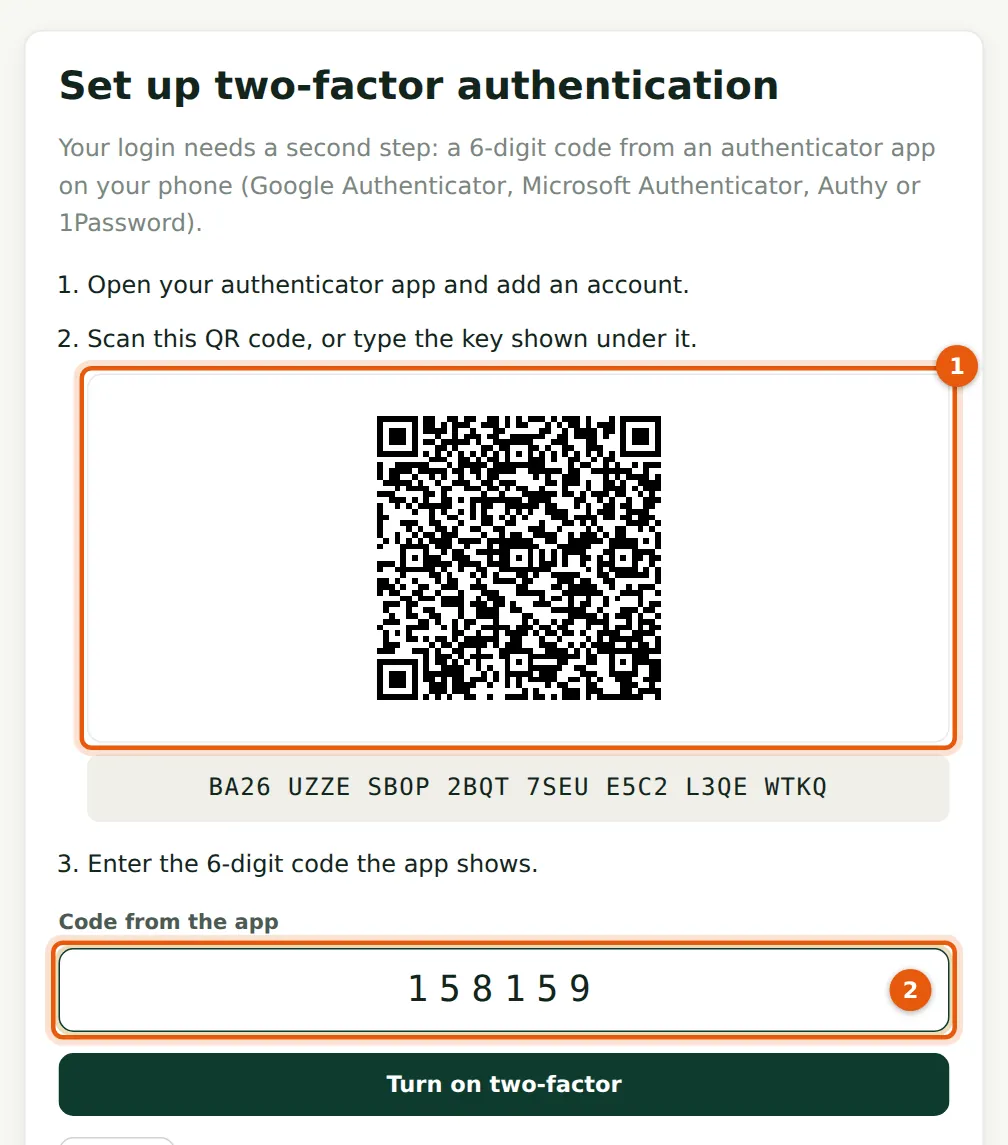
Why
Any authenticator app works: Google Authenticator, Microsoft Authenticator, Authy or 1Password.
Who
Partner.
What to do
- Open your authenticator app and scan the QR code (1), or type the key shown under it.
- Enter the 6-digit code the app shows (2) and choose Turn on two-factor.
3.7 Save your recovery codes
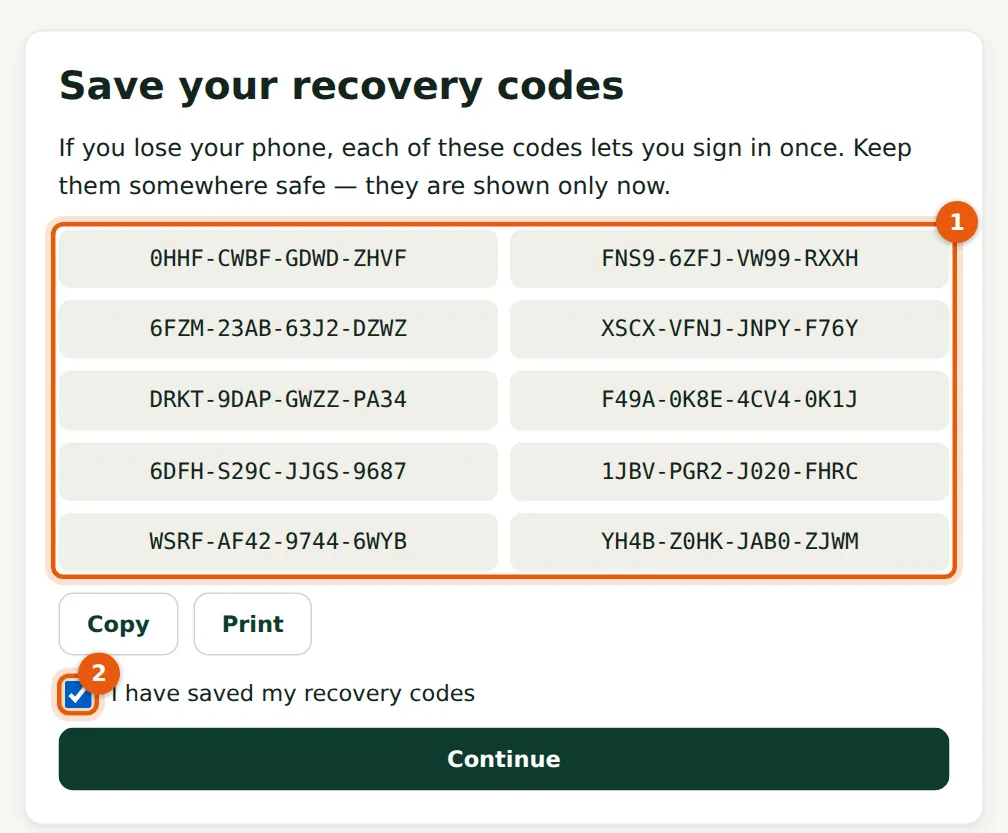
Why
Each recovery code lets you sign in once if you lose your phone. They are shown only now.
Who
Partner.
What to do
- Copy or print the codes (1) and keep them somewhere safe, away from your phone.
- Tick I have saved my recovery codes (2) and choose Continue.