Steps in this chapter (10)
Open PayTrove from troveuniverse.com, set up two-factor authentication, sign in, reset a forgotten password and find your way round the Overview.
PayTrove is part of TroveSuite and is sold through troveuniverse.com. Your company's first administrator opens PayTrove from their TroveUniverse account; everyone else signs in with an email address and a password that the administrator gives them.
Every login, including employees on self-service, also needs a six-digit code from an authenticator app on their phone. This chapter shows the first sign-in, everyday sign-in, what to do if you forget your password, and the Overview page.
In the illustration, Chukwudi Okeke, Finance Manager of Savannah Harvest Agro-Allied Limited, opens PayTrove for the company on Monday 5 January 2026.
1.1 Open PayTrove from troveuniverse.com
Why
Single sign-on means the person who bought the subscription does not need a separate PayTrove password. When they choose Launch next to PayTrove in their TroveUniverse account, PayTrove creates the company and makes that person its first Admin. Later launches sign the same person straight in. Anyone else must be added on PayTrove's Users page first (chapter 3); a launch by someone who has not been added is refused with a message saying so.
Who
The subscriber (first administrator), once.
What to do
- Sign in at troveuniverse.com and choose Launch next to PayTrove.
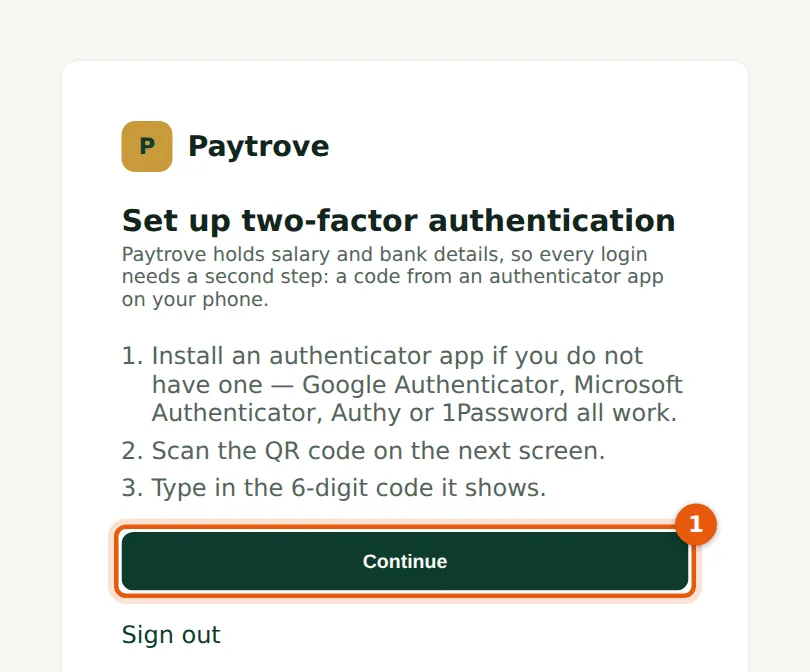
- PayTrove opens at this page. Install an authenticator app on your phone if you do not have one (Google Authenticator, Microsoft Authenticator, Authy or 1Password all work), then choose Continue (1).
1.2 Link your authenticator app
Why
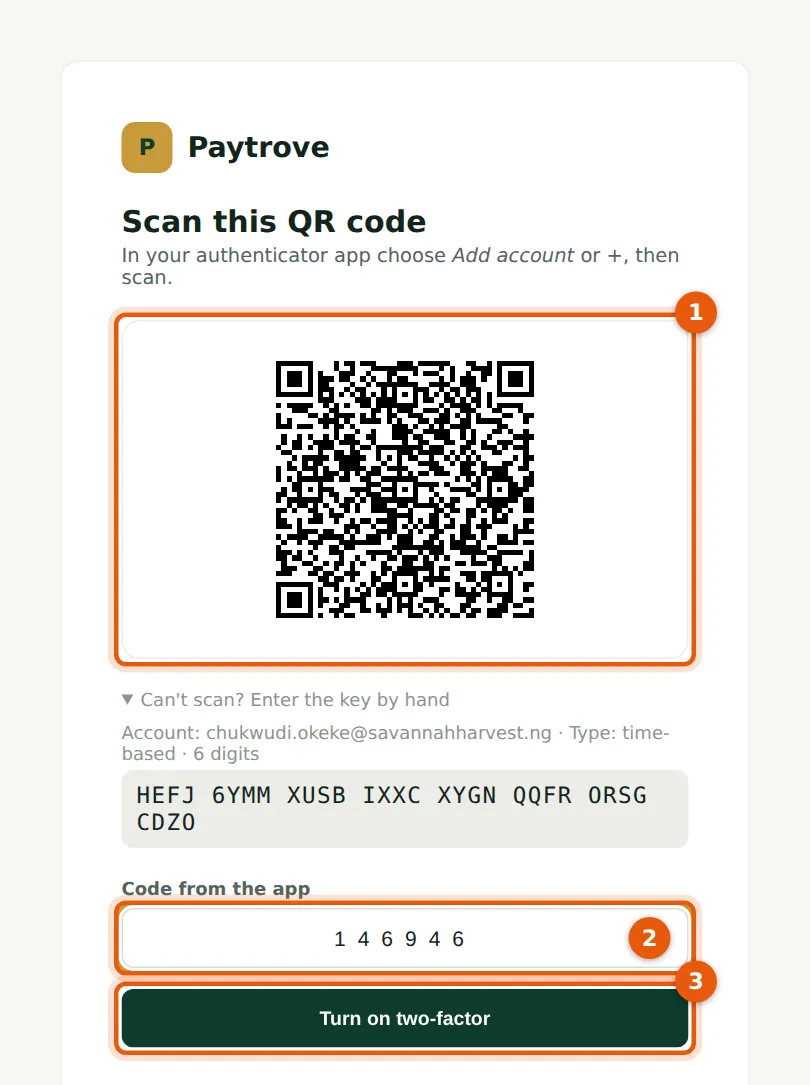
The QR code links the app on your phone to your PayTrove login. From then on the app shows a new six-digit code every 30 seconds. PayTrove draws the QR code in the page itself, so your secret key is never sent to another service.
Who
Every user, the first time they sign in.
What to do
- In the app choose Add account (or +) and scan the QR code (1). If you cannot scan, open 'Can't scan? Enter the key by hand' and type the key shown.
- Type the six-digit code the app now shows (2).
- Choose Turn on two-factor (3).
1.3 Save your recovery codes
Why
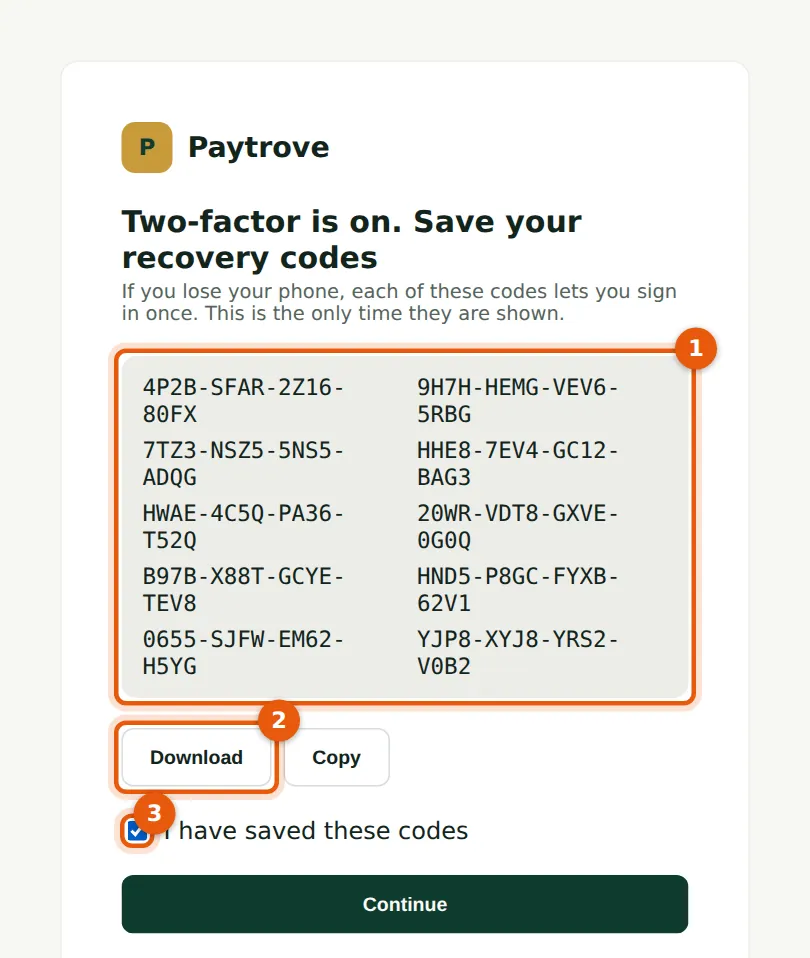
If you lose or change your phone, each recovery code lets you sign in once without the app. They are shown only at this point. There is no way to switch two-factor off.
Who
Every user, once.
What to do
- Keep the ten codes (1) somewhere safe and private: choose Download (2) or Copy, and store them away from your phone.
- Tick I have saved these codes (3) and choose Continue. PayTrove opens the Overview.
1.4 Sign in with your email and password
Why
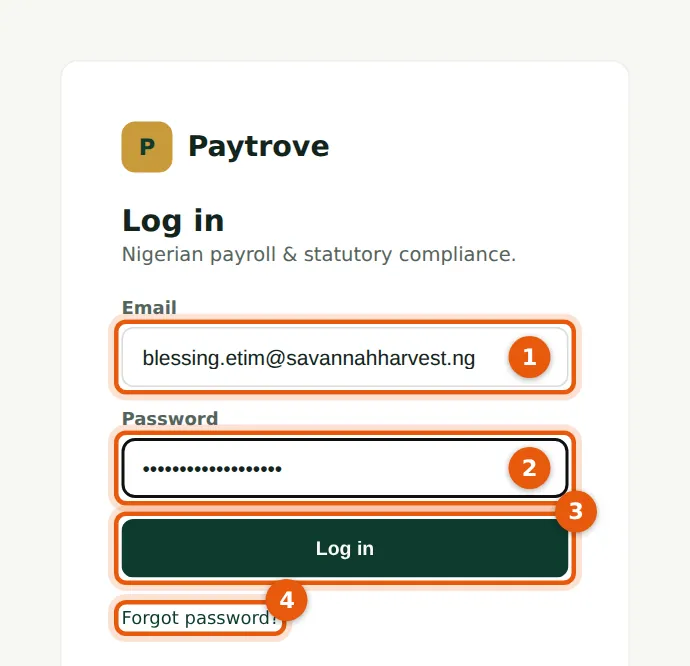
Staff added on the Users page (payroll officers, approvers, viewers) and employees on self-service sign in here. Each company in PayTrove has its own logins, so an accountant with logins in several client companies is asked which company to open (chapter 14).
Who
Every user who does not arrive from troveuniverse.com.
What to do
- Go to your PayTrove address and enter your email (1) and password (2).
- Choose Log in (3). The first time, PayTrove asks you to set up two-factor exactly as in steps 1.1 to 1.3.
- If you have forgotten your password, choose Forgot password? (4) — see step 1.6.
1.5 Enter the code from your app
Why
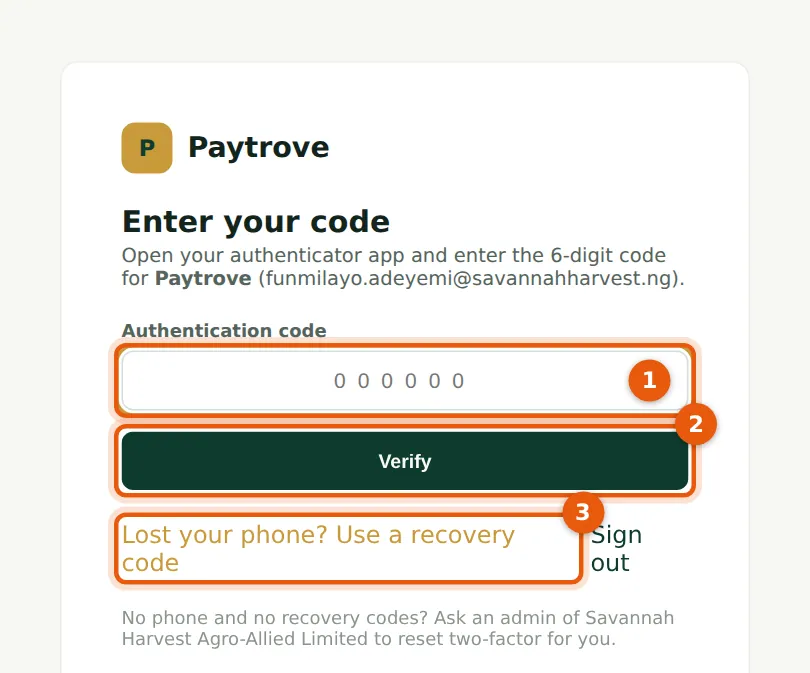
After the password, PayTrove asks for the current code from your app. A code works only once, and five wrong codes in 15 minutes block further tries for a while.
Who
Every user, at every sign-in.
What to do
- Open your authenticator app and type the six-digit code for PayTrove (1), then choose Verify (2).
- If your phone is lost, choose Lost your phone? Use a recovery code (3) and type one of your recovery codes. Then ask an Admin to reset your two-factor (step 3.5).
1.6 Forgotten your password? Ask for a link
Why
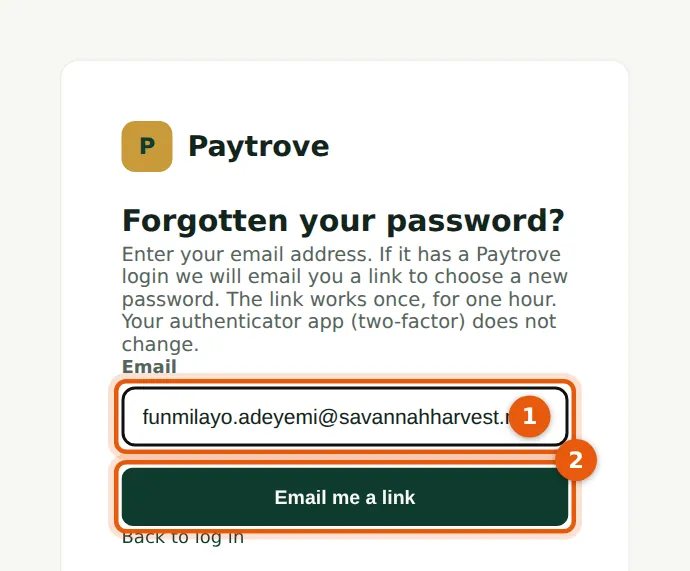
On 12 February Funmilayo Adeyemi, the accountant, cannot remember her password. PayTrove emails a one-time link. For your security the page always gives the same answer, whether or not the address has a login.
Who
Any user with a password login.
What to do
- On the sign-in page choose Forgot password?.
- Enter your email address (1) and choose Email me a link (2).
1.7 Open the email
Why
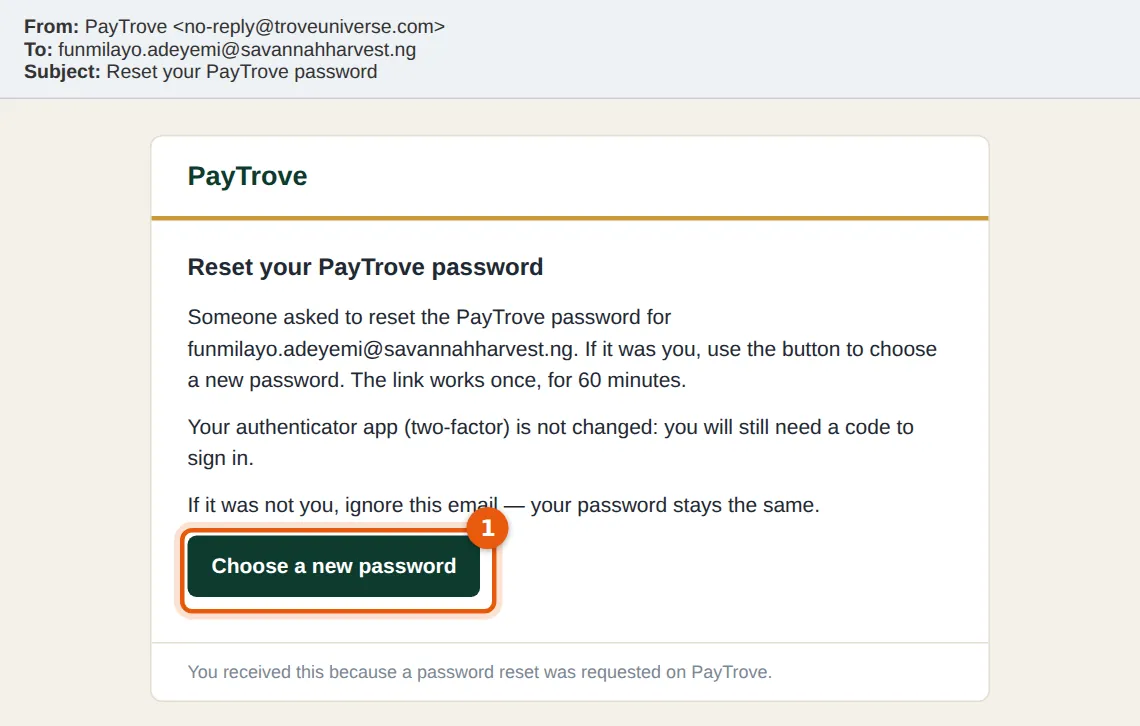
The link works once, for 60 minutes. Asking again makes earlier links stop working. If the same email address has logins in several companies, the email has one button per company. Your company does not set anything up for these emails: they are sent by PayTrove's own email service, run by TroveUniverse.
Who
The person resetting their password.
What to do
- Open the email 'Reset your PayTrove password' and choose Choose a new password (1).
- If the email does not arrive within a few minutes, check your spam or junk folder, or ask an Admin to set a new password for you on the Users page (Edit → Reset password).
1.8 Choose a new password
Why
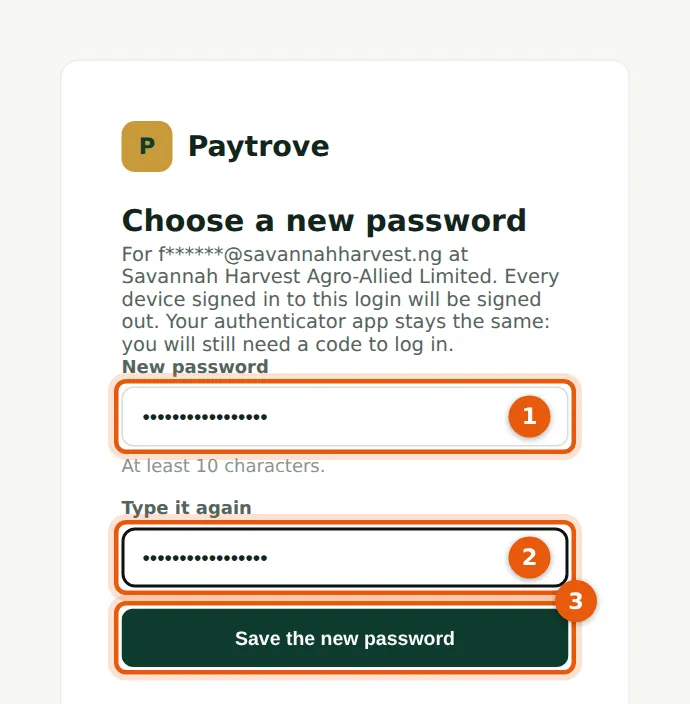
The new password must be at least 10 characters. Saving it signs your login out on every device. Your authenticator app does not change: you still need a code to sign in.
Who
The person resetting their password.
What to do
- Type the new password (1) and type it again (2).
- Choose Save the new password (3), then Log in with the new password and your code.
1.9 The Overview page
Why
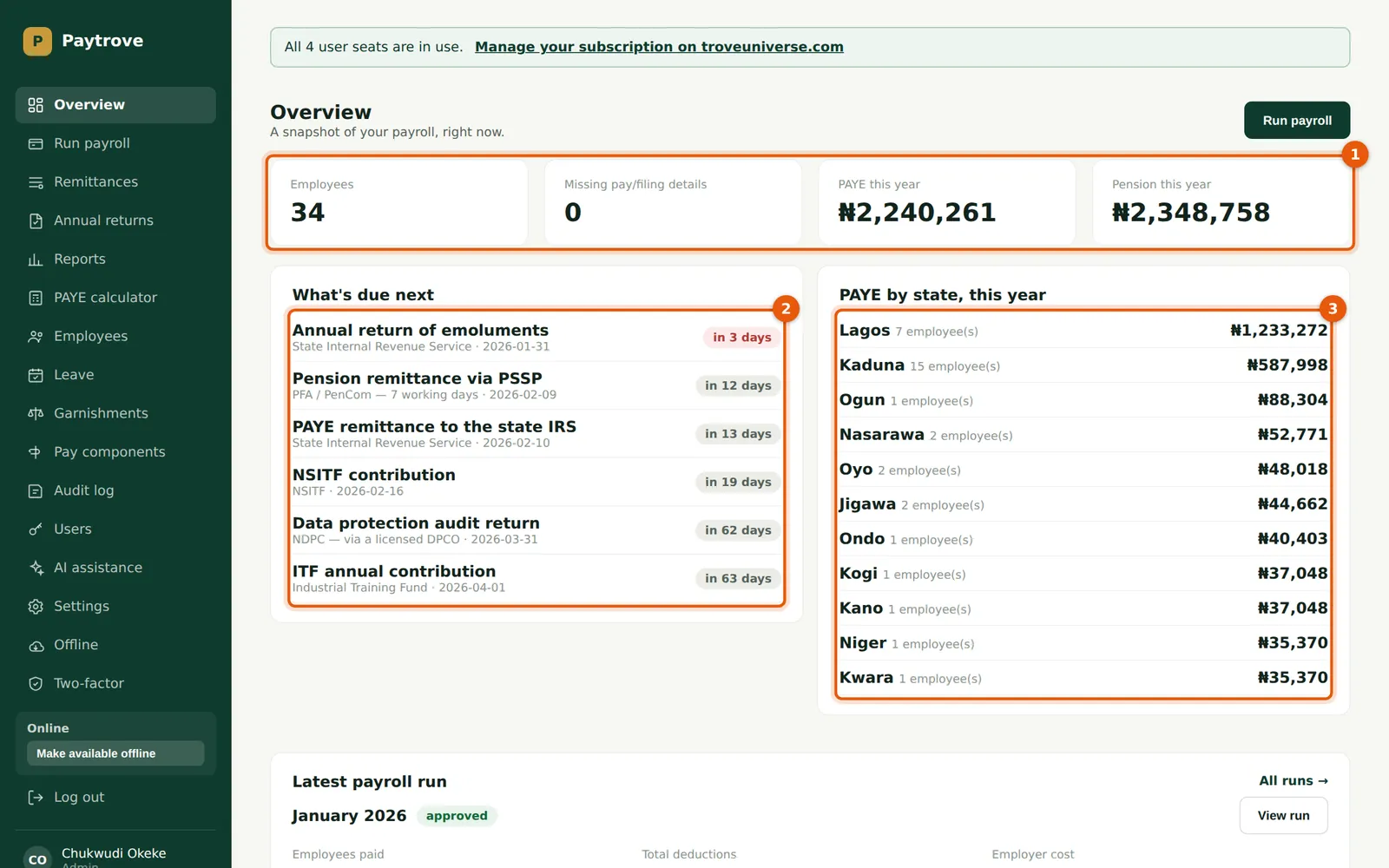
The Overview is the first page staff see after signing in. The menu on the left shows only the pages your role allows. The subscription banner at the top appears when your TroveUniverse plan needs attention (here, all four admin seats bought are in use).
Who
Admins, preparers and viewers.
What to do
- The tiles (1) show the headcount, anyone missing pay or filing details, and PAYE and pension for the year so far.
- What's due next (2) lists statutory deadlines worked out from your approved runs: pension through your PSSP, PAYE to each State Internal Revenue Service, NSITF, ITF and the annual returns.
- PAYE by state (3) shows how much PAYE belongs to each state's IRS this year. Savannah Harvest's staff live in eleven states.
1.10 The latest payroll run on the Overview
Why
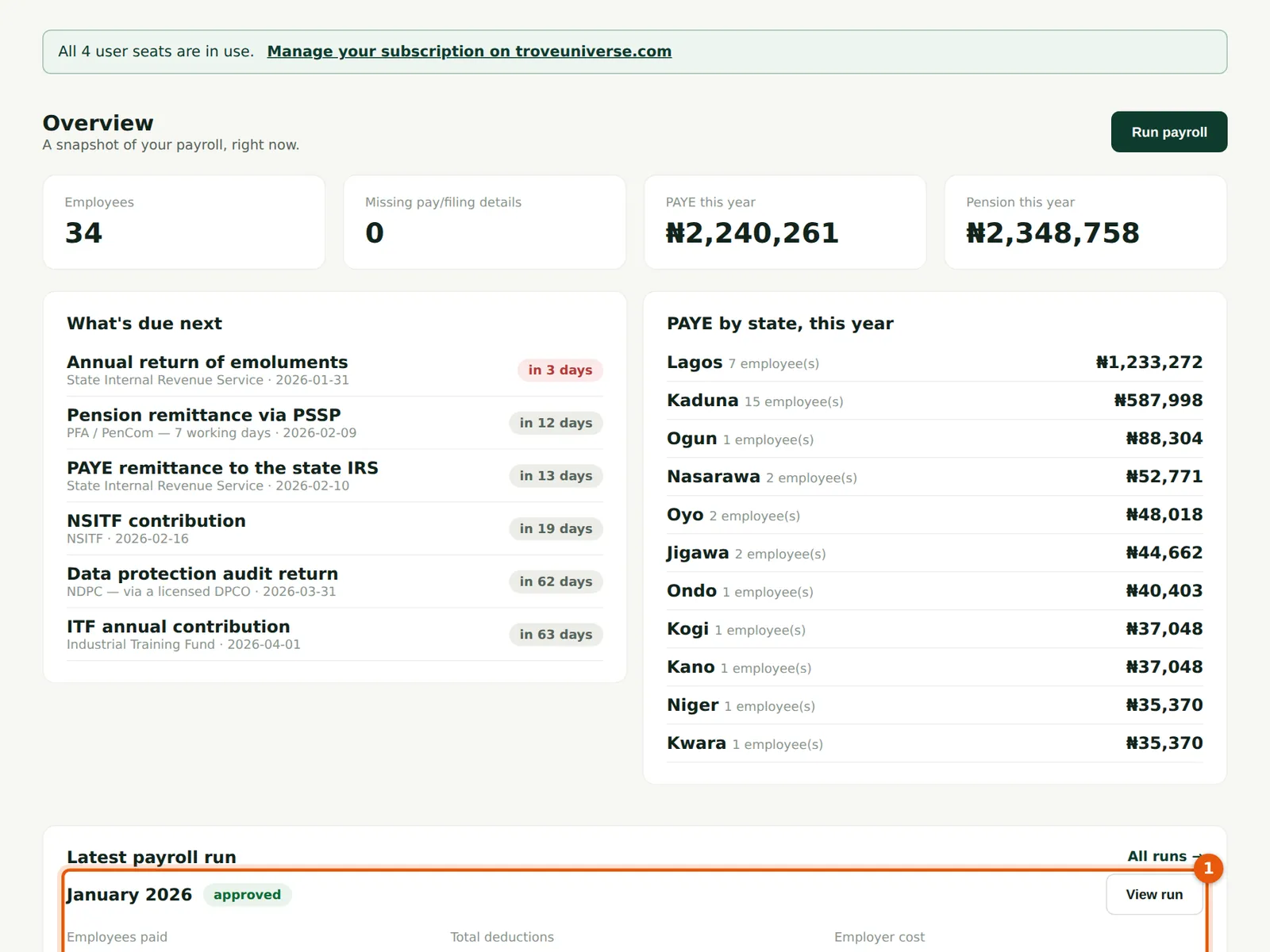
Lower on the Overview, the latest run (1) shows its period, status, employees paid, total deductions and employer cost, with View run to open it and All runs for the list.
Who
Admins, preparers and viewers.
What to do
- Choose View run to open the latest run, or All runs → to see every run.