Steps in this chapter (7)
Add staff and self-service logins with the right roles, and manage two-factor authentication and passwords.
Each person who signs in to PayTrove has their own login and role. Roles are enforced: a Preparer builds payroll runs but cannot approve them, and whoever prepared a run cannot be the person who approves it.
Savannah Harvest's logins: Chukwudi Okeke (Finance Manager) and Aisha Bello (Managing Director) are Admins and approve payroll; Blessing Etim (Payroll & HR Officer) is the Preparer; Funmilayo Adeyemi (Accountant) is a Viewer. Buying officers Grace Ojo and Musa Lawal and export executive Tobi Akinola have employee self-service logins.
3.1 Add a staff login
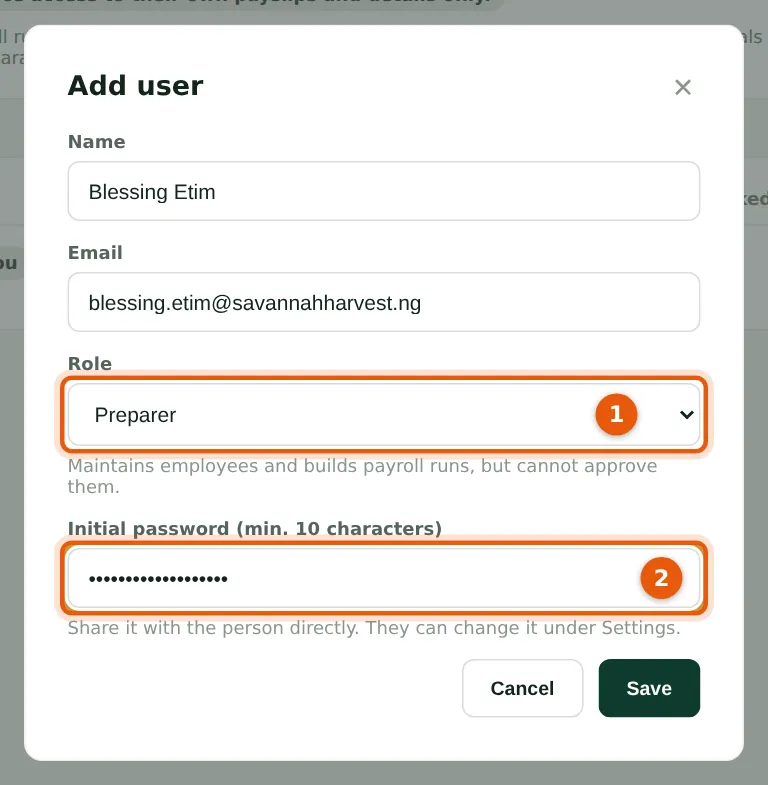
Why
Every login except employee self-service uses one admin seat on your TroveUniverse subscription (chapter 15). Choose the role that matches the person's job, not the most powerful one.
Who
Admin.
What to do
- Open Users and choose Add user. Enter the person's name and work email.
- Choose the role (1). The description under the list says what the role can do.
- Enter an initial password of at least 10 characters (2) and choose Save. Give the password to the person directly (not in the same email as the address); they will set up two-factor at their first sign-in and can change the password under Settings.
3.2 The users list and the four roles
Why
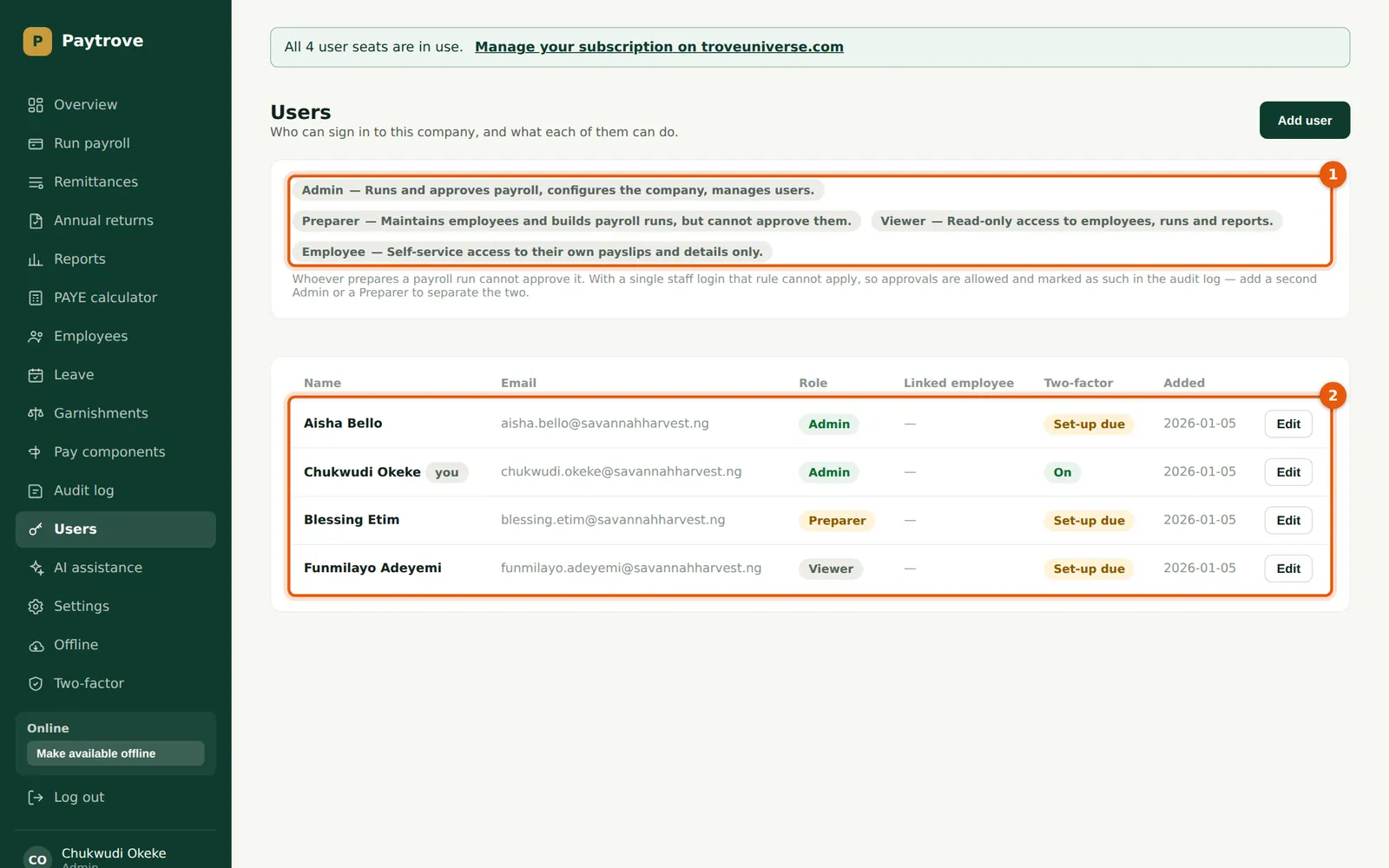
The four roles are shown at the top (1). Admin runs and approves payroll, configures the company and manages users. Preparer maintains employees and builds payroll runs but cannot approve them. Viewer has read-only access to employees, runs and reports. Employee is self-service: their own payslips, leave and contact details only.
Who
Admin.
What to do
- Check each person's role and two-factor status (2). 'Set-up due' means they have not signed in yet.
- Use Edit to change a role, reset a password (it signs the person out everywhere) or remove a login. Nobody can demote or remove themselves, and the last Admin cannot be removed.
- If your company has only one staff login, PayTrove allows that person to approve their own runs and records it in the audit log. Add a second Admin or a Preparer to separate the two.
3.3 Change a login's role, reset its password or remove it
Why
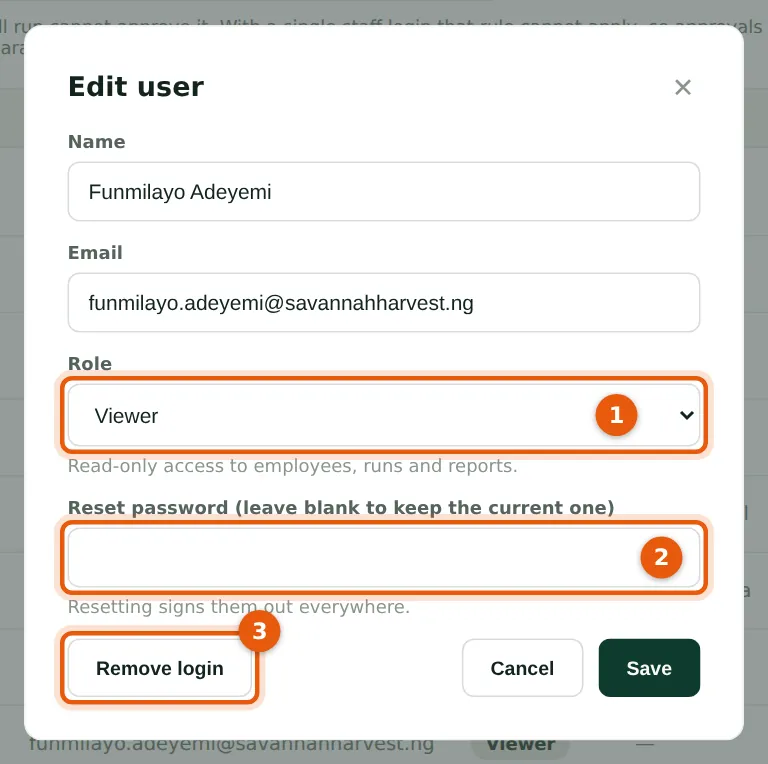
Editing a login lets an Admin change the role (1), set a new password (2) — which signs the person out everywhere — or remove the login (3). Changing a self-service login to a staff role uses an admin seat.
Who
Admin.
What to do
- On Users choose Edit on the person's row.
- Change the role (1) if their job has changed.
- To reset a forgotten password for them, type a new one (2) and give it to them directly; leave it blank to keep the current password.
- Choose Remove login (3) when someone leaves the company. Their employee record and payslips are kept.
3.4 Give an employee self-service access
Why
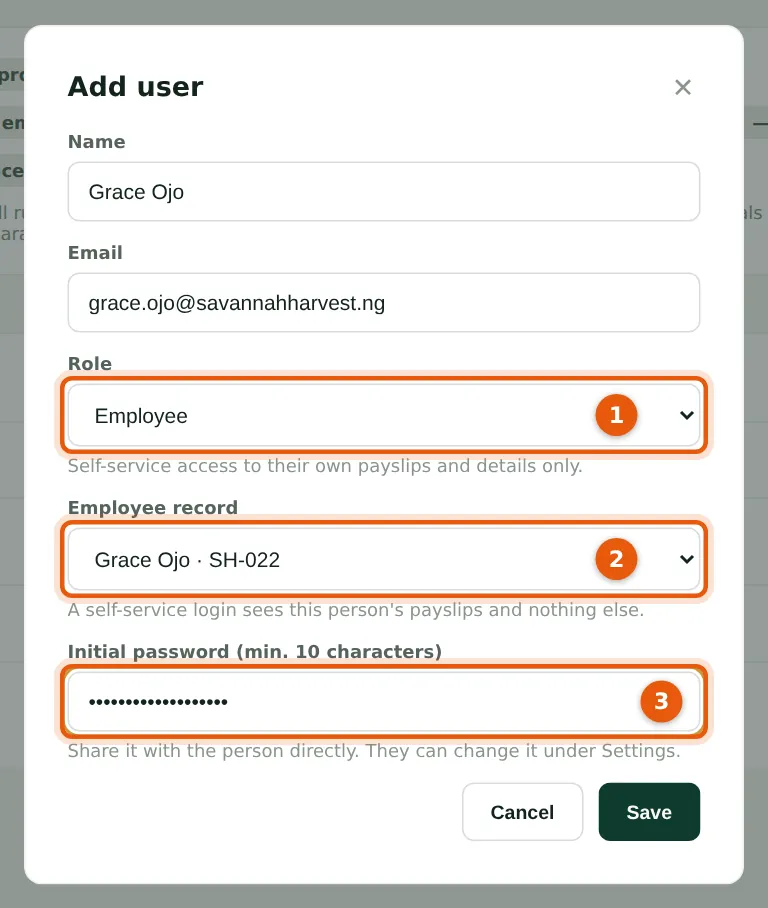
Self-service logins are free: they do not use an admin seat. The employee sees their own payslips, leave balance and requests, and can update their contact details — nothing else.
Who
Admin.
What to do
- Choose Add user and enter the employee's name and email.
- Choose the role Employee (1) and pick their employee record (2).
- Enter an initial password (3) and choose Save.
3.5 Reset someone's two-factor
Why
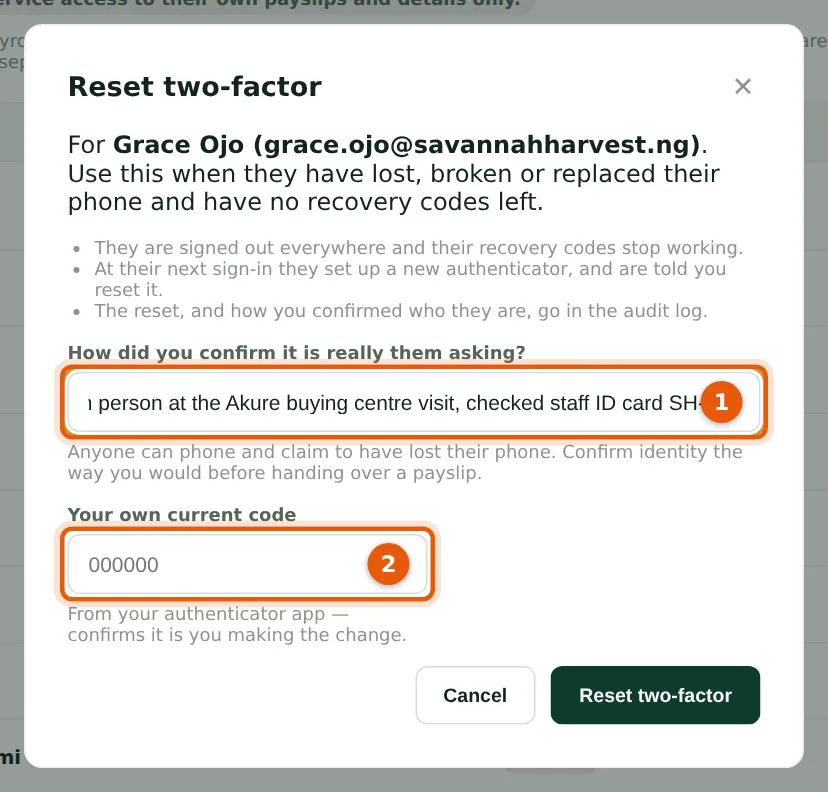
Anyone can telephone and claim to have lost their phone, so PayTrove asks how you confirmed the person's identity and asks for your own current code. The person is signed out everywhere, their recovery codes stop working, and at their next sign-in they set up a new authenticator and are told who reset it. The reset is recorded in the audit log.
Who
Admin (never for their own login).
What to do
- On Users choose Reset 2FA on the person's row.
- Record how you confirmed who they are (1), for example in person with their staff ID card.
- Enter your own current code (2) and choose Reset two-factor.
- If your company's only Admin loses both phone and recovery codes, contact TroveUniverse support: the reset then has to be done by the platform operator after checking identity.
3.6 Your own two-factor page
Why
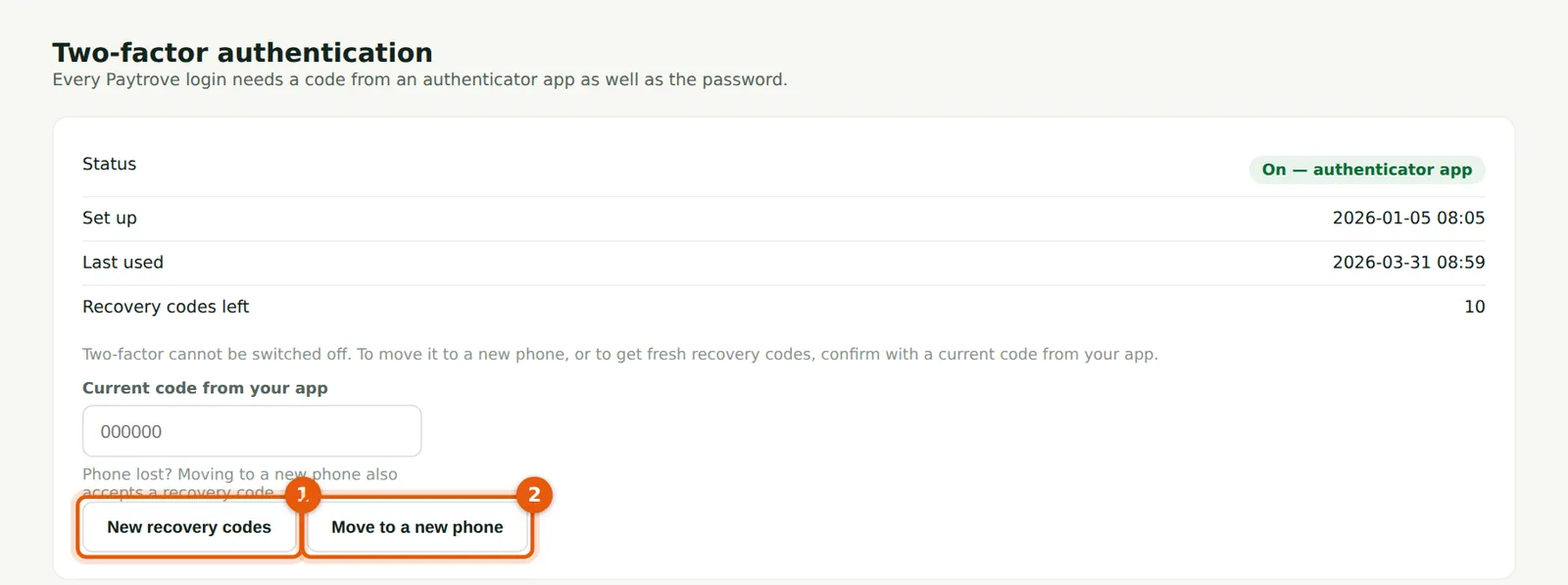
Every user can see when their two-factor was set up and last used, and how many recovery codes are left.
Who
Every user.
What to do
- To get a fresh set of recovery codes, enter your current code and choose New recovery codes (1). The old codes stop working.
- Changing phones? Enter your current code and choose Move to a new phone (2), then scan the new QR code with the new phone.
3.7 Change your own password
Why
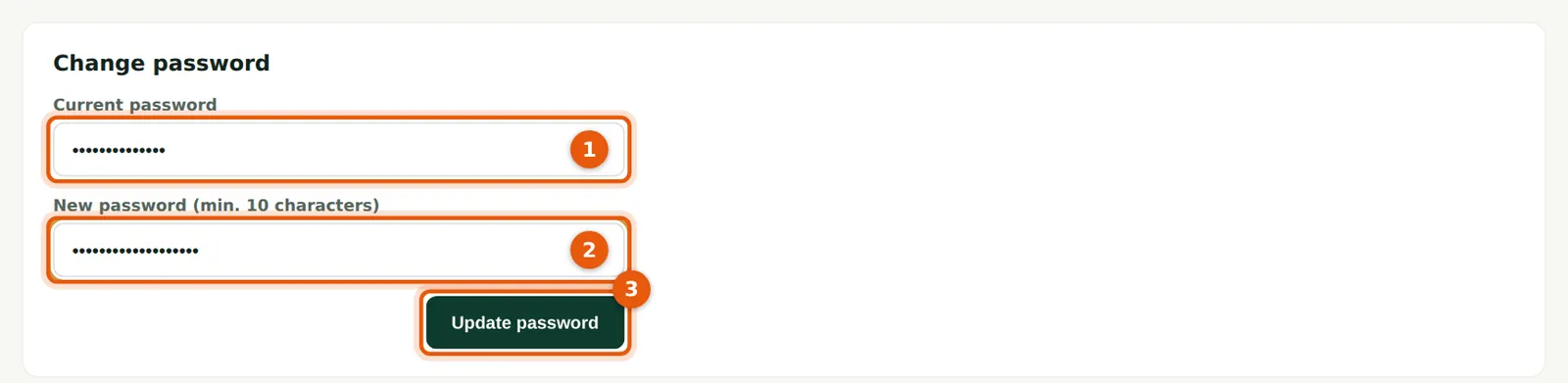
Every user with a password can change it at the bottom of Settings. The new password must be at least 10 characters; changing it signs out your other sessions.
Who
Every user with a password login.
What to do
- Enter your current password (1) and the new password (2), and choose Update password (3).