Steps in this chapter (8)
The tracker of every piece of work: filters and views, a piece of work and its statuses, my work, the calendar, work by person, one-off work and bulk changes.
Every piece of work has a client, a due date, a person responsible, usually a reviewer, and a status: not started, in progress, waiting on client, in review, completed, filed or delivered, not applicable or cancelled. Regular work comes from the clients' services and is planned automatically, every hour, for every period up to the planning horizon; one-off work is added by hand.
Who can do what: staff update the work they are responsible for or review; managers, partners and administrators also assign, re-date and change any work. Work that needs review is completed only by its reviewer, or by a manager who is not the person responsible (chapter 10).
8.1 The tracker
Why
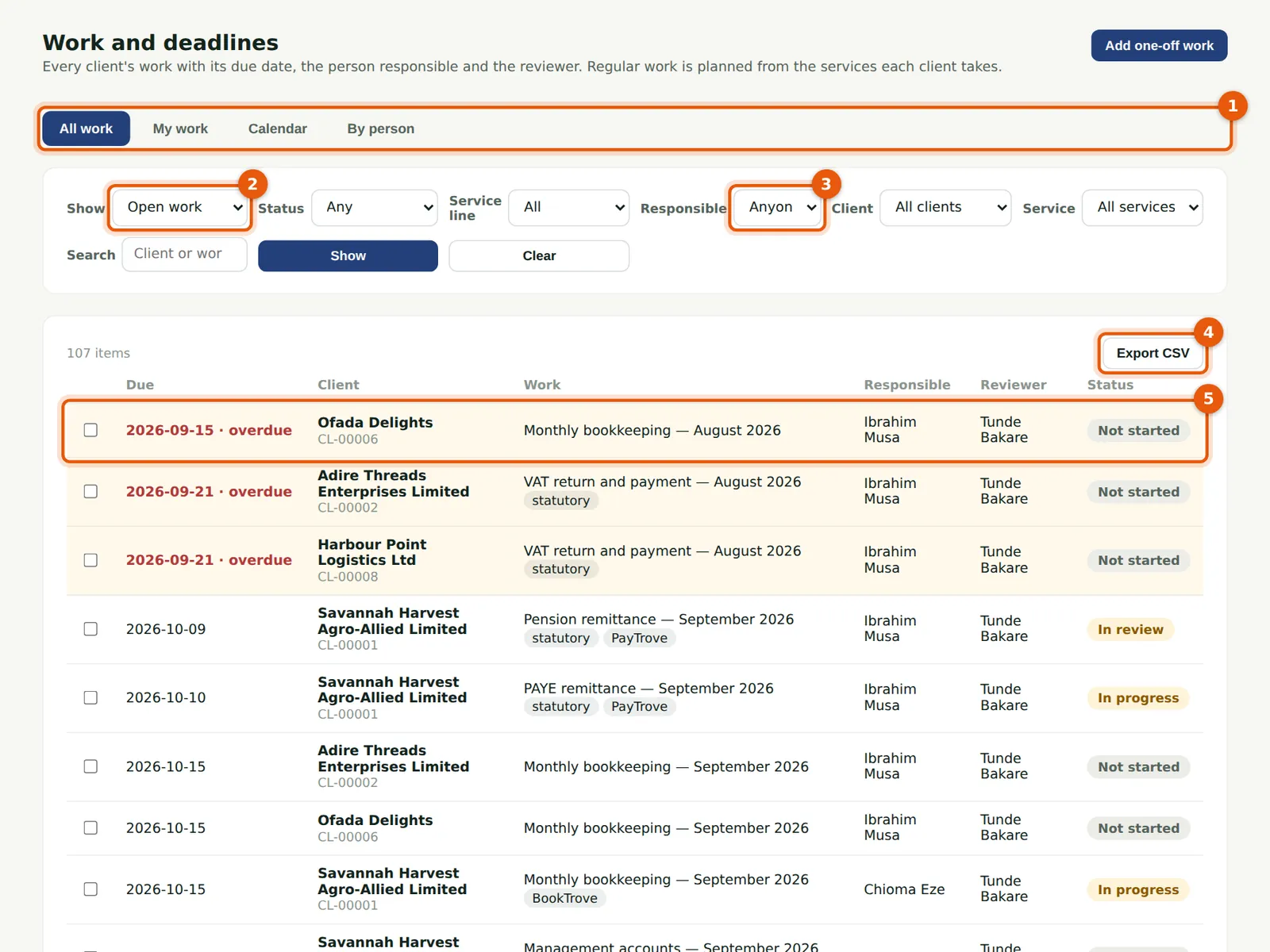
Views (1): all work, my work, a calendar and by person. Show (2) picks open work, overdue, due soon, open without a due date, not assigned, finished or everything; filter by status, service line, the person responsible (3), client or service, or search. Overdue rows are shaded (5). Export CSV (4) downloads the list.
Who
Everyone with access to work.
What to do
- Choose Work and deadlines in the menu.
- Choose the view and filters. The address keeps them, so a link opens the same list.
- Choose a row to open the piece of work.
8.2 A piece of work
Why
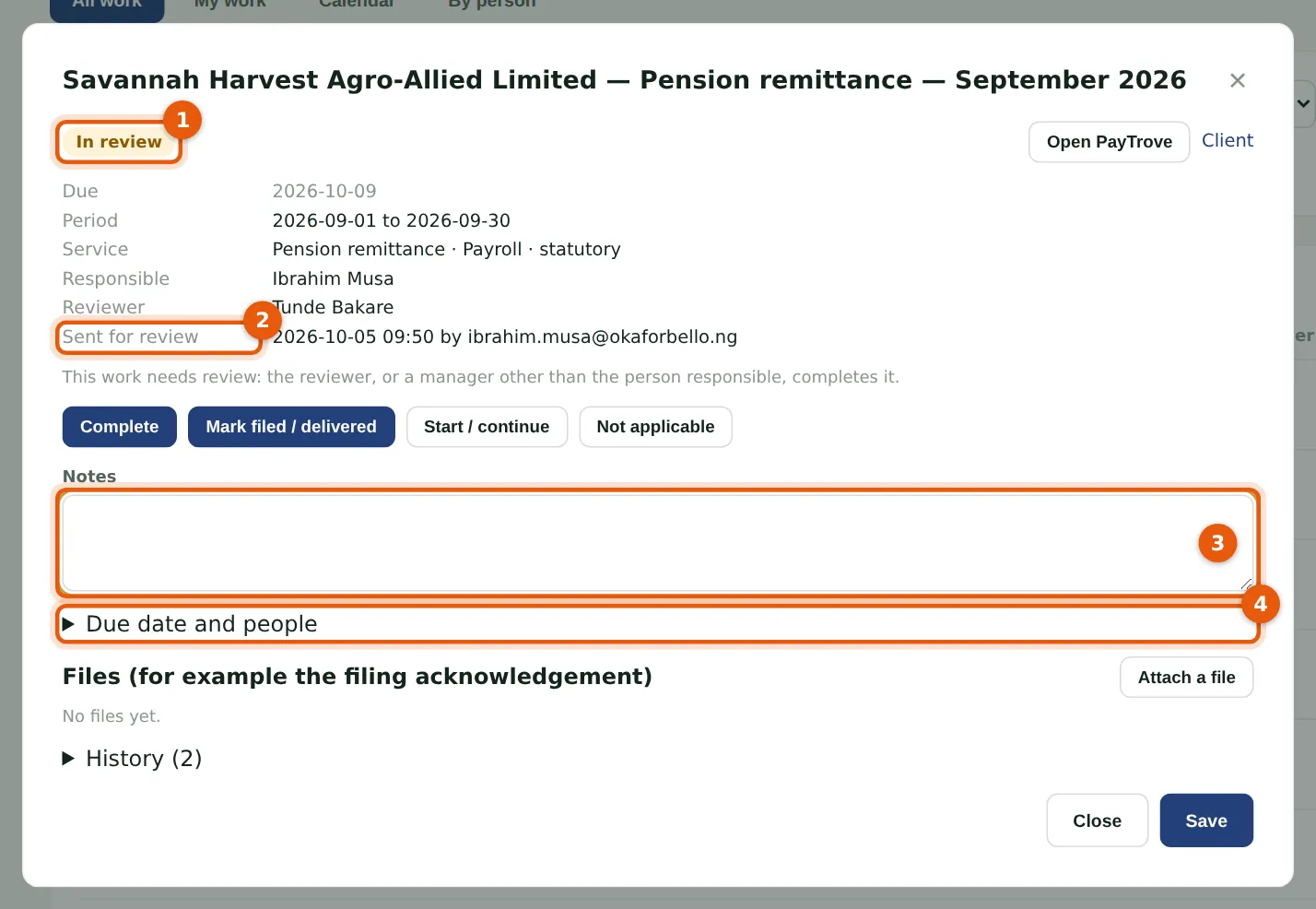
The piece of work shows its status (1), due date, period, service, the person responsible and the reviewer, and when it was sent for review (2). The buttons move it on. Notes (3) are kept with it. Due date and people (4) re-dates or re-assigns it (managers and above). Files keeps the working papers or the filing acknowledgement; History lists every change.
Who
Everyone with access to work.
What to do
- Open the piece of work.
- Choose a button to change its status, add a note, attach a file, or change the due date and people.
- Choose Save to keep notes and changes; status buttons save at once.
8.3 My work
Why
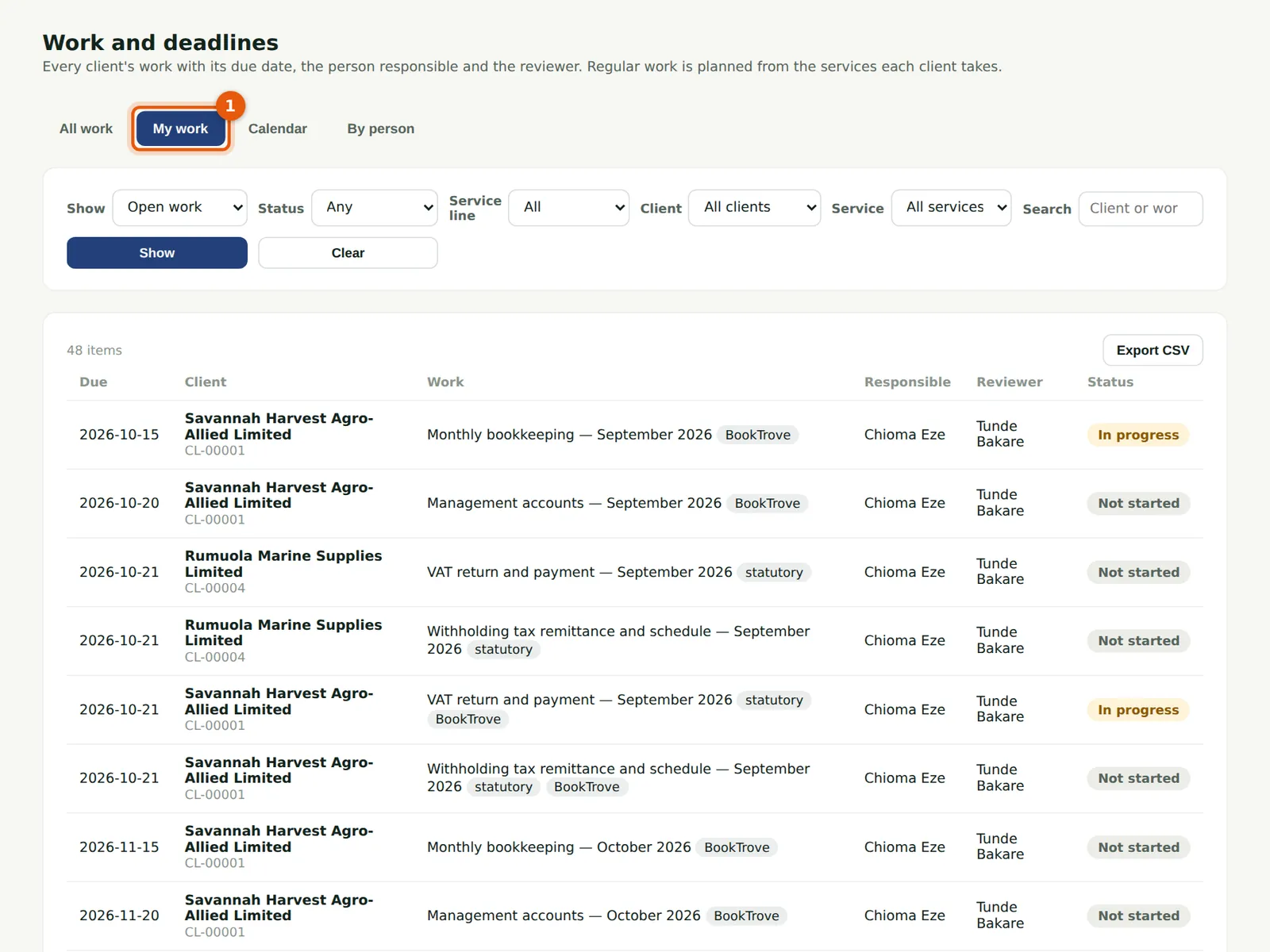
My work (1) lists what you are responsible for and the work waiting for your review, by due date. It is where the reminders take you.
Who
Everyone.
What to do
- Choose My work in the menu, or the My work tab.
8.4 The calendar
Why
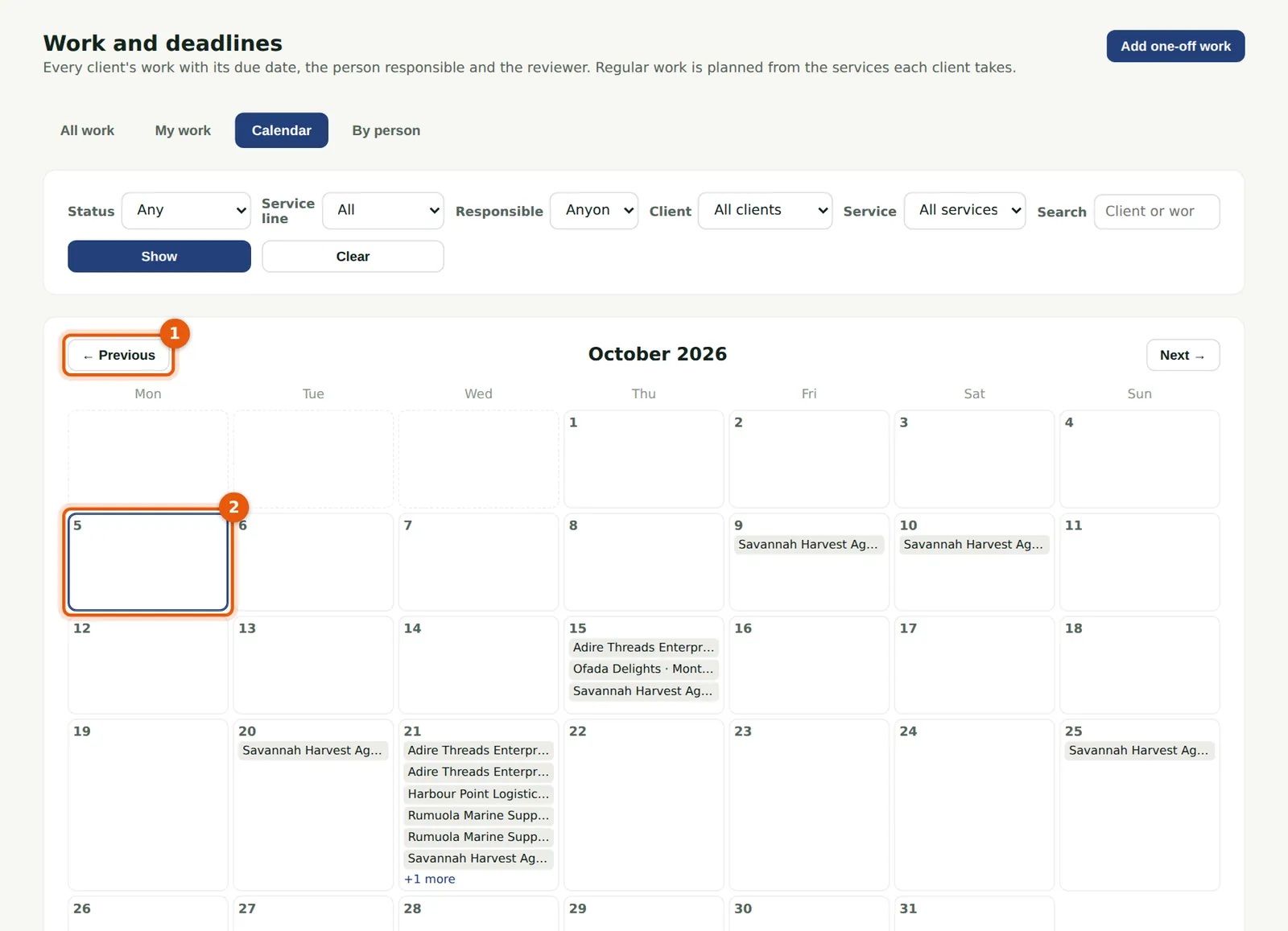
The calendar shows the month's work by due date; today is outlined (2). Overdue work is red and finished work grey. Move between months with Previous (1) and Next.
Who
Everyone with access to work.
What to do
- Choose the Calendar tab.
- Choose an item to open it; +n more lists the rest of a busy day.
8.5 Work by person
Why
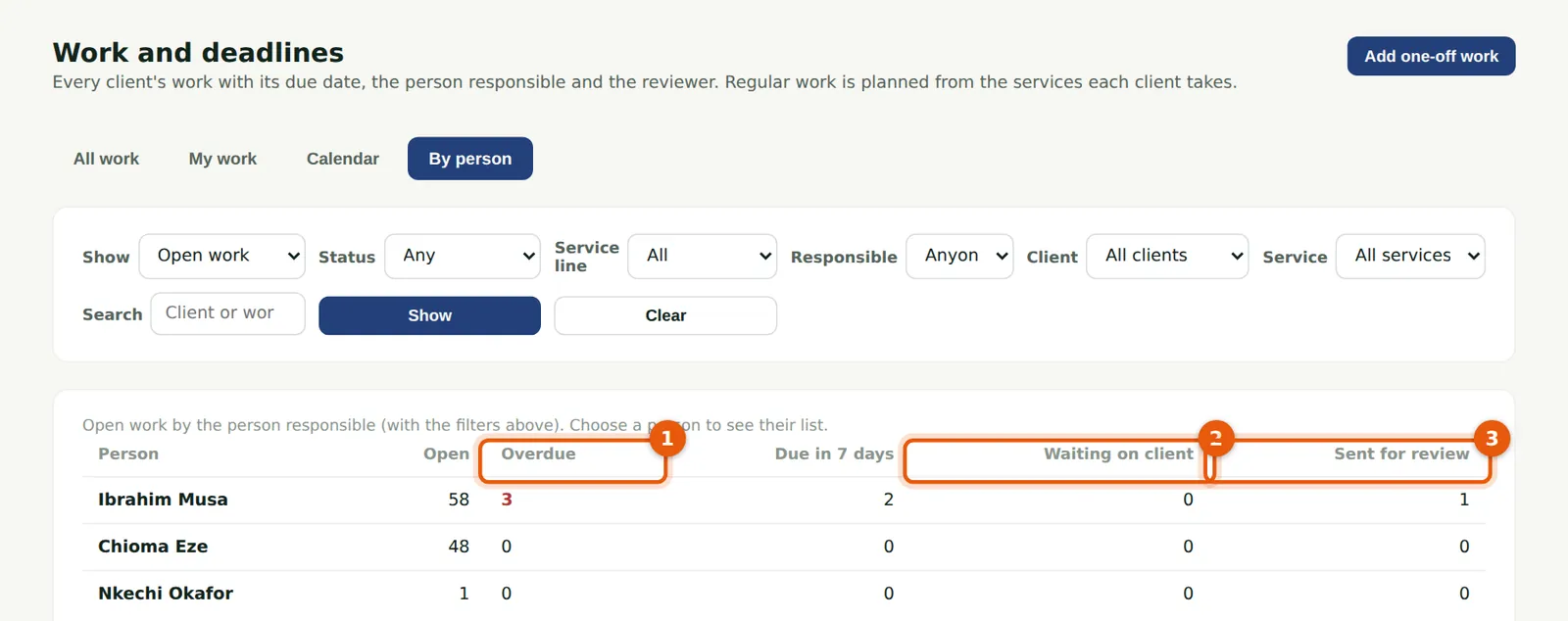
By person shows each person's open work, how much is overdue (1), due in 7 days, waiting on client (2) and sent for review (3) — for spreading the load before deadlines are missed.
Who
Everyone with access to work.
What to do
- Choose the By person tab.
- Choose a person to see their list.
8.6 One-off work
Why
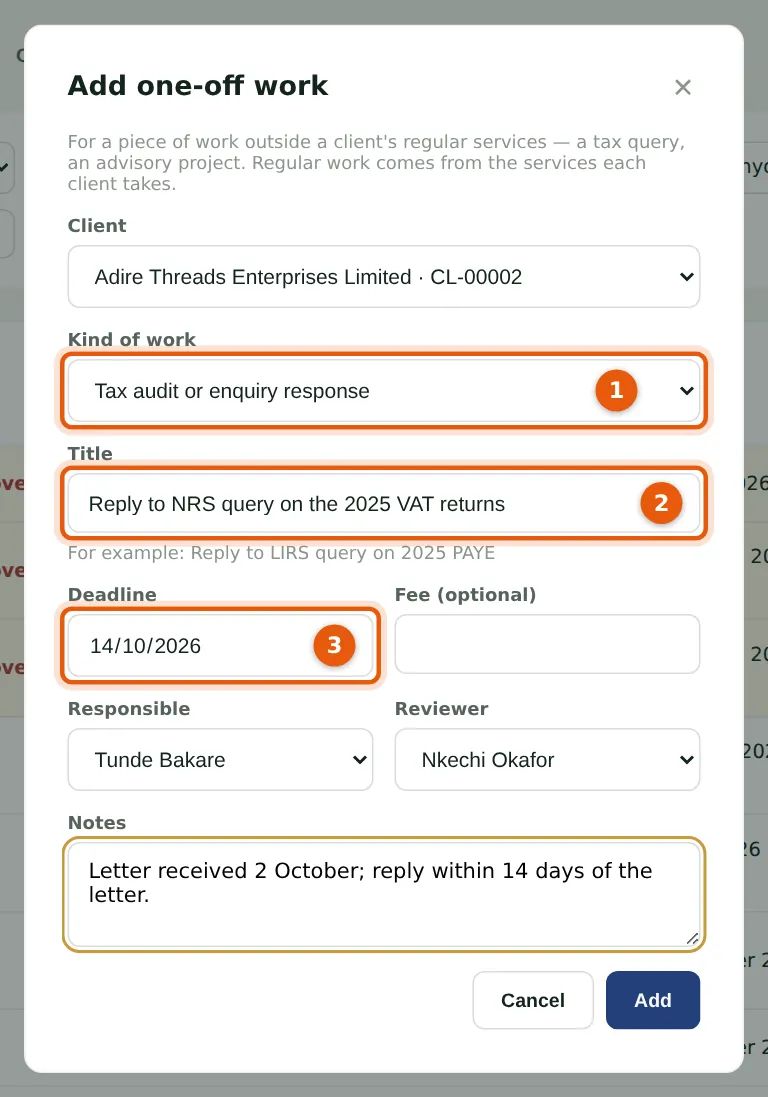
Adire Threads has received a query from the Nigeria Revenue Service about its 2025 VAT returns. Work outside a client's regular services is added as one-off work, of a kind (1) whose rule is "set by hand": a tax audit or enquiry response, or an advisory project. Give it a title (2) and the deadline in the letter (3).
Who
Manager, partner, practice administrator or owner.
What to do
- Choose Add one-off work.
- Choose the client and the kind of work (1), and enter the title (2) and deadline (3).
- Choose the person responsible and the reviewer, add a note, and choose Add.
8.7 Change several pieces of work at once
Why
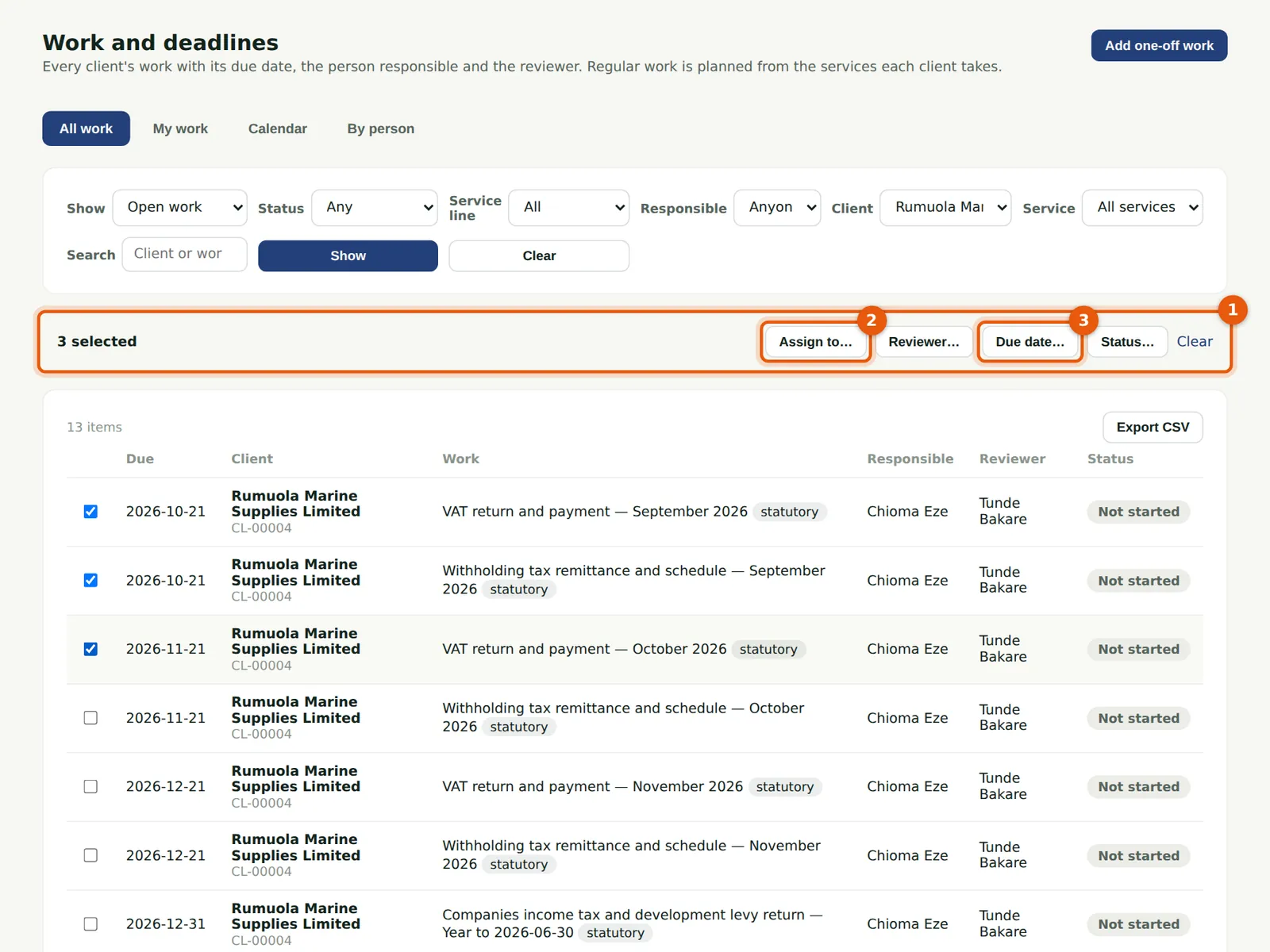
Chioma Eze is on leave until 30 October. Tunde Bakare selects her open work for Rumuola Marine; a bar (1) offers Assign to… (2), Reviewer…, Due date… (3) and Status….
Who
Manager, partner, practice administrator or owner.
What to do
- Tick the pieces of work to change.
- Choose what to change in the bar.
8.8 Assign them to someone else
Why
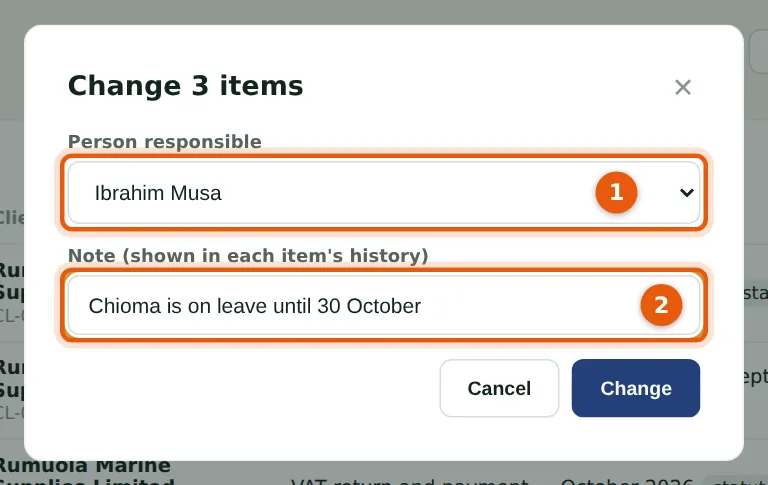
The new person responsible (1) takes all three; the note (2) goes into each item's history. Work that cannot change — for example finished work, or work in review without a reviewer — is left as it was, and PracticeTrove lists it with the reason.
Who
Manager, partner, practice administrator or owner.
What to do
- Choose the person (1), add a note (2) and choose Change.