Steps in this chapter (7)
Record the firm's details, registration numbers and quality management policies, your own profile, password, signed-in devices and two-factor settings.
The firm's settings are printed on the transparency report and the inspection pack, and they drive several of SQMTrove's rules: when the annual evaluation is due, how often each engagement partner is inspected, when a file is assembled late, which engagements need an engagement quality review and whether the Nigerian rules on rotation and non-assurance fees apply.
Okafor Bello & Co's quality-management year runs from 1 July to 30 June, so its evaluation date is 30 June. It inspects each engagement partner at least every three years and assembles files within 60 days of the report date.
2.1 Record the firm's details
Why
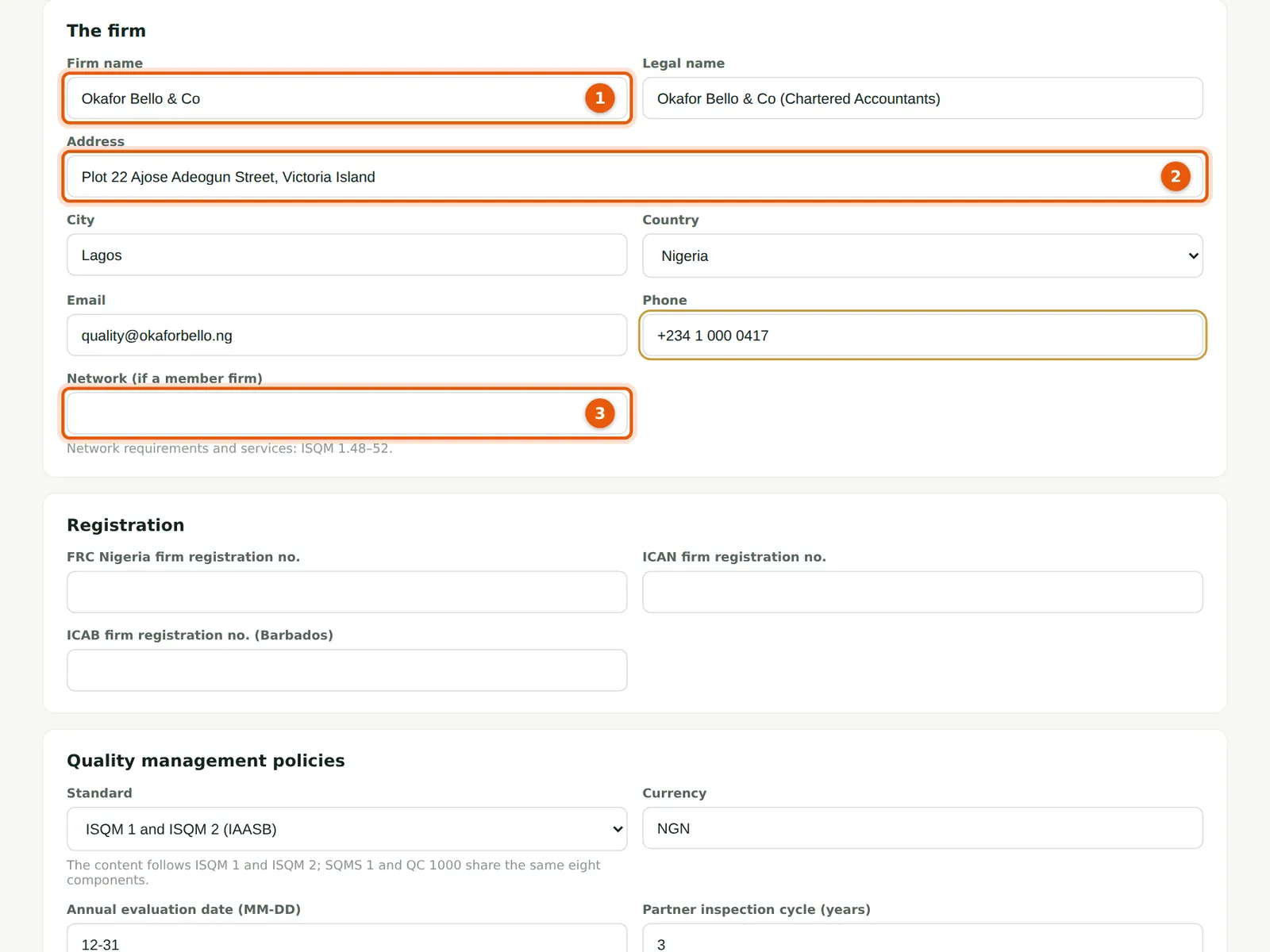
The firm name (1) appears on every page and report. The address (2) and contact details are printed on the transparency report and inspection pack. If the firm belongs to a network, name it (3): ISQM 1.48–52 then requires the firm to consider network requirements and services in its system.
Who
Owner, firm administrator or quality lead.
What to do
- Open Settings and stay on the Firm tab. Enter the firm name (1), legal name and address (2), city, country, email and phone.
- Enter the network (3) only if the firm is a member of one. Okafor Bello & Co is not.
2.2 Registration numbers and quality management policies
Why
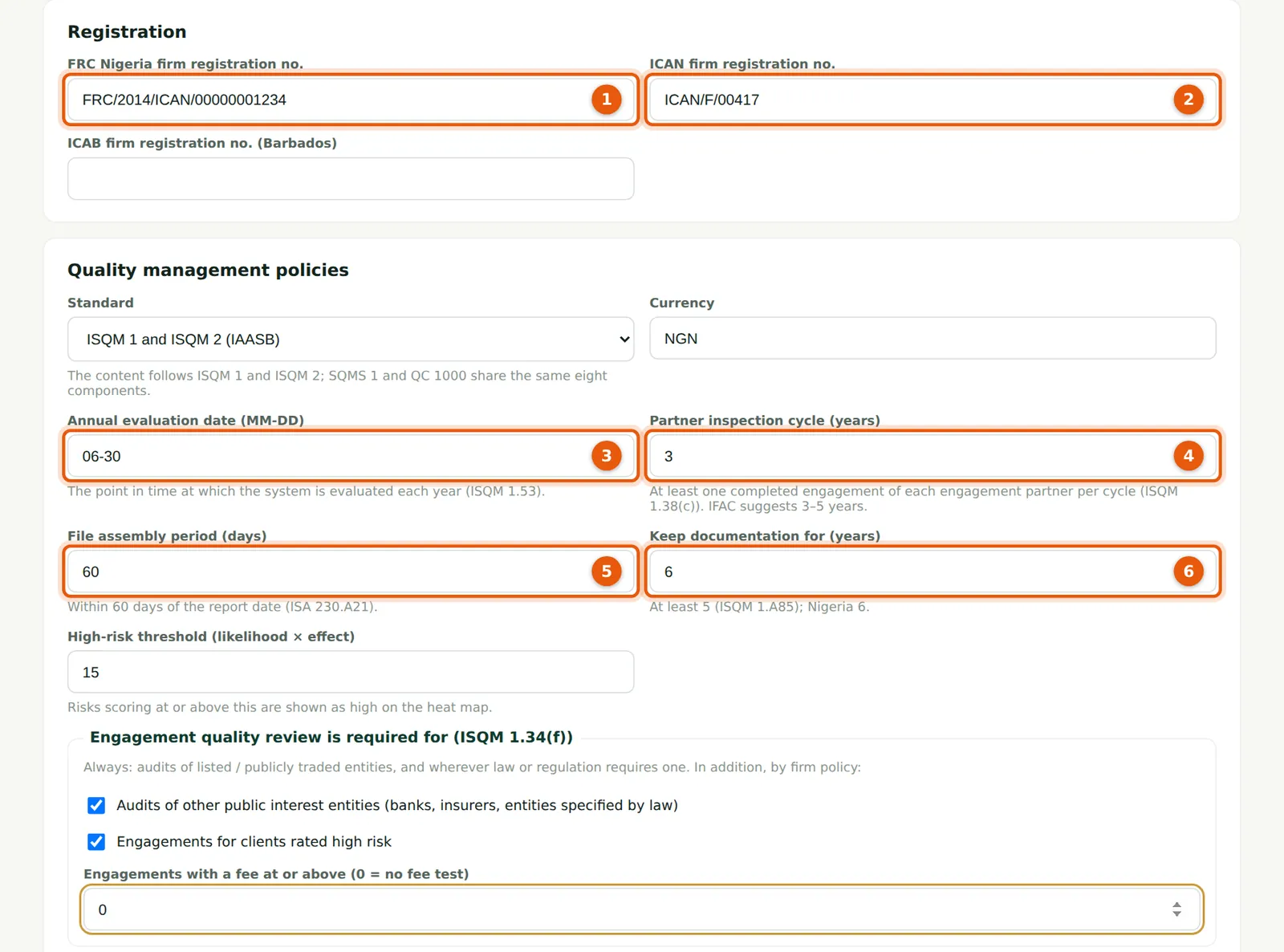
The FRC firm registration number (1) and the ICAN firm number (2) identify the firm to its regulators (use the ICAB number for a Barbados practice). The annual evaluation date (3) is the point in time at which the individual with ultimate responsibility evaluates the system each year (ISQM 1.53). The partner inspection cycle (4) drives the partner cycle report (ISQM 1.38(c)). The file assembly period (5) is used to raise a finding automatically when a file is assembled late (ISA 230.A21). The retention period (6) records how long documentation is kept.
Who
Owner, firm administrator or quality lead.
What to do
- Enter the FRC Nigeria firm registration number (1) and ICAN firm registration number (2). All numbers in the illustration are fictional.
- Enter the evaluation date as month-day (3); Okafor Bello & Co uses 06-30.
- Enter the partner inspection cycle in years (4), the file assembly period in days (5) and the retention period in years (6).
2.3 High-risk threshold, engagement quality reviews and the Nigerian rules
Why
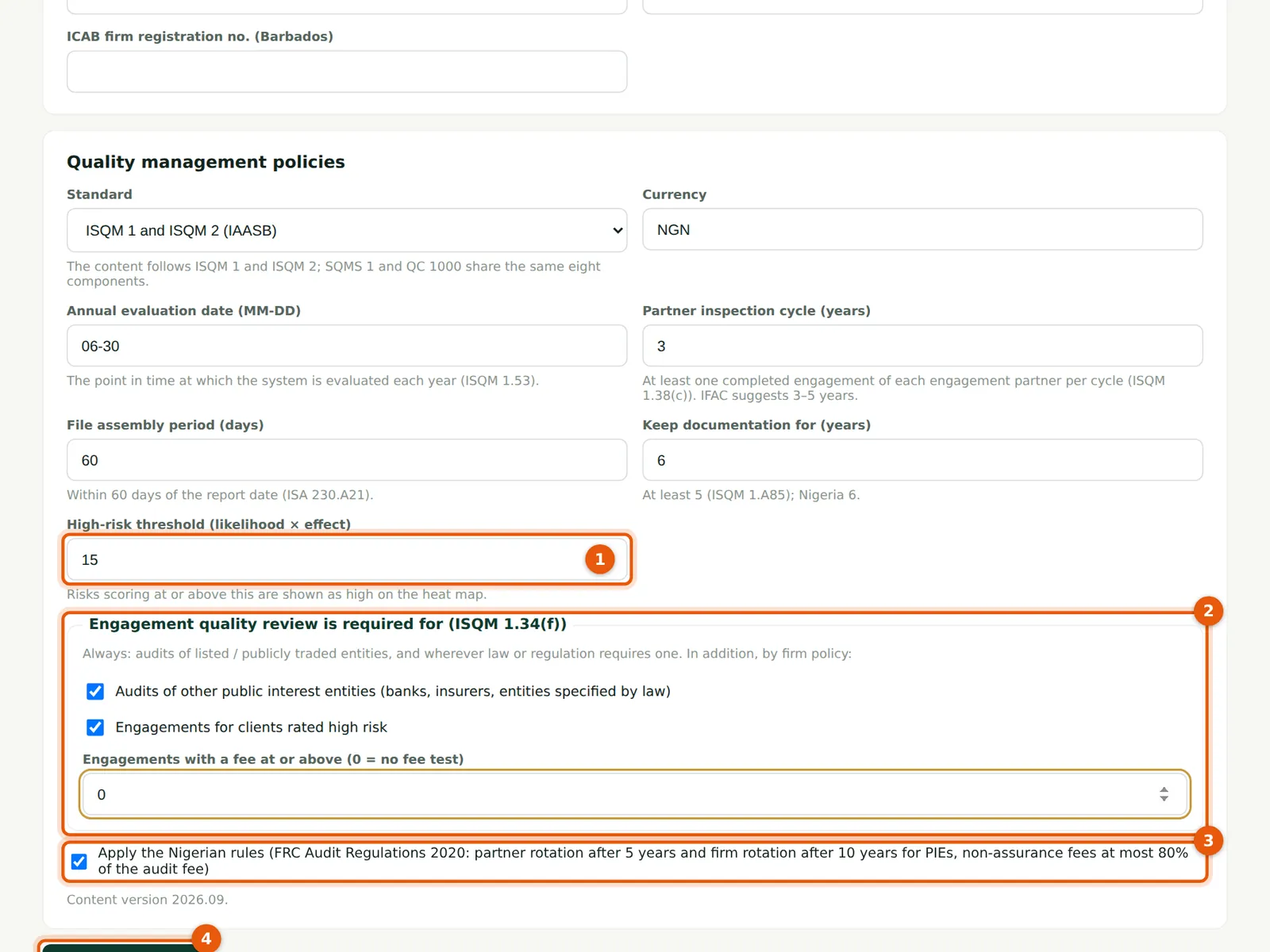
Quality risks are scored likelihood × effect on a 1–5 scale; risks at or above the threshold (1) are shown as high. An engagement quality review is always required for audits of listed or publicly traded entities and wherever law or regulation requires one (ISQM 1.34(f)(i)–(ii)); the firm adds its own policy (2): other public interest entities, high-risk clients, or engagements above a fee. With the Nigerian rules on (3), SQMTrove checks the FRC Audit Regulations 2020 limits for Nigerian public interest entities: engagement partner rotation after five years, firm rotation after ten years and non-assurance fees of at most 80% of the audit fee.
Who
Owner, firm administrator or quality lead.
What to do
- Enter the high-risk threshold (1). Okafor Bello & Co uses 15, so only risks scored 15 or more (for example 3 × 5, 4 × 4) are high.
- Tick the firm-policy reasons for an engagement quality review (2). Enter 0 for no fee test.
- Keep Apply the Nigerian rules ticked (3) for a Nigerian firm.
- Choose Save firm settings (4).
2.4 Your own profile
Why
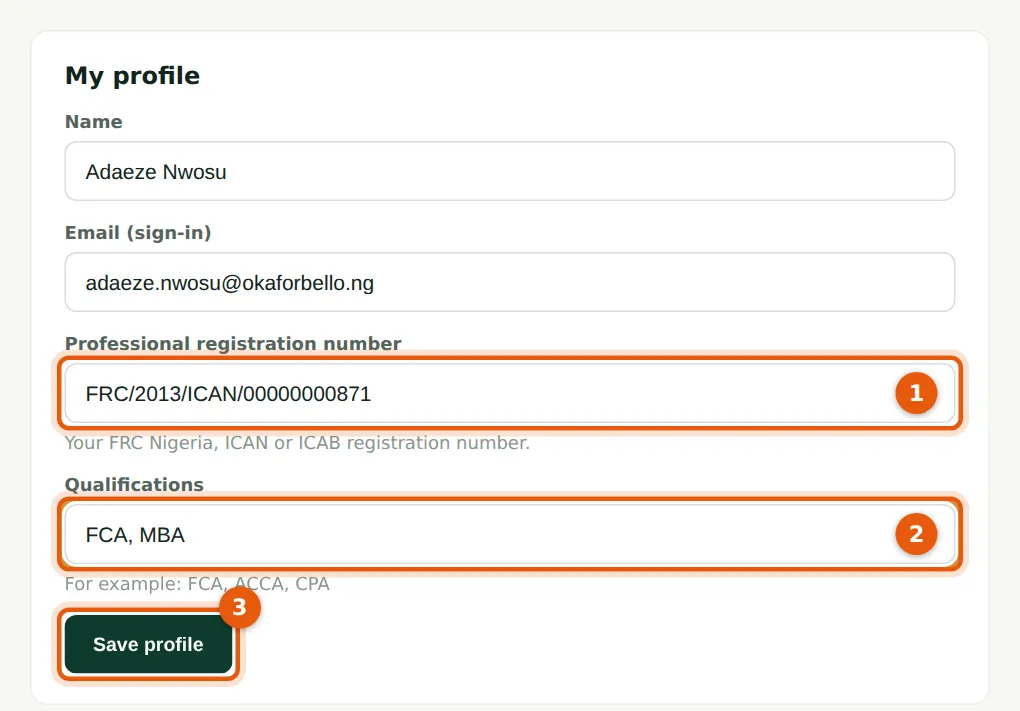
Your name, professional registration number (1) and qualifications (2) identify you in sign-offs and the audit trail. The email address is your sign-in and cannot be changed here.
Who
Everyone.
What to do
- Enter your FRC, ICAN or ICAB number (1) and qualifications (2).
- Choose Save profile (3).
2.5 Change your password
Why
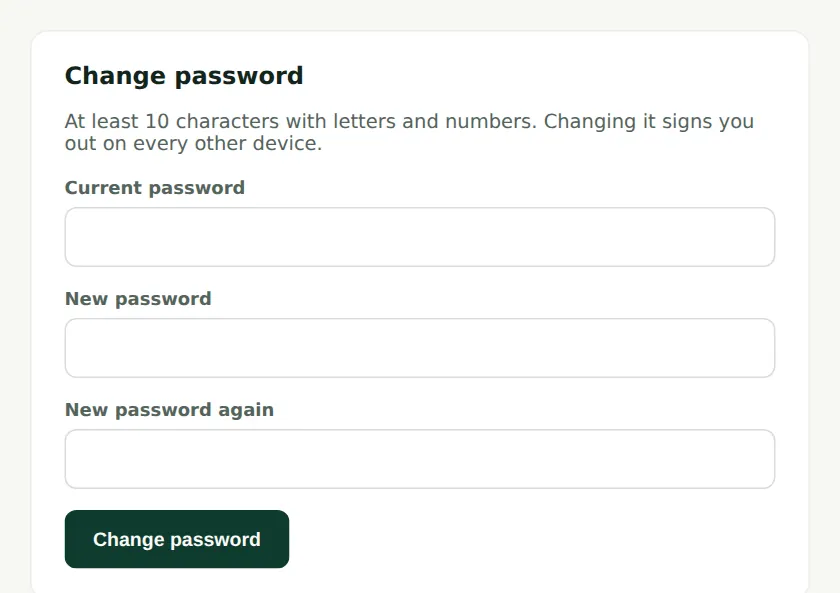
Changing your password signs you out on every other device. Use it if you think someone else may know your password.
Who
Everyone with a password login.
What to do
- Type your current password, then the new one twice, and choose Change password.
2.6 Signed-in devices
Why
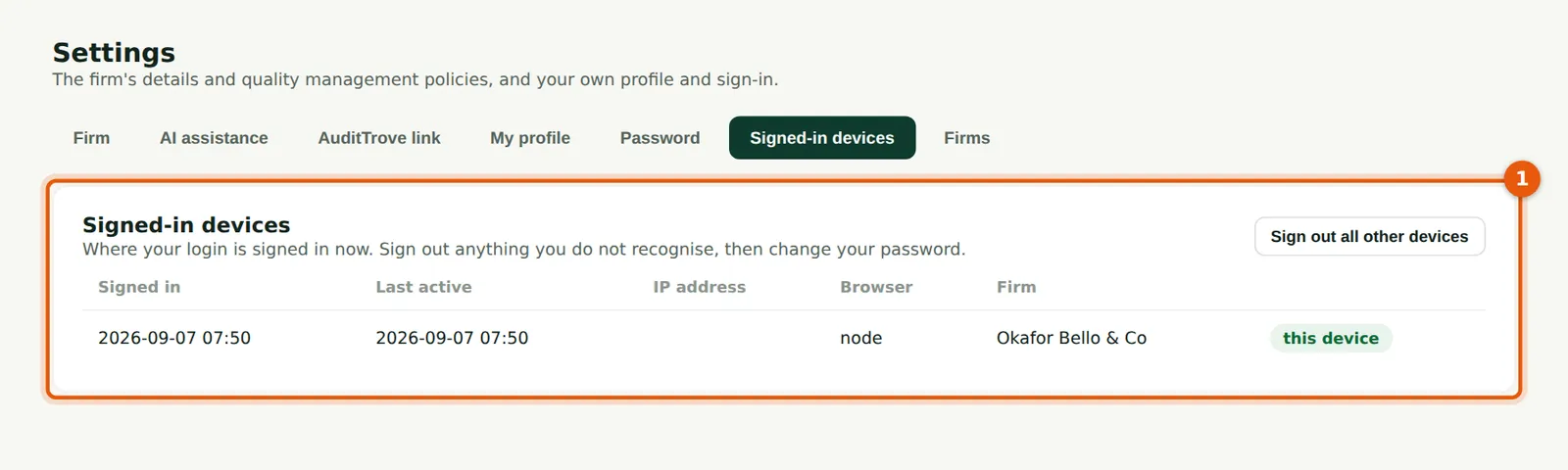
The list shows each browser signed in with your login, when it was last used and from where. If you lose a laptop or signed in on a shared computer, sign that device out here.
Who
Everyone.
What to do
- Choose Sign out next to a device, or Sign out all other devices.
2.7 Your two-factor settings
Why
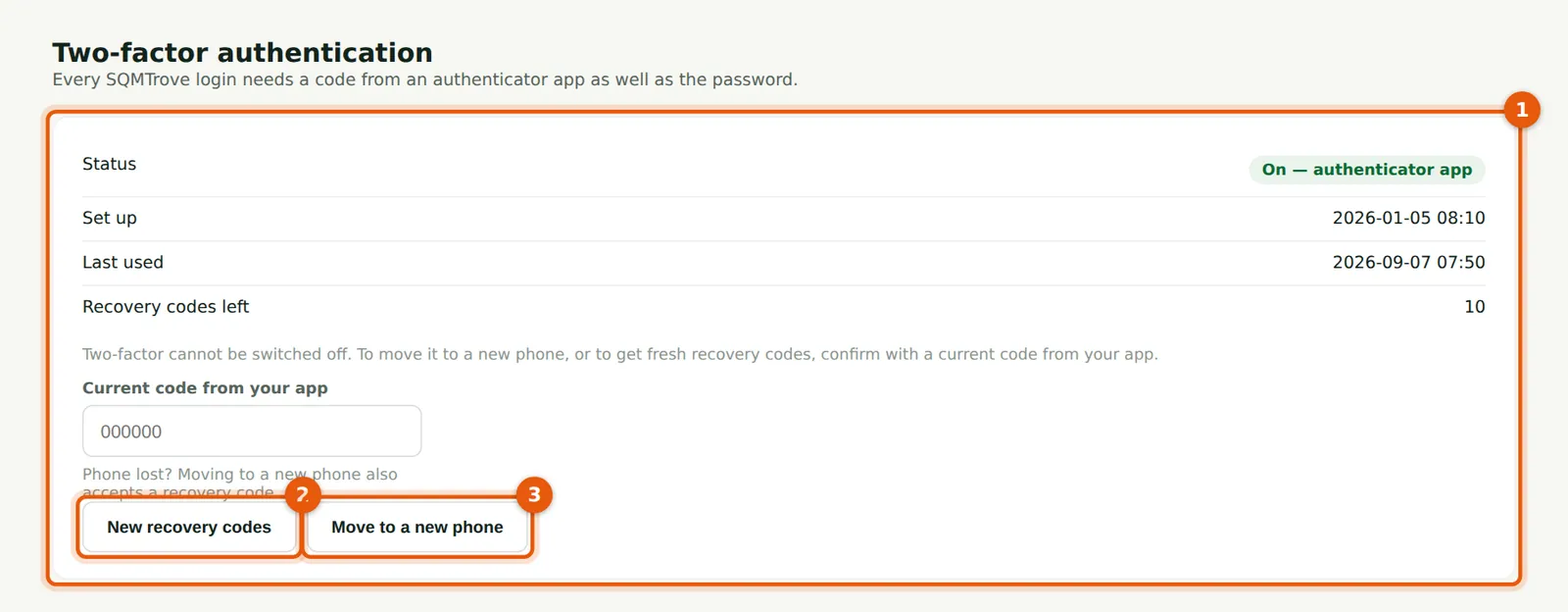
The Two-factor page (1) shows when two-factor was set up and how many recovery codes are left. Two-factor cannot be switched off. New recovery codes (2) replaces the old ones; Move to a new phone (3) links a new authenticator app.
Who
Everyone.
What to do
- To get fresh recovery codes, type a current code from your app and choose New recovery codes (2).
- When you change phones, type a current code (or, if the old phone is lost, a recovery code) and choose Move to a new phone (3), then scan the new QR code.