Steps in this chapter (14)
Add partners and staff with the right roles, understand the permission matrix, create a custom role, give a regulator read-only access, reset two-factor, and manage the seats in your TroveUniverse plan.
Each person has their own login and a firm role. Roles follow the responsibilities of ISQM 1: the Owner holds ultimate responsibility, the quality lead operational responsibility, the ethics and independence partner and the monitoring and remediation lead their own areas. Engagement partners, managers and staff see what they need for their engagements and their own declarations, CPD and tasks.
Okafor Bello & Co's logins: Adaeze Nwosu (Owner), Emeka Obi (Quality lead), Hauwa Abdullahi (Ethics & independence partner), Kunle Adebayo (Monitoring & remediation lead), Ifeoma Chukwu (Firm administrator), five engagement partners, two managers and three staff. Zainab Sule, an external ISQM adviser, has a custom role. The FRC and ICAN inspectors receive read-only logins during their visits.
Every login uses one seat of the firm's SQMTrove subscription on troveuniverse.com.
3.1 Add a person
Why
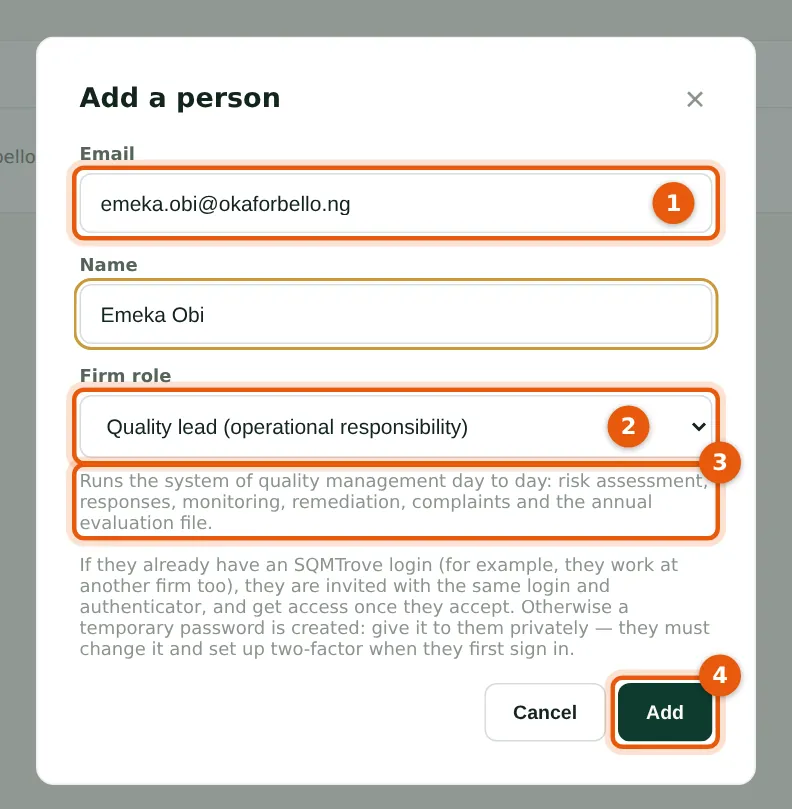
Adaeze Nwosu adds the firm's quality lead first. Choose the role that matches the person's responsibility (2); the description under the list (3) says what it allows. If the email address already has an SQMTrove login — for example someone who also works at another firm — the person is invited instead and gets access only once they accept.
Who
Owner or firm administrator.
What to do
- Open Users & roles and choose Add a person. Enter the email address (1) and name.
- Choose the firm role (2) and read its description (3). Only an Owner can make another Owner.
- Choose Add (4).
3.2 Give the temporary password privately
Why
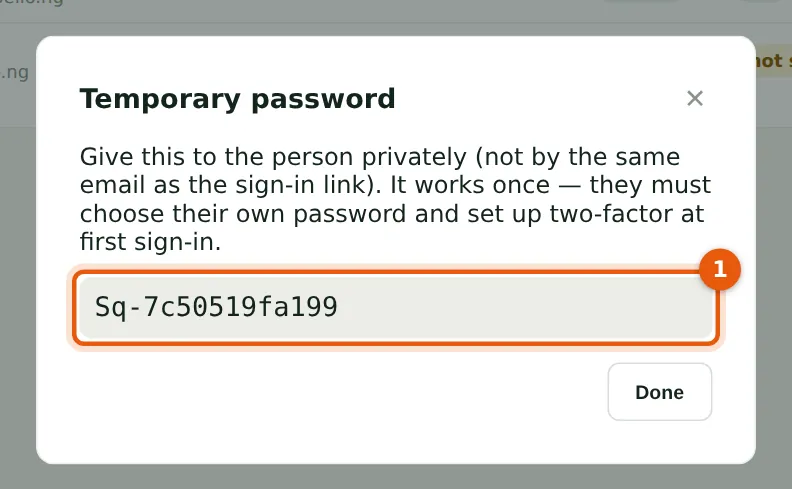
SQMTrove creates a temporary password (1). It is shown only now. The person must change it and set up two-factor at their first sign-in (steps 1.5 and 1.6).
Who
Owner or firm administrator.
What to do
- Give the password to the person privately — in person or by phone, not in the same email as the sign-in address.
- Choose Done.
3.3 The people list
Why
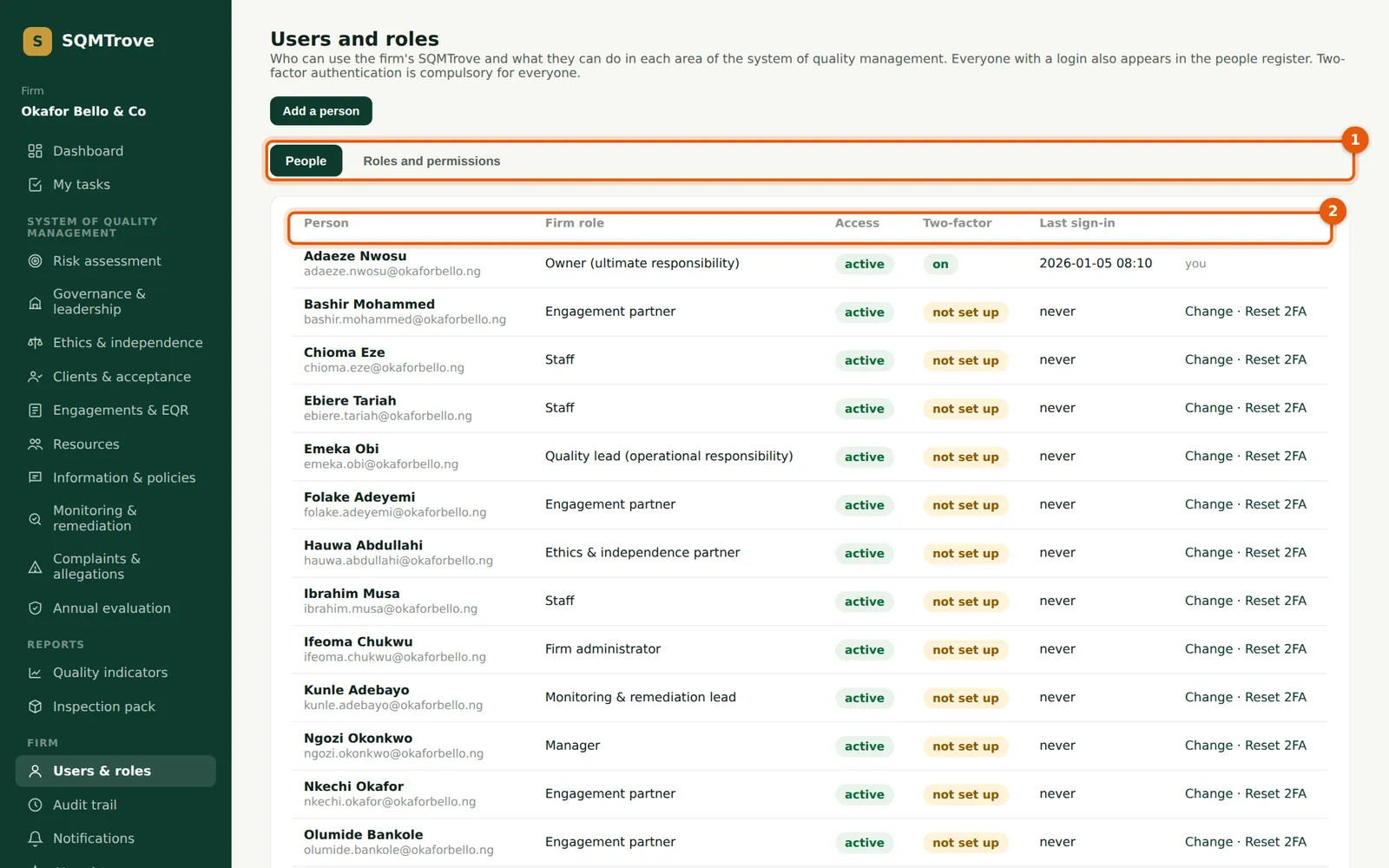
The list shows each person's role, whether their access is active, whether two-factor is on and when they last signed in. Everyone with a login also appears in the people register (chapter 6), which drives independence declarations, CPD and rotation.
Who
Owner or firm administrator.
What to do
- Use the tabs (1) to switch between People and Roles and permissions.
- Check the Two-factor and Last sign-in columns (2): not set up means the person has not signed in yet.
- Choose Change (3) to change a person's role or access; Reset 2FA is next to it (step 3.9).
3.4 Roles and permissions
Why
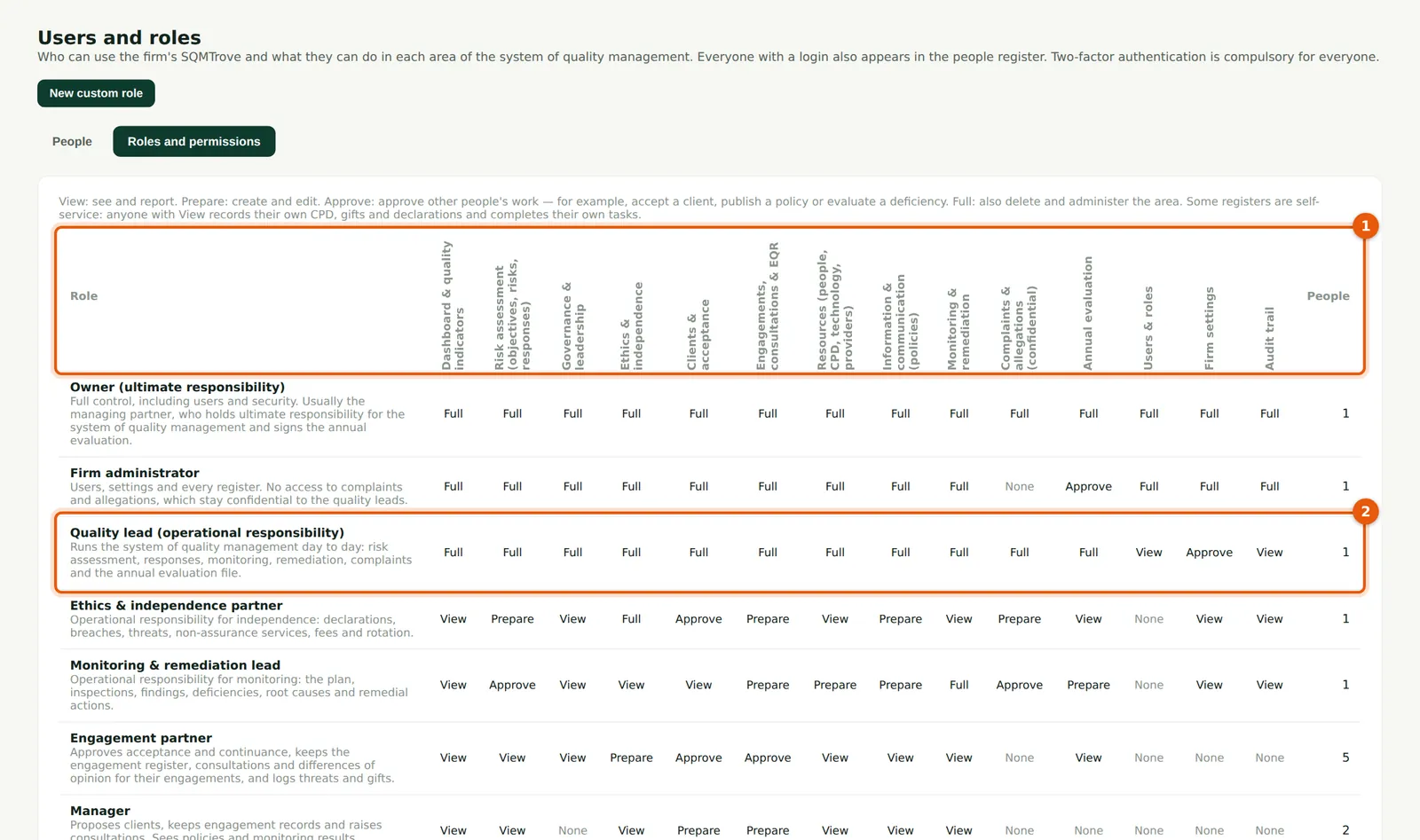
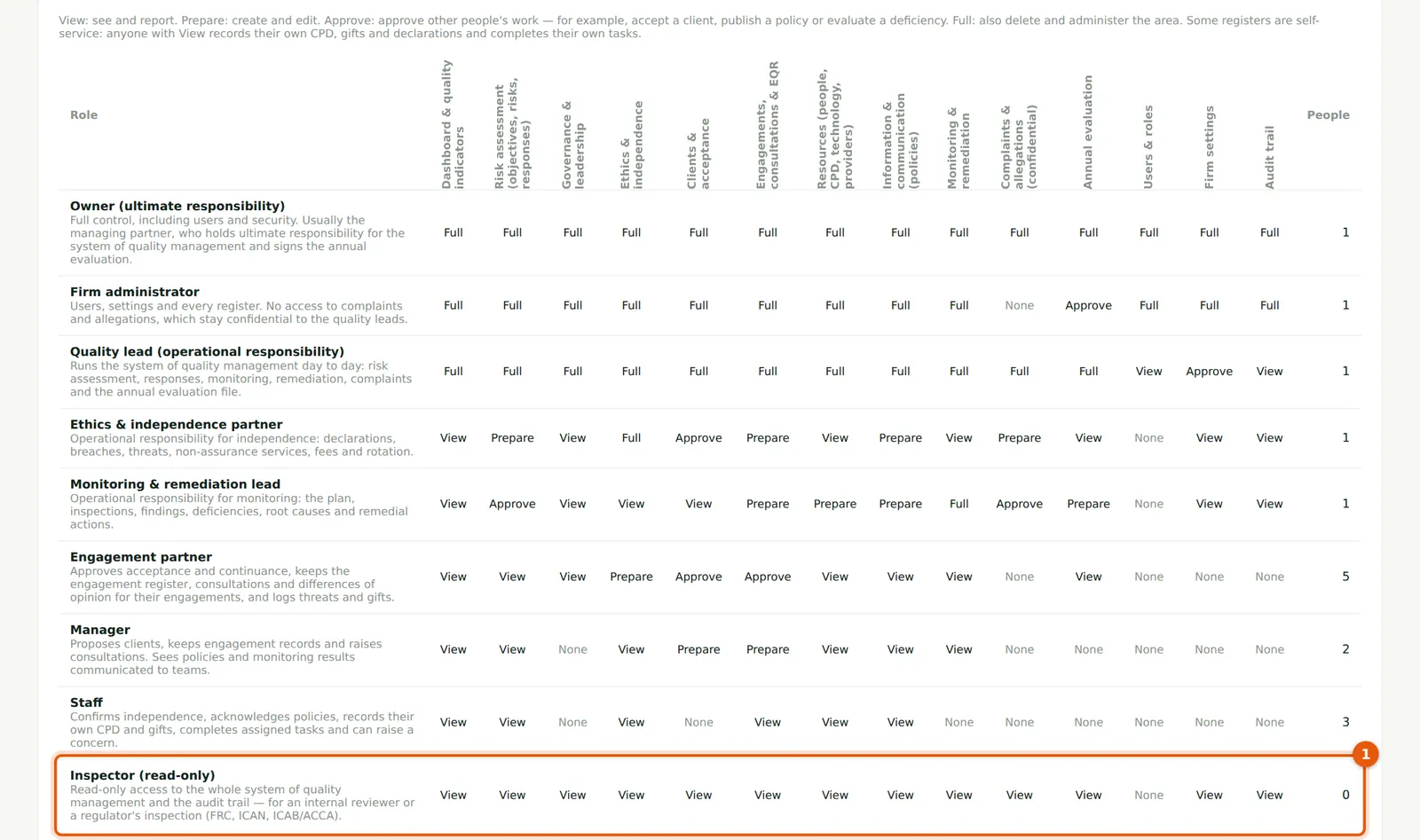
Each role has a level for each area (1): View (see and report), Prepare (create and edit), Approve (approve other people's work, such as accepting a client or evaluating a deficiency) and Full (also delete and administer). The Quality lead (2), for example, has Full access to the system but only View on users and cannot sign the annual evaluation — that is for the Owner. Some registers are self-service: anyone with View records their own CPD, gifts and declarations and completes their own tasks.
Who
Owner or firm administrator.
What to do
- Read across a role's row to see what it can do in each area (1).
- Compare the leadership roles (2) with your firm's allocation of ISQM 1.20 responsibilities.
3.5 Partner, manager, staff and inspector roles
Why
Engagement partners approve acceptance and keep their engagements, consultations and differences of opinion; managers propose clients and keep engagement records; staff confirm independence, read policies and record their own CPD and gifts. The Inspector role (1) can read the whole system and the audit trail but can change nothing — for an internal reviewer or a regulator (FRC, ICAN, ICAB or ACCA).
Who
Owner or firm administrator.
What to do
- Note that complaints and allegations are confidential: only the Owner, quality lead, ethics partner (view) and monitoring lead can see them.
3.6 Create a custom role
Why
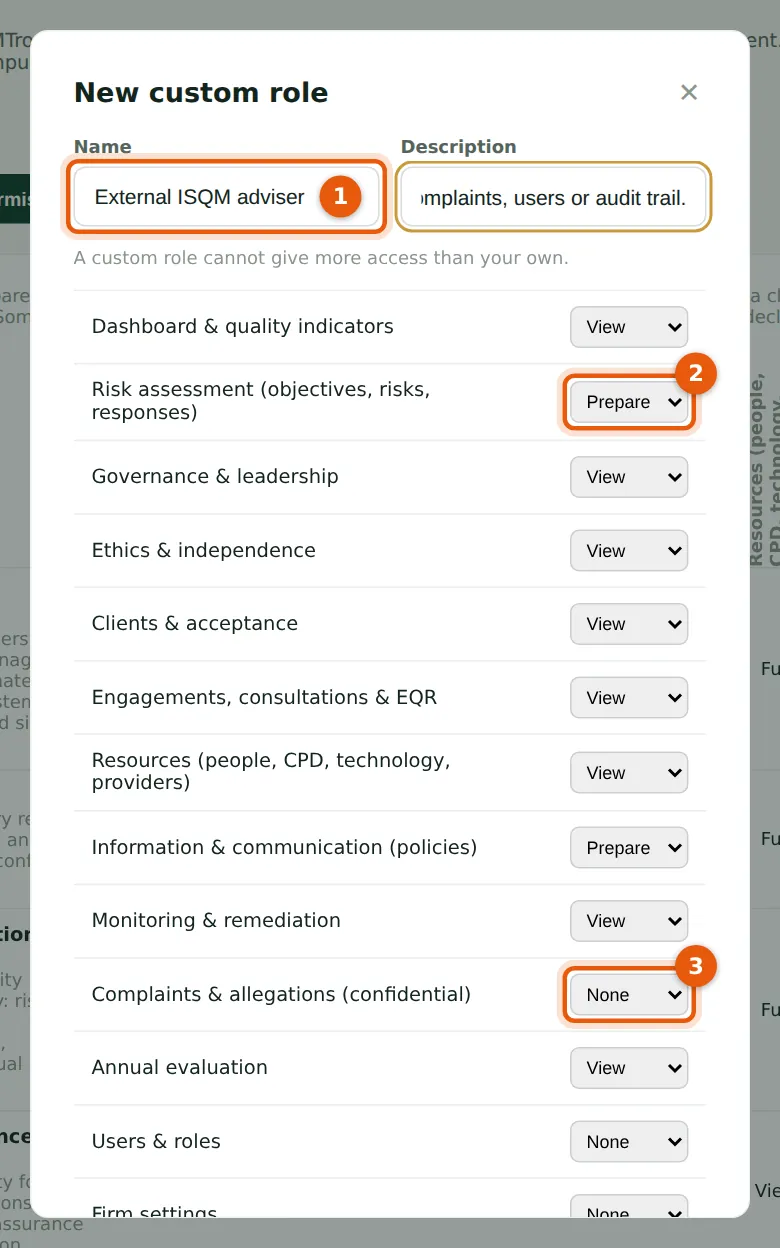
When no built-in role fits, create your own. Okafor Bello & Co gives its ISQM adviser, Zainab Sule of Northgate Practice Advisory, Prepare on risk assessment and information (2) so that she can draft risks, responses and policies, View on the other areas, and nothing on complaints (3), users, settings or the audit trail. A custom role cannot give more access than your own.
Who
Owner or firm administrator.
What to do
- On Roles and permissions choose New custom role. Enter a name (1) and a description.
- Set the level for each area (2, 3) and choose Save.
- To change or delete a custom role, choose its row. A role can be deleted only when nobody holds it.
3.7 Change a person's role or access
Why
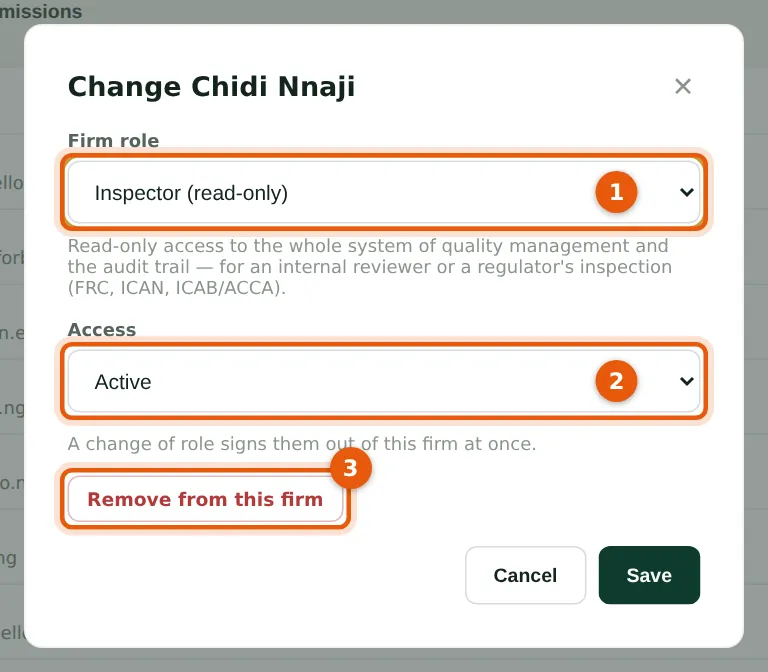
A new role (1) takes effect at once: the person's sessions in the firm end. Switching access off (2) keeps the person in the list; Remove from this firm (3) takes the login out of the firm but keeps their other firms and everything they did in the audit trail. Nobody can change their own access, and only an Owner can change another Owner.
Who
Owner or firm administrator.
What to do
- Choose Change on the person's row.
- Choose the new role (1) or switch access off (2), then Save; or choose Remove from this firm (3).
3.8 Remove a person from the firm
Why
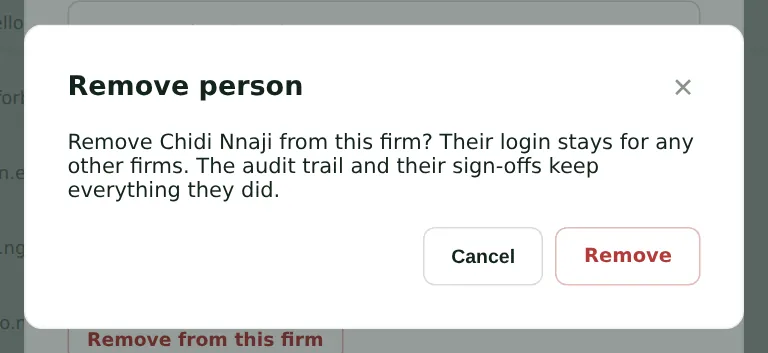
On 30 April 2026, after the FRC inspection report arrives, Adaeze Nwosu removes the FRC team lead's read-only login. Removing a person frees their seat.
Who
Owner or firm administrator.
What to do
- Read the message and choose Remove.
3.9 Reset a person's two-factor
Why
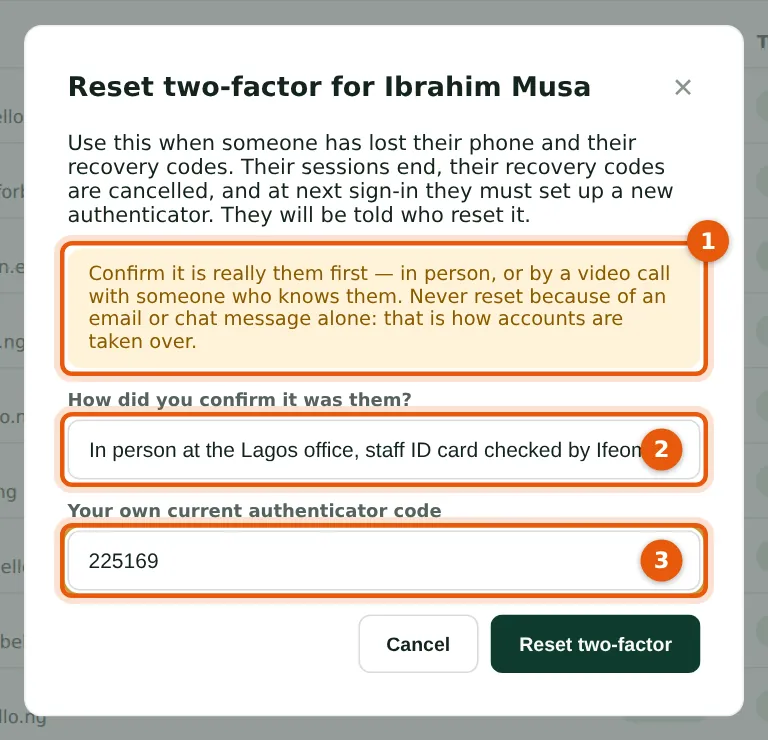
When someone has lost both their phone and their recovery codes, an administrator resets their two-factor. This is how accounts are taken over, so SQMTrove asks how you confirmed it is really them (2) and for your own current code (3). Their sessions end and their recovery codes are cancelled.
Who
Owner or firm administrator.
What to do
- Choose Reset 2FA on the person's row.
- Read the warning (1). Confirm the person's identity in person or by a video call — never on the strength of an email or chat message alone.
- Record how you confirmed it (2), type your own current code (3) and choose Reset two-factor.
3.10 What the person sees after a reset
Why
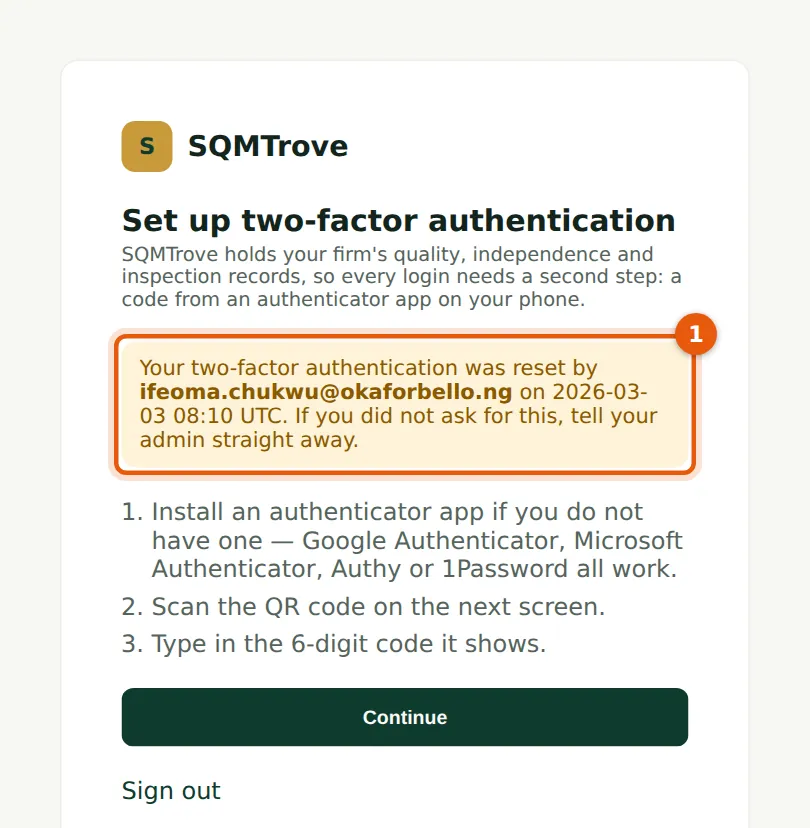
At the next sign-in the person is told who reset their two-factor and when (1), and sets up the authenticator on their new phone. If they did not ask for the reset, they should tell the administrator at once.
Who
The person whose two-factor was reset.
What to do
- Choose Continue and follow steps 1.2 and 1.3 with the new phone.
3.11 When all seats are in use
Why
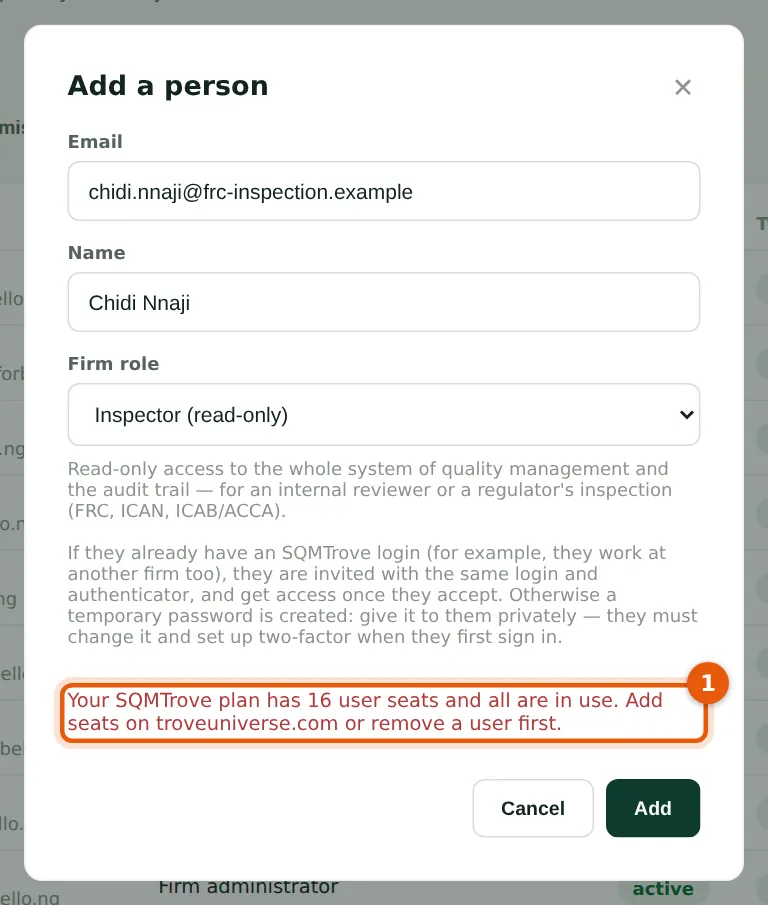
Each login uses one seat of the firm's SQMTrove plan. When all seats are used, adding a person, accepting an invitation or switching access back on is refused (1) until more seats are bought or a login is removed.
Who
Owner or firm administrator.
What to do
- Read the message (1). Buy more seats on troveuniverse.com, or remove a login that is no longer needed.
3.12 The seats banner
Why
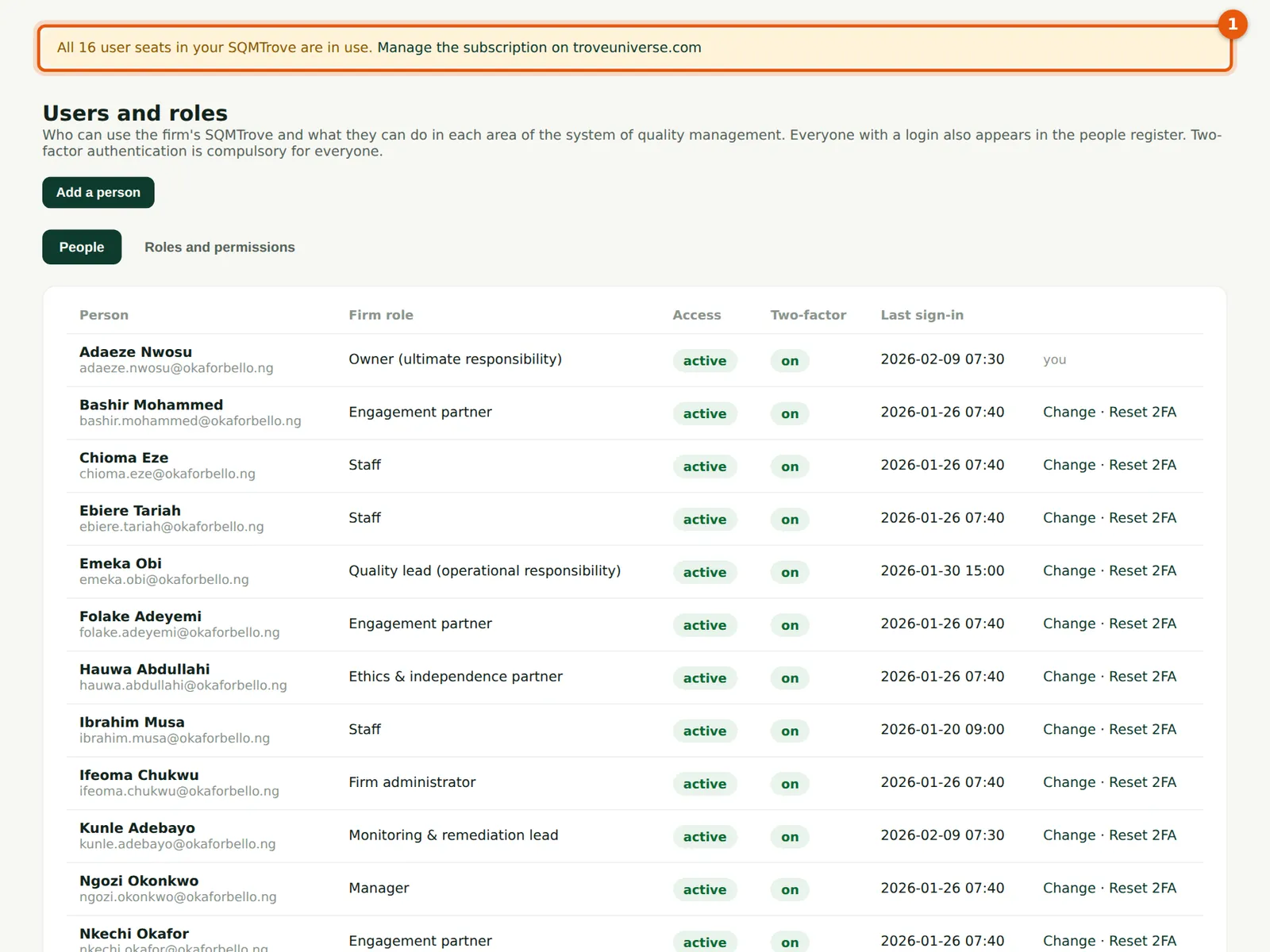
The banner (1) links to the firm's account on troveuniverse.com. Okafor Bello & Co bought 16 seats in January; on 9 February 2026 Adaeze Nwosu buys two more for the regulators' inspectors. The new limit reaches SQMTrove within about a minute of the purchase.
Who
The person who manages the TroveUniverse subscription.
What to do
- Choose Manage the subscription on troveuniverse.com (1), add seats and pay the invoice.
- Come back to Users & roles and add the person.
3.13 Give a regulator read-only access
Why
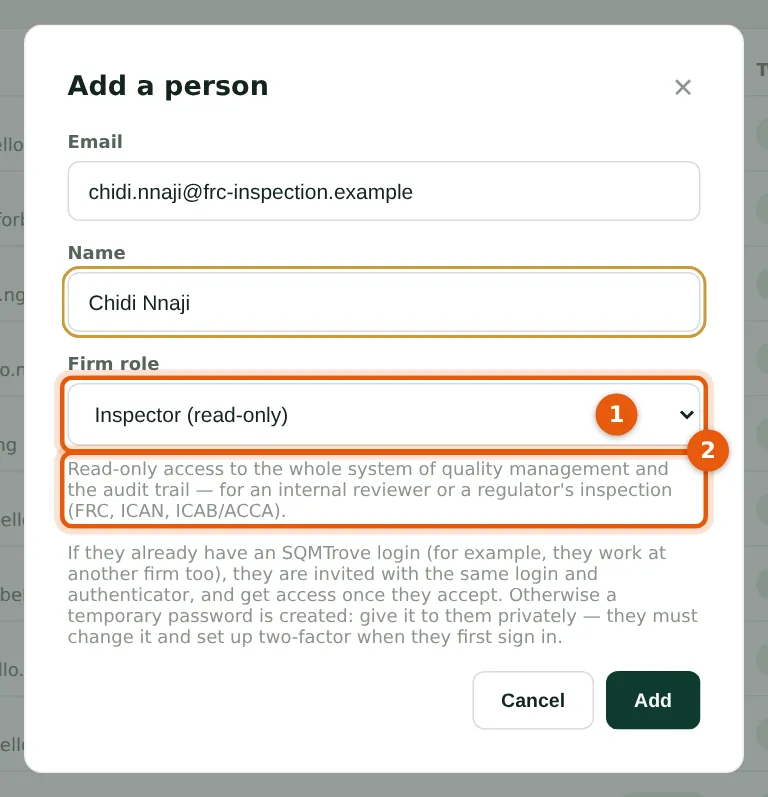
During the FRC's visit (9–20 February 2026) the inspection team lead reviews the firm's system in SQMTrove rather than in printed files. The Inspector role (1) is read-only: the description (2) confirms it. The temporary password is given to him privately at the opening meeting.
Who
Owner or firm administrator.
What to do
- Choose Add a person, enter the inspector's email and name, choose Inspector (read-only) (1) and choose Add.
3.14 What an inspector sees
Why
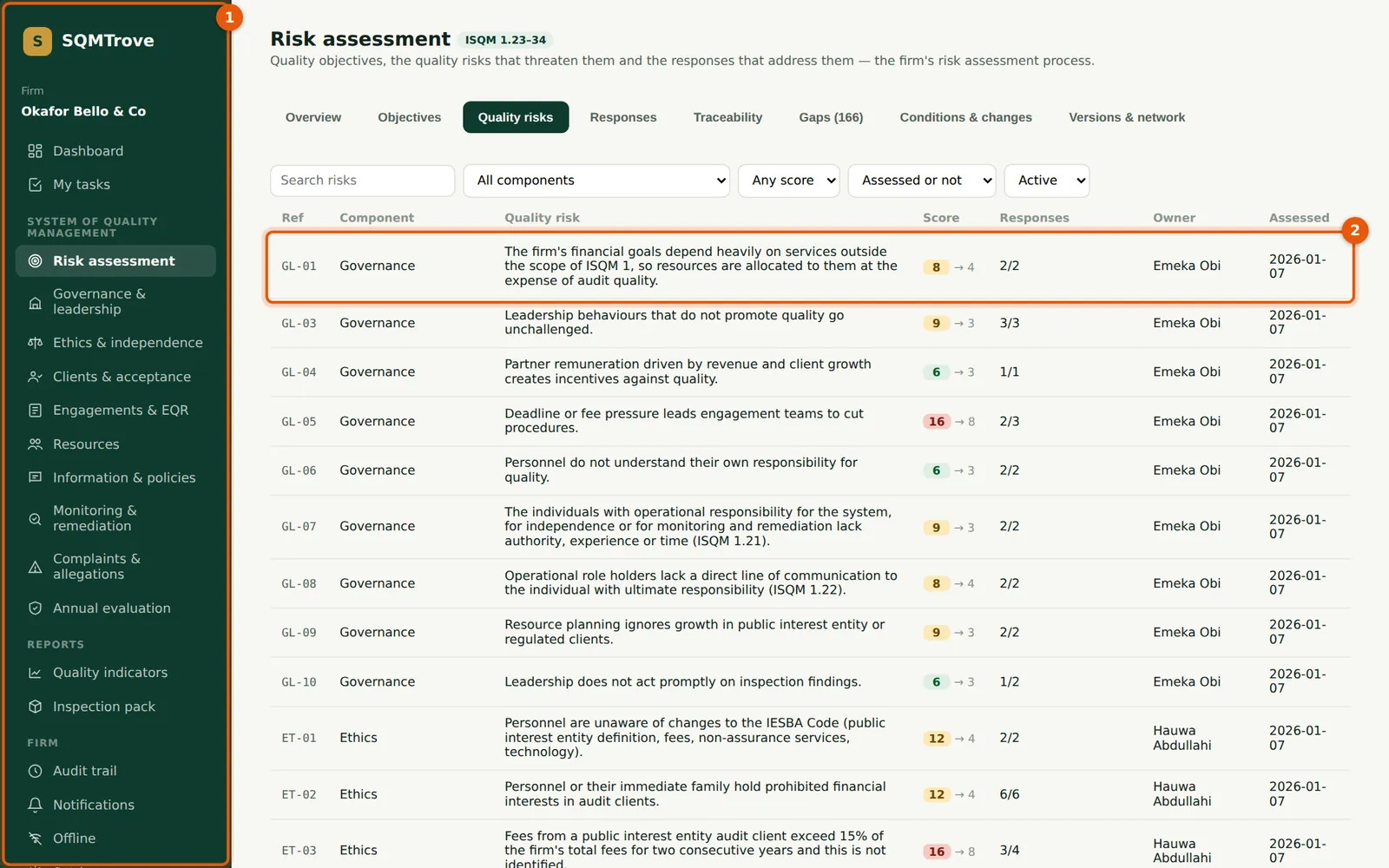
The inspector's menu (1) shows every area of the system and the audit trail, but no Users & roles. Registers open in read-only form (2): there are no New or Save buttons, and any attempt to change something is refused.
Who
Inspectors and internal reviewers.
What to do
- Open any area from the menu (1) and any record (2) to read it.