Steps in this chapter (17)
Open SQMTrove from troveuniverse.com, set up two-factor authentication, sign in, recover a forgotten password and find your way round the dashboard.
SQMTrove is part of TroveSuite and is sold through troveuniverse.com. The person who buys the subscription opens SQMTrove from their TroveUniverse account; SQMTrove creates the firm and makes that person its Owner. Everyone else is added by the Owner or a firm administrator (chapter 3) and signs in with an email address and password.
Every login also needs a six-digit code from an authenticator app. SQMTrove holds independence declarations, complaints, inspection findings and the evaluation of the whole system, so two-factor authentication cannot be switched off for anyone.
In the illustration, Adaeze Nwosu, Managing Partner of Okafor Bello & Co, opens SQMTrove for the firm on Monday 5 January 2026.
1.1 Open SQMTrove from troveuniverse.com
Why
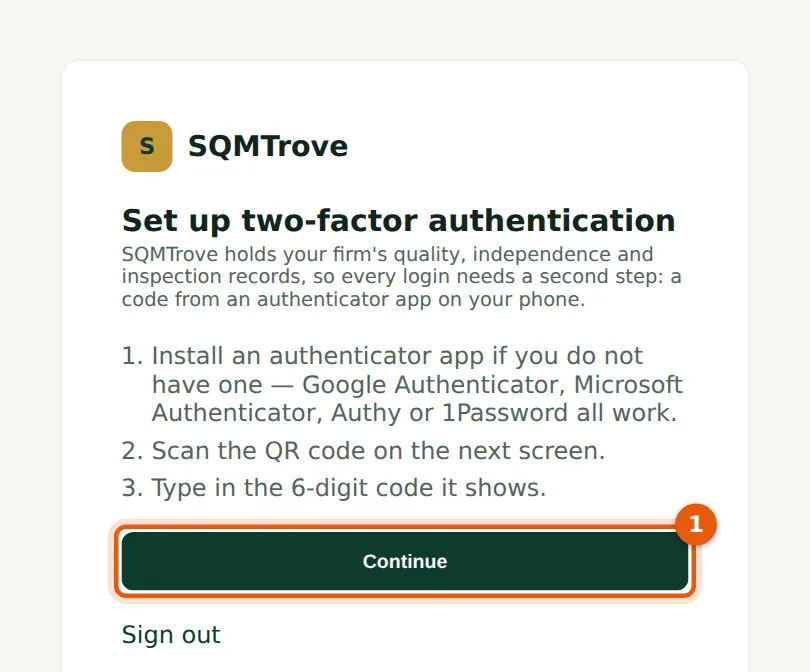
Single sign-on means the subscriber does not need a separate SQMTrove password. The first launch creates the firm in SQMTrove, gives it the name held on troveuniverse.com and makes the person its Owner, the role for the individual with ultimate responsibility for the system of quality management (ISQM 1.20(a)). Later launches sign the same person straight in. Anyone else who presses Launch before being added is refused with a message asking them to contact the firm's Owner or administrator.
Who
The subscriber (usually the managing partner), once.
What to do
- Sign in at troveuniverse.com and choose Launch next to SQMTrove.
- SQMTrove opens at this page. Install an authenticator app on your phone if you do not have one (Google Authenticator, Microsoft Authenticator, Authy or 1Password), then choose Continue (1).
1.2 Link your authenticator app
Why
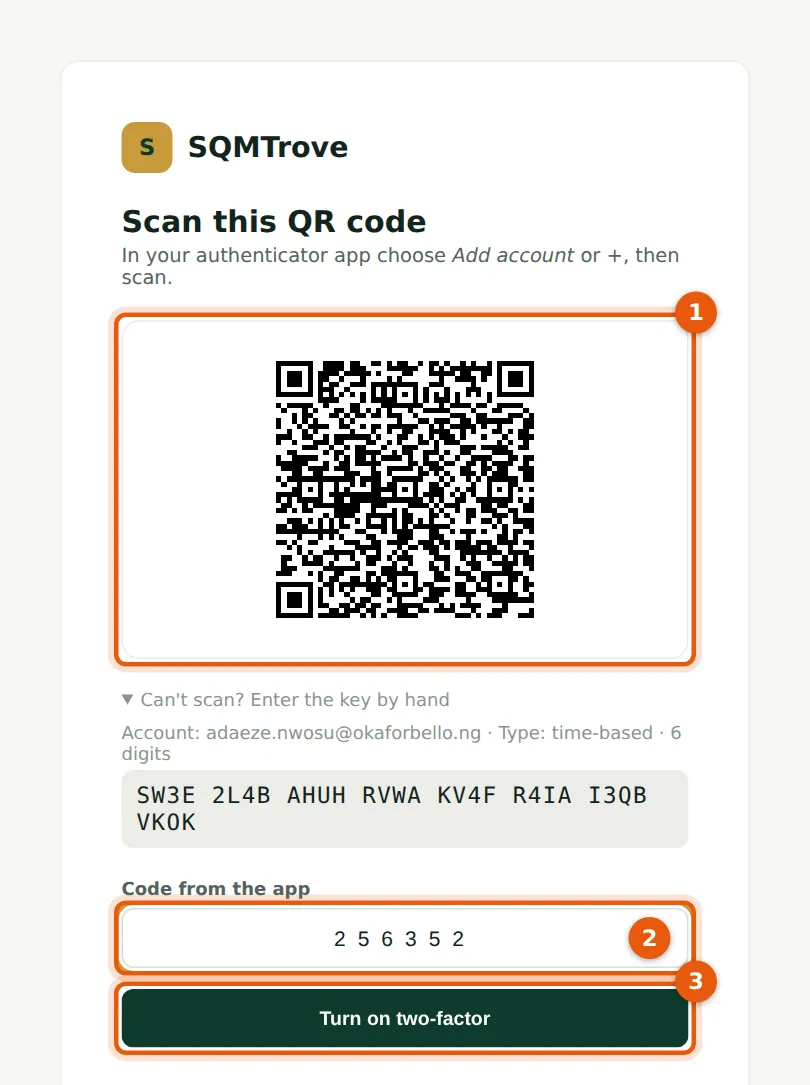
The QR code links the app on your phone to your SQMTrove login. From then on the app shows a new code every 30 seconds. The QR code is drawn in the page, so your secret key is not sent to any other service.
Who
Every user, the first time they sign in.
What to do
- In the app choose Add account (or +) and scan the QR code (1). If you cannot scan it, open Can't scan? Enter the key by hand and type the key shown.
- Type the six-digit code the app now shows (2).
- Choose Turn on two-factor (3).
1.3 Save your recovery codes
Why
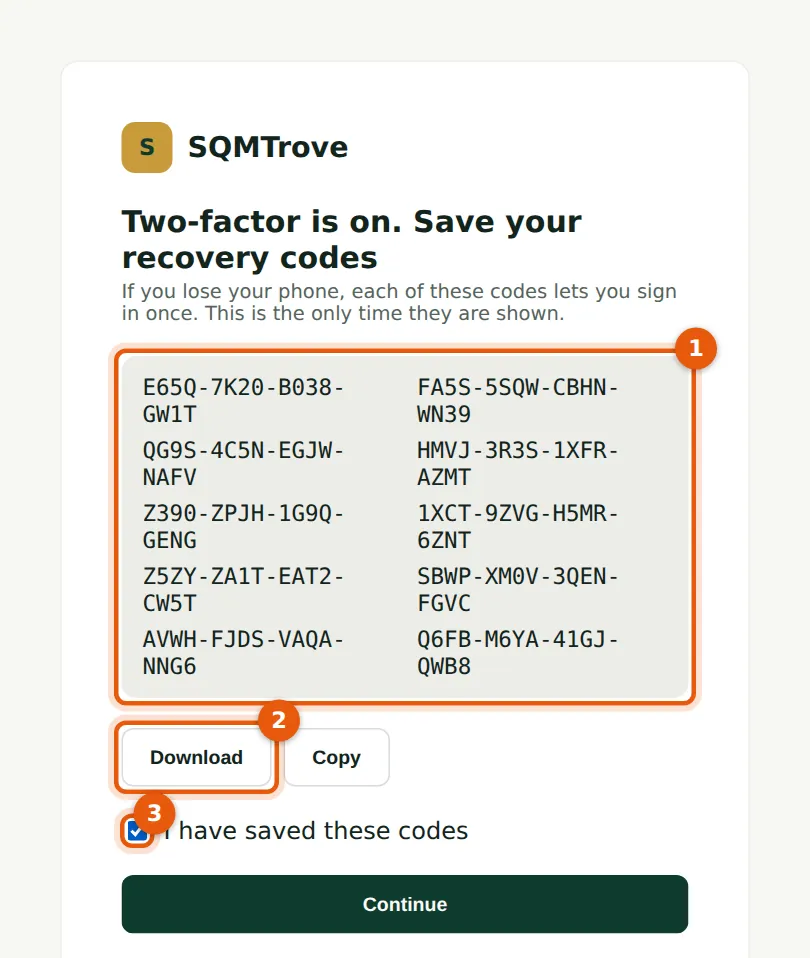
Each recovery code lets you sign in once without your phone, for example after losing it. The codes are shown only now. Keep them away from the phone, in the firm's password manager or a sealed envelope in the office safe.
Who
Every user, once.
What to do
- Keep the ten codes (1): choose Download (2) or Copy and store them safely.
- Tick I have saved these codes (3) and choose Continue.
1.4 The first dashboard and the menu
Why
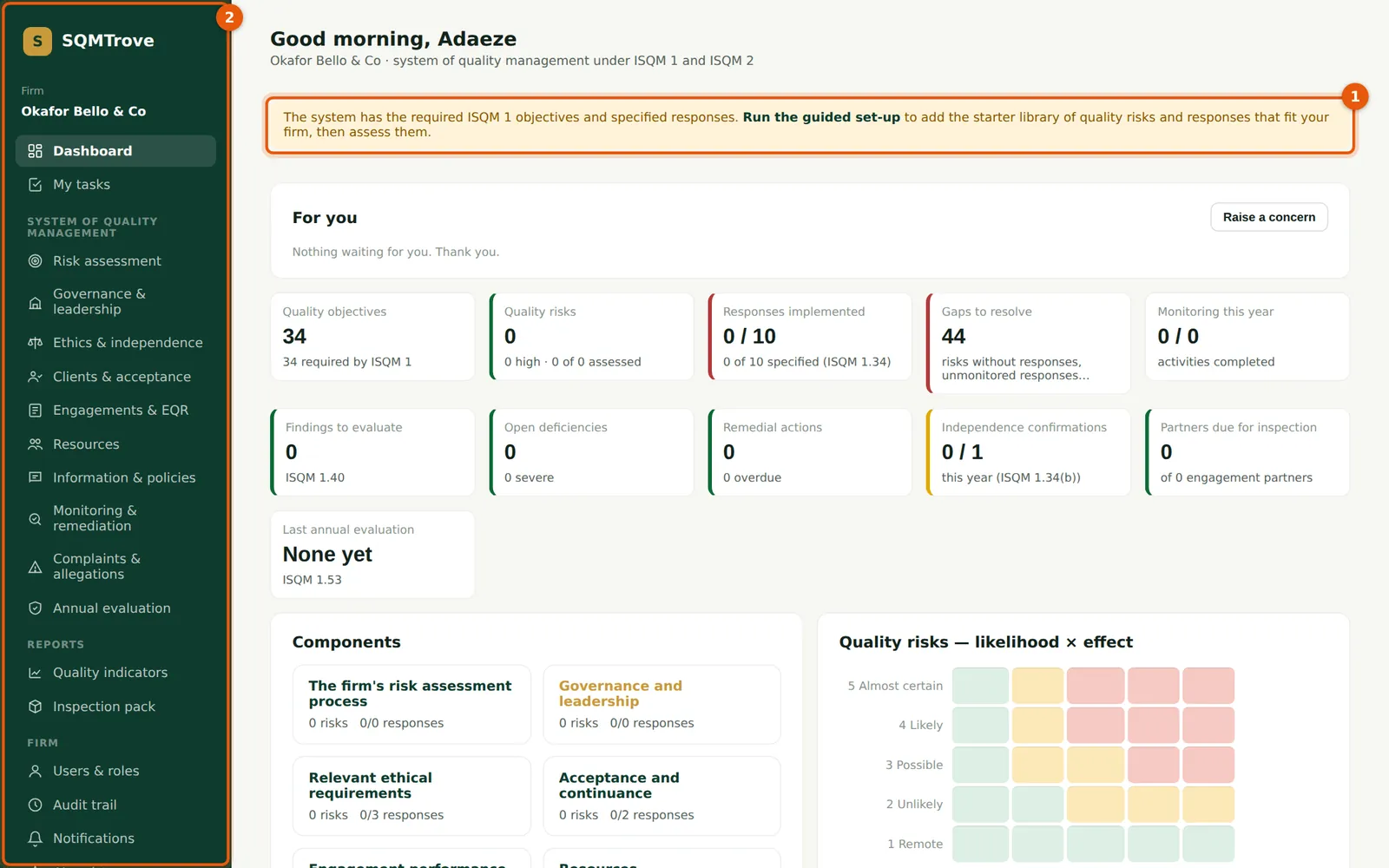
A new firm already holds the 34 quality objectives ISQM 1 requires and the ten specified responses of ISQM 1.34, but no quality risks yet. The banner (1) leads to the guided set-up, which adds a starter library of quality risks and draft responses (chapter 5). The menu on the left (2) shows only the areas your role can open, grouped into the system of quality management, reports and the firm's administration.
Who
Everyone. The guided set-up is run by the quality lead or the Owner.
What to do
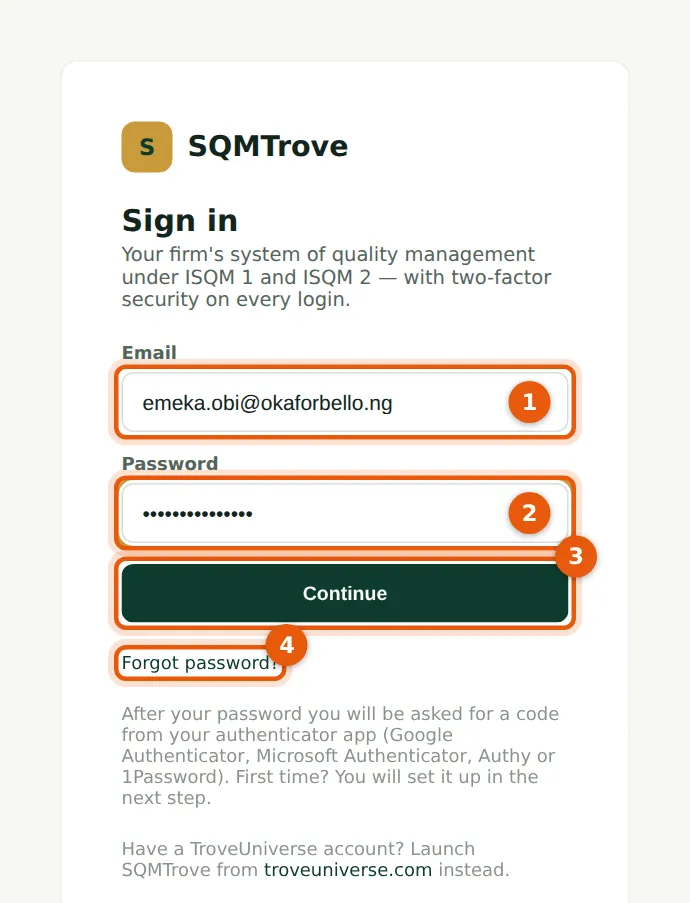
1.5 Sign in with your email and password
Why
People added on the Users & roles page sign in here. The first time, they use the temporary password the administrator gave them privately. Five wrong passwords in 15 minutes block further tries for a while, and a session ends after two hours without use.
Who
Everyone who does not arrive from troveuniverse.com.
What to do
- Go to the firm's SQMTrove address and enter your email (1) and password (2).
- Choose Continue (3). The first time, set up two-factor exactly as in steps 1.1 to 1.3.
- If you have forgotten your password, choose Forgot password? (4) — see step 1.8.
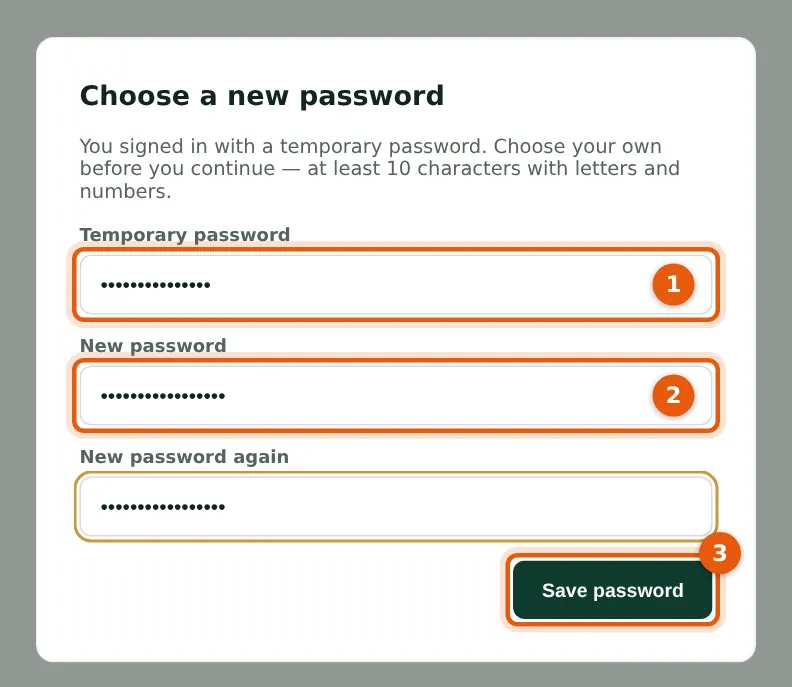
1.6 Choose your own password
Why
A temporary password is known to the administrator who created it, so SQMTrove asks for a new one before anything else can be done. It must have at least 10 characters with letters and numbers.
Who
Every user added with a temporary password, once.
What to do
- Type the temporary password (1), then your new password twice (2).
- Choose Save password (3). The page reloads with your own dashboard.
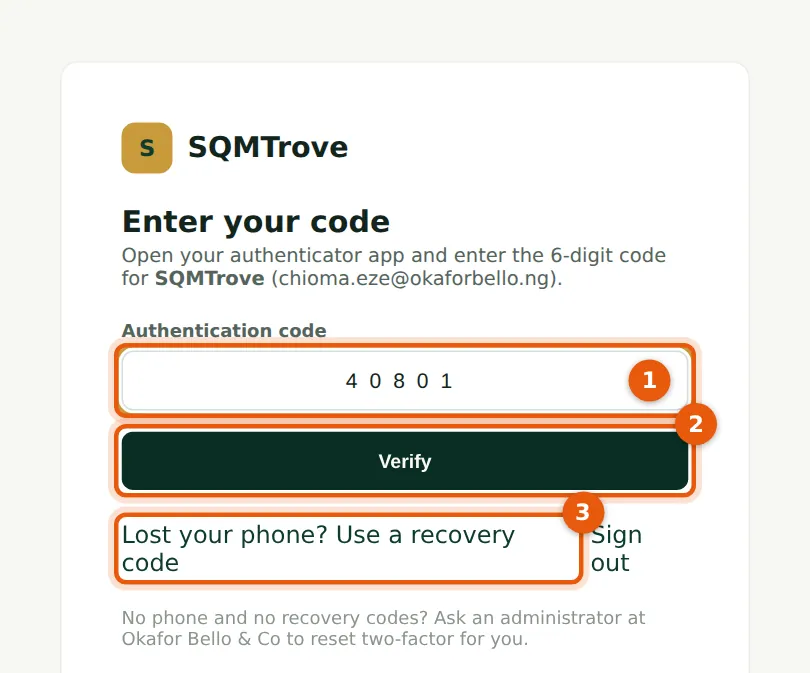
1.7 Enter the code from your app
Why
After the password, SQMTrove asks for the current code from your app. The page goes on as soon as the sixth digit is typed. A code works only once.
Who
Everyone, at every sign-in.
What to do
- Type the six-digit code shown in your app (1). The page continues on the sixth digit; otherwise choose Verify (2).
- If your phone is lost, choose Lost your phone? Use a recovery code (3) and type one of your recovery codes. Then ask an administrator to reset your two-factor (step 3.9).
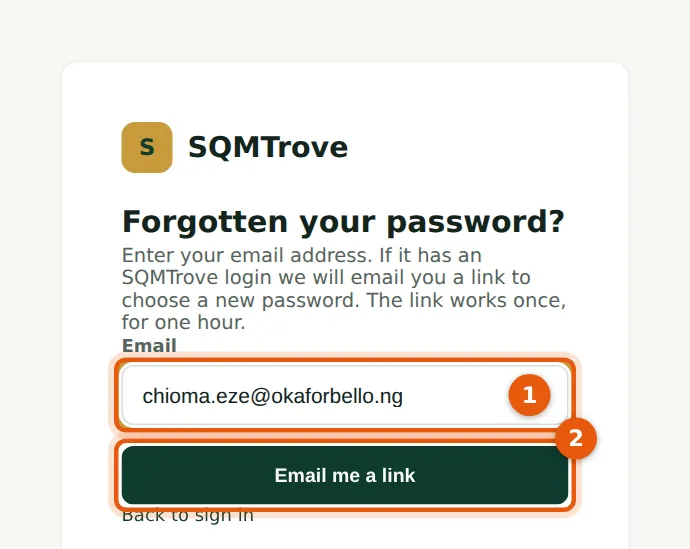
1.8 Forgotten your password? Ask for a link
Why
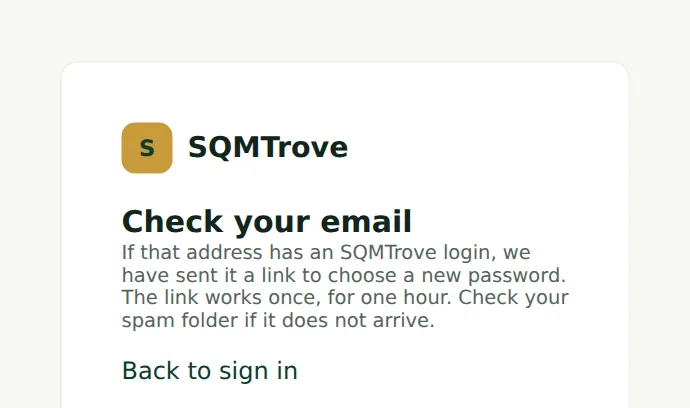
On 10 February 2026 Chioma Eze, audit senior, cannot remember her password. SQMTrove emails a link that works once, for one hour. For security the page gives the same answer whether or not the address has a login.
Who
Anyone with a password login.
What to do
- On the sign-in page choose Forgot password?.
- Enter your email address (1) and choose Email me a link (2).
1.9 Check your email
Why
The answer is always the same, so the page cannot be used to find out who has a login. Asking again makes earlier links stop working.
Who
The person resetting their password.
What to do
- Open your email. If nothing arrives within a few minutes, check the spam or junk folder, or ask an administrator (Users & roles) to help.
1.10 Open the reset email
Why
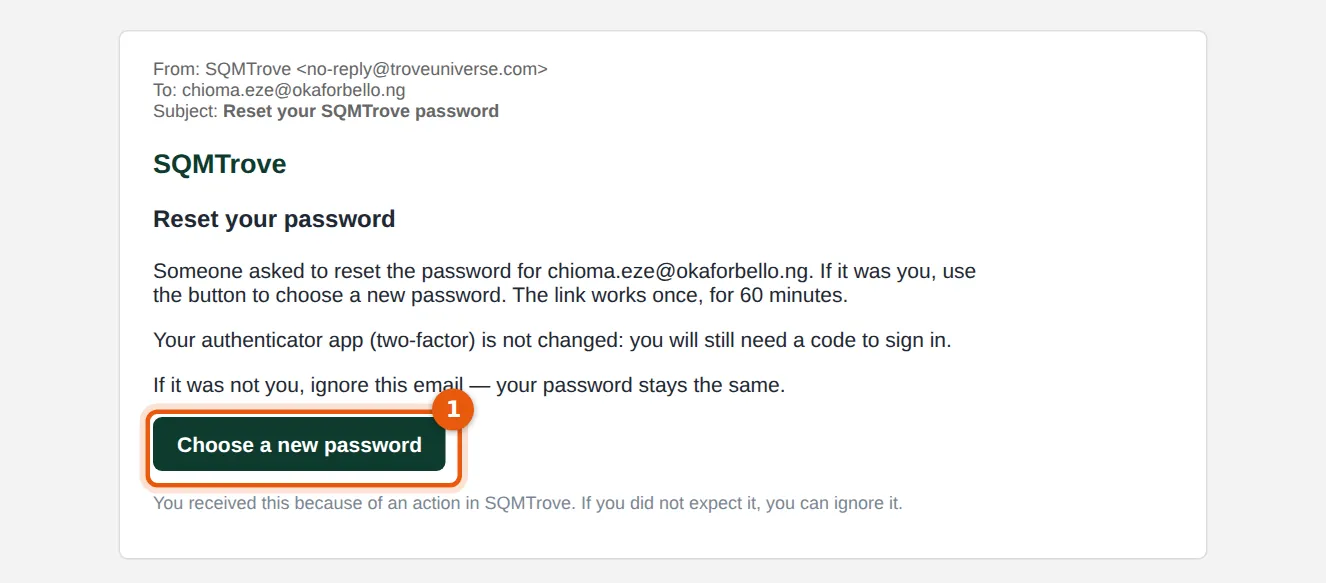
The email names the address and says that the authenticator app is not changed. The emails are sent by SQMTrove's own email service; the firm does not set anything up.
Who
The person resetting their password.
What to do
- Choose Choose a new password (1). The link opens SQMTrove's reset page and is removed from the address bar.
1.11 Choose a new password
Why
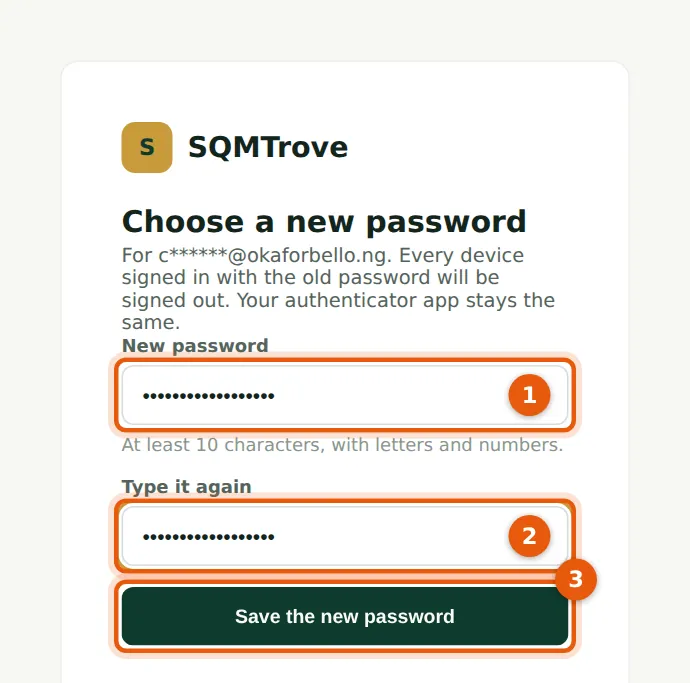
Saving the new password signs your login out on every device. Two-factor stays as it was: you still need a code from your app.
Who
The person resetting their password.
What to do
- Type the new password (1) and type it again (2).
- Choose Save the new password (3).
1.12 Sign in with the new password
Why
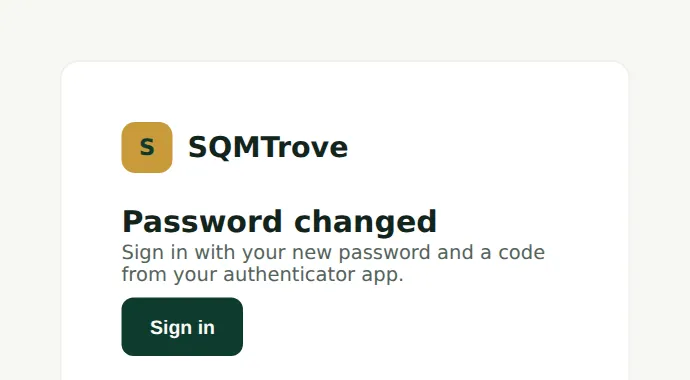
The link has now been used and cannot be used again. Sign in as usual with the new password and a code.
Who
The person resetting their password.
What to do
- Choose Sign in and use the new password and the code from your app.
1.13 The dashboard: what needs you, and how the system stands
Why
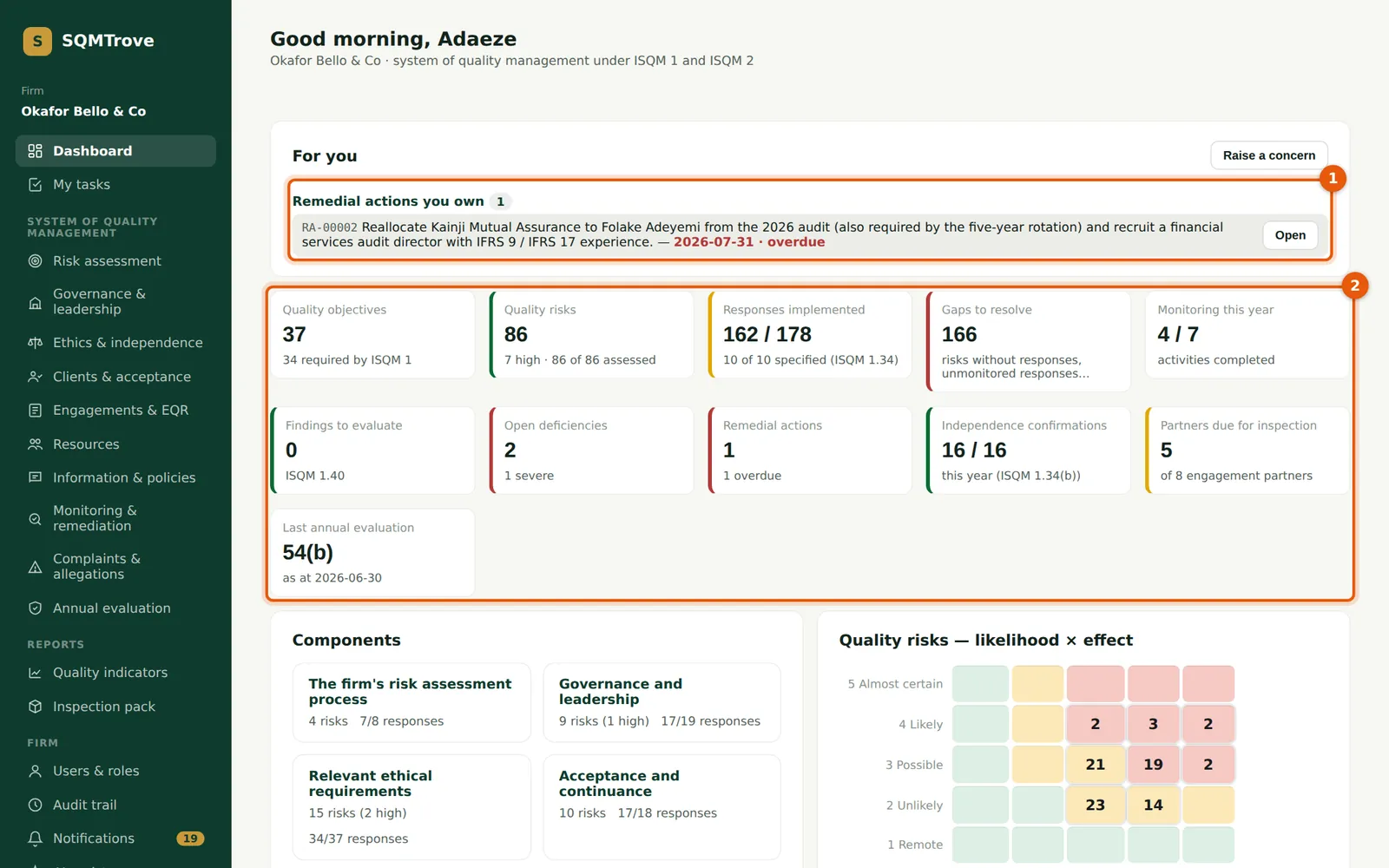
The dashboard opens after every sign-in. For you (1) lists what is waiting for you personally: declarations to complete, policies to read, your tasks, remedial actions you own, monitoring activities, engagement quality reviews and investigations. The tiles (2) show the state of the firm's system: objectives, risks, responses, gaps, monitoring, findings to evaluate, open deficiencies, remedial actions, independence confirmations, partners due for inspection and the last annual evaluation. Each tile opens the page behind it.
Who
Everyone. The firm tiles appear for people who can see the whole system.
What to do
- Work through For you (1) from the top; each line has a button that opens the item.
- Choose a tile (2) to open the register behind it — for example Open deficiencies opens Monitoring → Deficiencies.
1.14 Components and the heat map
Why
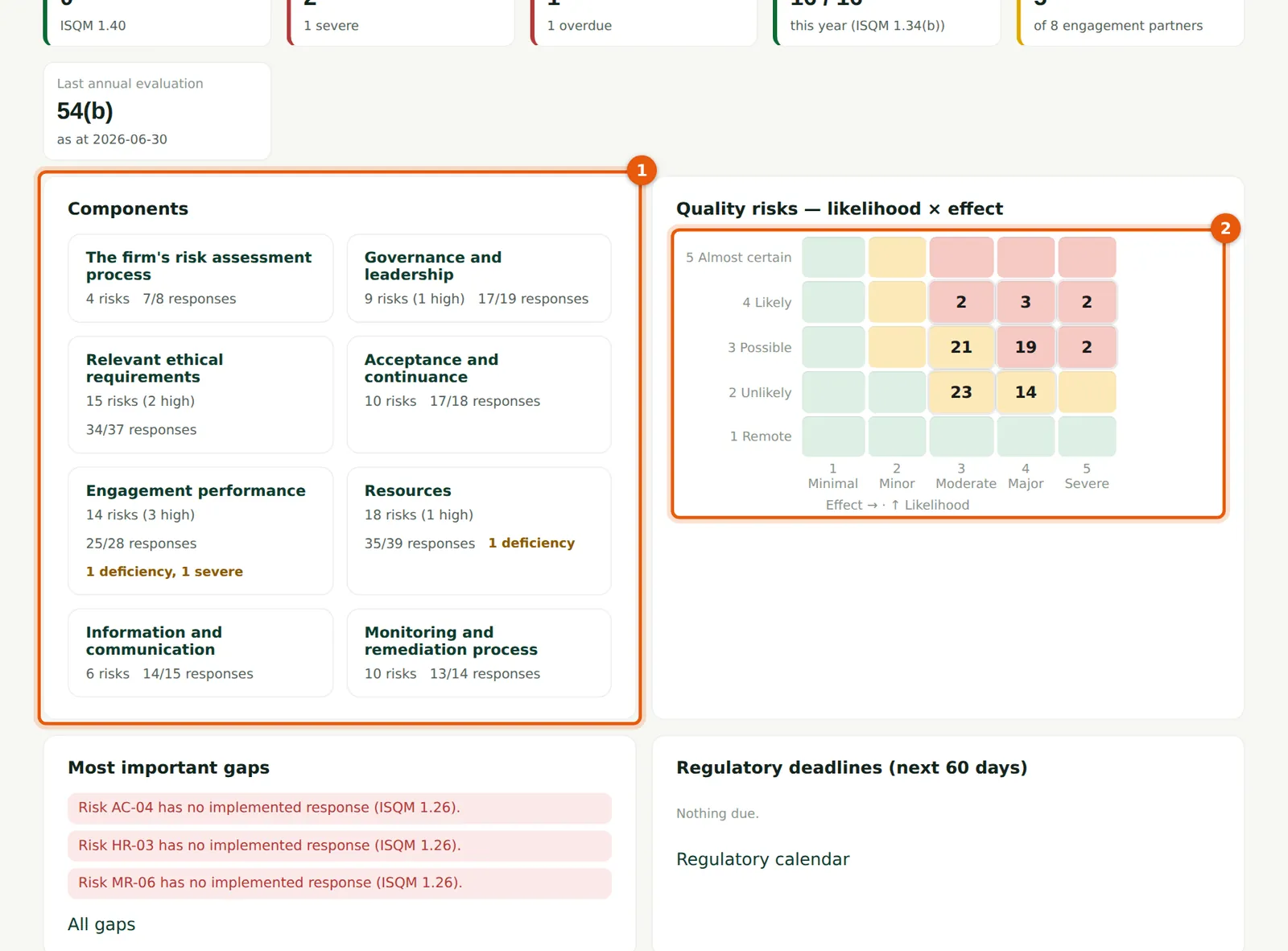
The component cards (1) show, for each ISQM 1 component, how many quality risks the firm has, how many responses are implemented, and any deficiencies. The heat map (2) places every assessed quality risk by likelihood and effect; red cells are at or above the firm's high-risk threshold (chapter 2).
Who
Leadership, the quality lead and the monitoring lead.
What to do
- Choose a component card (1) to see its risks.
- Choose a cell of the heat map (2) to list the risks in that cell.
1.15 Gaps and regulatory deadlines
Why
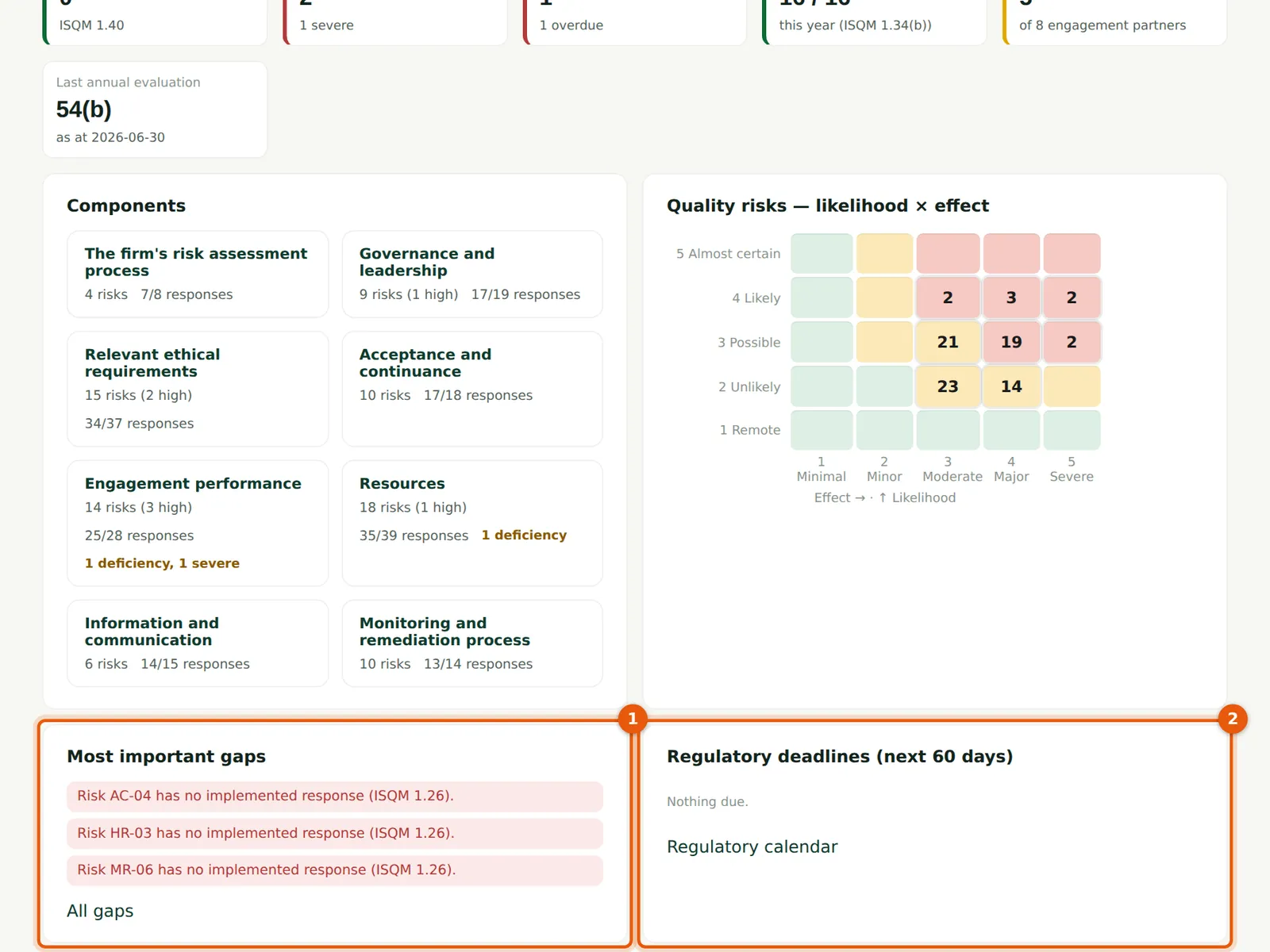
Most important gaps (1) lists design problems in the system, such as a quality risk with no implemented response. Regulatory deadlines (2) come from the regulatory calendar (chapter 10), for example the FRC's annual renewal of registration and ICAN's licence renewals.
Who
The quality lead.
What to do
- Choose All gaps for the full list (chapter 5).
- Choose Regulatory calendar to add or update deadlines.
1.16 What staff see
Why
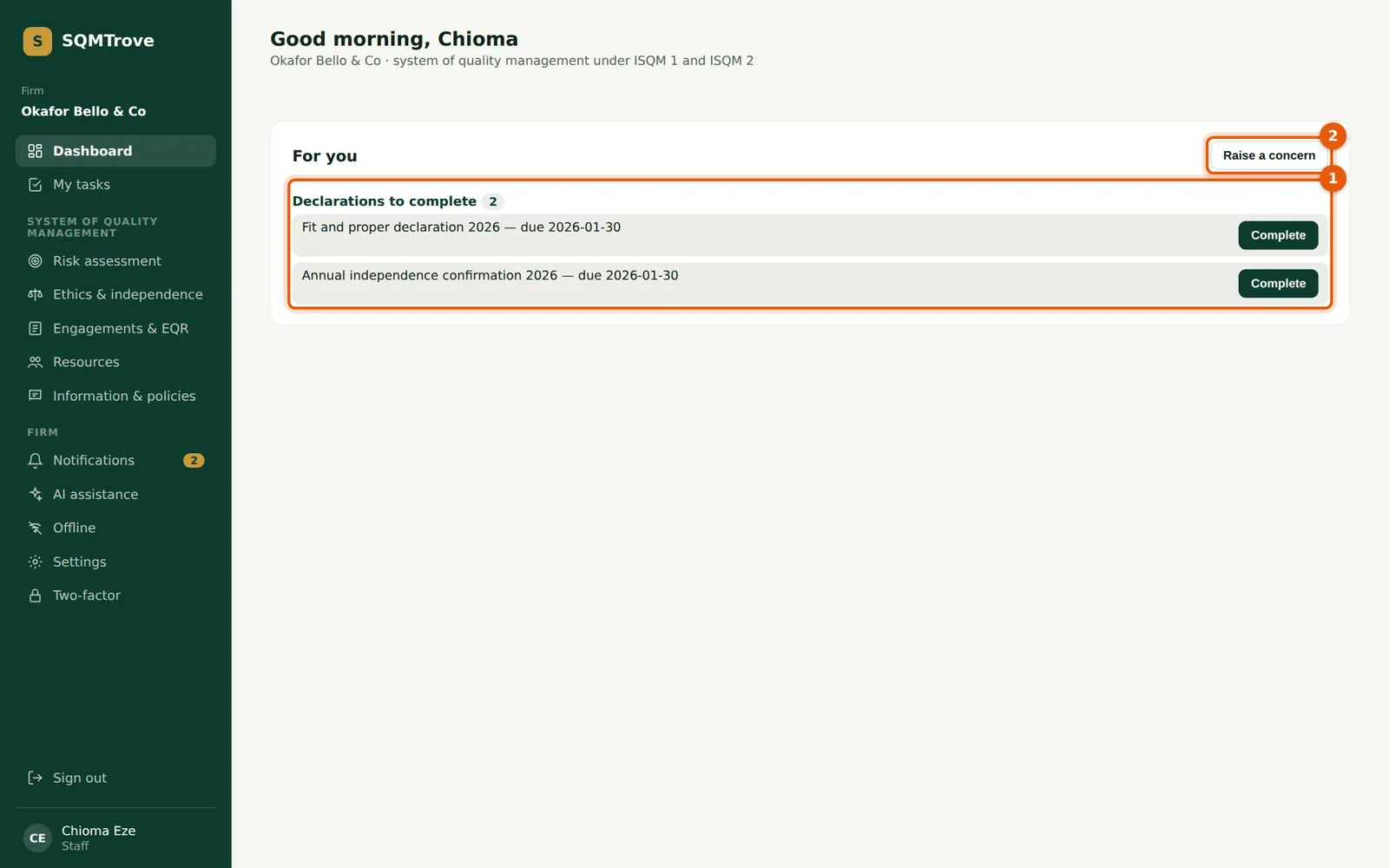
Staff see only what they need: the declarations to complete, policies to read and acknowledge, and their tasks (1). The menu is shorter because the staff role has no access to monitoring, complaints or the evaluation. Anyone can raise a concern (2) — about work not done to standards, a breach of policy, ethics or conduct — anonymously if they prefer (chapter 14).
Who
Staff, managers and partners.
What to do
- Choose Complete next to each declaration and Read next to each policy (1).
- Choose Raise a concern (2) to report something to the quality leads.
1.17 Notifications
Why
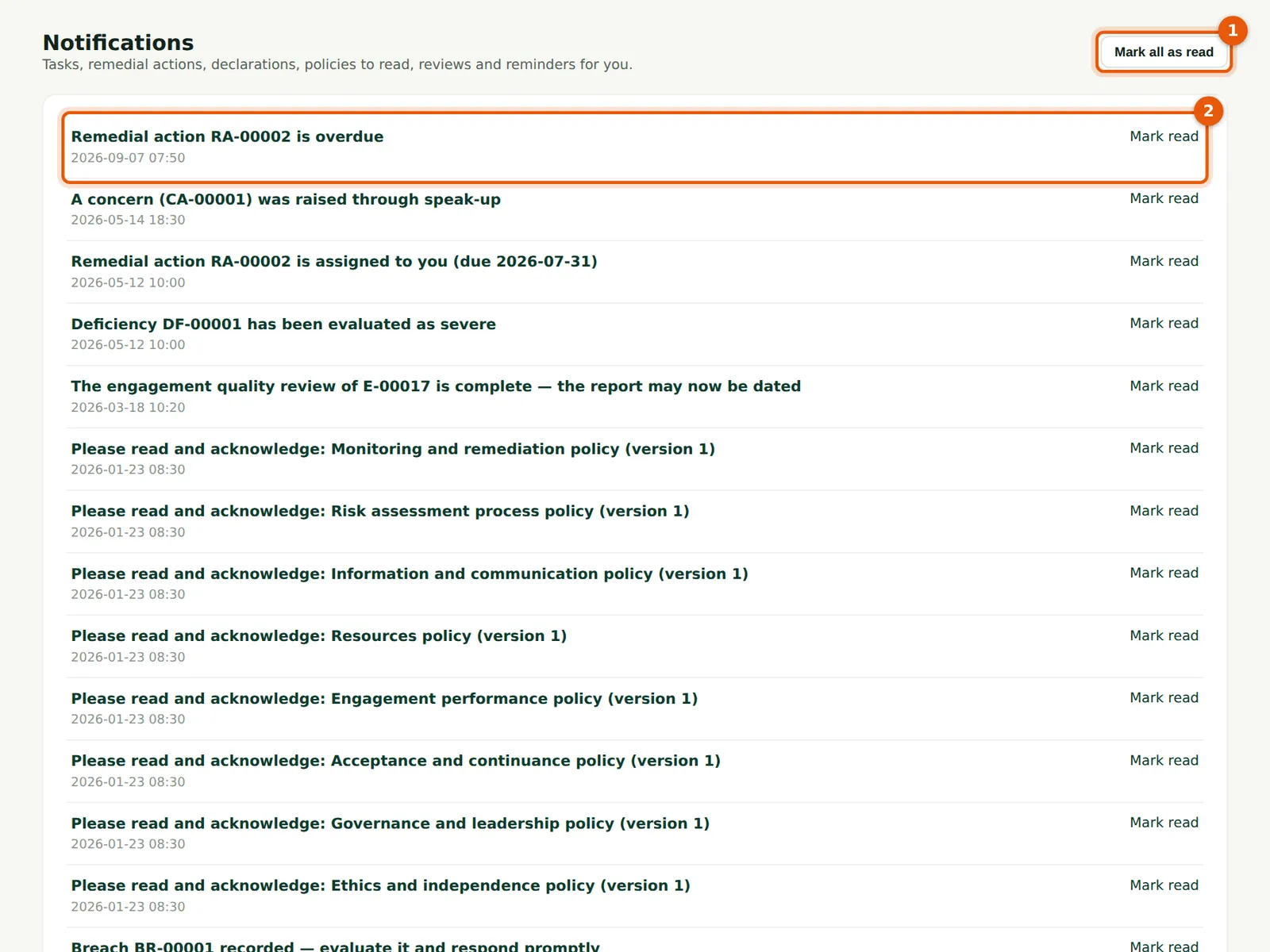
SQMTrove notifies people of what needs them: a campaign opened, a policy published, a task due, an exception to review, a deficiency evaluated as severe, the annual evaluation signed. The bell in the menu shows how many are unread. When the server's email service is set up, each notification is also sent by email.
Who
Everyone.
What to do
- Choose a notification (2) to open the item; it is marked as read.
- Choose Mark all as read (1) to clear the list.