Steps in this chapter (8)
Use one login in several firms, open a client firm from the TroveUniverse partner dashboard, and understand seats and subscription notices.
One login can belong to several firms, with a different role in each. An ISQM adviser who is a TroveUniverse partner can open a client firm from the partner dashboard on troveuniverse.com — but only a firm that has already added them.
Zainab Sule of Northgate Practice Advisory helped Okafor Bello & Co set up SQMTrove with the custom role External ISQM adviser. In September 2026 Kelechi Hassan of Adeleke Hassan & Co, Enugu, invites her to help that firm too.
| Topic | How it works |
|---|---|
| Seats | One seat for each person with an active or invited login in the firm, whatever the role — including a regulator's read-only login while it is active. Every feature is included for every seat. |
| Buying seats | Seats are bought on troveuniverse.com (account page). The seats bought are the limit: adding, inviting or switching on a person is refused when all are in use (step 3.11). |
| Monthly or yearly | Billing is monthly or yearly, chosen on troveuniverse.com. Prices are on troveuniverse.com/pricing.html. |
| Usage | SQMTrove reports the seats in use to TroveUniverse after each change and at sign-in. |
| Subscription status | What happens in SQMTrove |
|---|---|
| Active or trial | Full access. |
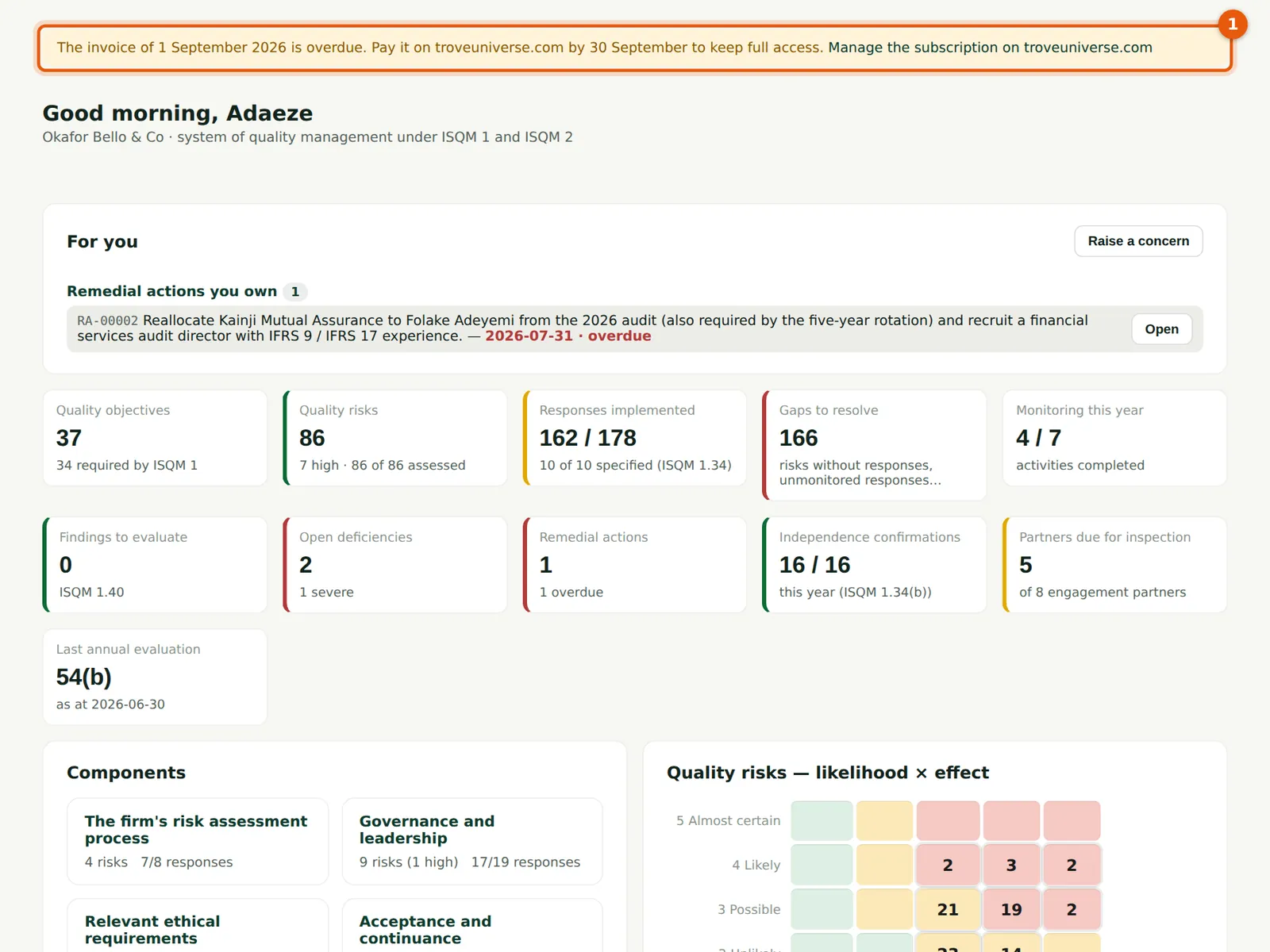
| Grace (payment overdue) | Full access, with a banner and TroveUniverse's message (step 22.6). |
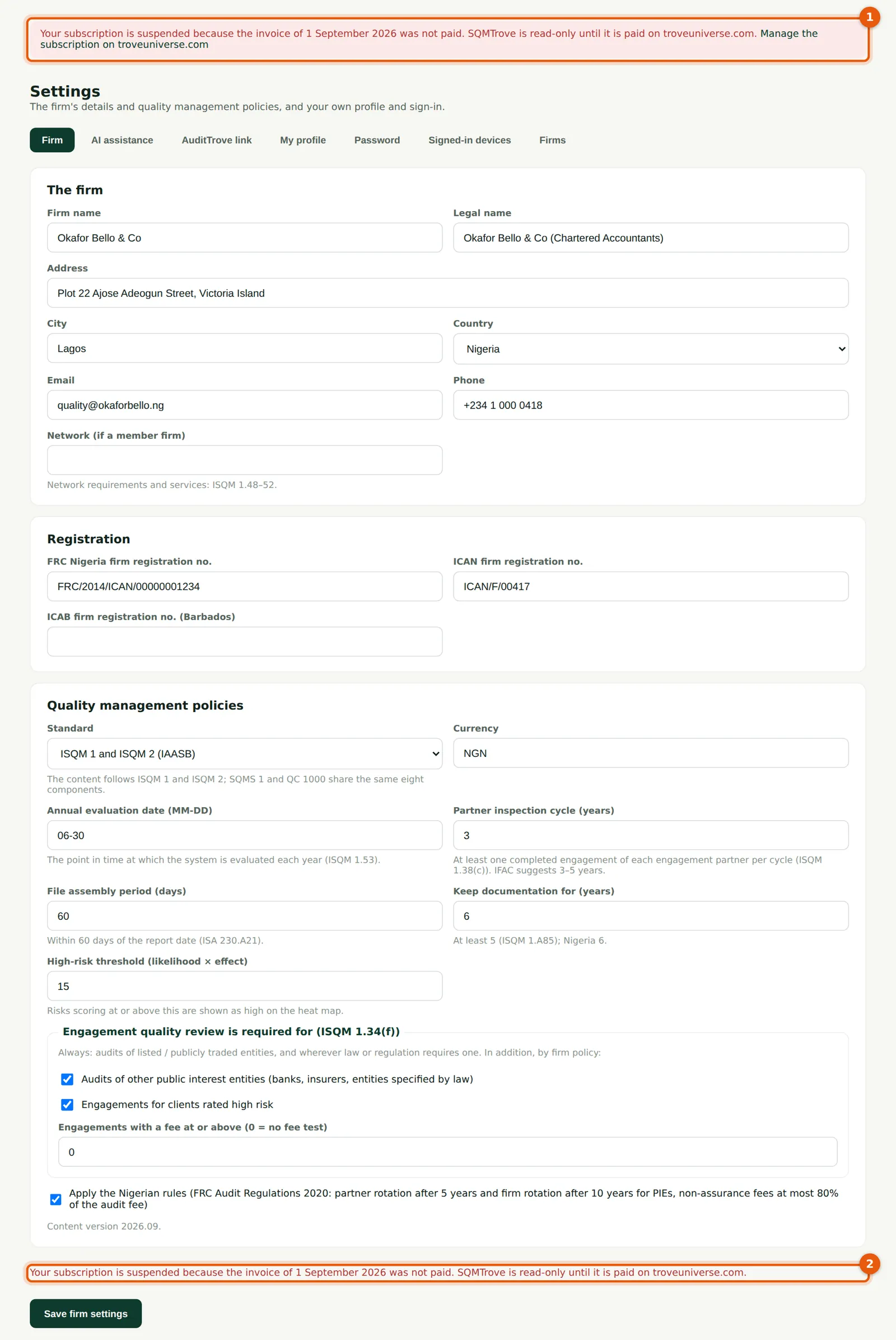
| Suspended | Read-only: people can sign in, read and export, sign out and manage their own password, two-factor and profile (step 22.7). |
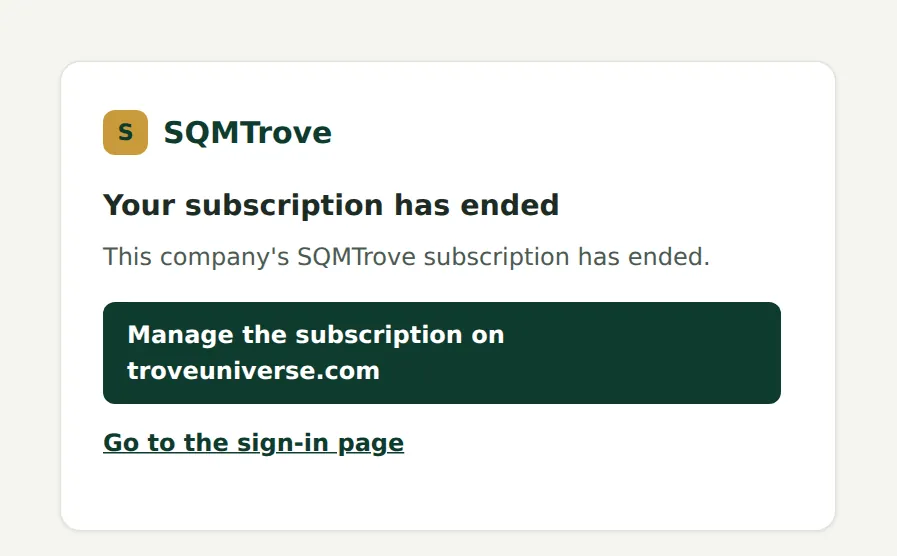
| Ended | Sign-in, by password or from troveuniverse.com, is refused, with a link to troveuniverse.com (step 22.8). |
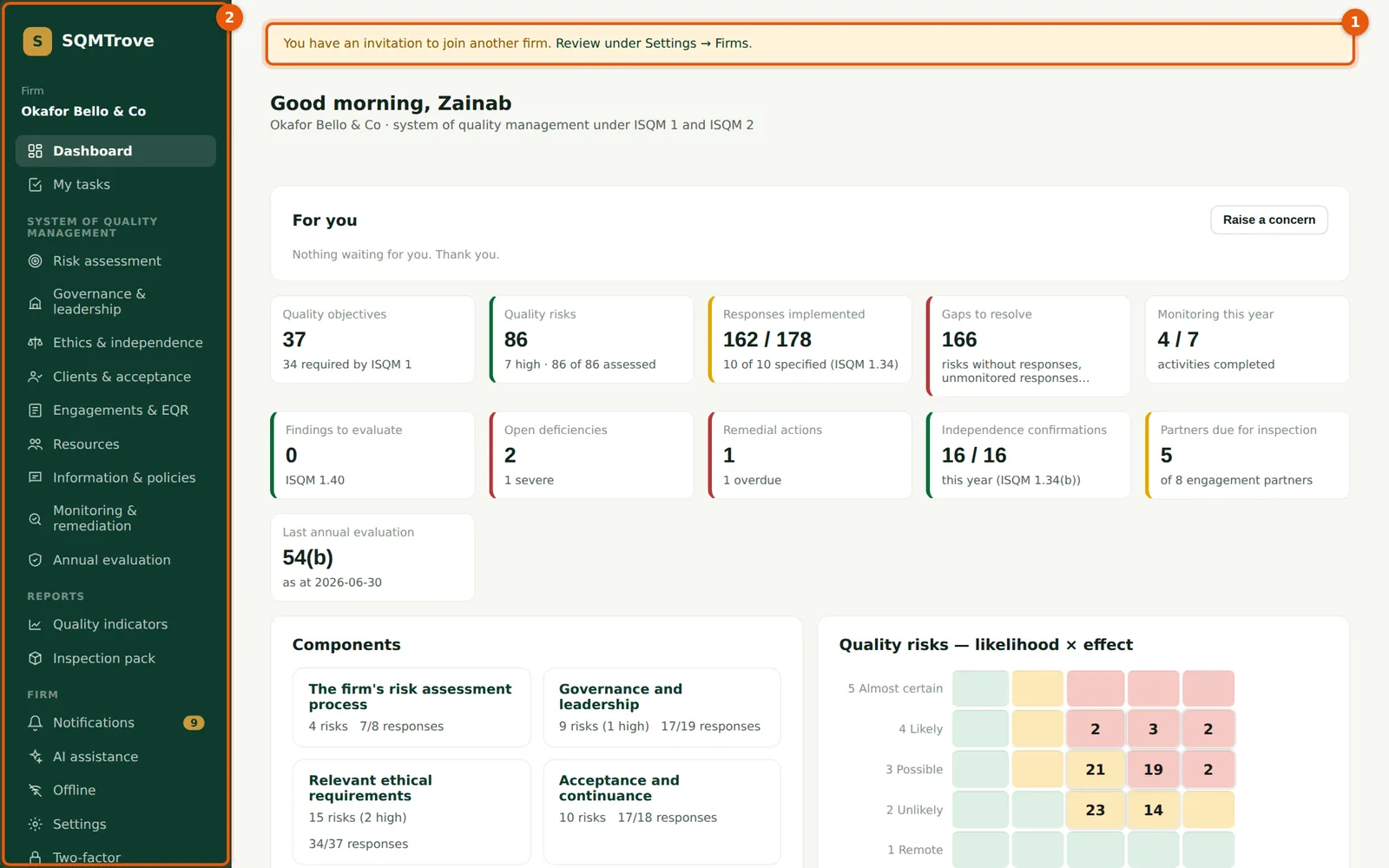
22.1 An invitation from another firm
Why
A banner (1) shows an invitation to join another firm. The menu (2) shows what her custom role allows in this firm: no Users & roles, audit trail or complaints.
Who
Anyone invited to another firm.
What to do
- Choose Settings → Firms from the banner (1).
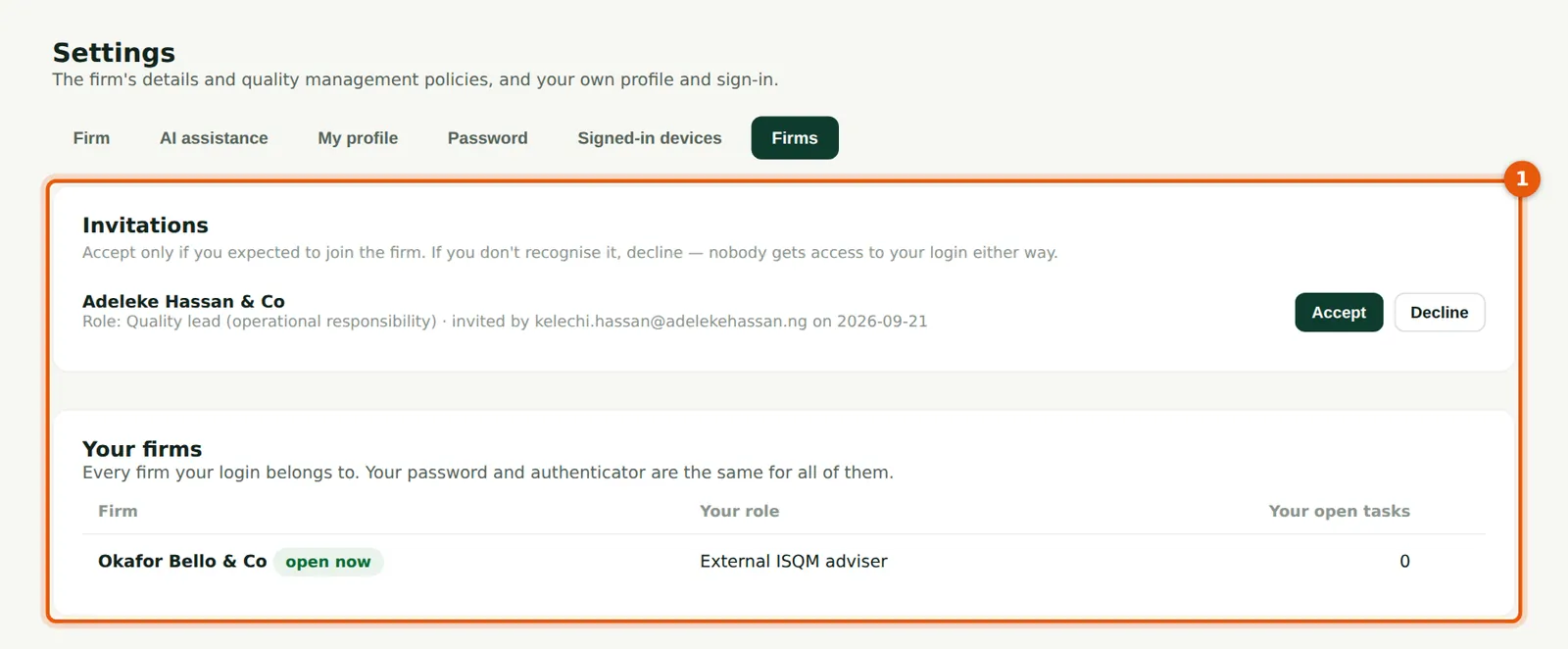
22.2 Accept or decline
Why
Invitations and the firms your login belongs to, with your role and open tasks in each (1). Accept only if you expected to join; nobody gets access to your login either way.
Who
The person invited.
What to do
- Choose Accept or Decline.
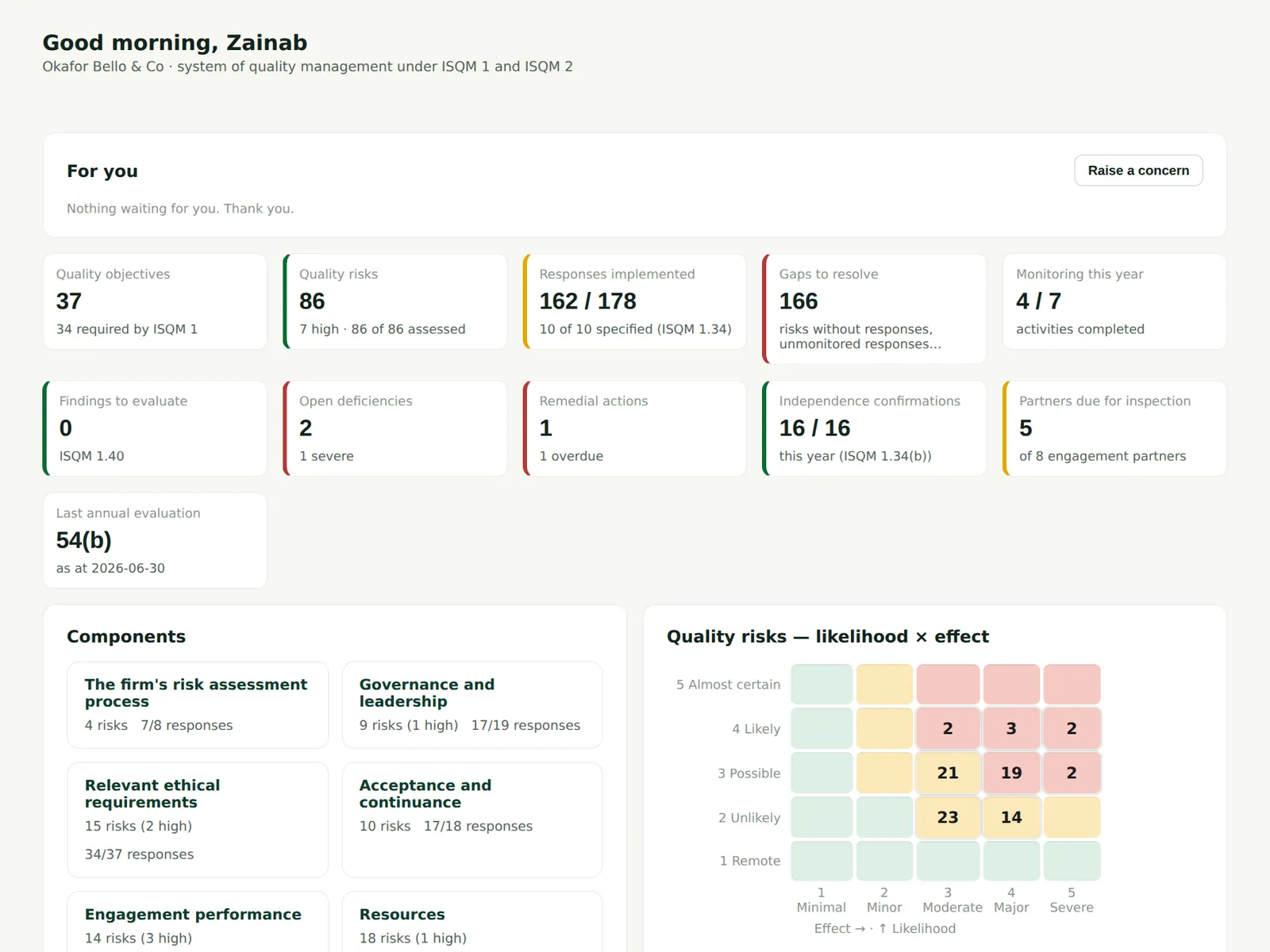
22.3 Switch between firms
Why
With more than one firm, the firm name in the menu becomes a switcher (1). Your password and authenticator are the same for every firm.
Who
Anyone in several firms.
What to do
- Choose the firm from the switcher (1).
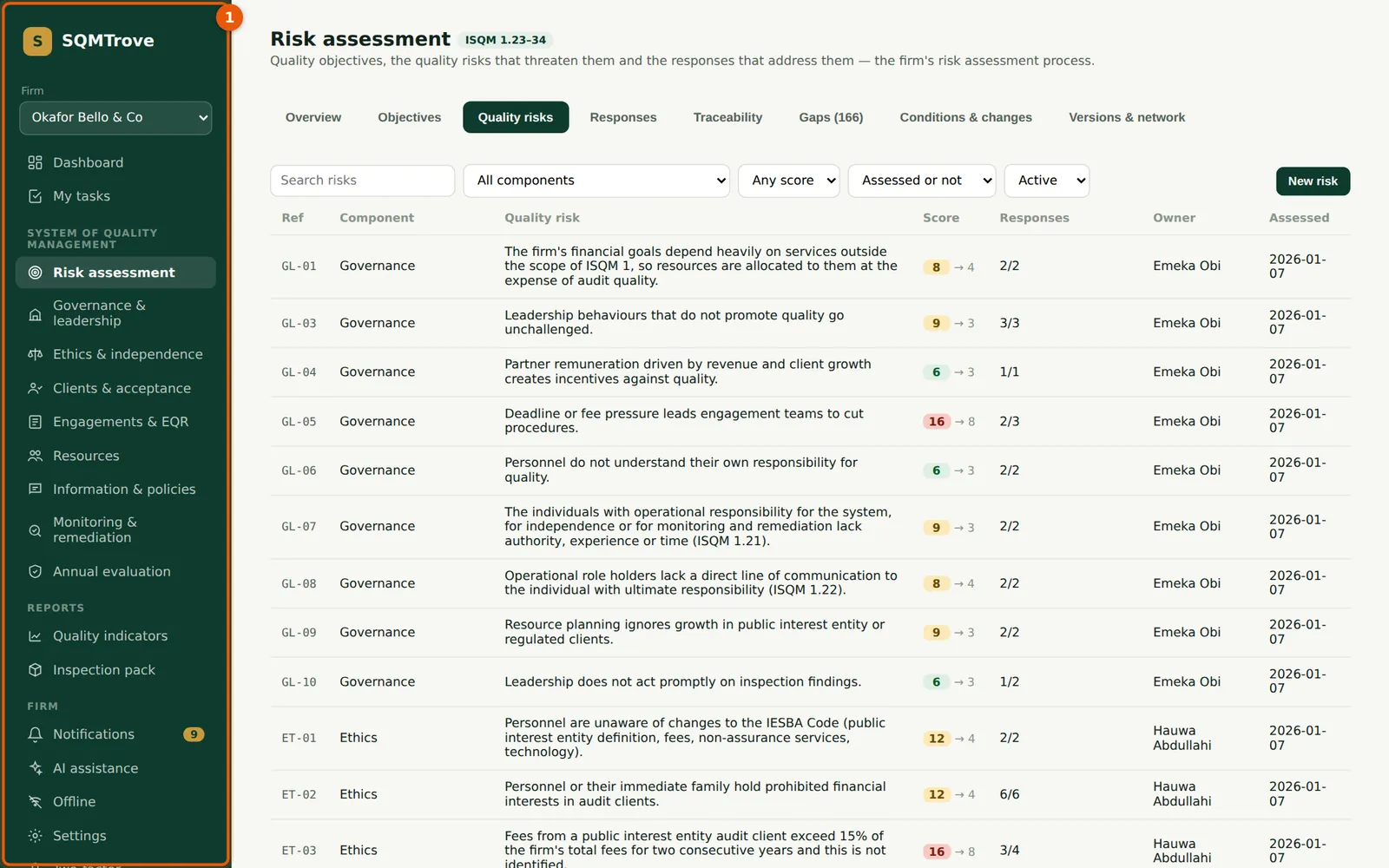
22.4 Open a firm from the partner dashboard
Why
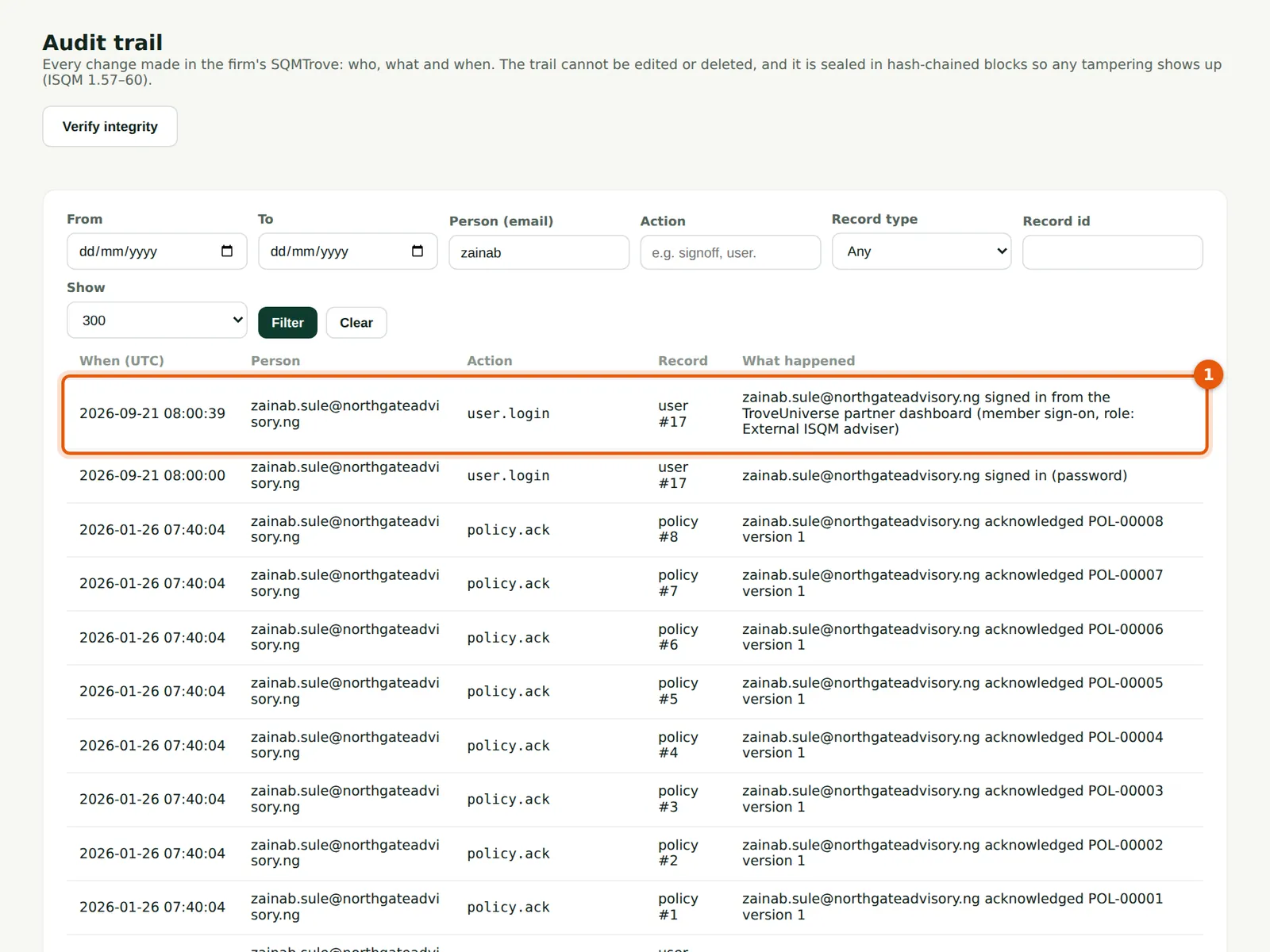
A TroveUniverse partner can open a client firm from the partner dashboard. SQMTrove signs them in only if they already have an active membership of that firm, with that membership's role (1); nothing is created and no invitation is accepted. Two-factor still applies.
Who
TroveUniverse partners.
What to do
- On troveuniverse.com open the partner dashboard and choose the firm's SQMTrove.
22.5 The sign-on in the audit trail
Why
The firm sees each such sign-in, with the role used (1).
Who
Owner, firm administrator and quality lead.
What to do
- Filter the audit trail by the person's email.
22.6 A payment is overdue
Why
When an invoice is overdue, a banner (1) shows TroveUniverse's message. Everything still works.
Who
Everyone sees it; the Owner pays.
What to do
- Choose Manage the subscription on troveuniverse.com and pay the invoice.
22.7 The subscription is suspended
Why
While suspended (1), SQMTrove is read-only: people can sign in, read and export, and manage their own password, two-factor and profile, but changes are refused (2).
Who
Everyone; the Owner pays.
What to do
- Pay on troveuniverse.com: full access returns once TroveUniverse records the payment.
22.8 The subscription has ended
Why
When the subscription ends, sign-in is refused with a link to troveuniverse.com.
Who
Owner.
What to do
- Choose Manage the subscription on troveuniverse.com to renew.