Steps in this chapter (9)
Ask everyone anonymously how they see the firm's culture and feed the results into the risk assessment, keep every version of the transparency report until a leader approves and publishes it, and export every row of a register.
ISQM 1.28 asks the firm's leadership to set a culture that recognises and reinforces the role of quality. SQMTrove's culture survey asks eleven statements about the tone at the top, speaking up, putting quality before commercial pressure, professional scepticism, consultation, ethics, recognition and resources. Answers are anonymous: the people who took part are kept apart from the answers, no audit trail entry is made for a response, and results are shown only for groups of at least five people.
The transparency report (FRC Rule 12; ISQM 1.34(e)) is now kept as a stored report with versions: each version keeps its text, any AI narrative that was kept, the data it was written from and a fingerprint. A leader with ultimate or operational responsibility approves the latest version; publication records the date and web address, stores a PDF snapshot and locks the report.
In the illustration, Emeka Obi opens the 2026 culture survey on 25 September and closes it on 30 September; the same morning he prepares the 2026 transparency report, Adaeze Nwosu approves it and it is published.
27.1 Create a culture survey
Why
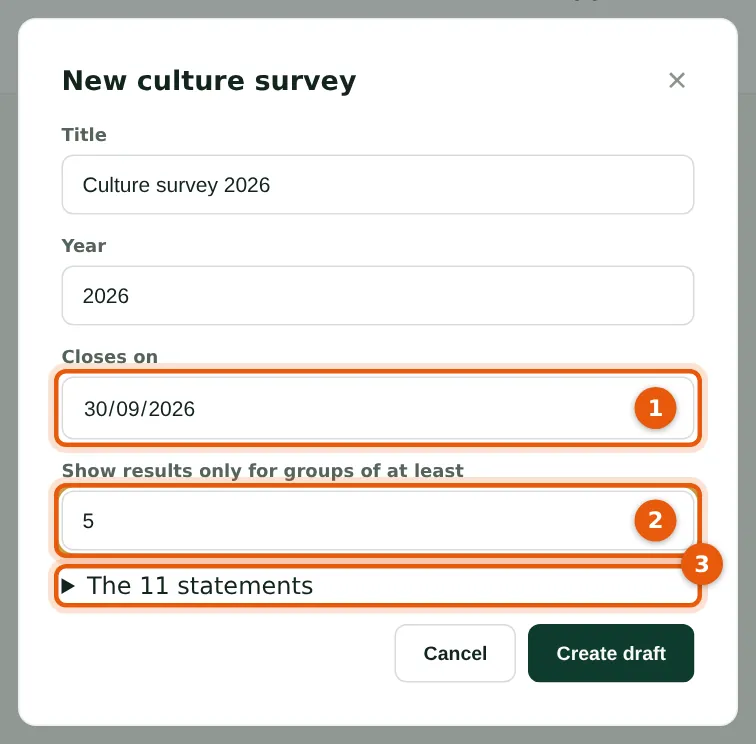
Give the survey a title, the year and the closing date (1), and the smallest group whose results are shown (2) — never fewer than five. The eleven statements (3), listed when you open them, are the same every year, so the results can be compared.
Who
Quality lead or owner.
What to do
- Open Culture survey and choose New survey.
- Fill in (1) and (2) and choose Create draft; then choose Open to everyone — everyone is notified.
27.2 Answer the survey
Why
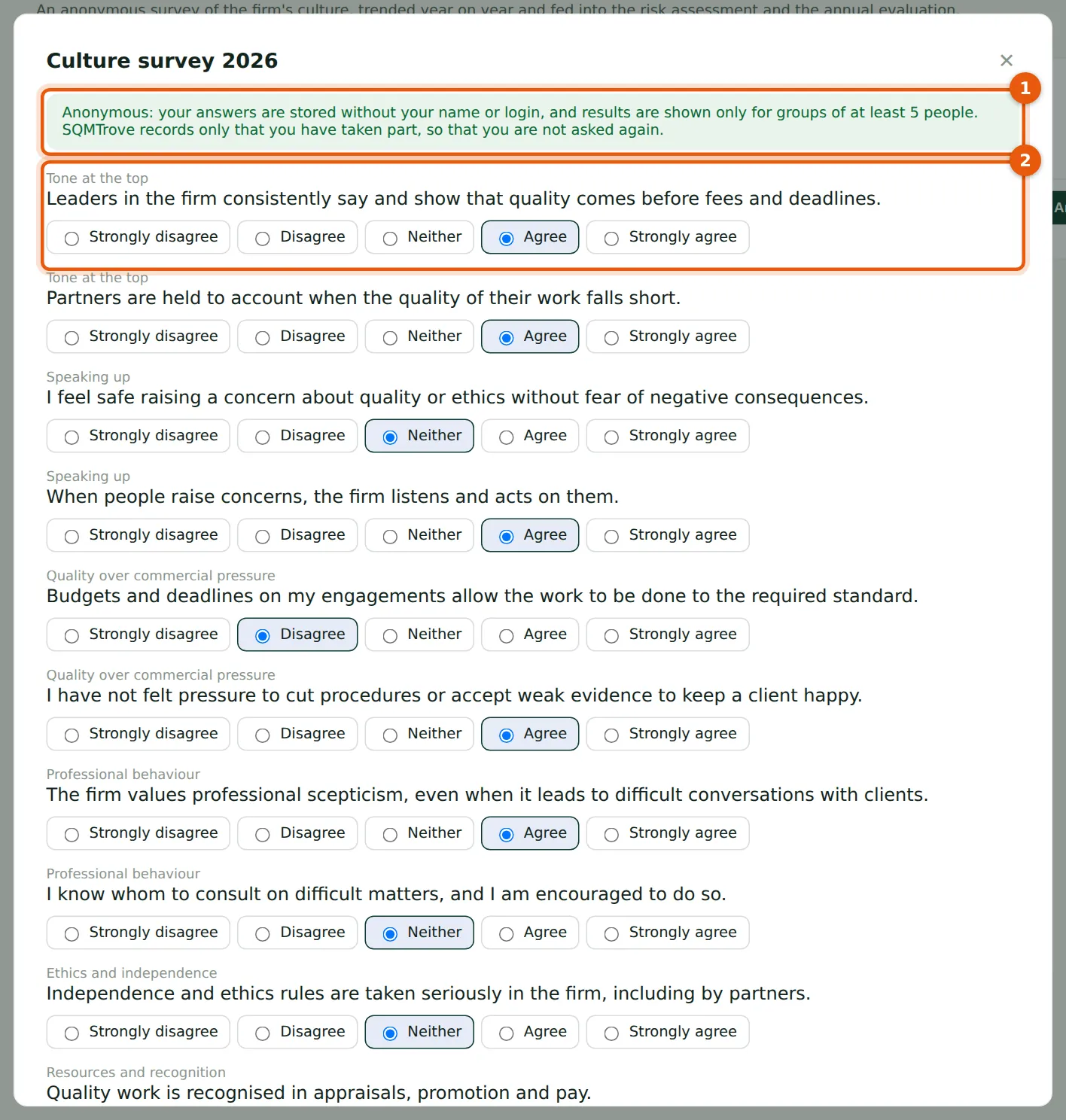
The banner (1) explains the anonymity. Each statement (2) is answered on a five-point scale from Strongly disagree to Strongly agree; an optional comment must not name anyone. Each person answers once.
Who
Everyone in the firm.
What to do
- Choose Answer on the Culture survey page, answer every statement and choose Send my answers.
27.3 The results
Why
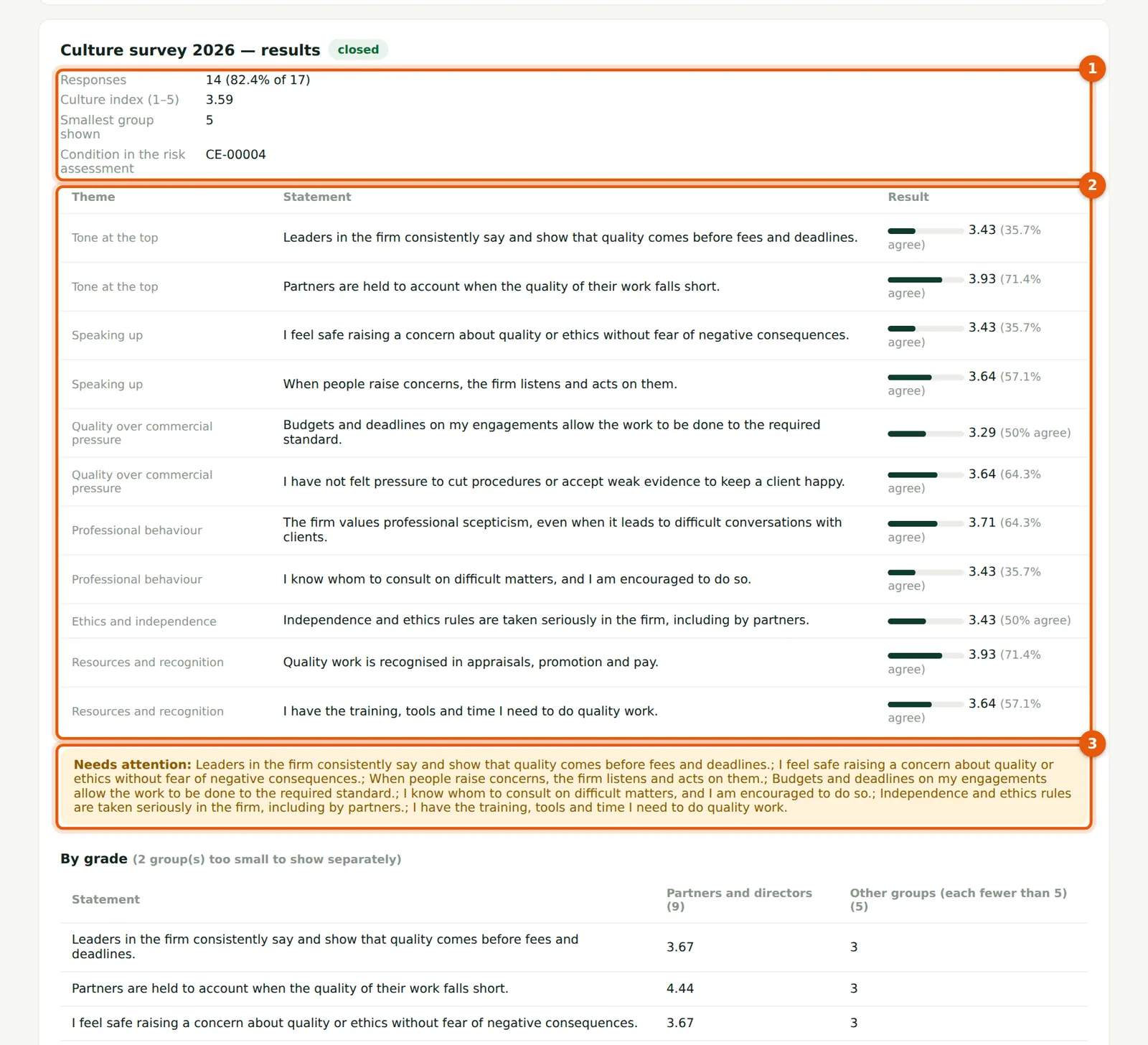
The responses and response rate (14 of 17), the culture index from 1 to 5 and the condition recorded in the risk assessment (1); each statement with its average and the share who agree, and earlier years when there are some (2). Statements with low agreement are flagged (3).
Who
Quality lead; leadership.
What to do
- Close the survey on its closing date (the scheduled jobs remind you) and choose Results.
- Choose Record the results in the risk assessment (condition) so that the risk assessment takes them into account.
27.4 Results by grade and office
Why
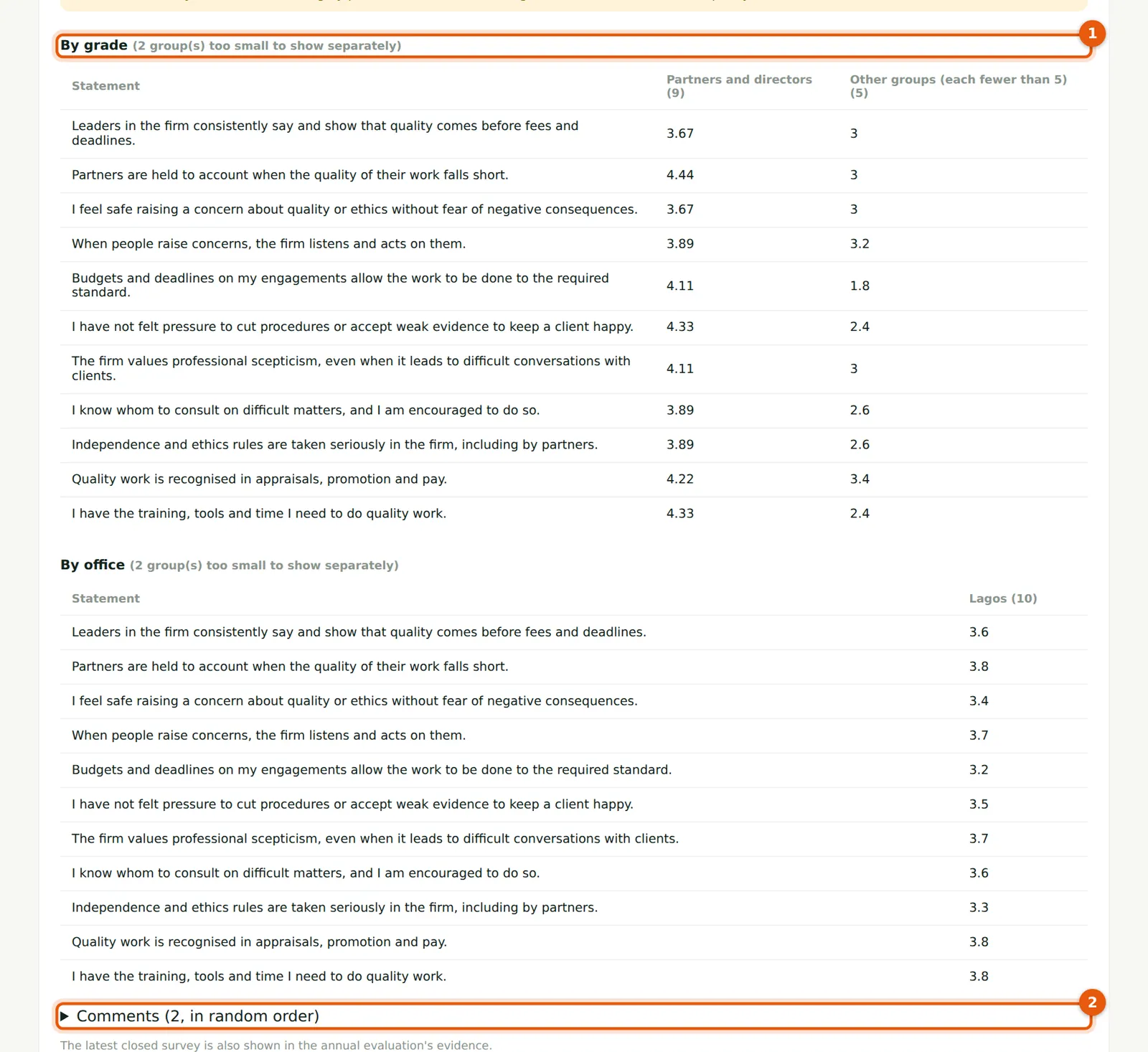
The same statements by grade and by office (1), with groups smaller than the minimum merged or left out so that nobody can be identified. Comments (2) are shown in random order, only when enough people answered.
Who
Quality lead; leadership.
What to do
- Discuss the results at the partners' meeting and record any action as a remedial action or task.
27.5 Start and edit a stored transparency report
Why
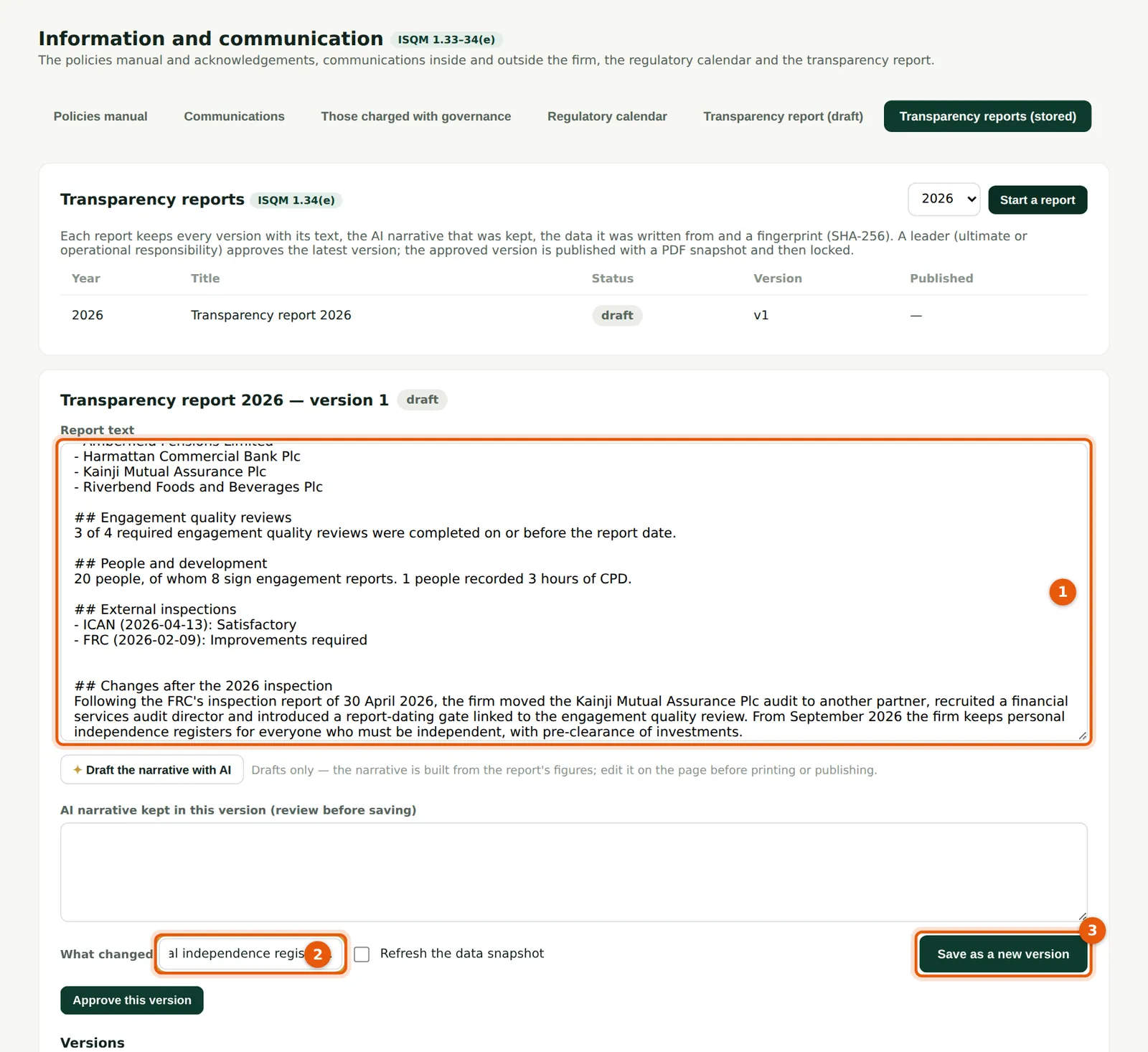
Start a report chooses the year and saves version 1, drafted from the records. Edit the text (1), say what changed (2) and choose Save as a new version (3). Tick Refresh the data snapshot to rebuild the figures from the current records. An AI narrative, if the firm uses AI assistance, is kept only when you save it with a version.
Who
Quality lead.
What to do
- Choose the year and Start a report.
- Edit the text (1), describe the change (2) and choose Save as a new version (3).
27.6 Versions and comparison
Why
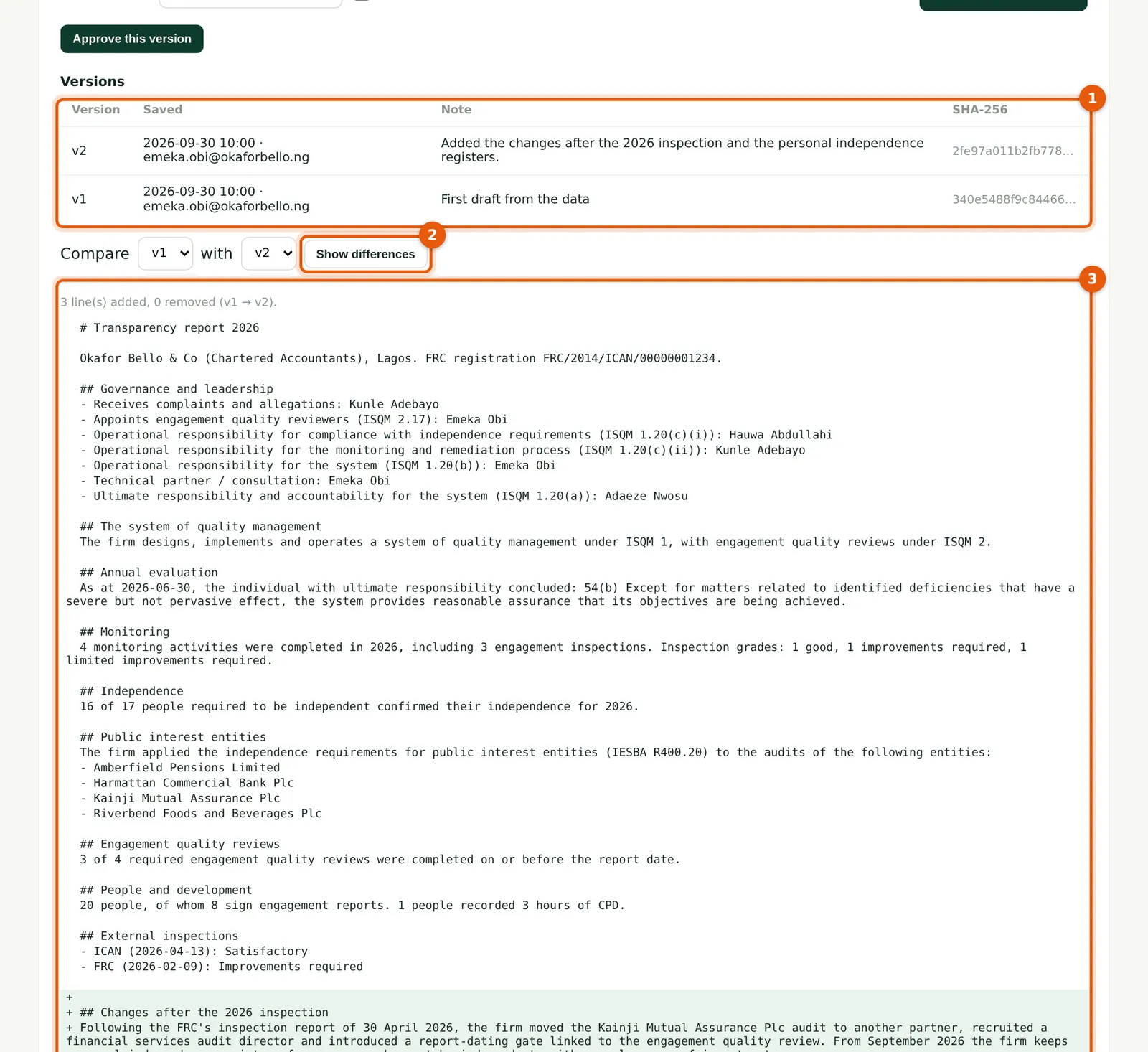
Every version with who saved it, the note and its fingerprint (1). Choose two versions and Show differences (2): added and removed lines are shown (3).
Who
Quality lead; leadership.
What to do
- Choose the two versions and Show differences (2) before approving.
27.7 Approve and publish
Why
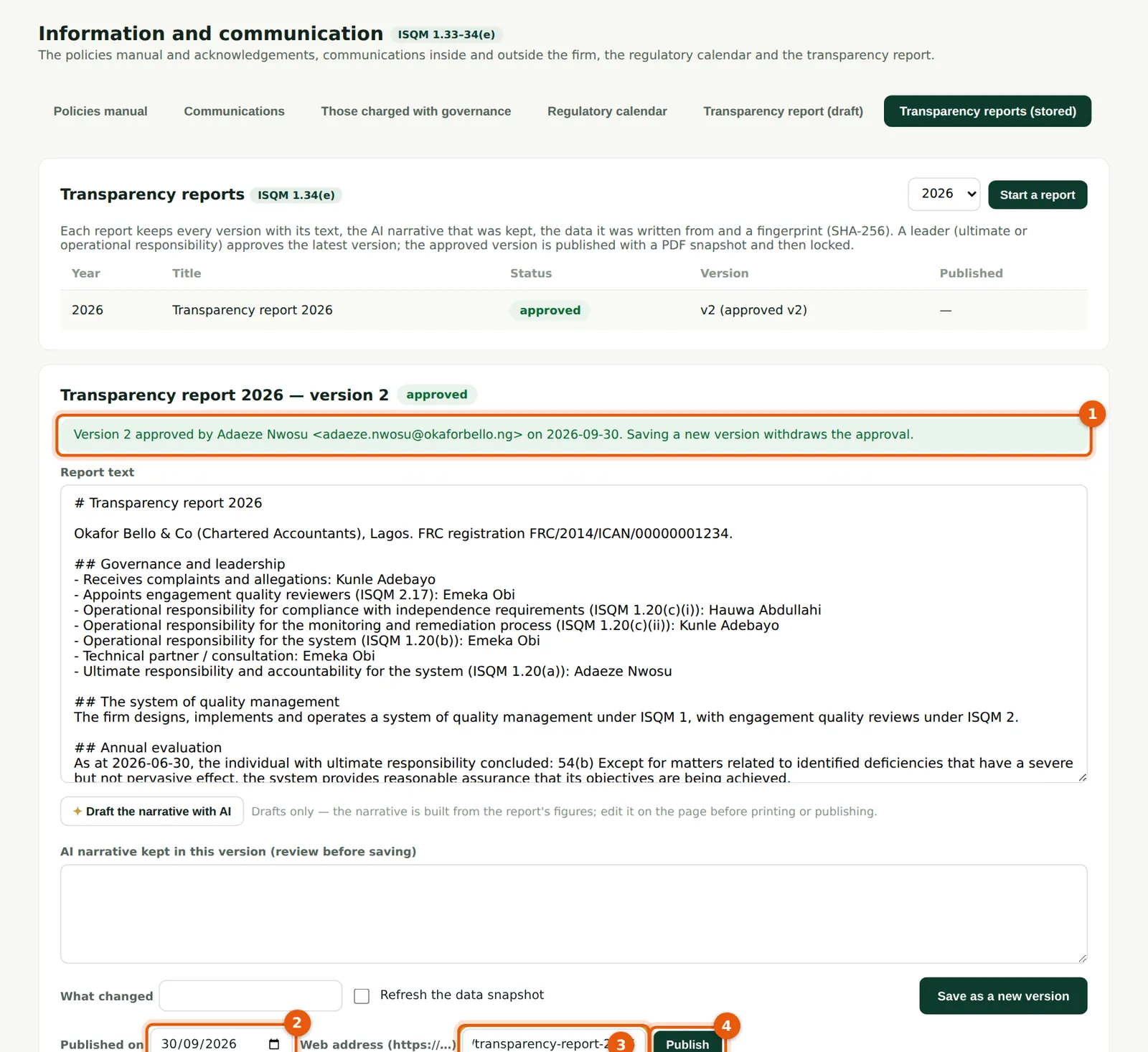
A leader with ultimate or operational responsibility approves the latest version (1); saving another version withdraws the approval. To publish, enter the date (2) and the web address where the report is published (3) and choose Publish (4).
Who
Owner or quality lead (approval by a leader).
What to do
- Choose Approve this version.
- Enter the publication date (2) and the https address (3) and choose Publish (4).
27.8 The published report
Why
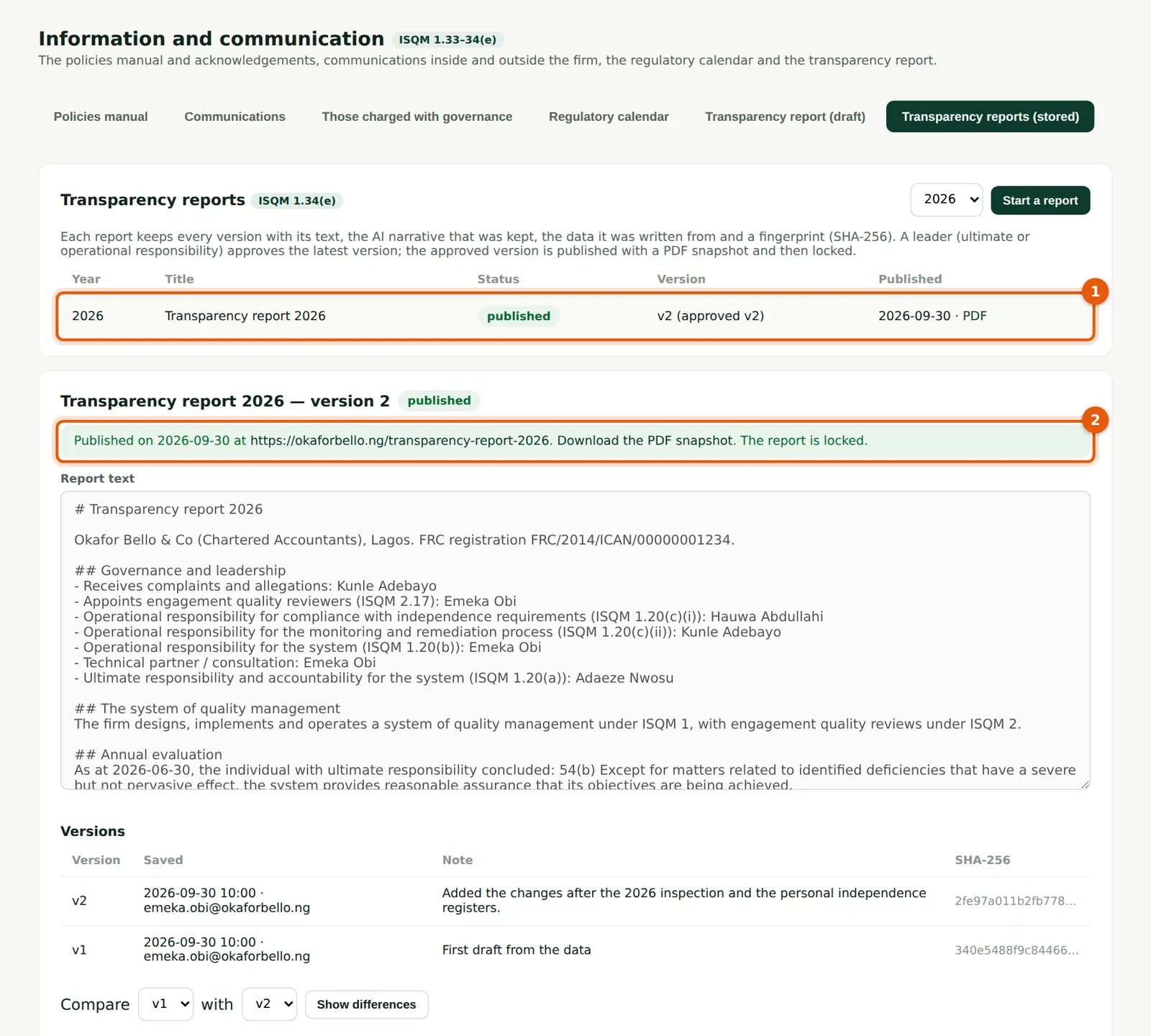
The list shows the report as published with a link to its PDF snapshot (1). The report is locked (2): a later change needs a new report.
Who
Quality lead; inspectors (read).
What to do
- Download the PDF snapshot (1) for the inspection file.
27.9 Export every row of a register
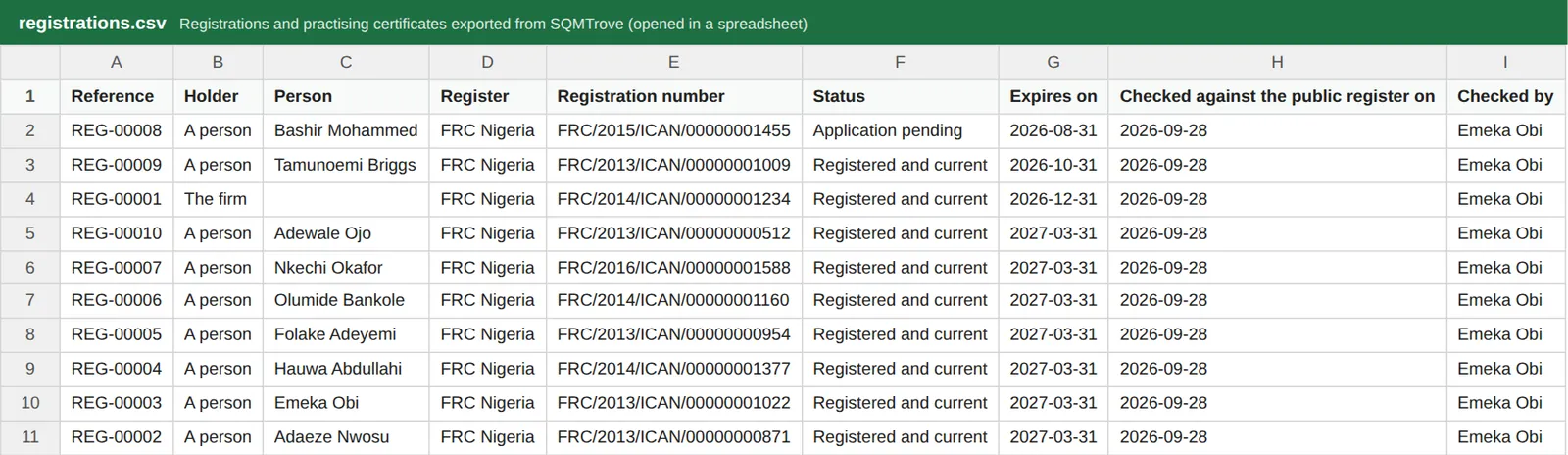
Why
Export CSV on any register now downloads every row that matches the search and filters — not only the rows shown on the screen — up to 200,000 rows, with every column, the reference and who created and changed each row. The export is recorded in the audit trail with the number of rows. A list with more rows than it shows says so at the top.
Who
Anyone with access to the register.
What to do
- Filter the register as needed and choose Export CSV. Open the file in a spreadsheet program.