Steps in this chapter (6)
Give clients and others a public form for complaints and allegations, with a tracking code and an acknowledgement, and investigate them in the complaints register.
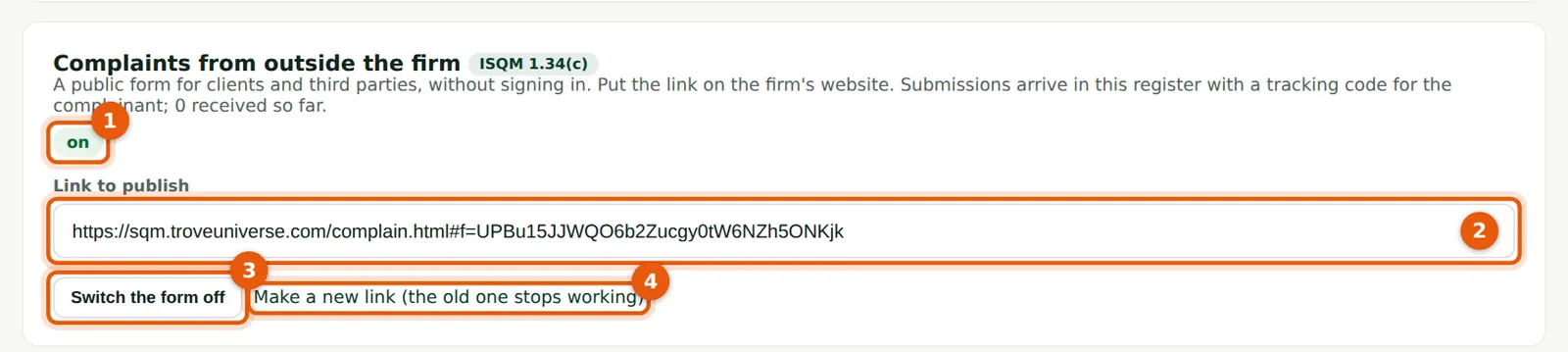
ISQM 1.34(c) covers complaints and allegations from inside and outside the firm. Besides speak-up for people in the firm (chapter 14), SQMTrove now has a public complaints form: the firm publishes its link on its website, and anyone — a client or a third party — can complain without signing in, anonymously if they wish, with one PDF or image up to 2 MB. The complaint arrives in the complaints register, the complaints role holders are notified, and the complainant gets a tracking code (and an acknowledgement email when they give an address) to check the status later. The form refuses automated submissions and limits how many a connection or a firm can send.
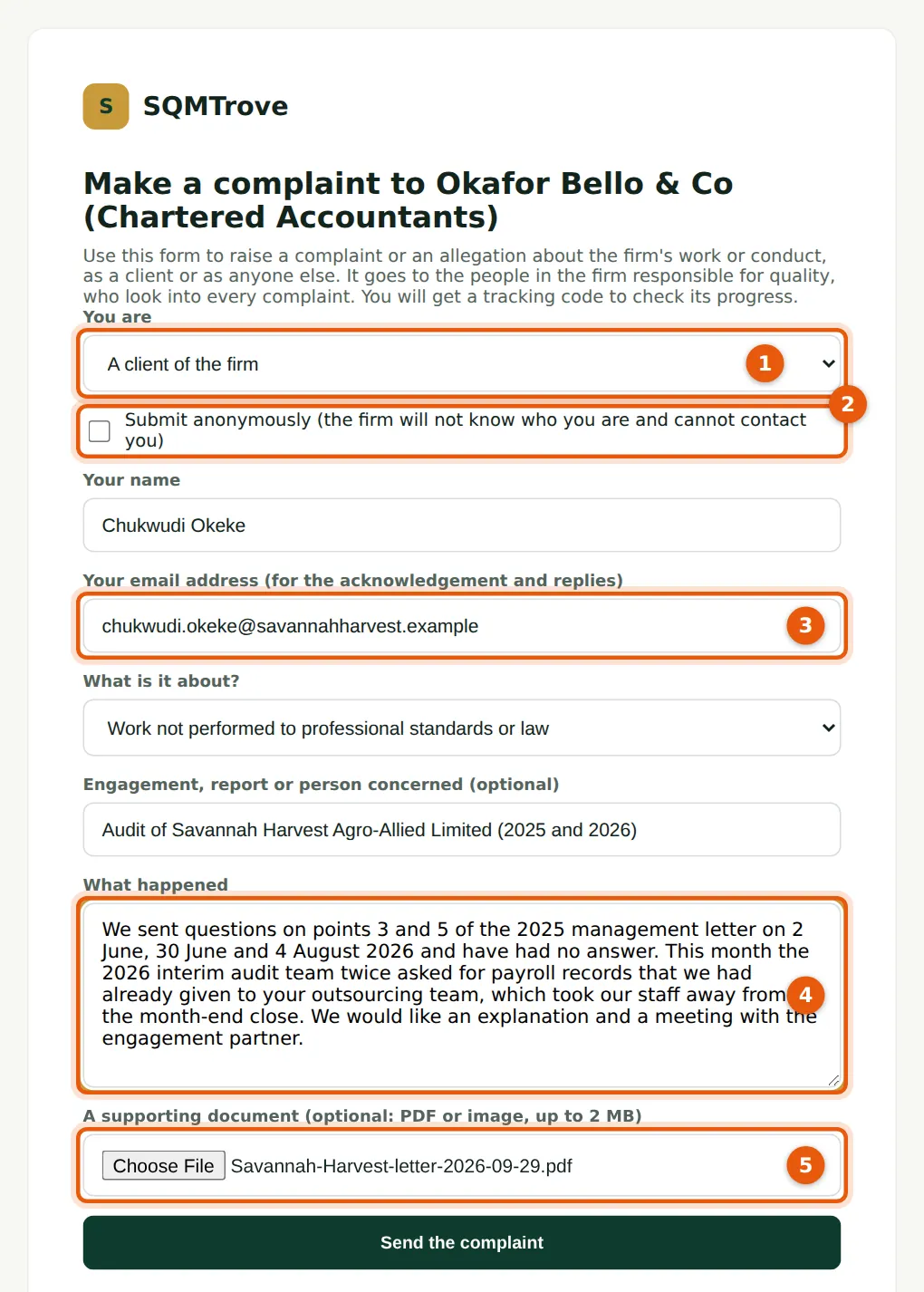
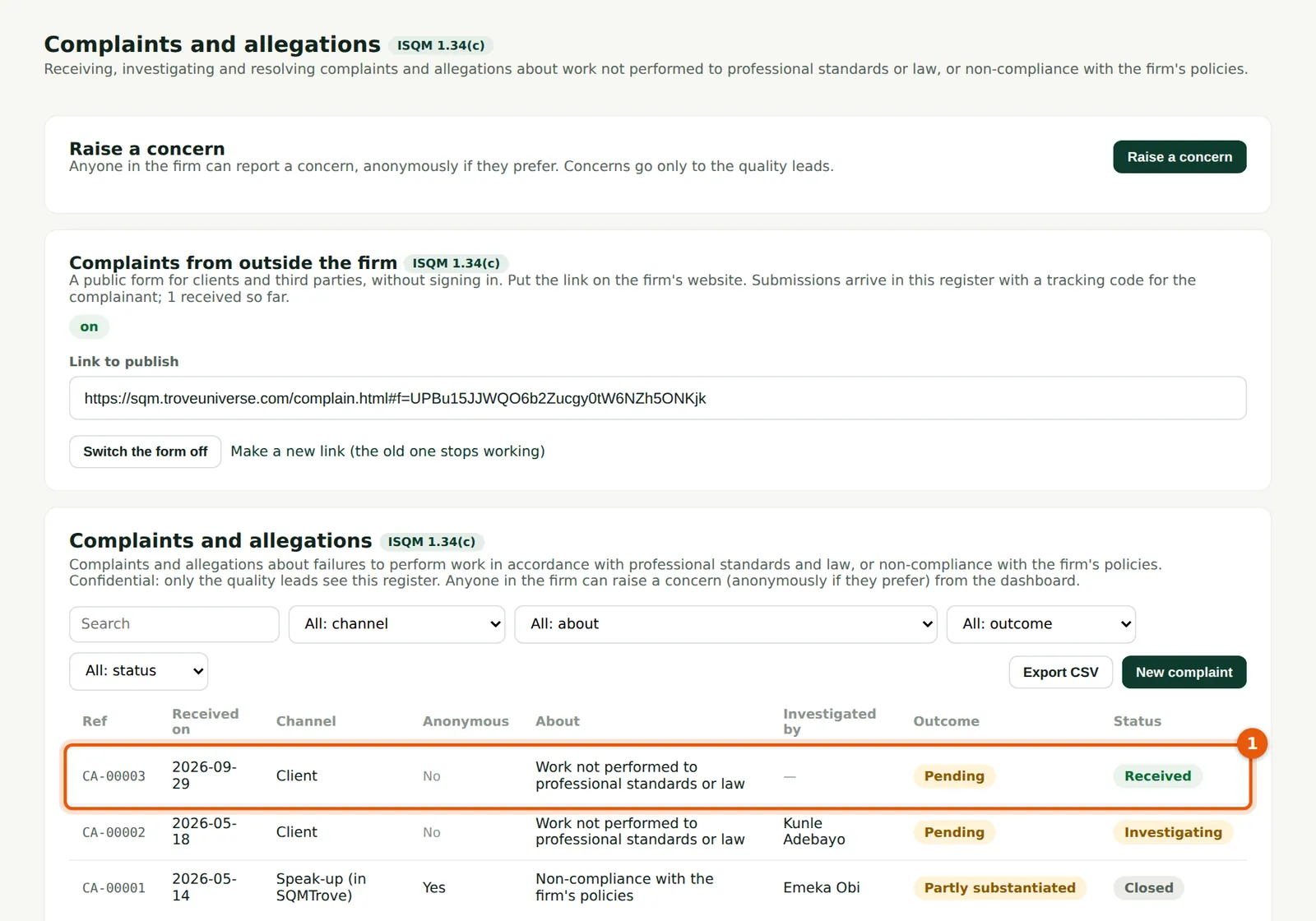
In the illustration, Kunle Adebayo switches the form on on 29 September 2026. That afternoon Chukwudi Okeke, Finance Manager of Savannah Harvest Agro-Allied Limited, complains that his questions on the 2025 management letter have gone unanswered and that the interim audit team asked again for records already given to the firm's outsourcing team. Emeka Obi, who is not on the engagement, investigates.
28.1 Switch the public form on
Why
The form is off until switched on (1). When it is on, the link to publish (2) is shown: put it on the firm's website and in engagement letters. Switch the form off (3) at any time; Make a new link (4) stops the old link working. Only the complaints role holders see this section.
Who
Monitoring lead (complaints role); owner.
What to do
- Choose Switch the form on.
- Copy the link (2) to the firm's website.
28.2 The public form
Why
The complainant says whether they are a client (1), may choose to stay anonymous (2) — then no name, email or network address is kept — gives an email address (3) for the acknowledgement, describes what happened (4) and may attach one PDF or image (5).
Who
Clients and third parties.
What to do
- Fill in the form and choose Send the complaint.
28.3 The tracking code
Why
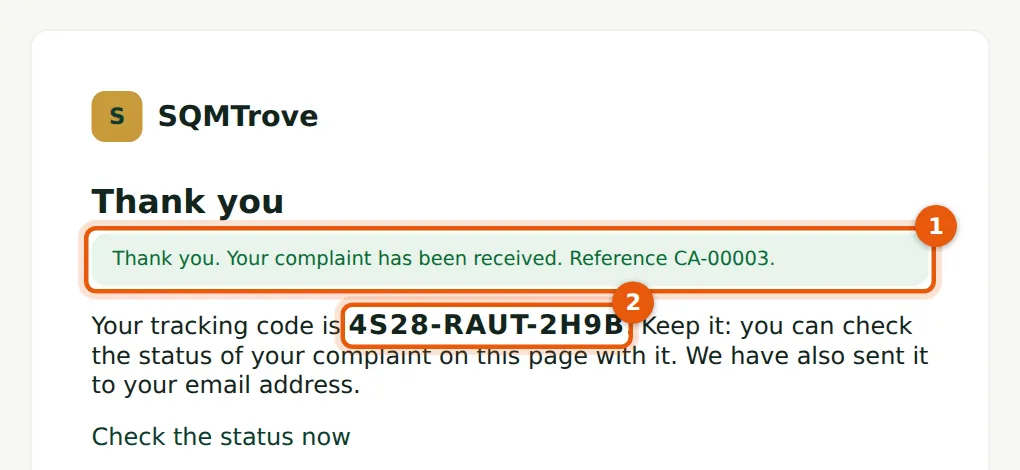
The confirmation (1) gives the reference and the tracking code (2). Only a fingerprint of the code is kept, so the firm cannot look it up; the complainant keeps it.
Who
The complainant.
What to do
- Keep the tracking code (2).
28.4 The acknowledgement email
Why
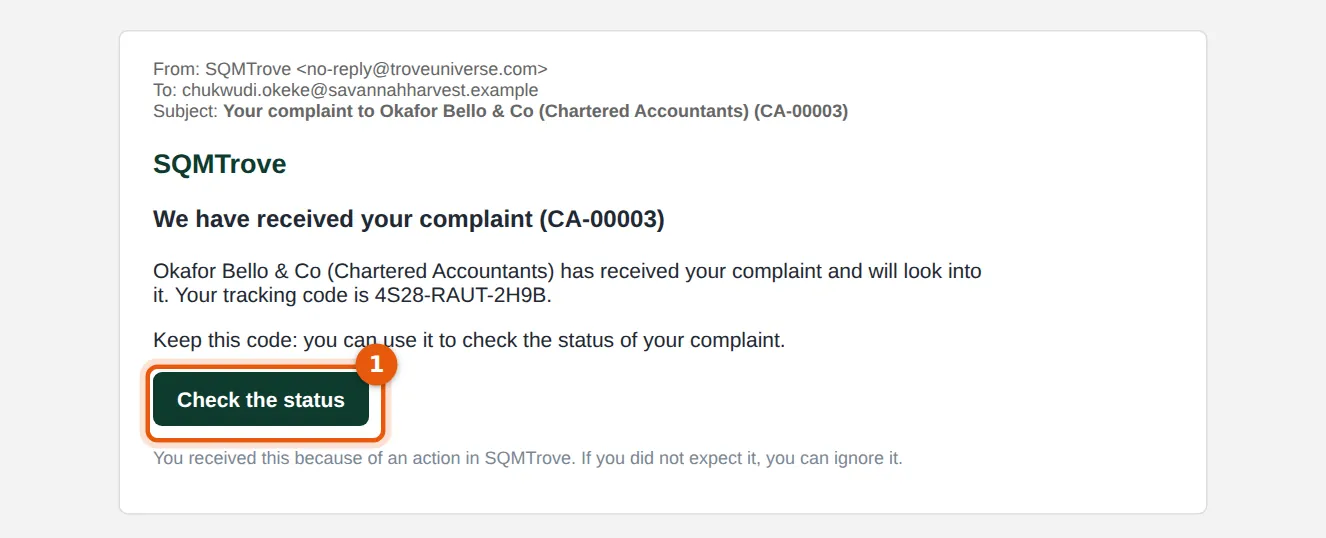
When the complainant gave an email address and the firm's email is set up, SQMTrove sends an acknowledgement with the tracking code and a button (1) to check the status.
Who
The complainant.
What to do
- Choose Check the status (1) at any time.
28.5 The complaint in the register
Why
The complaint arrives as a new row (1) with the channel (Client, or Public complaints form for a third party), the category and the attachment. Investigate it like any other complaint (step 14.4): choose an investigator independent of the matter and record the investigation and the outcome.
Who
Monitoring lead (complaints role).
What to do
- Open the row, choose the investigator, set the status to Investigating and save.
28.6 The complainant checks the status
Why
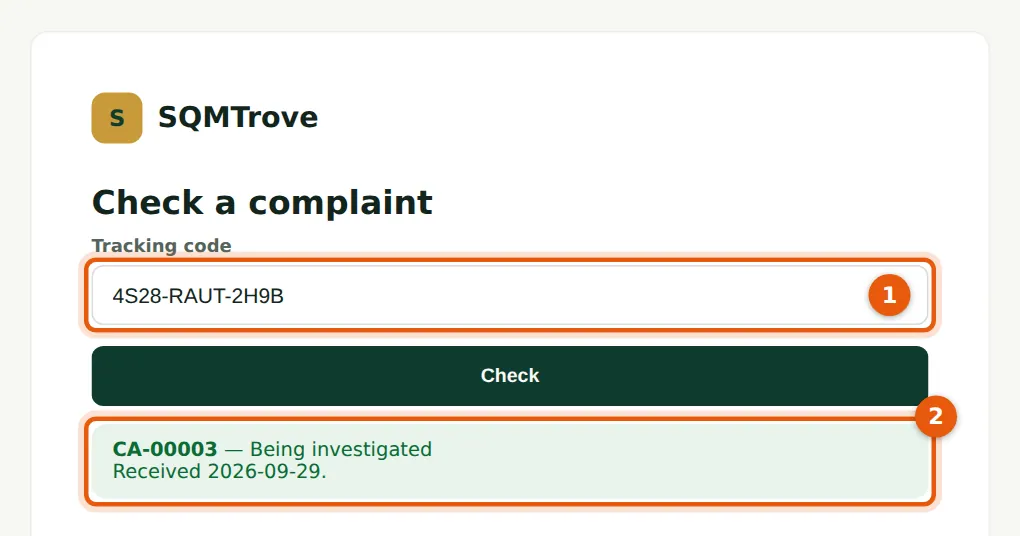
With the tracking code (1), the status page shows the reference, the status (2) — received, being investigated or closed — and the dates. It shows nothing else about the complaint.
Who
The complainant.
What to do
- Open the link in the acknowledgement, or the form's page, and enter the tracking code (1).