Steps in this chapter (7)
Keep a copy of the firm's registers on a protected device, keep working without a connection, and sync the changes when back online.
At client sites and in the Port Harcourt and Abuja offices, the connection is not always reliable. With the firm's permission, a person can keep an offline copy of the registers they can see, their tasks, open inspections and open deficiencies on their own device. Offline they can change CPD and gift entries, task status and notes, declaration answers, inspection checklist answers, and the text of a deficiency and its root cause analysis; these sync in order when the connection returns. Approvals, evaluations, closing records and sign-offs need a connection.
On 14 September 2026 Kunle Adebayo takes an offline copy before travelling to Port Harcourt to perform a cold review of Clean Wells for Arewa Foundation.
20.1 The firm's offline policy
Why
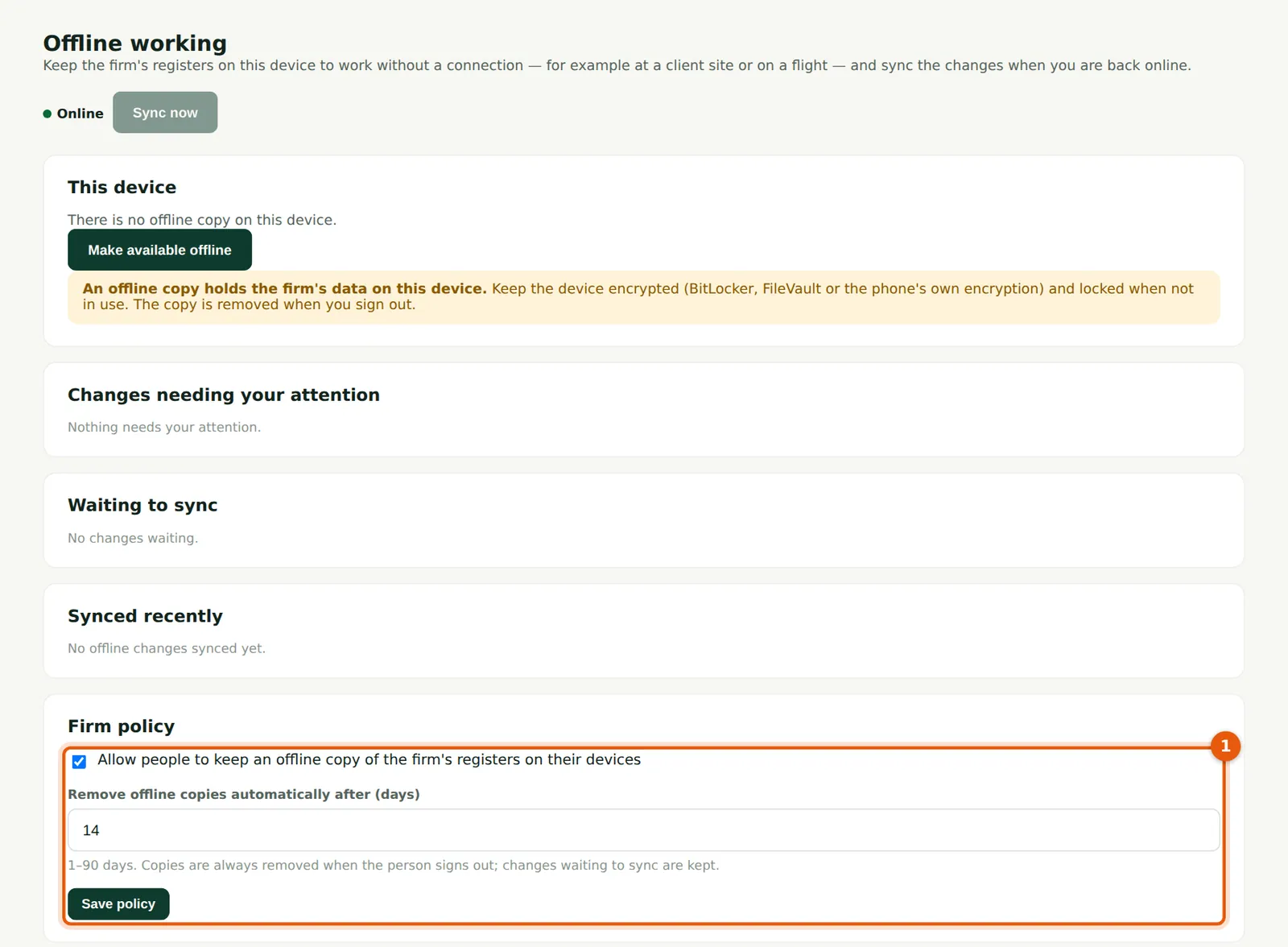
The firm decides whether offline copies are allowed and after how many days they are removed automatically (1). Copies are always removed when the person signs out.
Who
Owner or firm administrator.
What to do
- Tick Allow people to keep an offline copy, set the number of days and choose Save policy.
20.2 Make a copy on this device
Why
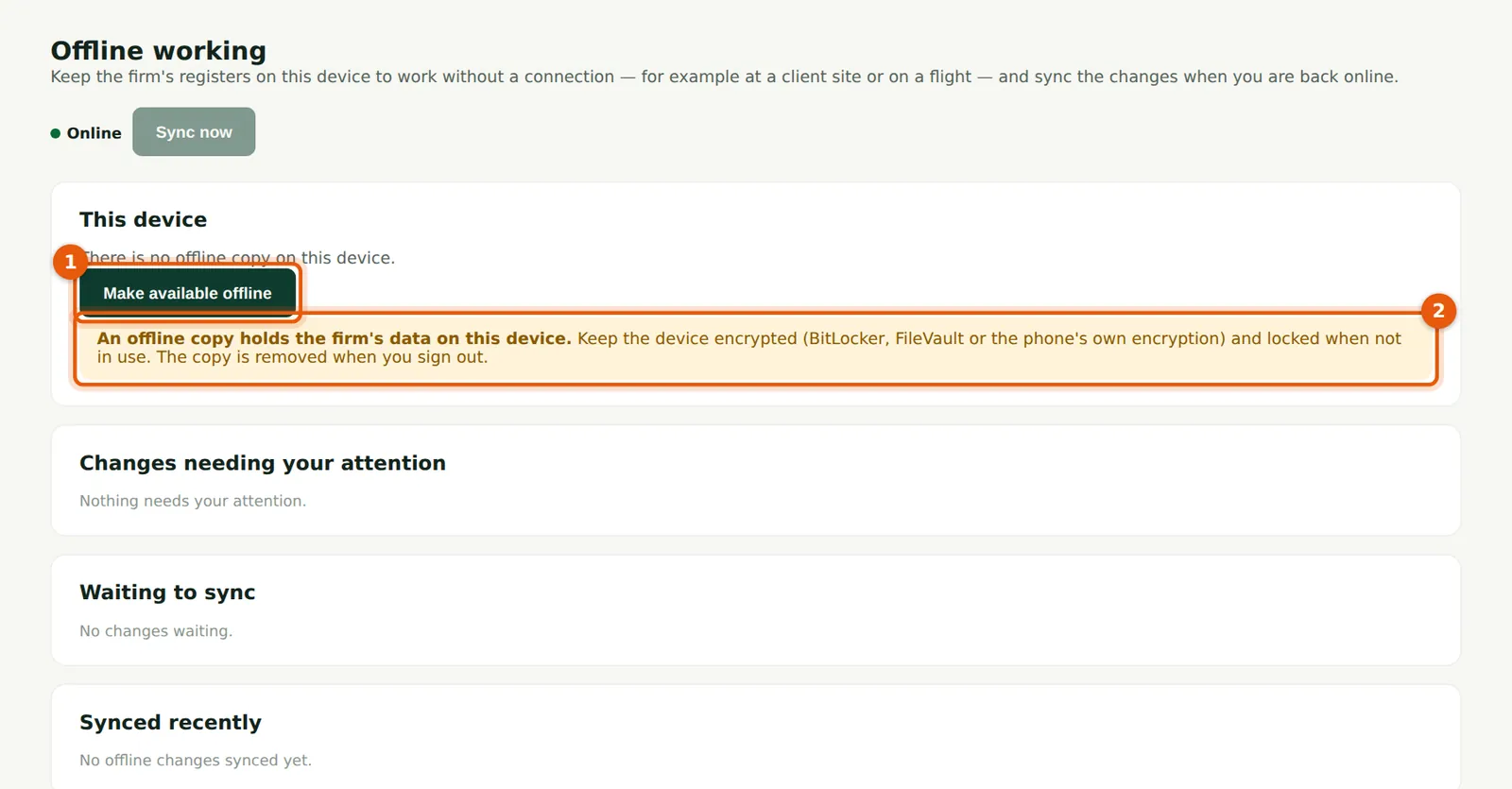
The warning (2) reminds you that an offline copy holds the firm's data on the device, which must be encrypted and locked.
Who
Anyone allowed by the policy.
What to do
- Choose Make available offline (1).
20.3 Confirm the device is protected
Why
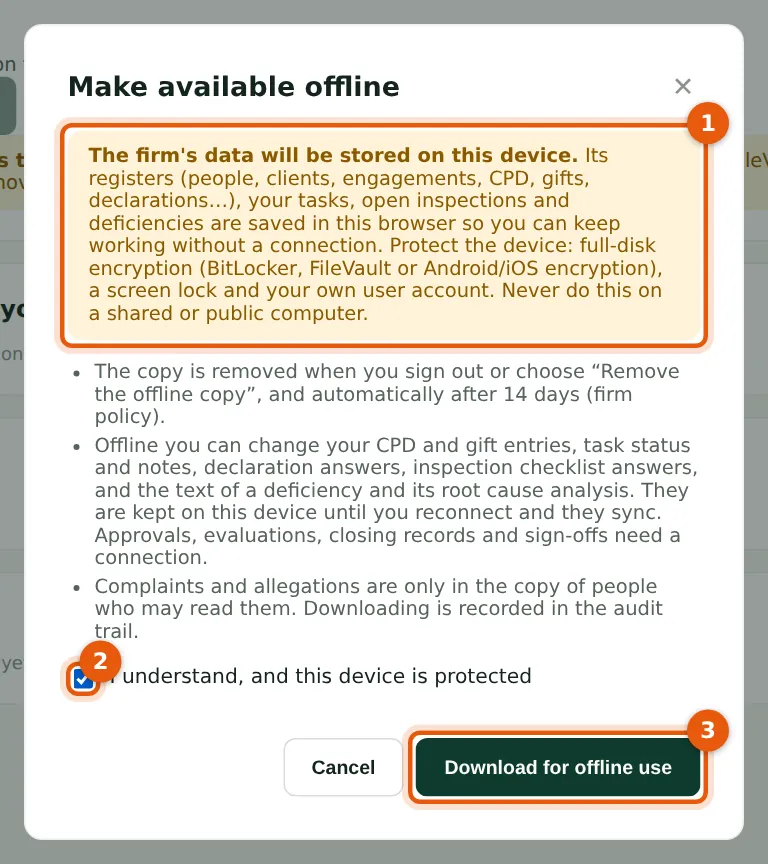
The copy is kept in this browser (1). Never do this on a shared or public computer. Complaints are included only for people who may read them. Downloading is recorded in the audit trail.
Who
The person making the copy.
What to do
- Tick I understand, and this device is protected (2); choose Download for offline use (3).
20.4 The copy on this device
Why
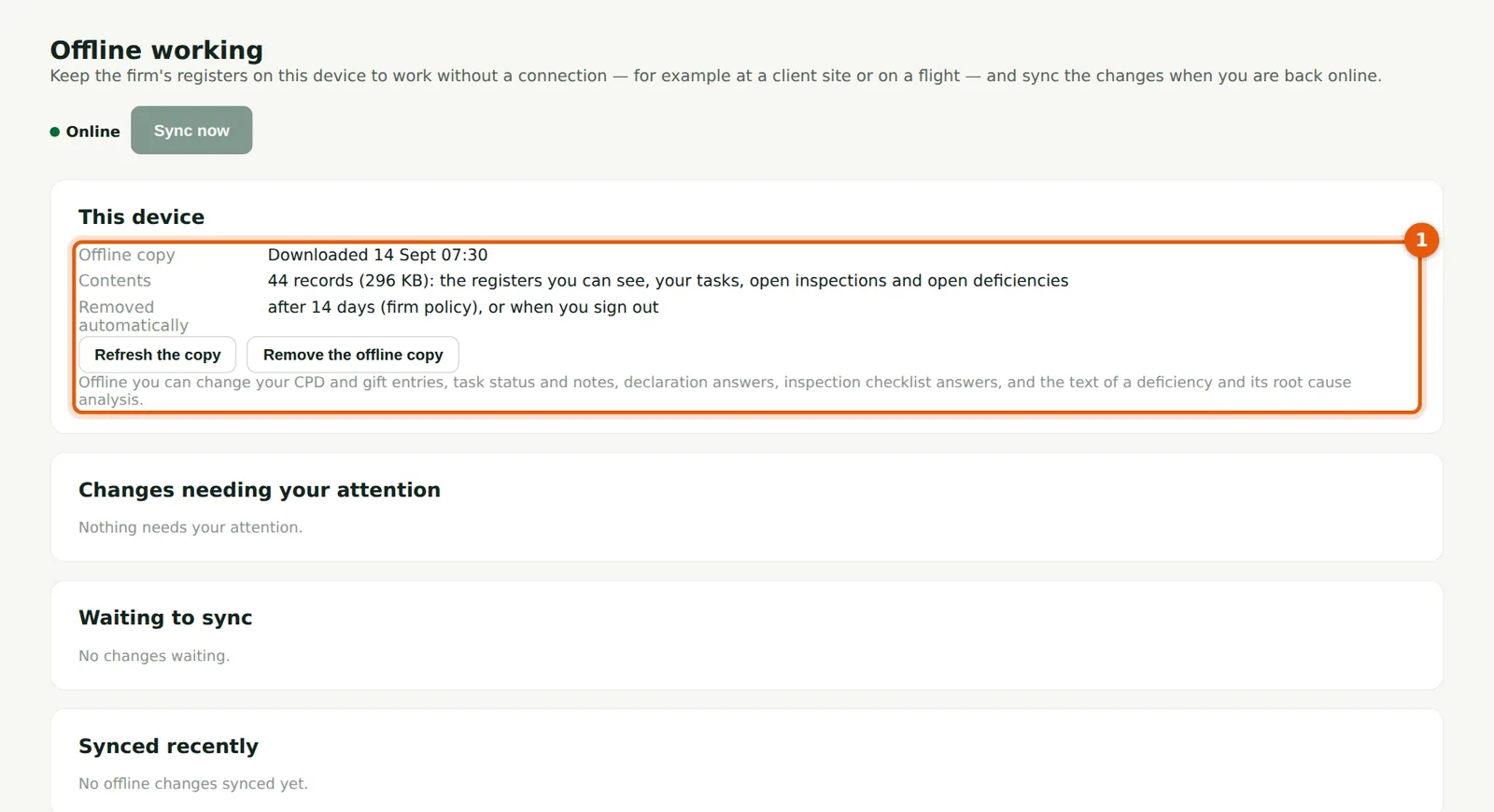
When the copy was made, what it holds and when it is removed (1).
Who
The person.
What to do
- Choose Refresh the copy before going offline again; Remove the offline copy when no longer needed.
20.5 Working offline
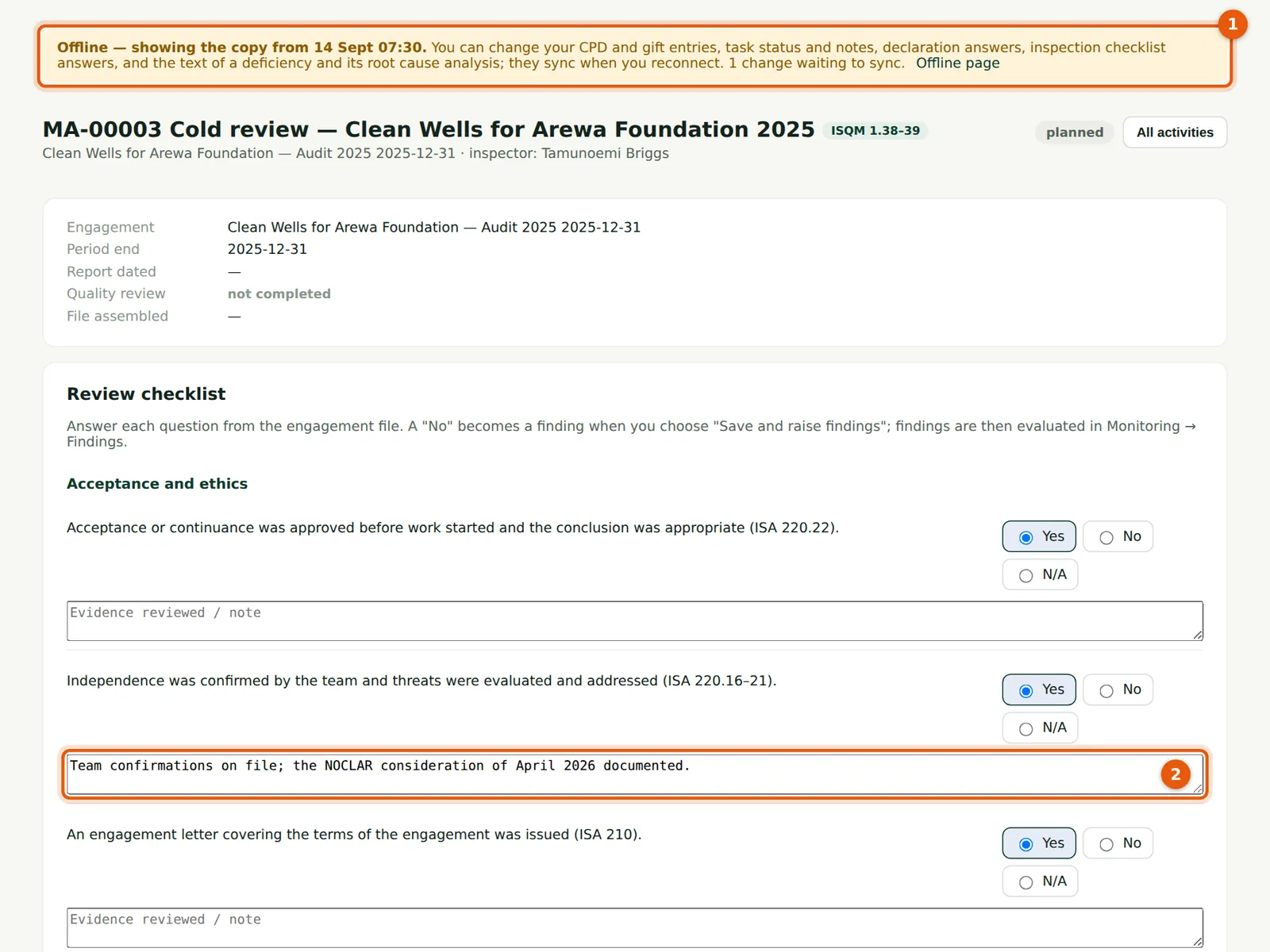
Why
The banner (1) says you are offline, which copy is shown and what can be changed. Kunle answers the checklist and writes his note (2); the change waits to sync.
Who
The person offline.
What to do
- Work as usual on the pages you can change; choose Save.
20.6 Changes waiting to sync
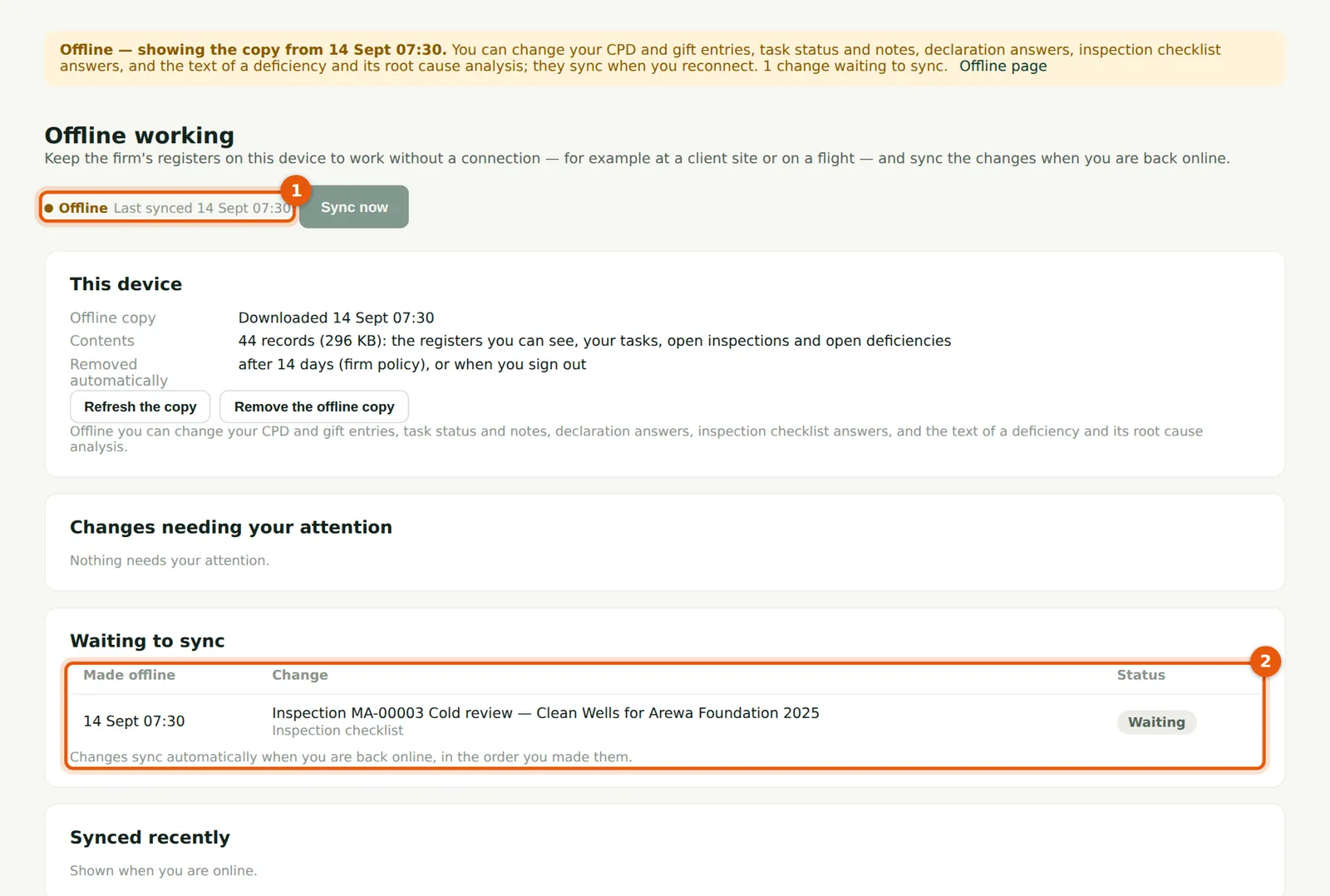
Why
The state (1) and the changes made offline, waiting to sync, in the order made (2).
Who
The person.
What to do
- Reconnect. Changes sync automatically; choose Sync now to send them at once.
20.7 Synced
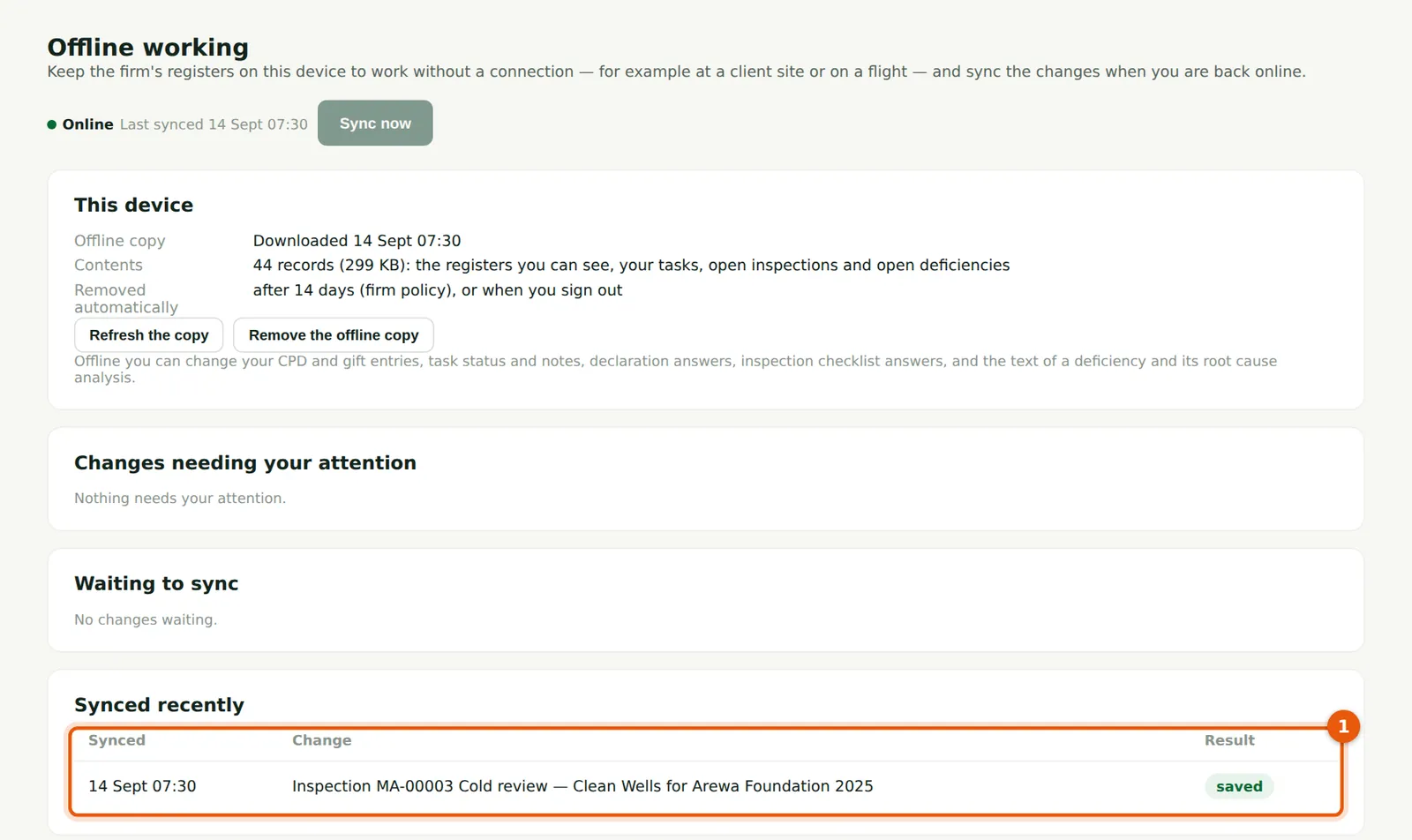
Why
Each change synced and its result (1). If someone changed the same record in the meantime, the change is shown under Changes needing your attention, to be resolved by you.
Who
The person.
What to do
- Check the result of each change.