Steps in this chapter (34)
Field mode is BookTrove on a phone, for the work done on the floor: counting stock in a warehouse and checking fixed assets against the register. Staff sign in on their own phone with their own login, count or check what is in front of them, take photos and carry on without a signal. What they record reaches BookTrove as soon as the phone is online. On a computer, a stock take becomes draft count documents that someone with Inventory approve posts, and an asset check updates each asset's last physical check and flags what was not found.
In the illustration Savannah Harvest counts its stock and checks its assets at the half year, on Tuesday 30 June 2026. On 26 June Chukwudi Okeke (administrator) sets field mode to approved phones only, Emeka Nwosu (inventory manager) sets up the stock take of the Kaduna factory store, and Funmilayo Adeyemi (accountant) sets up the asset check of the Kaduna factory. On 29 June Musa Lawal (buying officer), Ibrahim Danjuma (production manager) and Funmilayo set up their phones and Chukwudi approves them. On 30 June Musa and Ibrahim count the store and Funmilayo checks the assets. Emeka posts the count on 1 July, and on 2 July the haulage truck that was on the road is marked found.
How field mode works
| Topic | What happens |
|---|---|
| Where | On a computer: Operations → Stock takes & asset checks (set-up, review, count documents, results, missing assets) and Settings → Field mode (the policies and the phones). On a phone: the field app, opened from books.troveuniverse.com/index.html?field=1. Nothing is installed. |
| Who | Stock takes need the Inventory permission: Prepare to set one up and to count, Approve to post the count documents. Asset checks need the Fixed assets permission: Prepare to set one up, to check and to record the results; Approve also to write the location, custodian and tag found to the register and to mark a missing asset found. The owner or an administrator sets the policies and approves or withdraws phones. |
| Plans | Field mode is in every plan. Stock takes need the plan's Inventory, and asset checks its Fixed assets. |
| Signing in | Each person signs in on their own phone with their own email, password and authenticator code. A field sign-in opens only the field app; the person's computer stays signed in. "Use the full BookTrove instead" on the phone's home screen leaves field mode on that phone. |
| On the phone | The first time, the person accepts a notice and names the phone, then chooses a PIN of 6 to 12 digits. Everything the field app keeps on the phone is encrypted with that PIN. It is removed at sign-out, after 14 days without a connection, after five wrong PINs, or when the company withdraws the phone. Photos are taken inside the app and are not saved to the phone's gallery. |
| Without a signal | Counts, checks and photos are kept on the phone until it is online again, then sent. The button at the top shows how many are waiting. |
| Stock takes | One warehouse, optionally one category. Blind by default: the phones do not show the quantities in the books. The quantities in the books are taken when the first counter opens the list. Counts become draft count documents, which change nothing until someone with Inventory approve posts them. |
| Asset checks | The whole register in use, or one location or category. Each asset is recorded as seen (with its condition, the tag, serial, location and custodian found, and a photo) or not found. Results give each asset seen its last physical check and flag each asset not found for the missing-asset review. Nothing is disposed of. |
| Times | The phone shows local time. The review pages on a computer show times in UTC, as other BookTrove logs do: Lagos time is one hour ahead. |
| Auditors | An audit firm using AuditTrove can read the fixed asset register at a date through its read-only token (chapter 23), to verify the assets on its own phones. |
27.2 Switch field mode on and choose the policies
Why
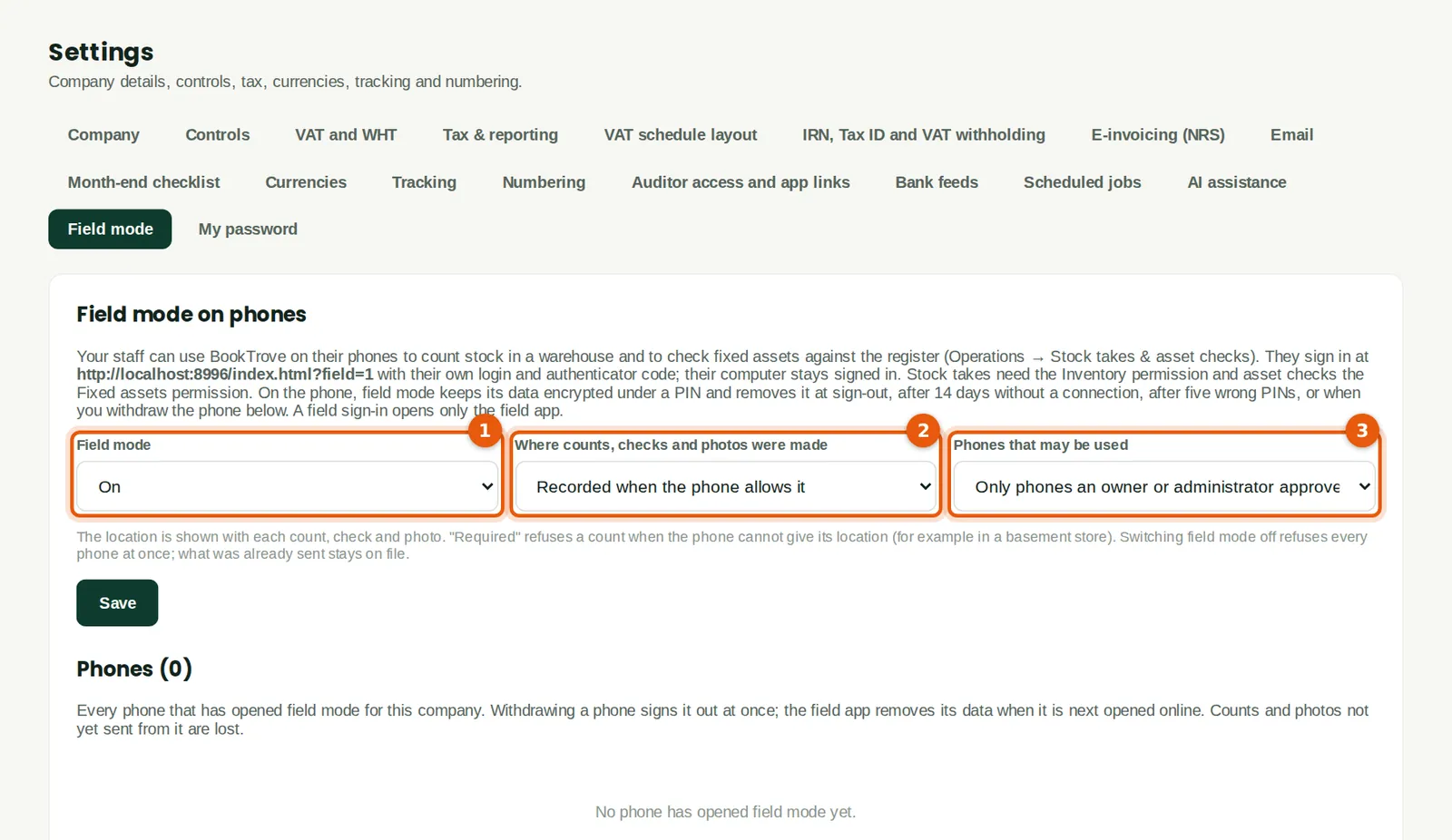
Field mode is on (1) for every company unless it is switched off; switching it off refuses every phone at once and keeps what was already sent. The location policy (2) says whether the place of each count, check and photo is recorded: not recorded, recorded when the phone allows it (the default), or required. "Required" refuses a count when the phone cannot give its location, for example in a basement store. The phones policy (3) is "Any phone" by default: a phone can be used once its owner accepts the notice. Chukwudi chooses "Only phones an owner or administrator approves", so each new phone waits for his approval.
Who
Owner or administrator (Settings at Approve level).
What to do
- Open Settings and click the Field mode tab.
- Choose the location policy (2) and which phones may be used (3).
- Click Save. The change is kept in the audit trail.
27.3 Set up a stock take
Why
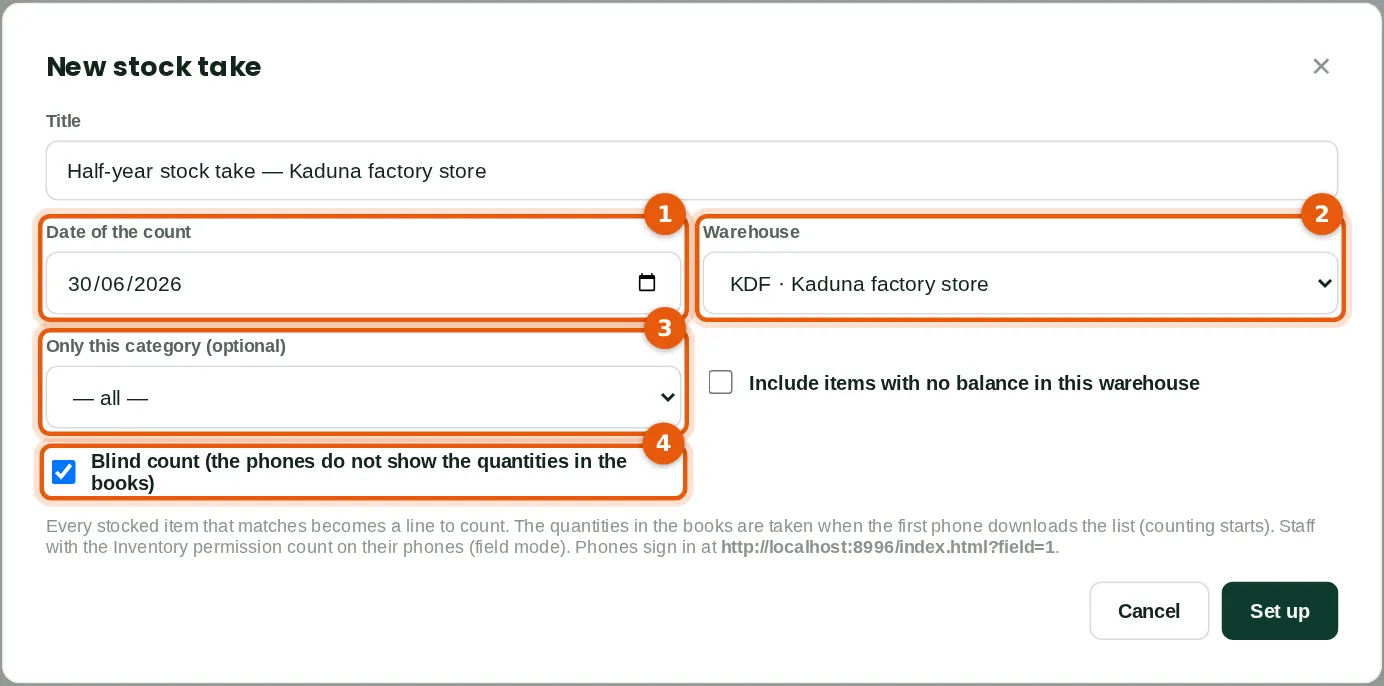
A stock take covers one warehouse. Emeka sets up the half-year count of the Kaduna factory store for 30 June (1, 2). He could limit it to one category (3), for example packaging; he leaves it at all. Every stocked item with a balance in the warehouse becomes a line to count (17 lines here); tick "Include items with no balance" to count those as well. Blind count (4) is ticked by default: the phones do not show the quantities in the books, so the counters count what is there. The quantities in the books are taken when the first counter opens the list on a phone, not now.
Who
Inventory at Prepare level (Emeka Nwosu, inventory manager).
What to do
- Open Operations → Stock takes & asset checks and click New stock take.
- Type a title and choose the date of the count (1) and the warehouse (2).
- Optionally choose a category (3). Leave Blind count (4) ticked.
- Click Set up. The stock take gets the next reference, here ST-001, and opens.
27.4 Set up an asset check
Why
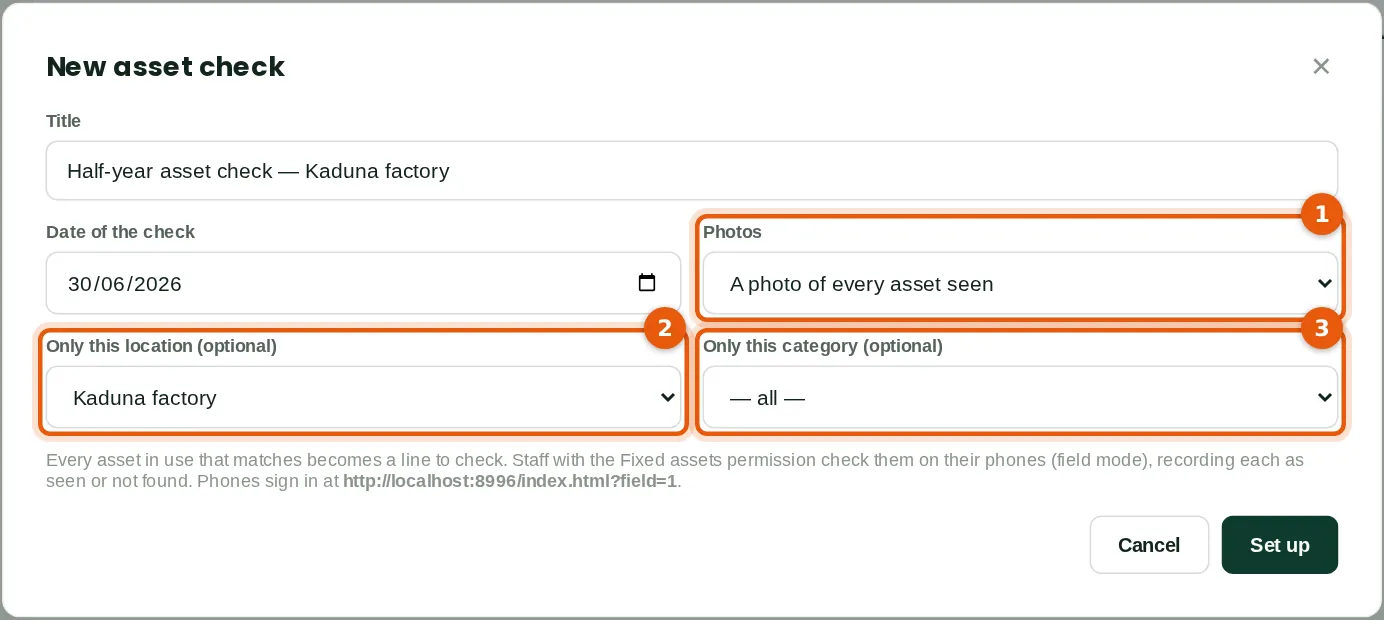
An asset check covers the whole register in use, or one location (2) or category (3). Funmilayo checks the assets recorded at the Kaduna factory: seven assets. Photos (1) can be optional or required for every asset seen. She requires them, so each asset's latest photo is kept on its record.
Who
Fixed assets at Prepare level (Funmilayo Adeyemi, accountant).
What to do
- Click New asset check. Type a title and the date of the check.
- Choose the photo policy (1), and optionally a location (2) or category (3).
- Click Set up. The check gets the next reference, here AC-001.
27.5 The phone sign-in link
Why
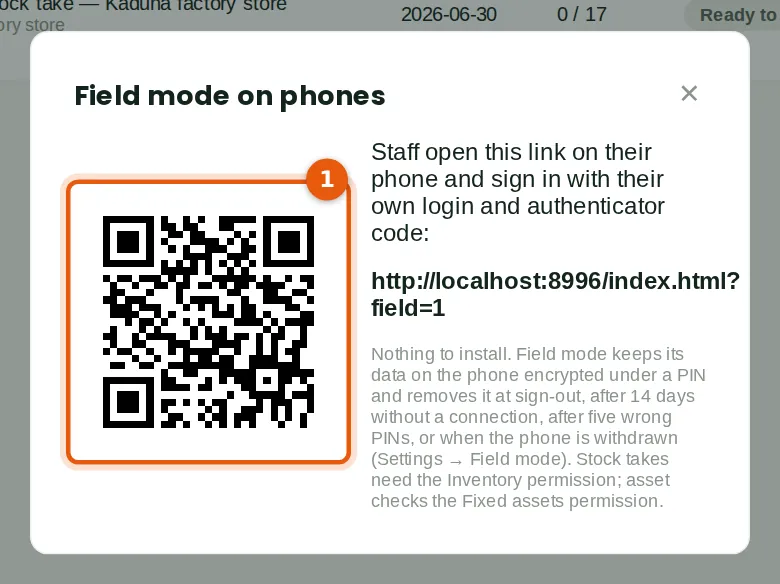
The QR code (1) opens the field-mode sign-in page on a phone: books.troveuniverse.com/index.html?field=1. Nothing is installed. Emeka shows it to Musa and Ibrahim on his screen; they scan it with the phone's camera.
Who
Anyone who sets up stock takes or asset checks.
What to do
- Click Phone sign-in link and let the counters scan the code, or send them the link.
27.6 Sign in on the phone
Why
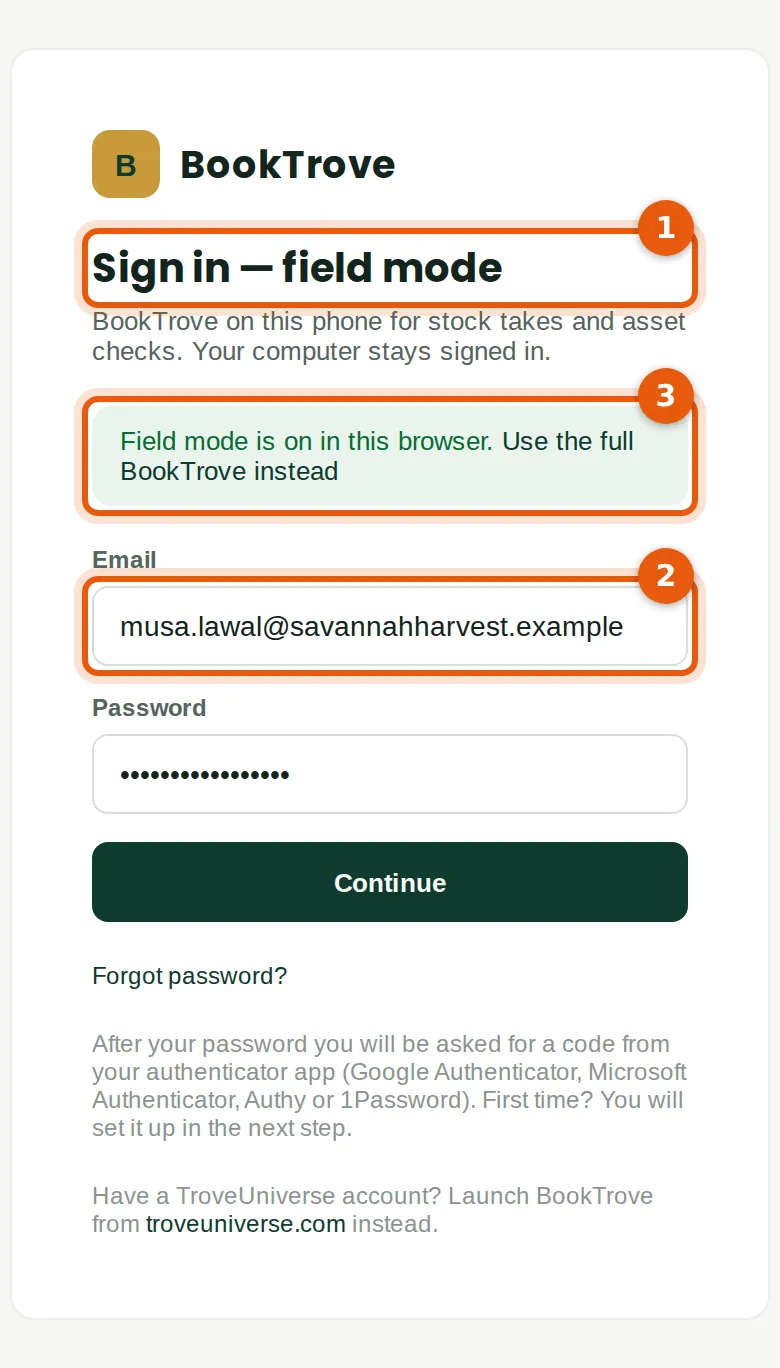
The page says Sign in — field mode (1). Musa signs in with his own email (2) and password, then the code from his authenticator app, as on a computer. The note (3) says field mode is on in this browser; "Use the full BookTrove instead" turns it off. His computer, if he has one, stays signed in.
Who
Each counter, on their own phone (Musa Lawal).
What to do
- Open the link on the phone. Type your email and password and tap Continue.
- Type the 6-digit code from your authenticator app.
27.7 Accept the notice and name the phone
Why
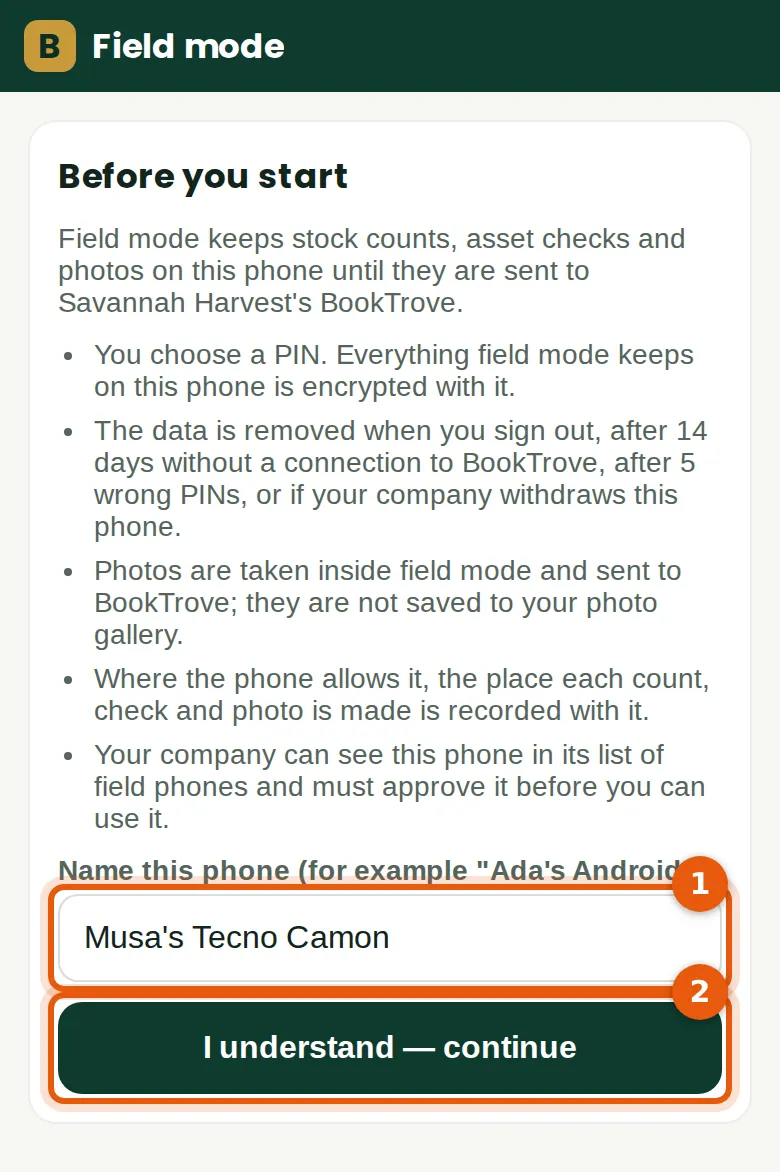
The notice says what field mode keeps on the phone and how it is protected: the PIN, when the data is removed, that photos are not saved to the gallery, the company's location policy, and that the company can see and withdraw the phone. Musa names the phone (1) so the company can recognise it, then accepts (2).
Who
Each counter, the first time on a phone.
What to do
- Read the notice. Type a name for the phone (1), for example "Musa's Tecno Camon".
- Tap I understand — continue (2).
27.8 Waiting for approval
Why
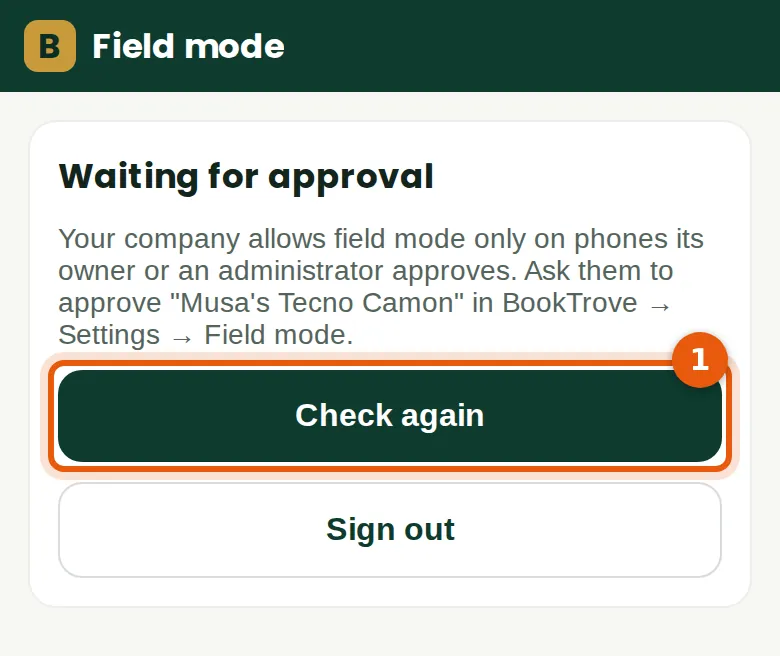
Savannah Harvest allows only approved phones, so Musa's phone waits. Under the "Any phone" policy it would be ready at once.
Who
Each counter, when the company allows only approved phones.
What to do
- Ask the owner or an administrator to approve the phone, then tap Check again (1).
27.9 Approve the phones
Why
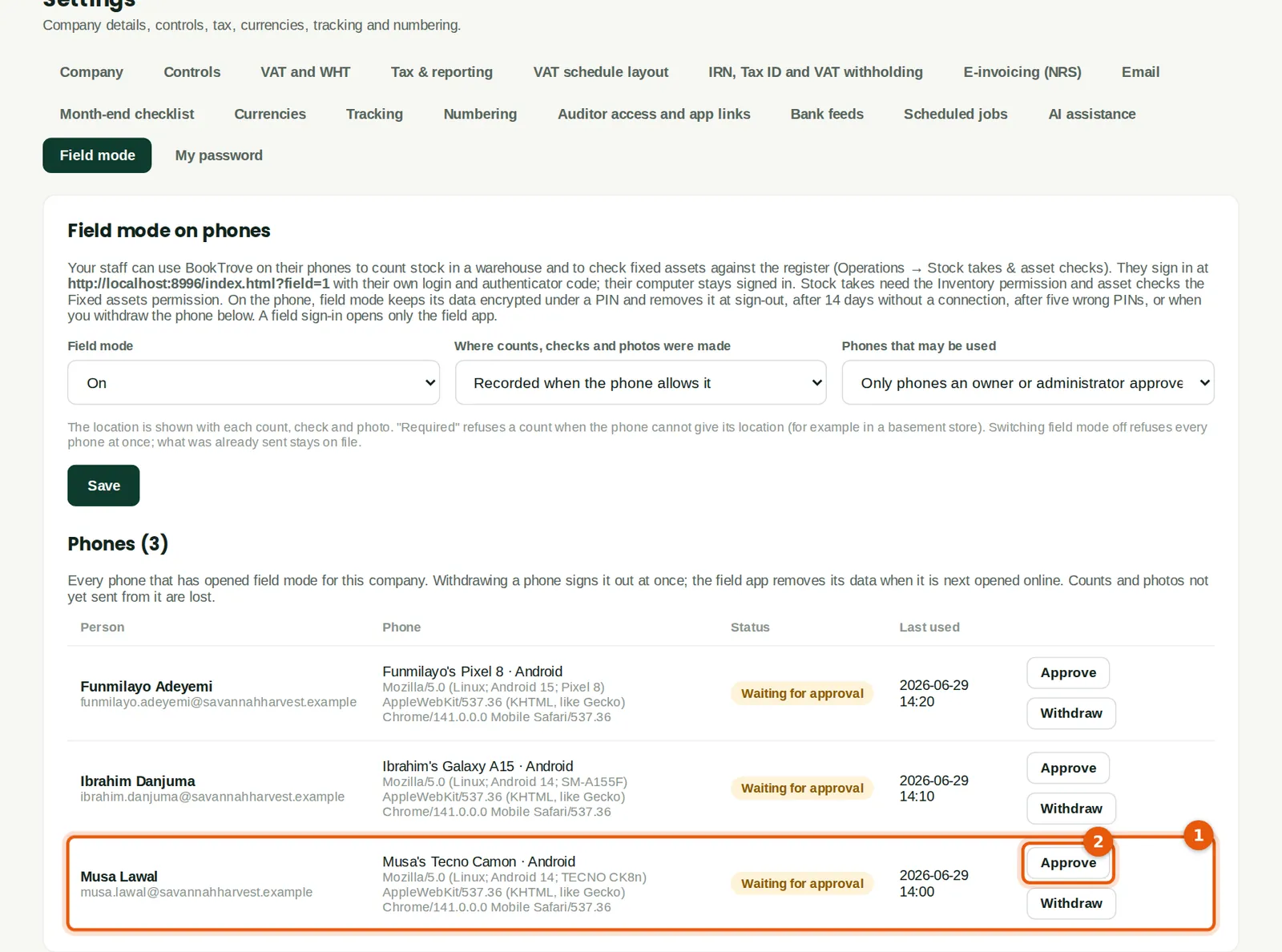
Every phone that has opened field mode for the company is listed with the person, the phone's name and browser, its status and when it was last used. Musa's phone (1) and the phones of Ibrahim and Funmilayo wait for approval.
Who
Owner or administrator (Users or Settings at Approve level).
What to do
- Check that the person and the phone are expected.
- Click Approve (2) on each.
27.10 Approved phones, and withdrawing one
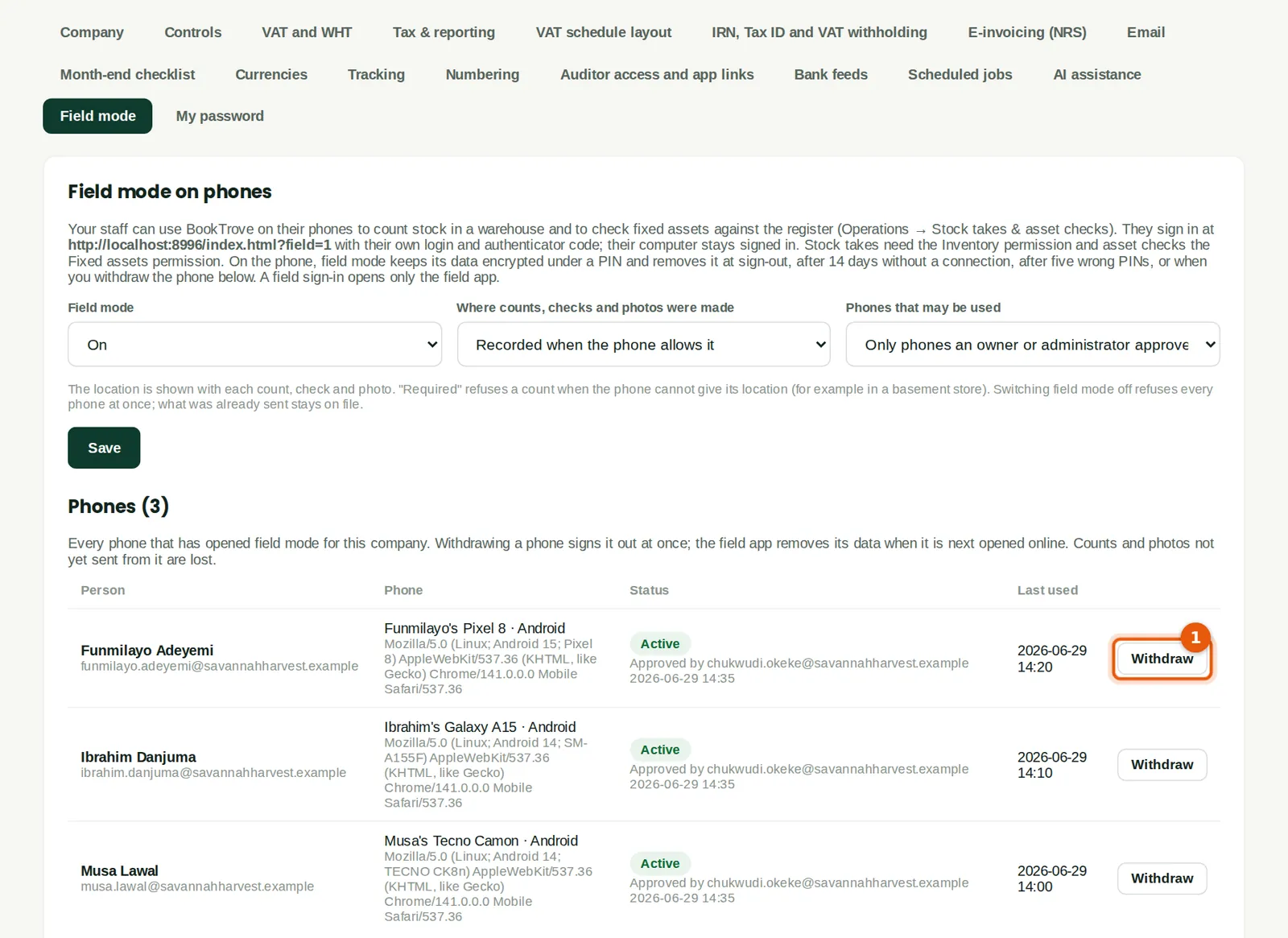
Why
Each phone now shows Active, who approved it and when. Withdraw (1) signs that phone out of field mode at once and needs a reason, kept in the audit trail. The field app removes its data the next time it is opened online; counts and photos not yet sent from it are lost. Withdraw a phone when it is lost or stolen, or when the person leaves.
Who
Owner or administrator.
What to do
- To withdraw a phone, click Withdraw (1), type the reason and confirm.
27.11 Choose a PIN
Why
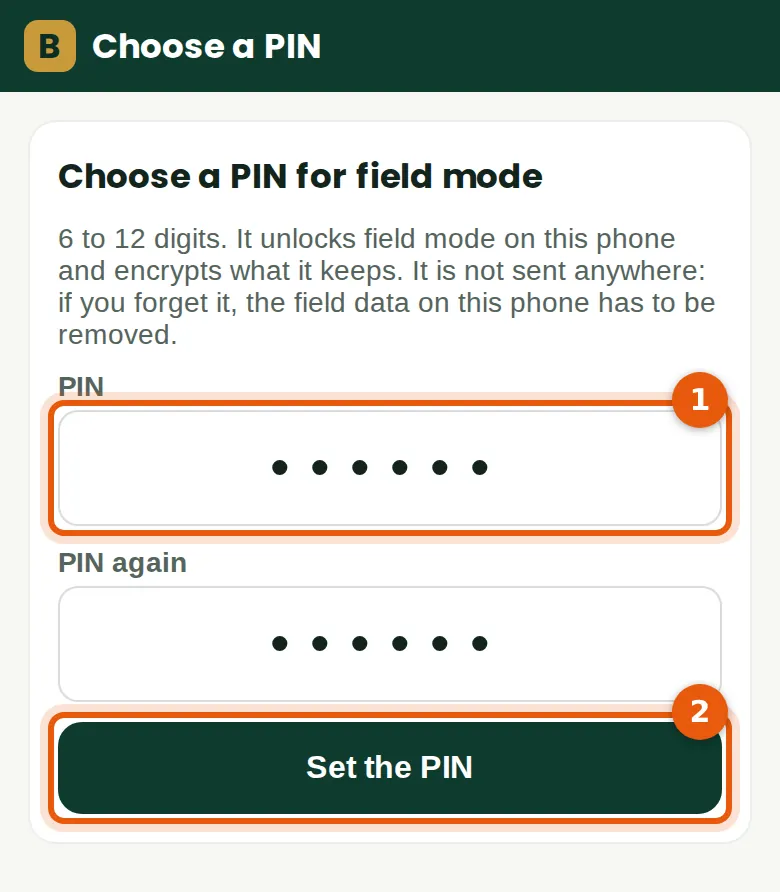
The PIN (1) unlocks field mode on this phone and encrypts what it keeps. It has 6 to 12 digits and cannot be a repeated or consecutive sequence such as 123456. It is never sent anywhere: if it is forgotten, the field data on the phone has to be removed. After five wrong PINs the data is removed.
Who
Each counter, once the phone is approved.
What to do
- Type a PIN twice and tap Set the PIN (2).
27.12 Count an item
Why
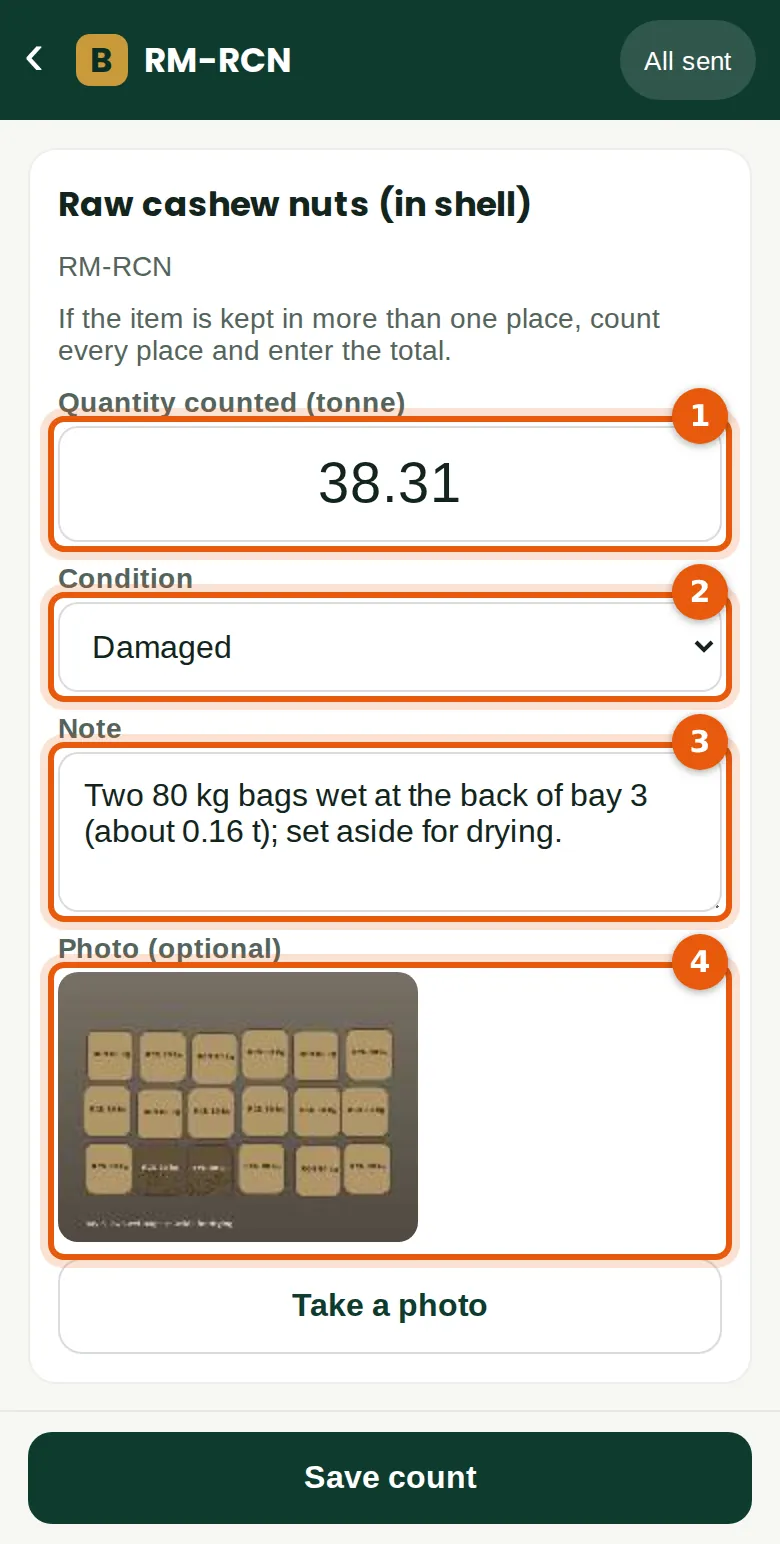
On 30 June Musa signs in, unlocks field mode with his PIN and opens ST-001. That first download starts the count: the quantities in the books are taken now. He counts the raw cashew nuts: 38.31 tonnes (1). Two bags at the back of bay 3 are wet, so he chooses Damaged (2), says what he found (3) and takes a photo (4). Conditions are good, damaged, expired or near expiry, and obsolete or slow-moving. If the item is kept in more than one place, count every place and enter the total.
Who
Inventory at Prepare level (Musa Lawal and Ibrahim Danjuma).
What to do
- Tap an item in the list, or search by code, barcode or name (or tap Scan on phones that can read barcodes).
- Type the quantity counted (1) in the unit shown.
- Choose the condition (2), add a note (3) and a photo (4) if useful.
- Tap Save count.
27.13 The list as the count goes on
Why
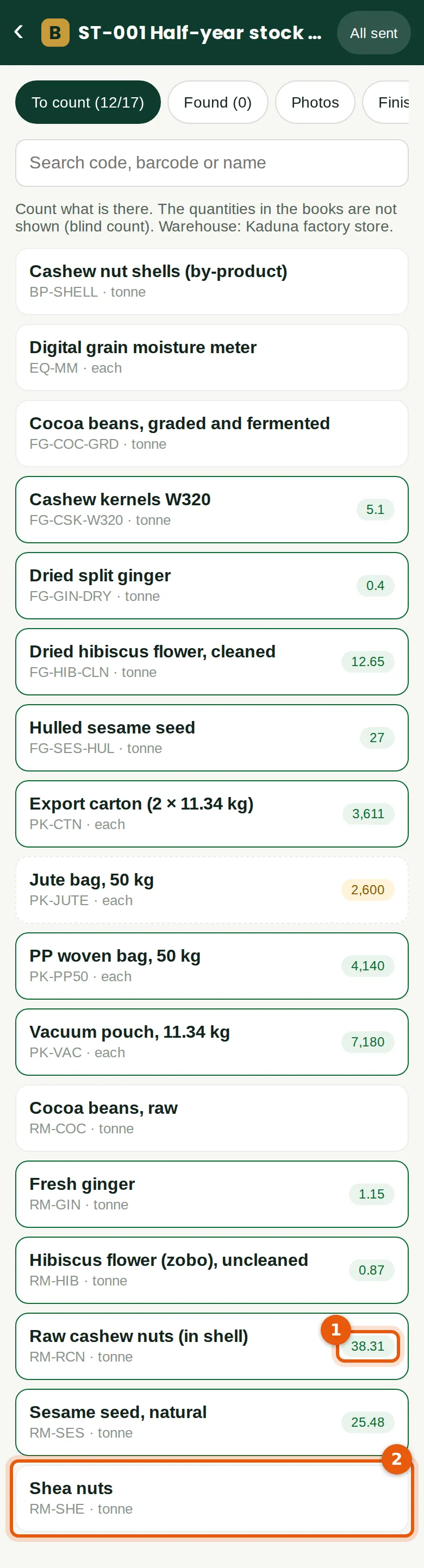
Each counted item shows the quantity counted (1). Green means it has reached BookTrove; orange means it is still on the phone. Musa and Ibrahim share the list: Musa counts the produce and finished goods, Ibrahim the packaging and the rest. The phone shows the counts it has received; Ibrahim's last few (the cashew nut shells, the moisture meters and the graded cocoa) appear the next time the list is loaded. Shea nuts (2) are still to count.
Who
The counters.
What to do
- Work through the list. Tap a counted item to count it again: the latest count is used.
27.14 No signal: the count waits on the phone
Why
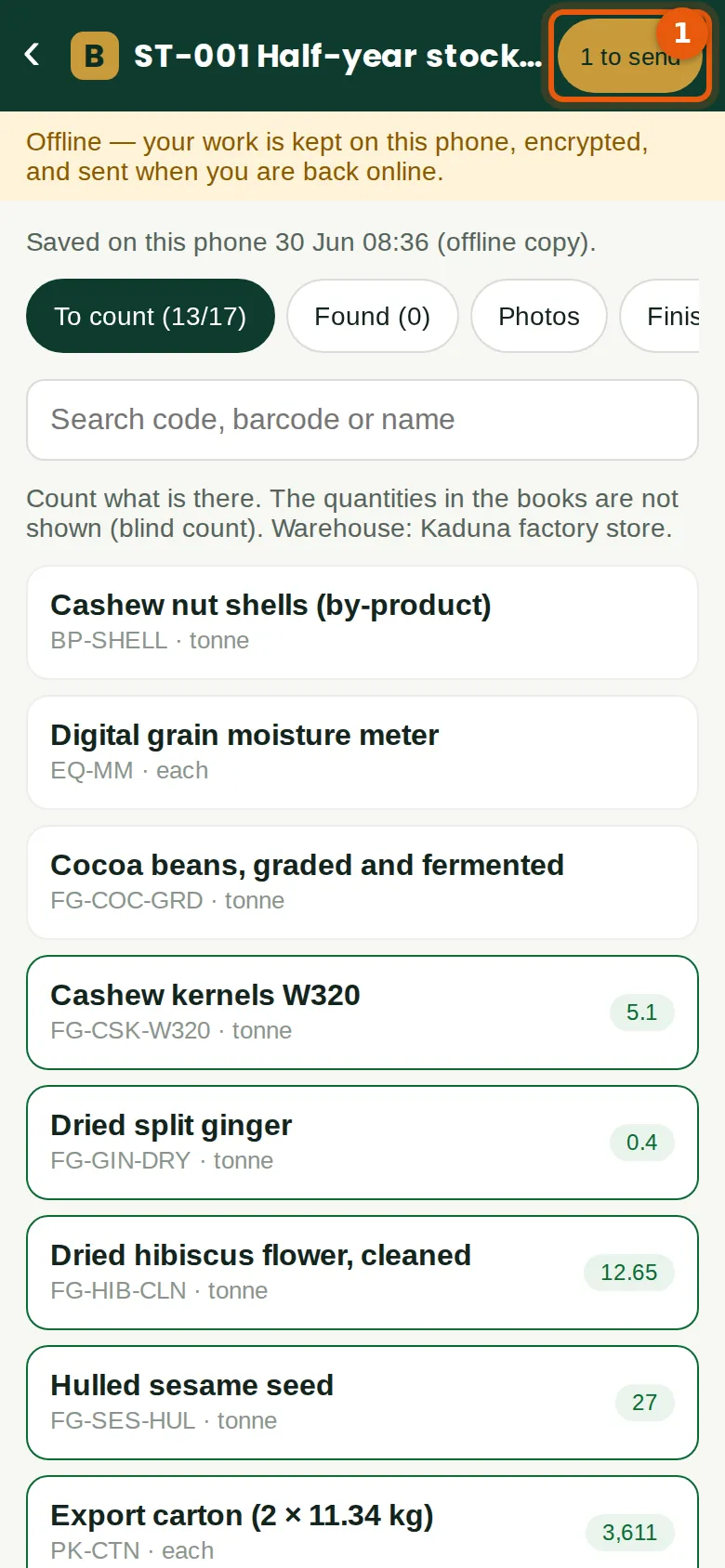
At the back of the store Musa has no signal. He counts the shea nuts anyway. The banner says the work is kept on the phone, encrypted, and sent when it is back online. The button at the top (1) shows 1 to send, and the item's quantity (2) is orange. When the phone reconnects, the count is sent by itself.
Who
The counters.
What to do
- Carry on counting. Tap the button at the top (1) to send at once when you are back online.
27.15 An item not on the list
Why
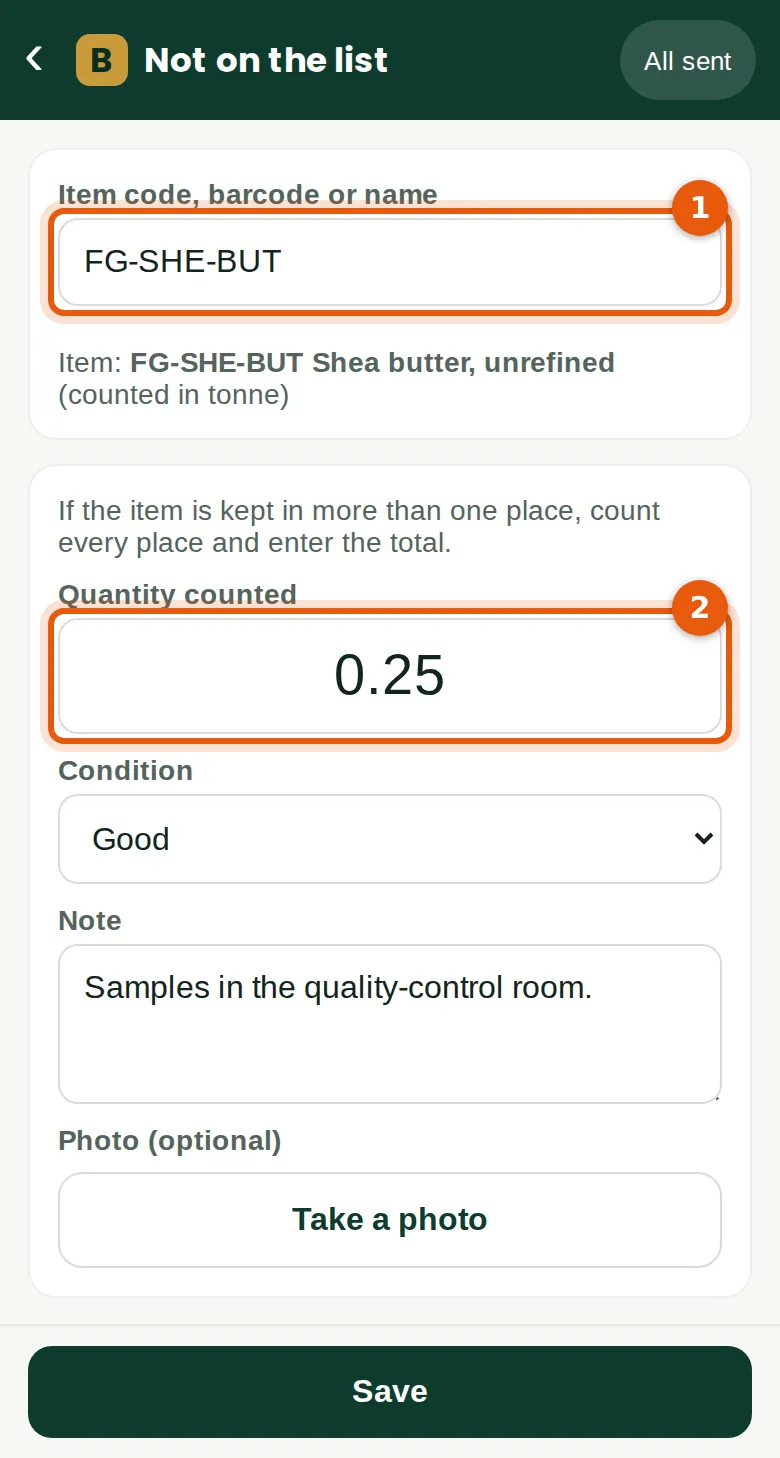
In the quality-control room Musa finds 0.25 tonnes of shea butter samples. Shea butter has no balance in this store, so it is not on the list. He records it under Found: he types part of the code (1), picks the item, then the quantity (2). Items found are added to the count documents.
Who
The counters.
What to do
- Tap Found, then Count an item not on the list.
- Type the item's code, barcode or name (1) and pick it.
- Type the quantity (2), the condition and a note. Tap Save.
27.16 Finish the stock take
Why
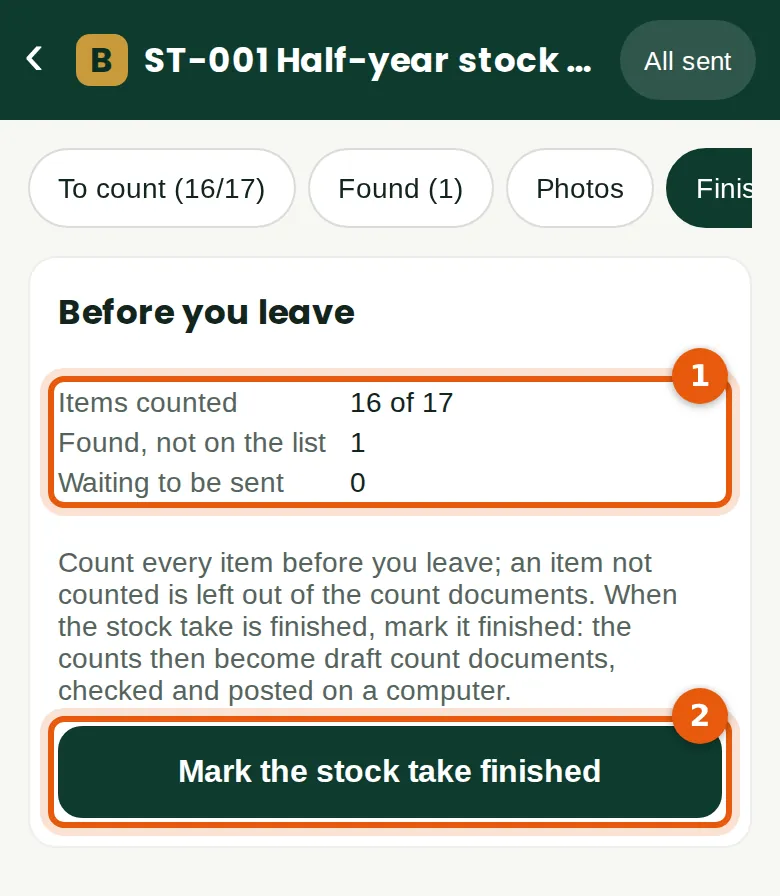
Before leaving, Musa checks the summary (1): 16 of 17 items counted, 1 found, nothing waiting. The 17th, raw cocoa beans, shows 0.0003 tonnes in the books, a rounding remainder, and none is in the store. An item not counted is left out of the count documents, so its balance does not change. Musa marks the stock take finished (2).
Who
A counter, or someone with Inventory prepare on a computer (Mark finished).
What to do
- Tap Finish. Check the summary (1).
- Tap Mark the stock take finished (2) and confirm.
27.17 The field app's home
Why
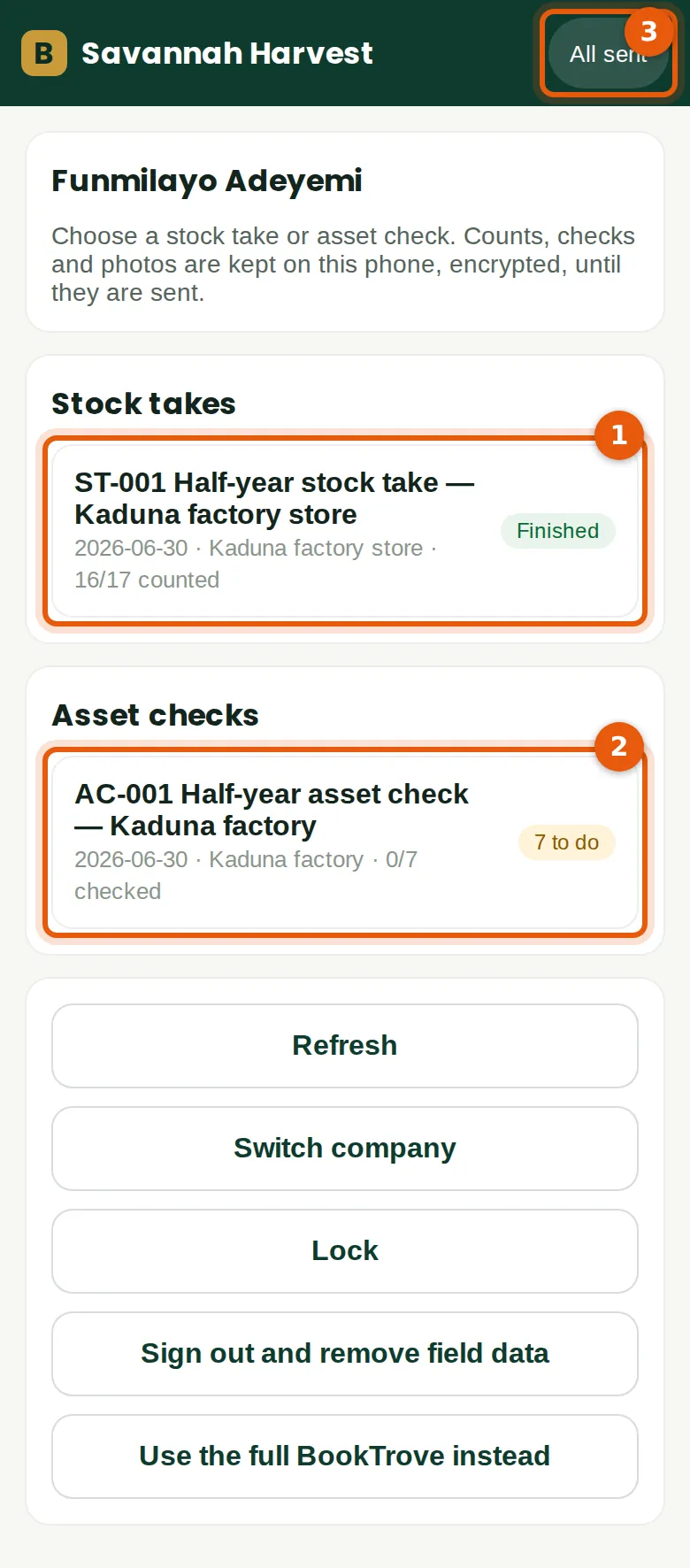
The home screen lists the open stock takes (1) and asset checks (2) the person's role allows, with what is left to do. Funmilayo has both Inventory and Fixed assets. Musa, with Inventory only, sees stock takes only. The button at the top (3) shows whether everything has been sent. At the bottom: Refresh, Switch company, Lock (the PIN is needed again), Sign out and remove field data, and Use the full BookTrove instead.
Who
Anyone with field mode on a phone.
What to do
- Tap the asset check (2) to open it.
27.18 Check an asset: seen
Why
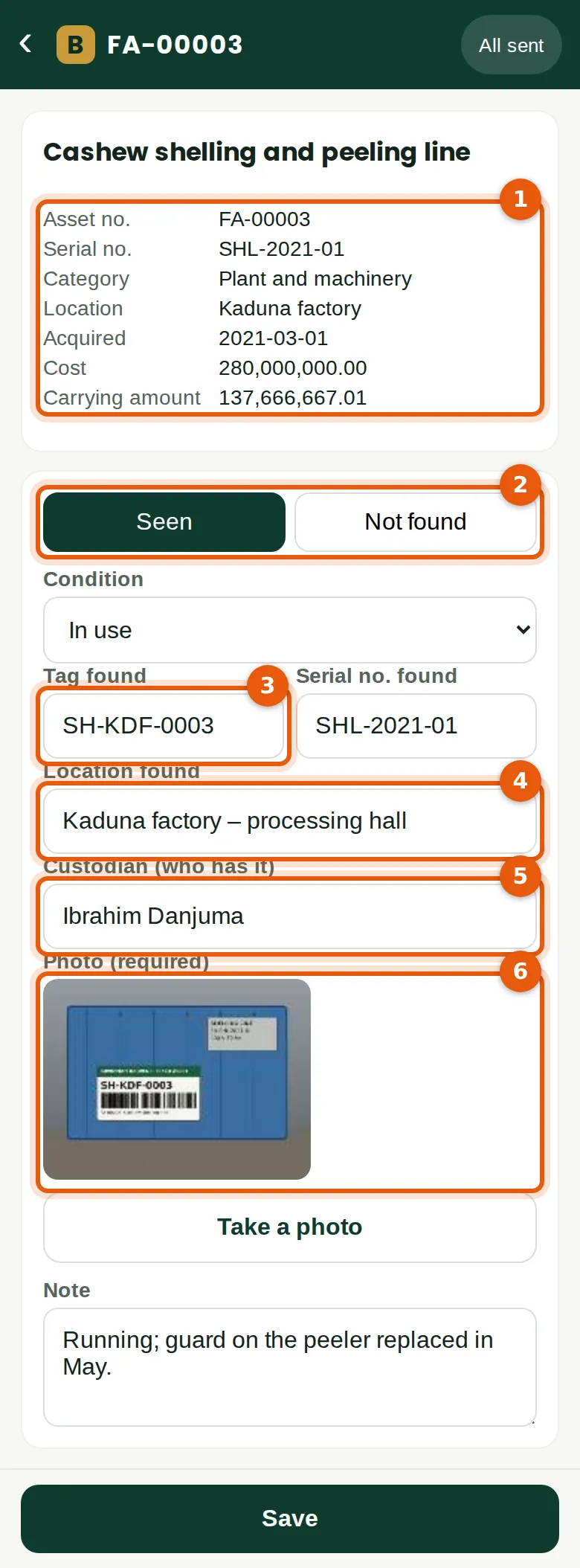
The phone shows everything the register holds on the asset (1): number, tag, serial, category, location, custodian, date acquired, cost and carrying amount. Funmilayo finds the shelling line in the processing hall. She marks it Seen (2), keeps the condition In use, types the tag on the new label, SH-KDF-0003 (3), the location found (4) and the custodian (5), and takes the photo the check requires (6).
Who
Fixed assets at Prepare level (Funmilayo Adeyemi).
What to do
- Tap the asset in the list, or search by asset number, tag, serial, name or location.
- Tap Seen (2) and choose the condition: in use, idle, damaged, obsolete or beyond use, or belongs to someone else.
- Correct the tag (3), serial, location (4) and custodian (5) to what you find.
- Take a photo (6). Tap Save.
27.19 An asset not found
Why
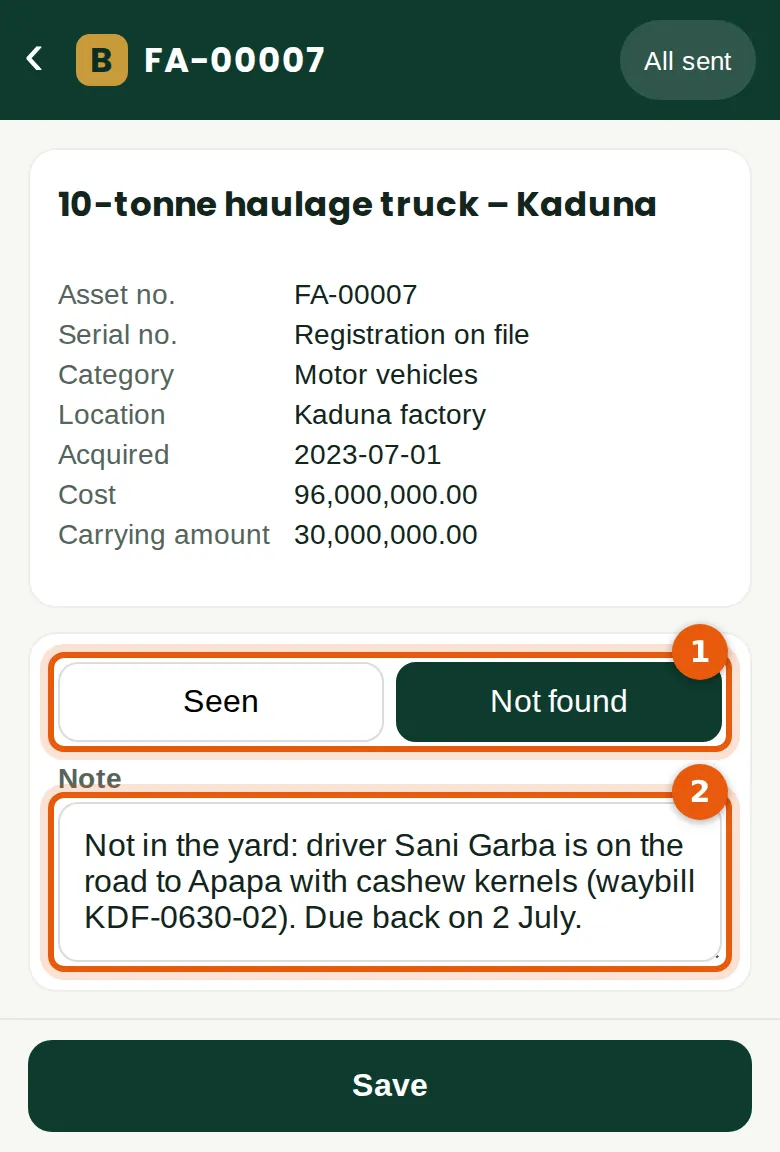
The haulage truck is not in the yard. The driver is on the road to Apapa with cashew kernels. Funmilayo marks it Not found (1) and says why (2), so the review knows where to look.
Who
Fixed assets at Prepare level.
What to do
- Tap Not found (1). Say what you know in the note (2). Tap Save.
27.20 The asset list
Why
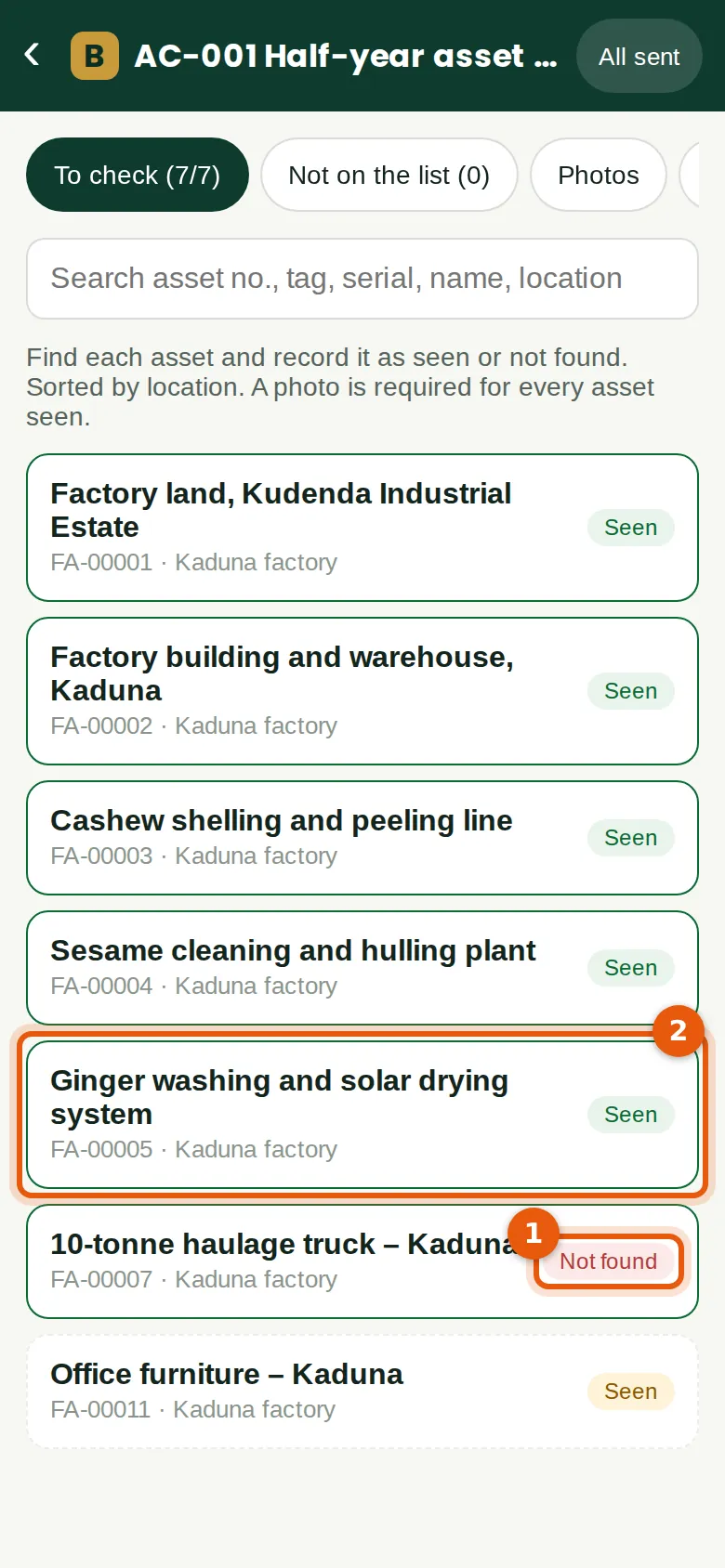
Every asset on the list is checked: six seen and the truck not found (1). The ginger drying system (2) was seen but marked Idle: it has not been used since the ginger season ended in April.
Who
Fixed assets at Prepare level.
27.21 An asset that is not in the register
Why
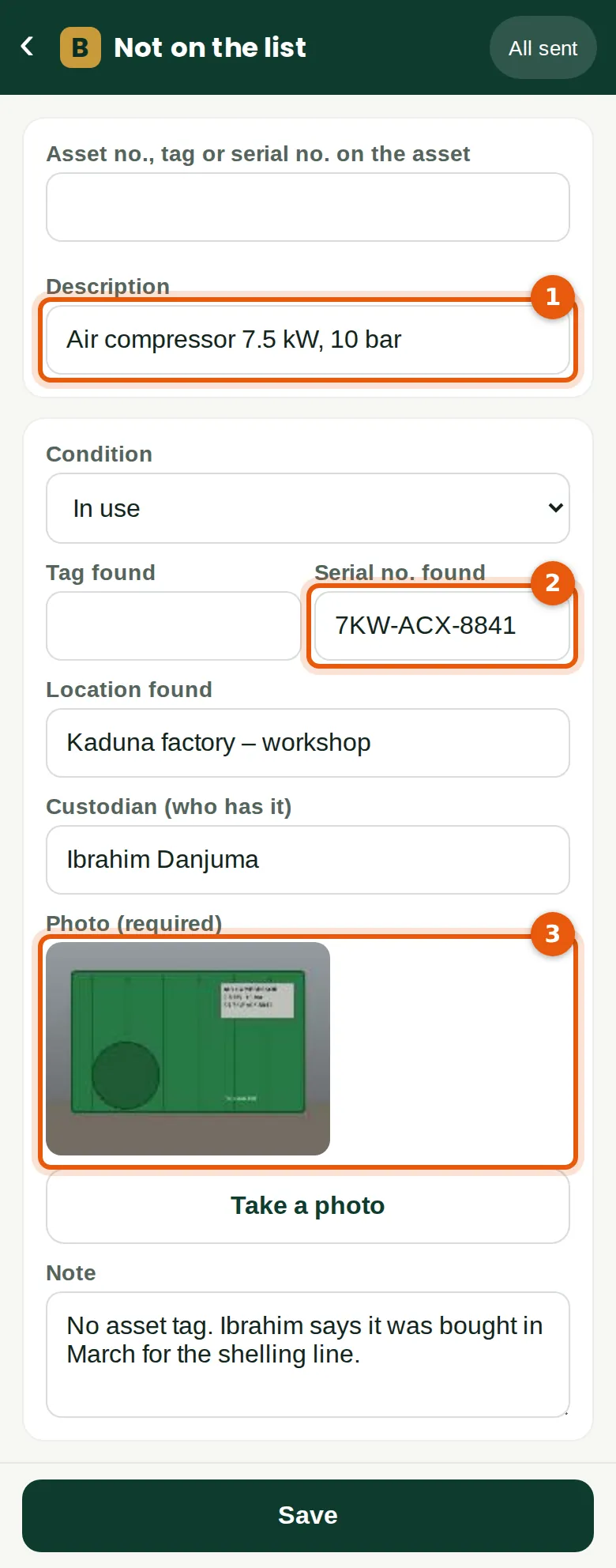
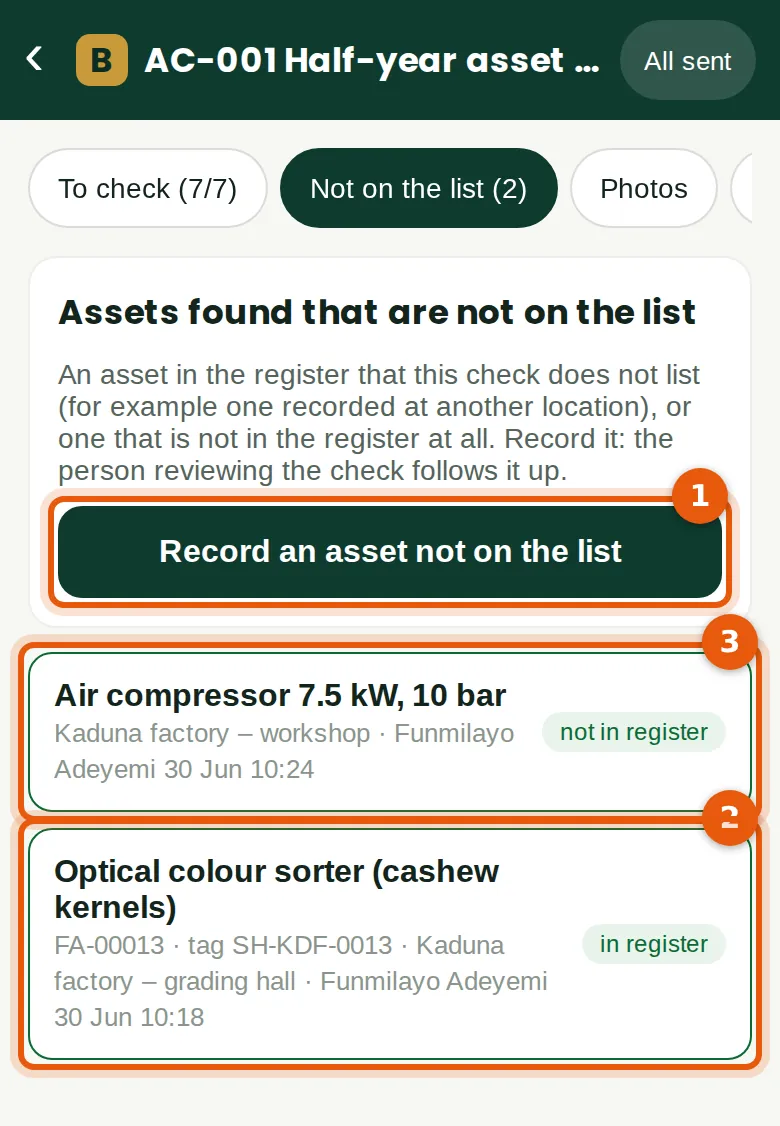
In the workshop Funmilayo finds an air compressor with no asset tag. It is not in the register: Ibrahim says it was bought in March. She records it with a description (1), the serial number on the maker's plate (2), the location, the custodian and a photo (3). The review shows it as not in the register, so it can be followed up, for example by registering the asset from its bill (chapter 9).
Who
Fixed assets at Prepare level.
What to do
- Tap Not on the list, then Record an asset not on the list.
- Type the asset number, tag or serial on the asset. If it is in the register, pick it; if not, describe it (1).
- Record the serial (2), location, custodian and condition, and take the photo (3). Tap Save.
27.22 Assets seen on site that are not on the list
Why
Checking from what is on the floor back to the register finds what the list misses. Funmilayo recorded two (1): the optical colour sorter (2), which is in the register but at "Kaduna factory – grading hall", so this check did not list it; and the air compressor (3), which is not in the register. Then she marks the check finished on the Finish tab, as for a stock take.
Who
Fixed assets at Prepare level.
What to do
- Record every asset you see that is not on the list (1).
- On the Finish tab, check the summary and tap Mark the check finished.
27.23 Follow the stock takes
Why
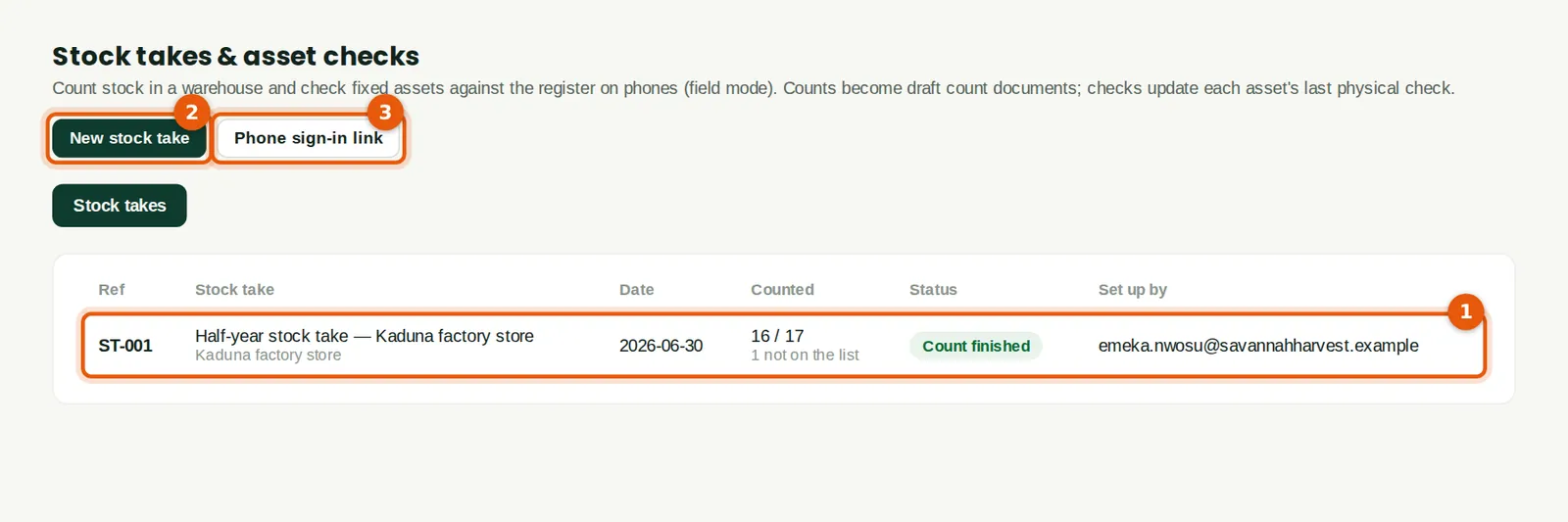
The list (1) shows each stock take with its warehouse, date, how many items are counted, how many were found that were not on the list, and its status: Ready to count, Counting, Count finished or Count documents created. Emeka has no Fixed assets permission, so he sees the Stock takes tab only. New stock take (2) and Phone sign-in link (3) are at the top.
Who
Inventory at View level or above.
What to do
- Click a stock take to review it.
27.24 Review the counts
Why
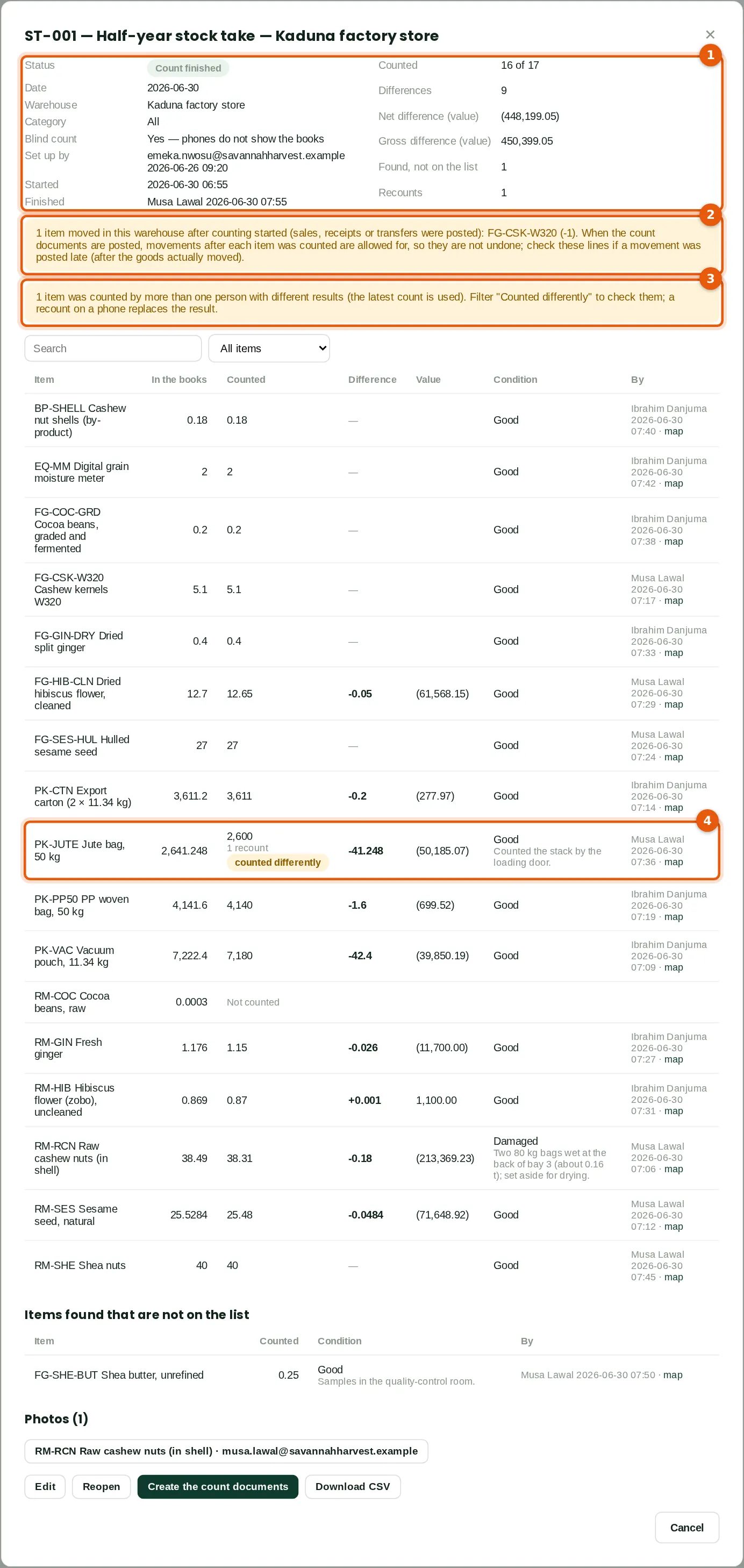
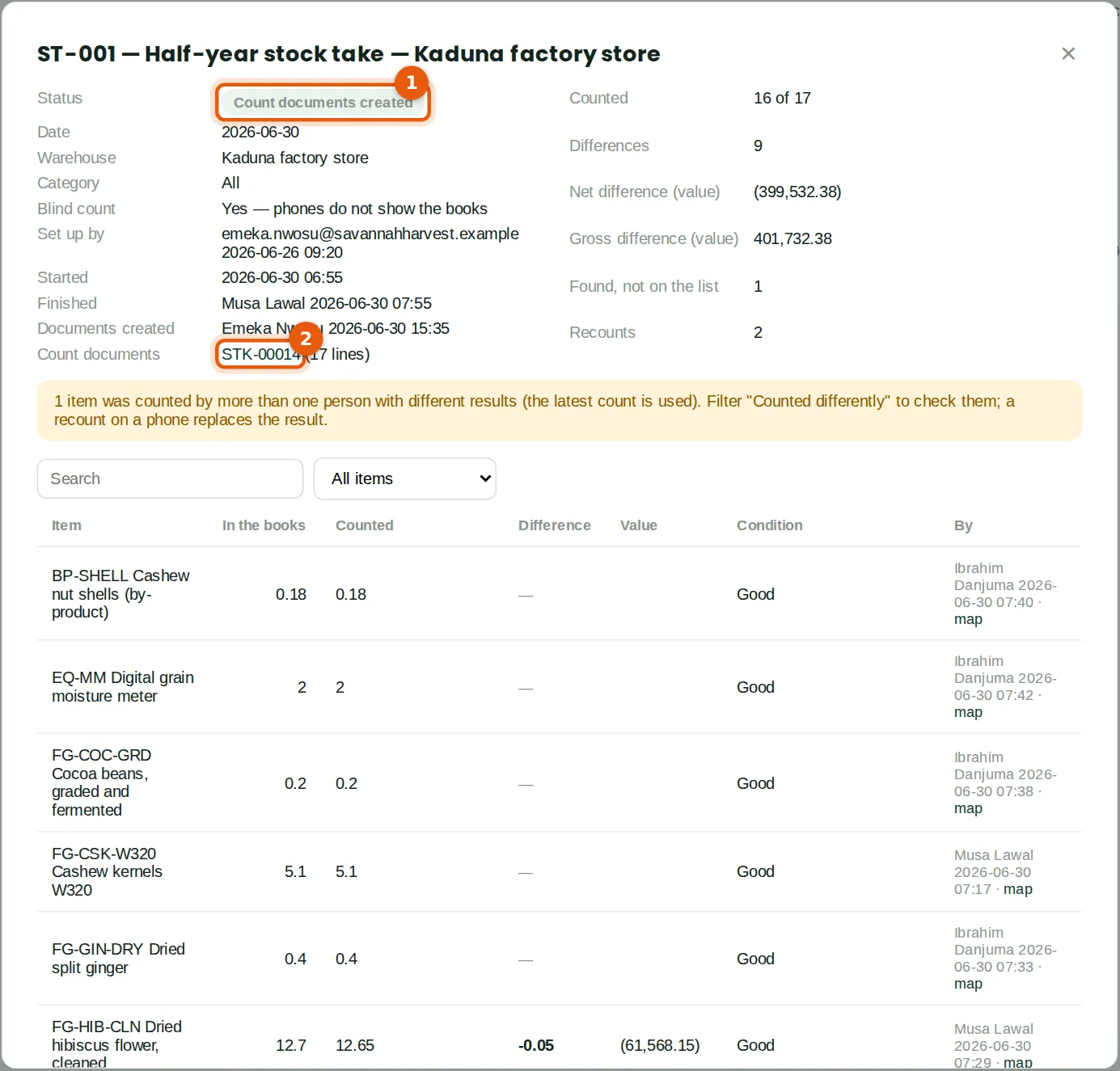
The summary (1) shows 16 of 17 counted, 9 differences, the net and gross value of the differences at the warehouse's average cost, 1 item found and the recounts. Two banners need attention. The first (2): cashew kernels moved in this warehouse after counting started. One tonne left for Apapa at 11:30, after Musa counted 5.1 tonnes at 08:17. Nothing needs changing: when the count is posted, movements after each item was counted are allowed for. The second (3): one item was counted differently by different people. Ibrahim counted 2,640 jute bags at 08:22; Musa counted 2,600 at 08:36 (4). The latest count is used, so Emeka asks for a recount.
Who
Inventory at View level or above; Prepare to act.
What to do
- Read the banners. Use the filter to show Not counted, Differences or Counted differently.
- Check large differences, and ask for a recount where needed.
- Download CSV gives every line with the counter, the time and the note.
27.25 Count again
Why
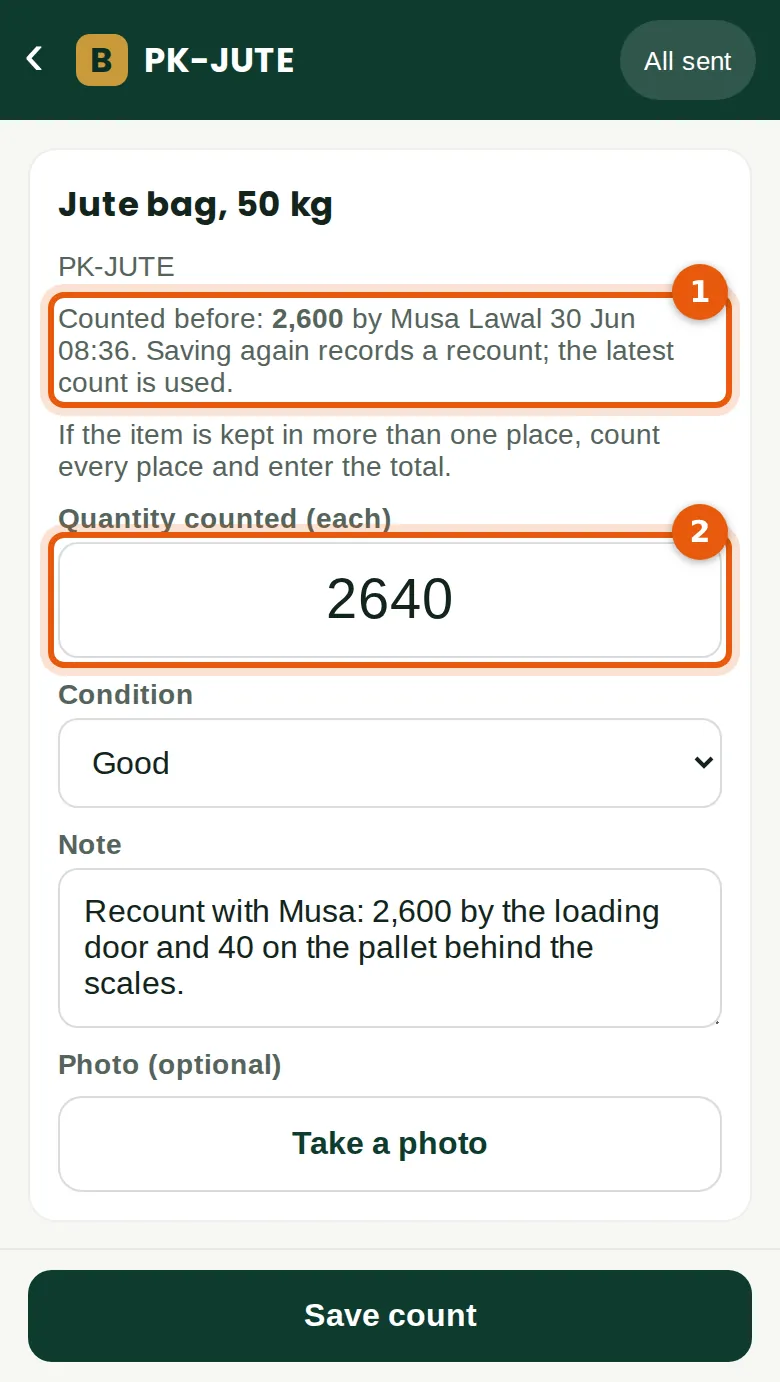
The phone shows the earlier count (1): 2,600 by Musa Lawal at 08:36. Ibrahim and Musa count the jute bags together: 2,600 by the loading door and 40 on the pallet behind the scales. Ibrahim saves 2,640 (2). Saving again records a recount, and the latest count is used.
Who
A counter (Ibrahim Danjuma).
What to do
- Open the item, type the new quantity (2) and a note, and tap Save count.
27.26 Create the count documents
Why
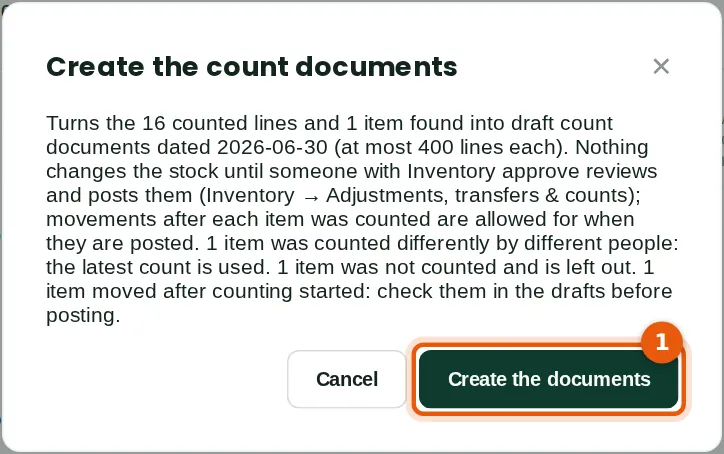
The message says what will happen: the 16 counted lines and the item found become draft count documents dated 30 June, up to 400 lines each. Nothing changes the stock until someone with Inventory approve posts them. It also repeats the warnings: the item counted differently, the item not counted, and the item that moved.
Who
Inventory at Prepare level, on a computer, once the stock take is finished.
What to do
- Click Create the count documents, read the message and click Create the documents (1).
27.27 The stock take with its document
Why
The stock take's status is now Count documents created (1), and the document is linked (2): STK-00014, with 17 lines. The stock take is closed: counts sent from a phone after this are refused, and the phone says so. The review stays available, with the counters, times, notes and photos.
Who
Inventory at View level or above.
What to do
- Click the document's number (2) to open it.
27.28 Check the draft count document
Why
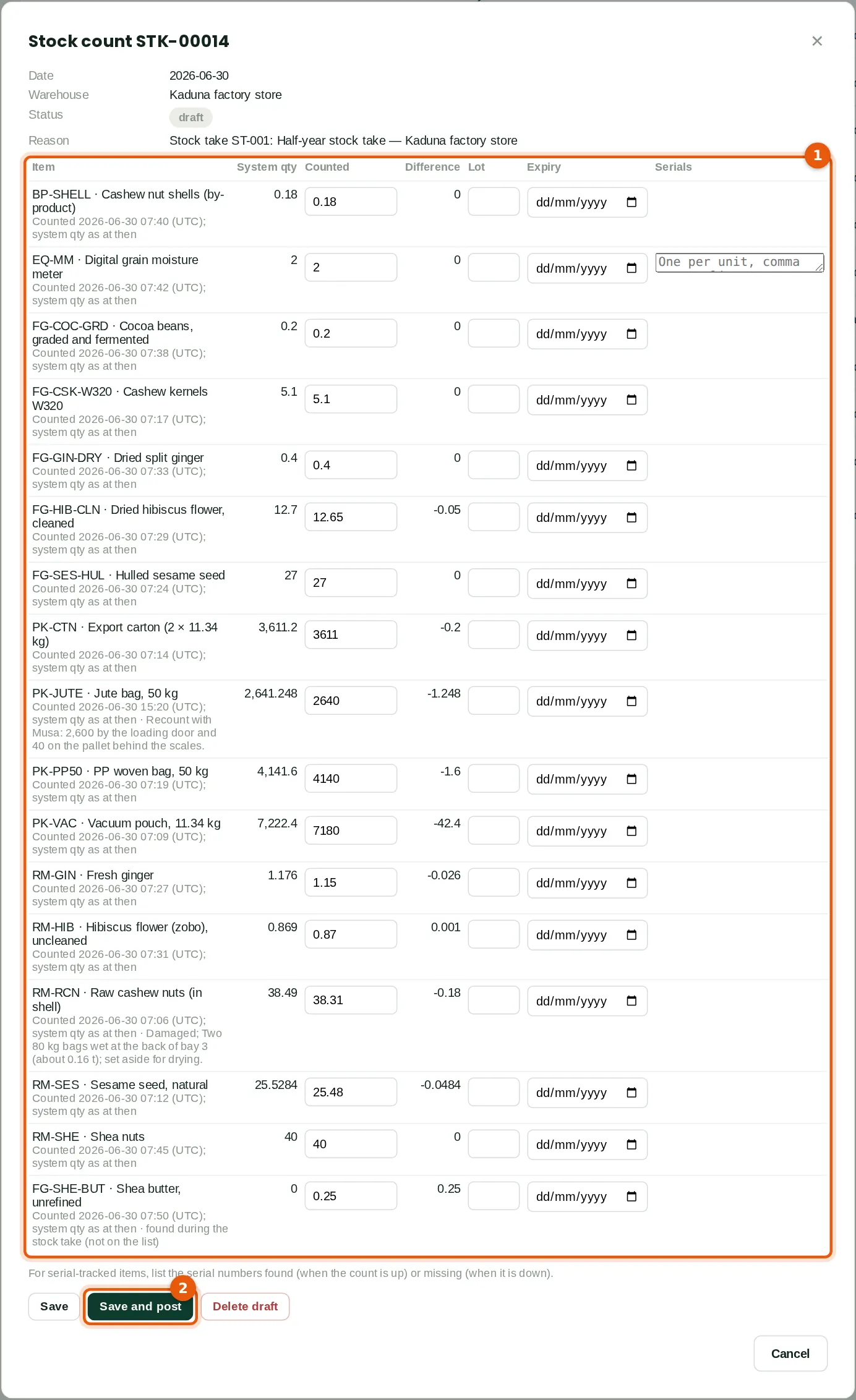
Each line (1) shows the system quantity, the quantity counted and the difference. Under each item: when it was counted, and the condition and note from the phone. The system quantity is the books when the item was counted, so the difference is the real count difference. Cashew kernels show 5.1 in the books and 5.1 counted, a difference of 0: the tonne that left for Apapa after the count is not a difference. Jute bags show 2,640 (the recount). Raw cashew nuts are down 0.18 tonnes, with the note about the wet bags. Shea butter is up 0.25 tonnes, found during the stock take.
Who
Inventory at Prepare level to change it; Approve to post it.
What to do
- Check each line. A counted quantity can still be corrected here.
- For an item tracked by serial number with a difference, list the serial numbers found or missing.
- Click Save and post (2) to post it, or Save to keep it as a draft.
27.29 The posted count
Why
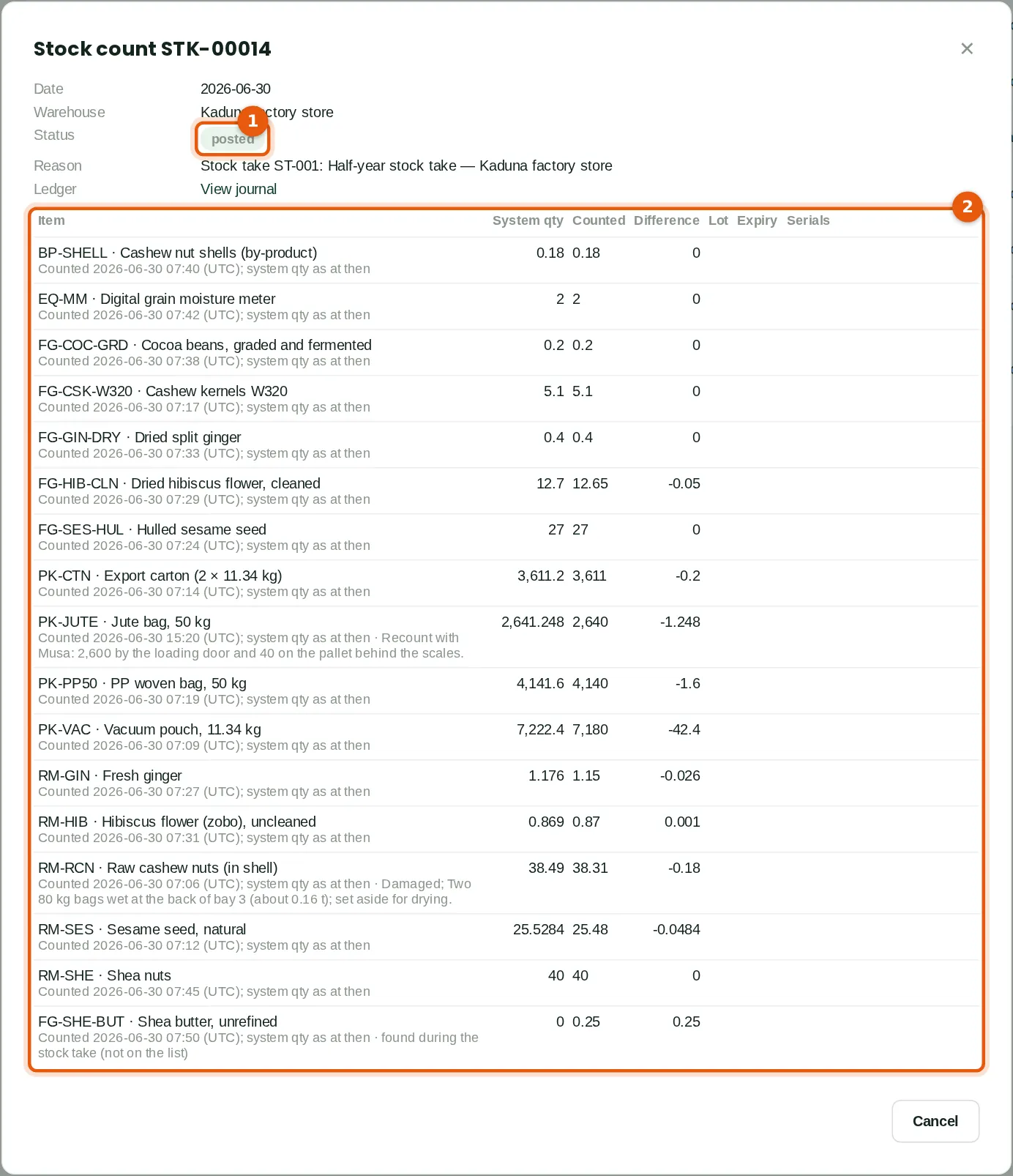
Emeka posts the document on 1 July (1). Each difference (2) is posted to the stock and to the ledger, at the item's cost in the warehouse. When posting, BookTrove adds to each count whatever moved in the warehouse after that item was counted. So the transfer to Apapa is not undone: the factory store still holds 4.1 tonnes of cashew kernels after posting. The raw cashew nuts go down to 38.31 tonnes and the jute bags to 2,640. View journal shows the entries.
Who
Inventory at Approve level (Emeka Nwosu).
27.30 Review the asset check
Why
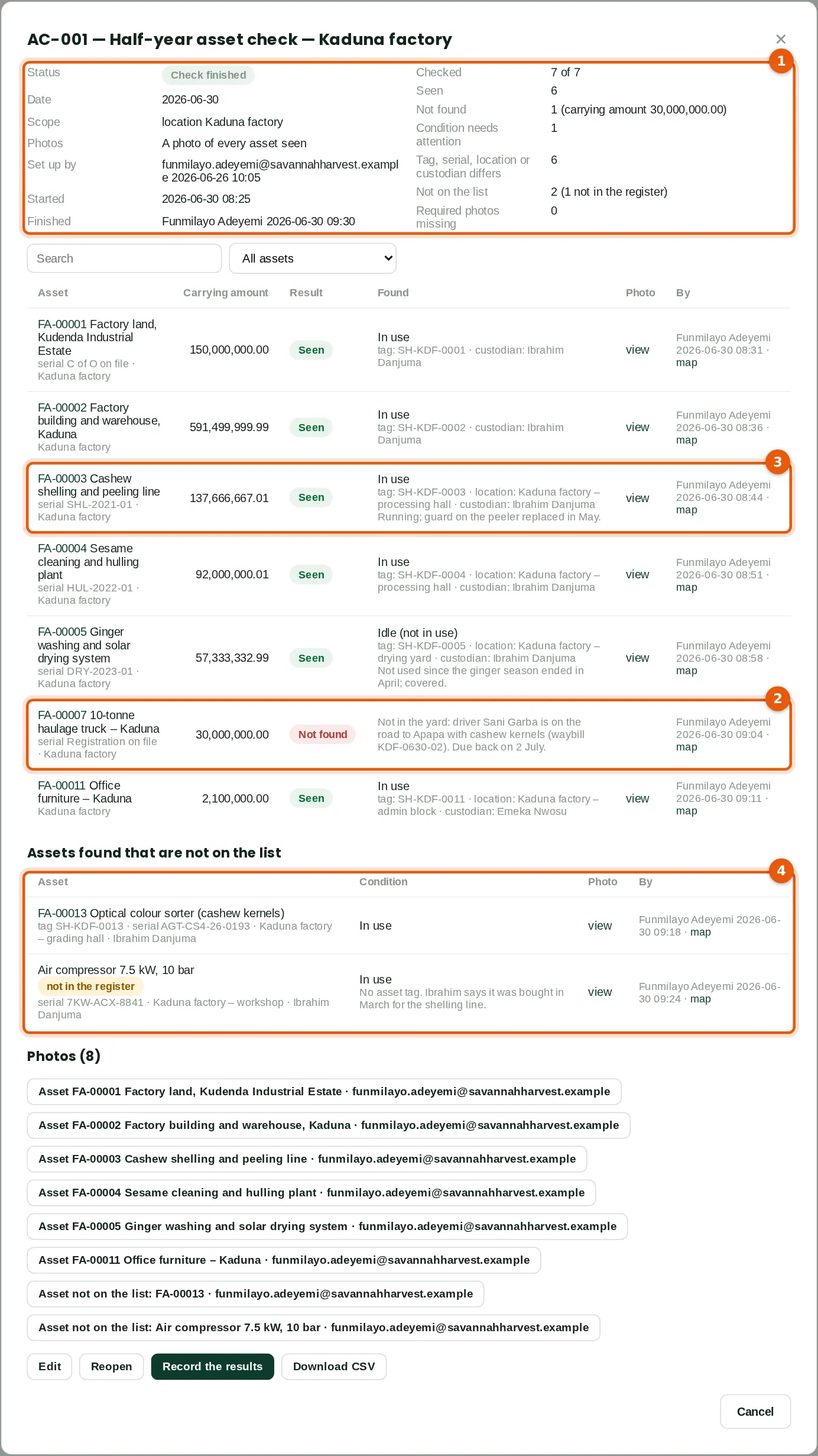
The summary (1) shows 7 of 7 checked: 6 seen, 1 not found (carrying amount ₦30,000,000), 1 whose condition needs attention (the idle drying system), 6 where the tag, serial, location or custodian found differs from the register, and 2 not on the list (1 not in the register). No required photo is missing. The truck (2) is not found, with Funmilayo's note. The shelling line (3) shows the tag, location and custodian found. Assets found that are not on the list (4) shows the colour sorter and the air compressor. Every photo can be opened, and "map" shows where the check was made.
Who
Fixed assets at View level or above; Prepare to act.
What to do
- Filter Not checked, Not found, Condition needs attention or Differences.
- Follow up the assets not on the list: register an asset that is not in the register; correct the location of one that is.
- Click Record the results when the review is done.
27.31 Record the results on the register
Why
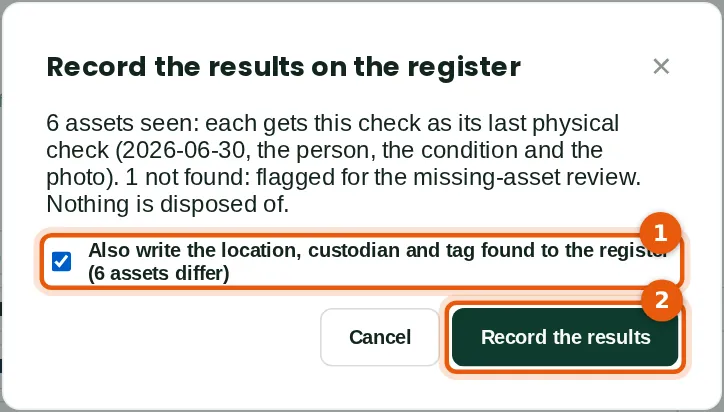
Each asset seen gets this check as its last physical check: the date, the person, the condition and the photo. The asset not found is flagged for the missing-asset review. Nothing is disposed of. With Fixed assets approve, Funmilayo also writes the location, custodian and tag found to the register (1); each change is kept in the audit trail.
Who
Fixed assets at Prepare level; Approve to update the register.
What to do
- Tick Also write the location, custodian and tag found to the register (1) if they should replace what the register holds.
- Click Record the results (2).
27.32 The register after the check
Why
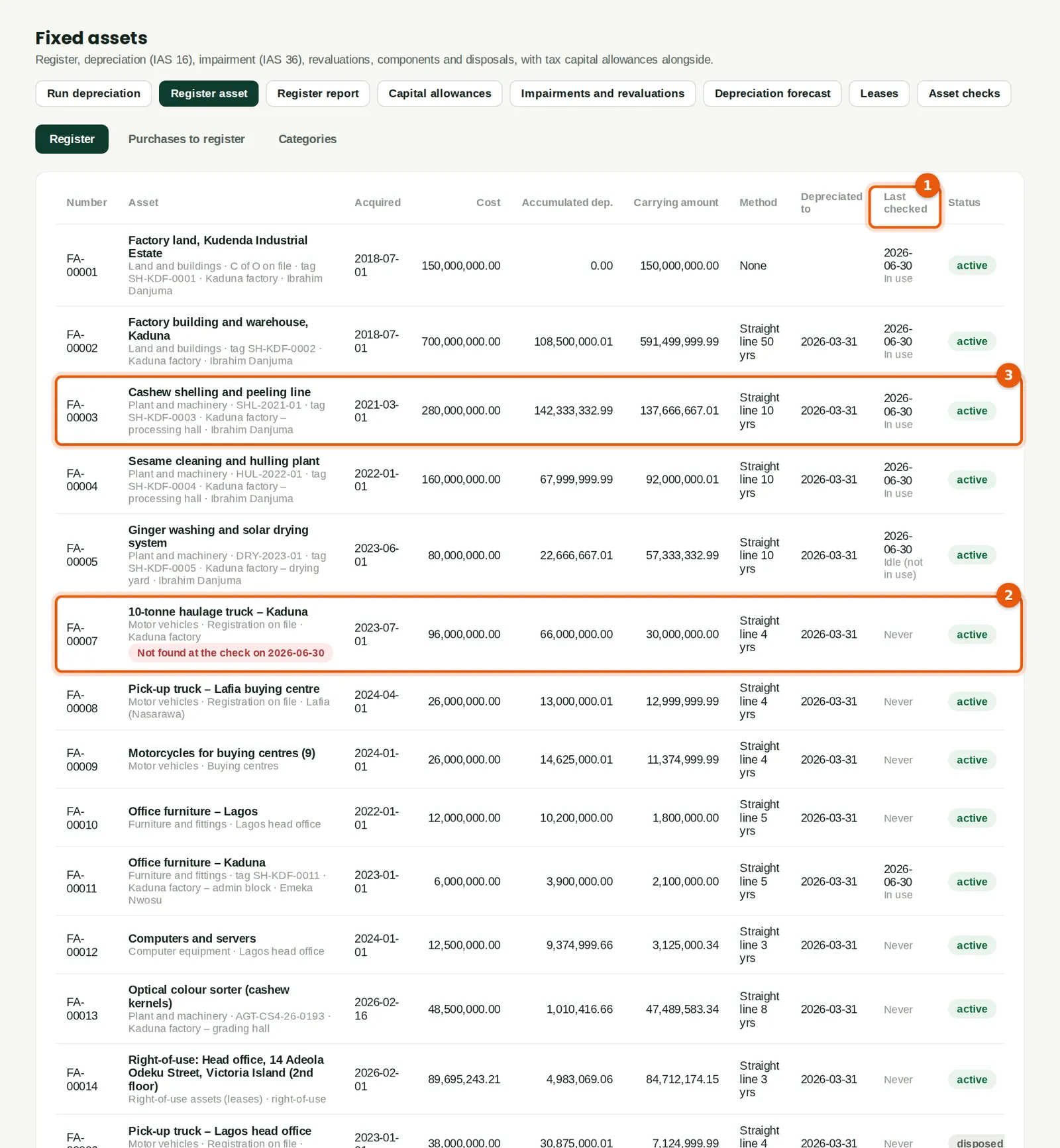
The register now has a Last checked column (1) with the date and the condition. The truck (2) is flagged "Not found at the check on 2026-06-30". The shelling line (3) shows its new tag, location and custodian under its name.
Who
Fixed assets at View level or above.
27.33 The asset's last physical check
Why
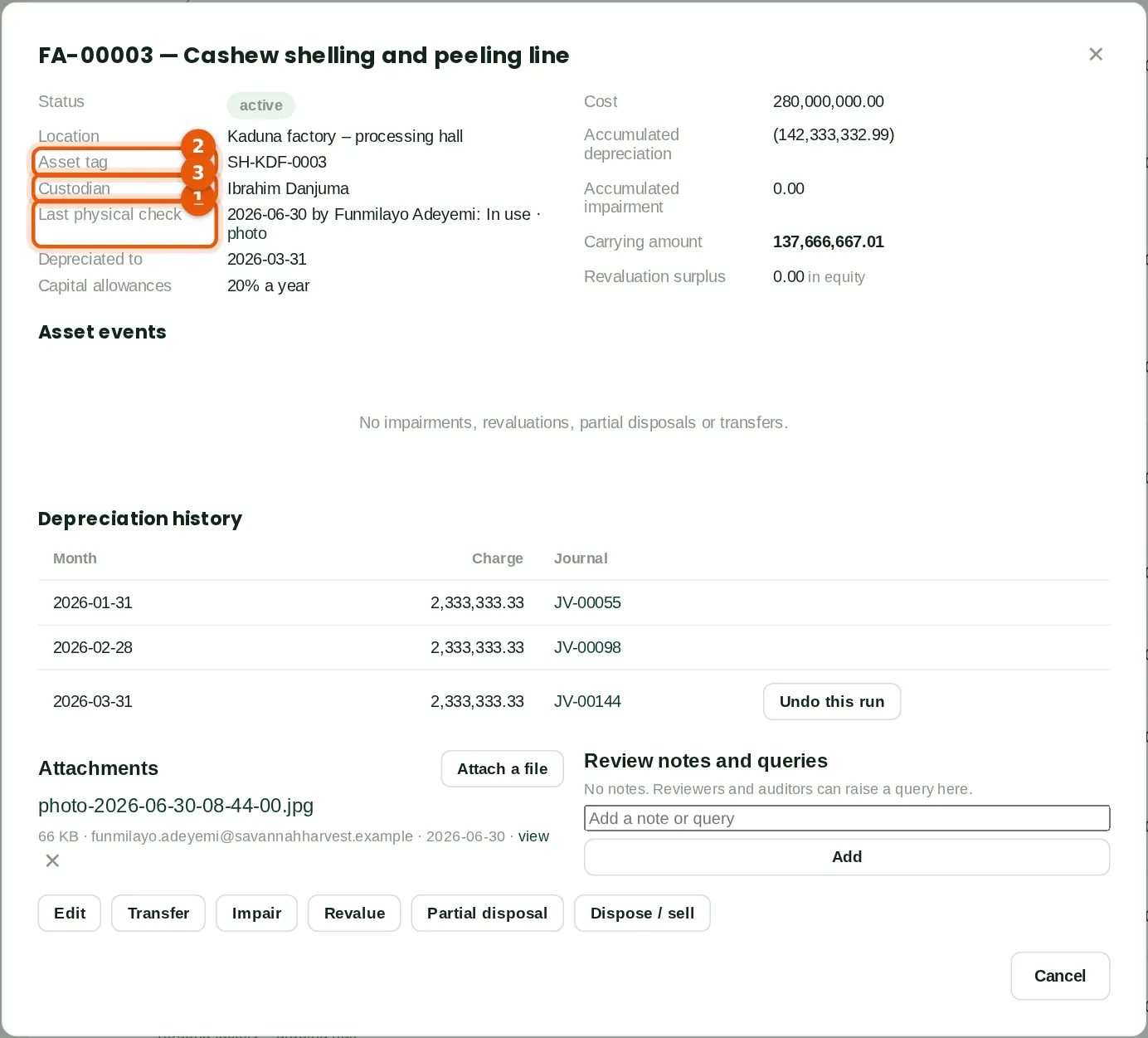
The asset's page shows the last physical check (1): 30 June 2026, by Funmilayo Adeyemi, In use, with a link to the photo. The asset tag (2) and the custodian (3) are on the page and can be changed with Edit. The photo is also kept with the asset's attachments, up to 30 photos.
Who
Fixed assets at View level or above.
27.34 The missing-asset review
Why
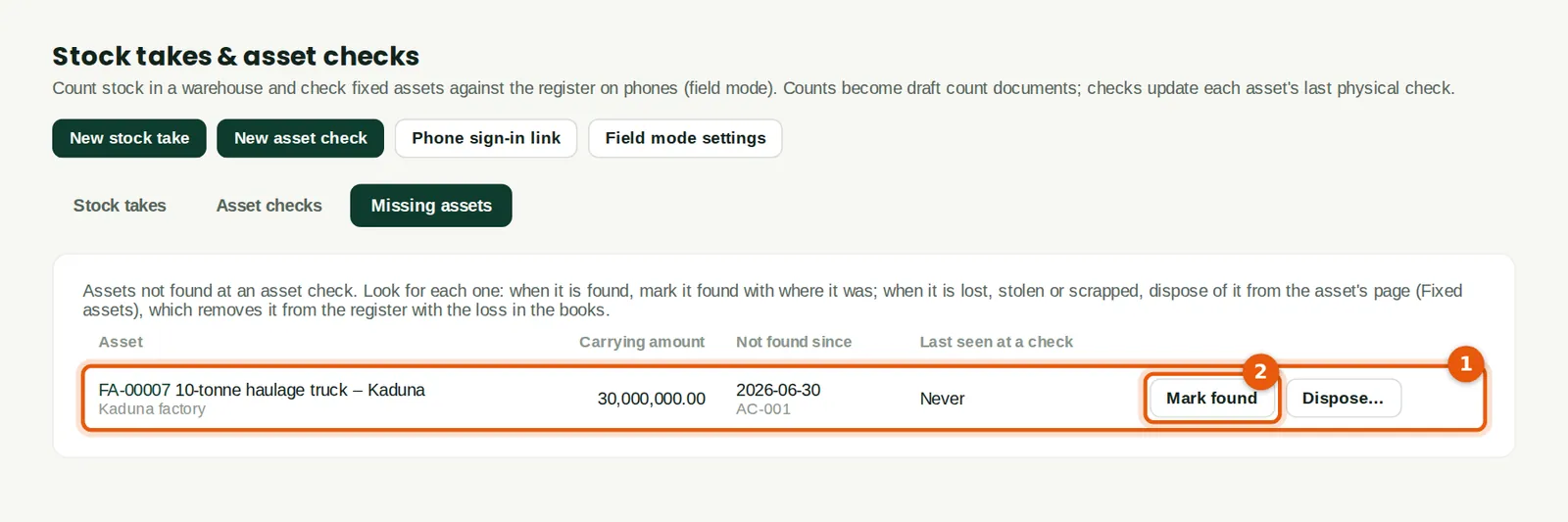
Every asset not found at a check is listed (1) with its carrying amount, the date it was not found, the check, and when it was last seen at a check. Look for each one. When it is found, Mark found (2). When it is lost, stolen or scrapped, Dispose… opens the asset's page, where the disposal removes it from the register with the loss in the books (chapter 9).
Who
Fixed assets at View level or above; Approve to mark found.
What to do
- Follow up each asset. Click Mark found (2) or Dispose….
27.35 Mark an asset found
Why
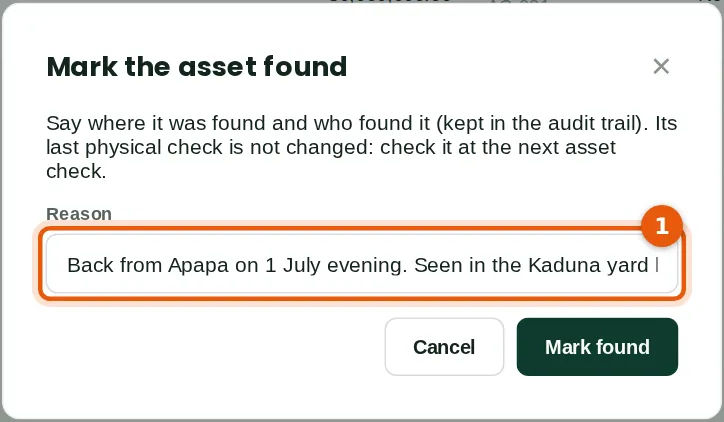
The truck came back from Apapa on 1 July. Funmilayo says where it was found and who saw it (1); the note is kept in the audit trail. The flag is removed. The asset's last physical check does not change: it is checked at the next asset check.
Who
Fixed assets at Approve level (Funmilayo Adeyemi).
What to do
- Type where the asset was found and who found it (1). Click Mark found.