Steps in this chapter (29)
Each company in BookTrove now has a home country: Nigeria or International. A Nigerian company works exactly as the rest of this manual shows. An International company is for a business outside Nigeria. It sets up its own tax codes (VAT, GST or sales tax), uses a general tax return built from those codes, records when each return is filed, and sees its tax deadlines on the dashboard. The Nigerian VAT, WHT, NRS e-invoicing, companies income tax and CBN features are switched off for it.
In the illustration, Savannah Harvest sets up a sales company in Kenya on 4 May 2026: Savannah Harvest East Africa Limited, in Nairobi, with the base currency Kenya shilling (KES). Chukwudi Okeke creates it and becomes its owner. The company sells cashew kernels to roasters and grocers in Kenya and exports some to Uganda. It rents a warehouse, buys packaging and pays a Dutch company for its cloud stock system. The tax rates used (16% standard rate, 0% for exports) are for the illustration only. Check the rules of your own tax authority before you set up your codes.
What is different for an International company
Only a company whose country is exactly International works in this way. Every other company, including those created before October 2026, keeps the Nigerian behaviour.
| Area | International company |
|---|---|
| Set-up | A base currency of your choice (a 3-letter ISO code, for example KES, USD, EUR or GBP). A chart of accounts with neutral names for the tax accounts: 2100 Output tax, 1160 Input tax (recoverable), 2200 Payroll taxes payable. One tax code to start with: NOTAX (No tax). |
| Tax | Your own tax codes, with an optional reverse charge and a choice of whether input tax can be recovered. The Tax centre shows three tabs: Tax return, Tax codes and Tax returns (the filing record and deadlines). |
| Switched off | Nigerian VAT codes and VAT categories, withholding tax (WHT) and WHT credit notes, VAT withheld at source, NRS e-invoicing and supplier IRNs, the Nigerian VAT return and VAT schedule, companies income tax, deferred tax, capital allowances, chargeable gains, stamp duty, the CBN rates and the Nigerian tax calendar. These menus and reports are hidden. |
| Contacts | One free-text tax registration number, with no Nigerian TIN, RC or NIN checks. Bank details take an account number or IBAN (up to 34 letters and digits) and a bank, sort or routing code or BIC. |
| Banking | Bank statements by CSV import or Plaid. Mono (for Nigerian banks) is hidden. Payment batches give one file: the bank payment file (CSV). |
| Documents | Invoices, bills and the printed page say "Tax" and "Tax no." instead of "VAT" and "TIN". |
| Checks | Journal lines, bank lines and bank rules offer only the codes that are switched on and allowed for the line, as invoices and bills do. When a document, a journal or a bank line posts, each tax code is checked again: it must be switched on and be allowed on that side (sales or purchases). If not, nothing posts and the message names the line (steps 26.12 and 26.13). |
| Deadlines | Tax return deadlines appear on the dashboard, in the practice hub, in the month-end and year-end checklists, and in reminders to owners and administrators (steps 26.25 and 26.26). |
| AI assistance | "Ask BookTrove" uses your tax codes and does not quote Nigerian tax law. |
Annual financial statements
The annual financial statements (chapter 25) of an International company leave out the Nigerian pages and notes: the CAMA 2020 certification, the audit committee report, the reports on internal control, the statement of value added, the five-year summary, and the Nigerian notes (for example directors' emoluments, the NGX trading policy and NOTAP agreements). They are not offered at all. The wording is neutral, for example "the applicable law" and "the stock exchange". The statements and notes follow IFRS as before. The registration labels also depend on the country (steps 26.28 to 26.30):
| Country | Registration number | Professional number | Printed |
|---|---|---|---|
| Nigeria | RC number | FRC number | "RC 1847263" |
| International | Company registration number | Professional registration number | As entered, without "RC" |
| Barbados (earlier setting) | Company number | ICAB registration number | As entered |
A few companies created before October 2026 still have an earlier country setting, shown in Settings as "(earlier setting)". They work as Nigerian companies; a Barbados setting keeps its Barbados wording in the annual report. An owner or administrator can change such a company to Nigeria or International while nothing is posted.
26.2 Choose International when you create the company
Why
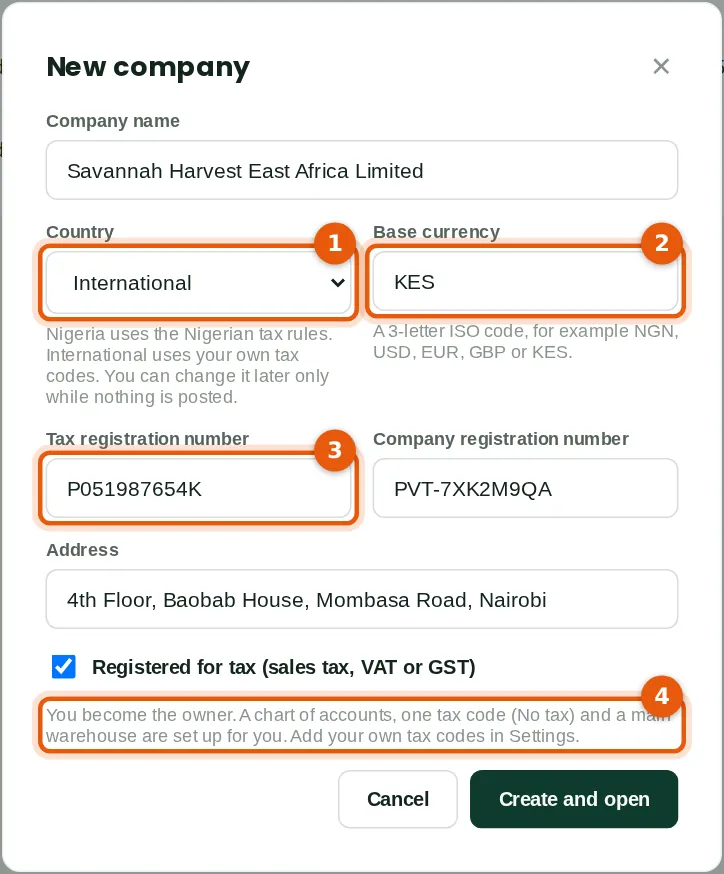
The country decides which tax rules the company uses. Nigeria (the default) gives the Nigerian chart, VAT codes, WHT and NRS e-invoicing. International gives a neutral chart, one tax code (No tax) and the general tax return, and asks for the base currency. When you choose International, the labels change to Tax registration number and Company registration number, and the note at the bottom (4) says what will be set up.
Who
An owner or administrator of the current company. You become the owner of the new company.
What to do
- Open Companies and click New company. Type the company name.
- Choose International in Country (1).
- Type the base currency as a 3-letter ISO code (2), here KES. It is required for an International company.
- Type the tax registration number (3), the company registration number and the address. Tick Registered for tax if the company charges VAT, GST or sales tax.
- Click Create and open.
26.3 The country in Settings
Why
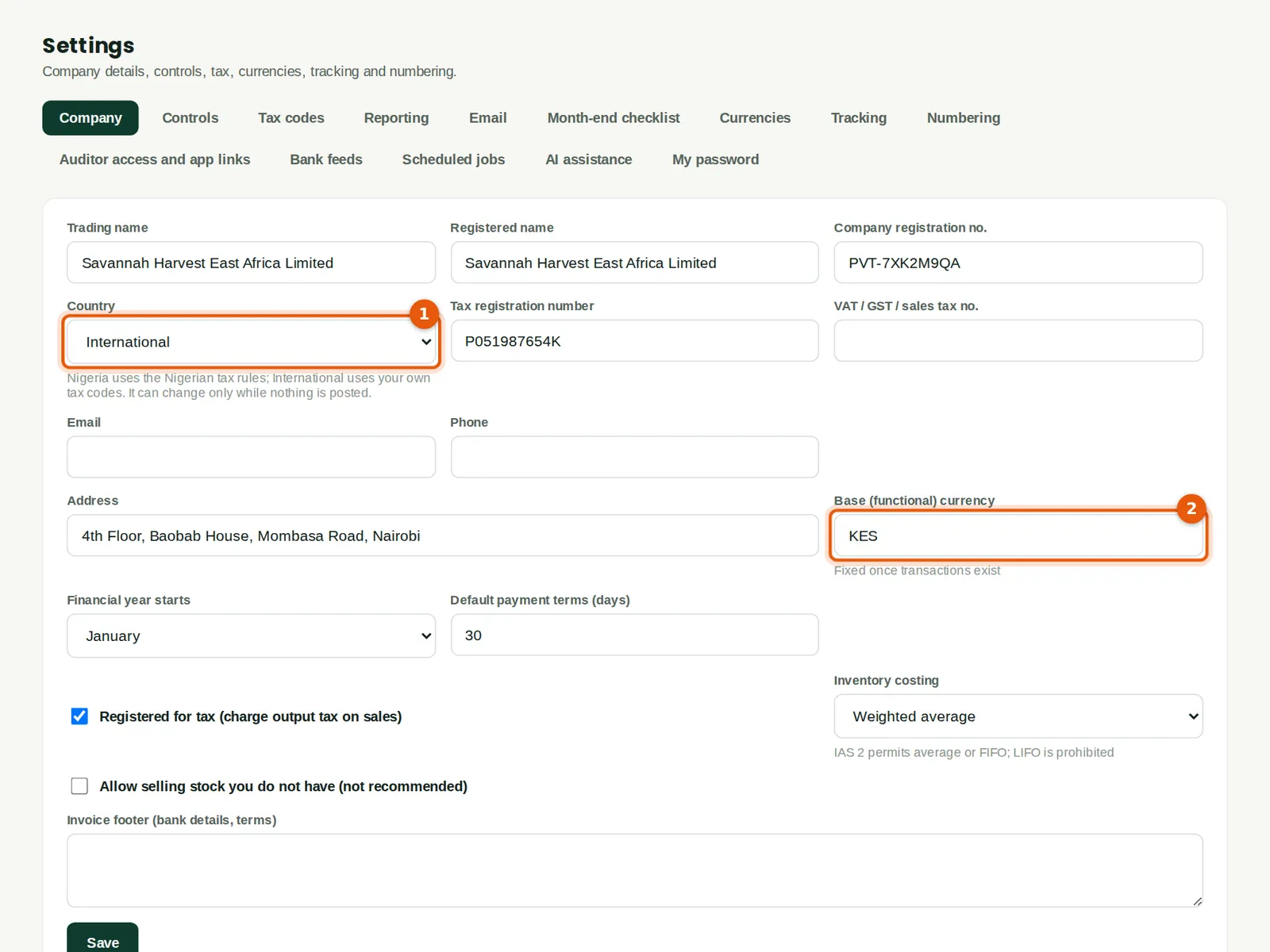
Settings → Company shows the country (1) and the base currency (2). The tax registration number is printed on invoices. An owner or administrator can change the country, but only while the company has no posted transactions. Drafts do not count. Changing it switches off the other country's standard tax codes and sets up this country's, and renames the standard tax accounts that still have their standard names. The change is in the audit trail.
Who
Owner or administrator. Other people see the country but cannot change it.
What to do
- Check the country (1) and the base currency (2) before the first transaction.
- If the country is wrong and nothing is posted yet, choose the right one and click Save. Confirm the change.
26.4 The country is fixed once something is posted
Why
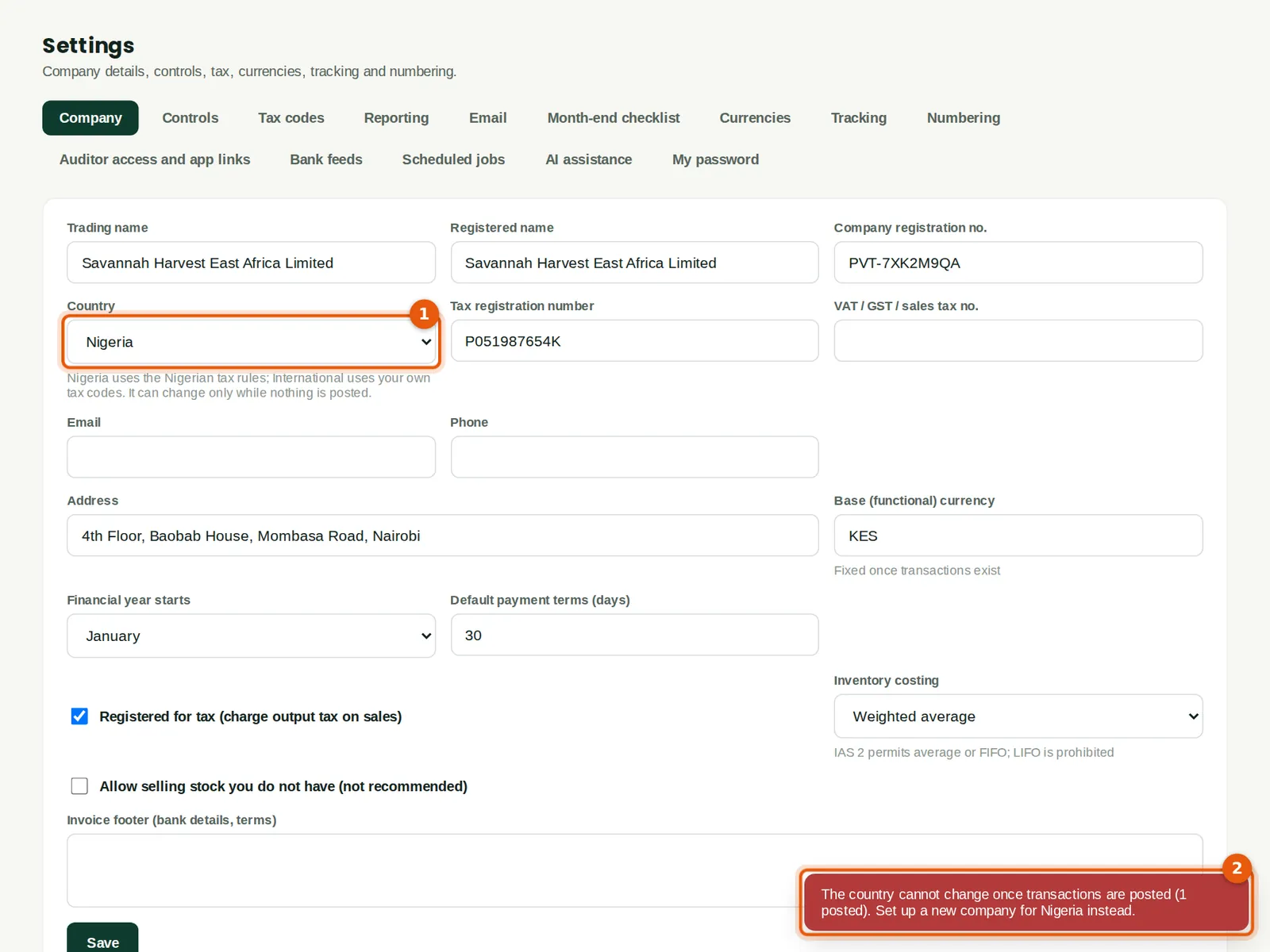
Chukwudi posted the share capital journal on 4 May. From then on the country cannot change (1), because the company's tax codes and accounts are already in use. BookTrove says why (2): "The country cannot change once transactions are posted (1 posted). Set up a new company for Nigeria instead." Voided journals count as posted too.
Who
Owner or administrator.
What to do
- If a company was set up with the wrong country, create a new company with the right one and enter the transactions there.
26.5 Set up a tax code
Why
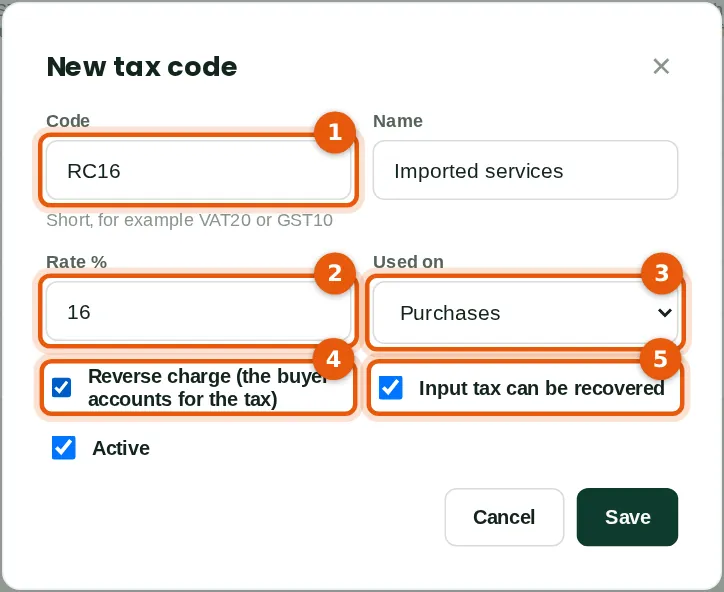
Each code has a short code (1), a name, a rate (2) and where it can be used (3): sales, purchases or both. A sales-only code is refused on a bill, and a purchases-only code on an invoice. Reverse charge (4) is for purchases where the supplier does not charge your tax and you account for it yourself, for example services bought from abroad. Input tax can be recovered (5) decides whether the tax is claimed back as input tax. If it is not ticked, the tax is added to the cost of the purchase.
Who
Accountant, administrator or owner (tax at Approve level).
What to do
- Open Settings → Tax codes and click New tax code.
- Type the code (1) and the name, for example RC16, Imported services.
- Type the rate (2) and choose where it is used (3).
- Tick Reverse charge (4) for a reverse-charge code. Tick or untick Input tax can be recovered (5). Click Save.
26.6 The company's tax codes
Why
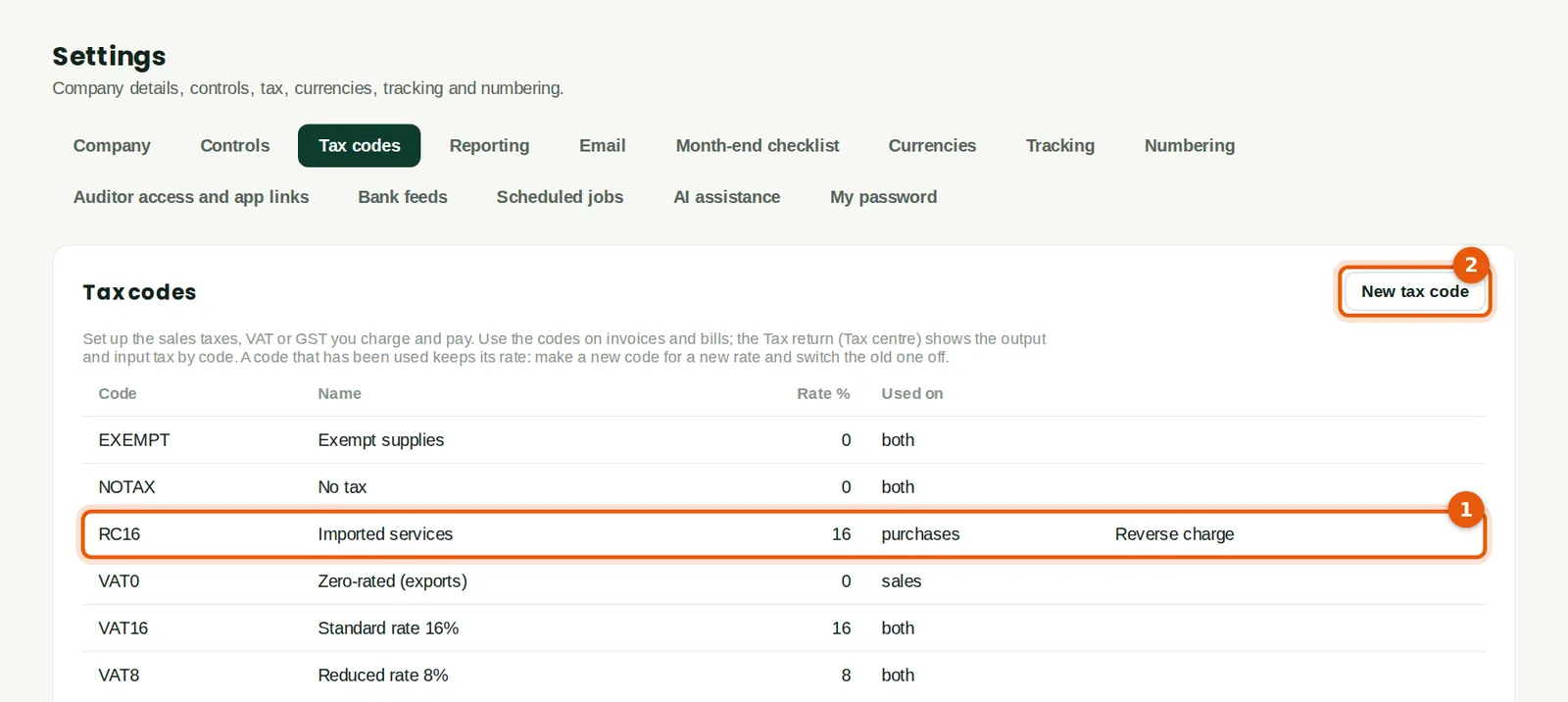
Savannah Harvest East Africa set up six codes: VAT16 (standard rate 16%, sales and purchases), VAT8 (a reduced rate of 8%), VAT0 (zero-rated exports, sales only), EXEMPT (exempt supplies), NOTAX (out of scope) and the reverse-charge code RC16 (1). A code that has been used keeps its rate. When a rate changes, make a new code and switch the old one off. A code that was never used can be deleted; a used code can only be switched off.
Who
Accountant, administrator or owner.
What to do
- Click a code to change its name, switch it off (untick Active) or delete it.
- Click New tax code (2) to add another.
26.7 A supplier's tax number and bank details
Why
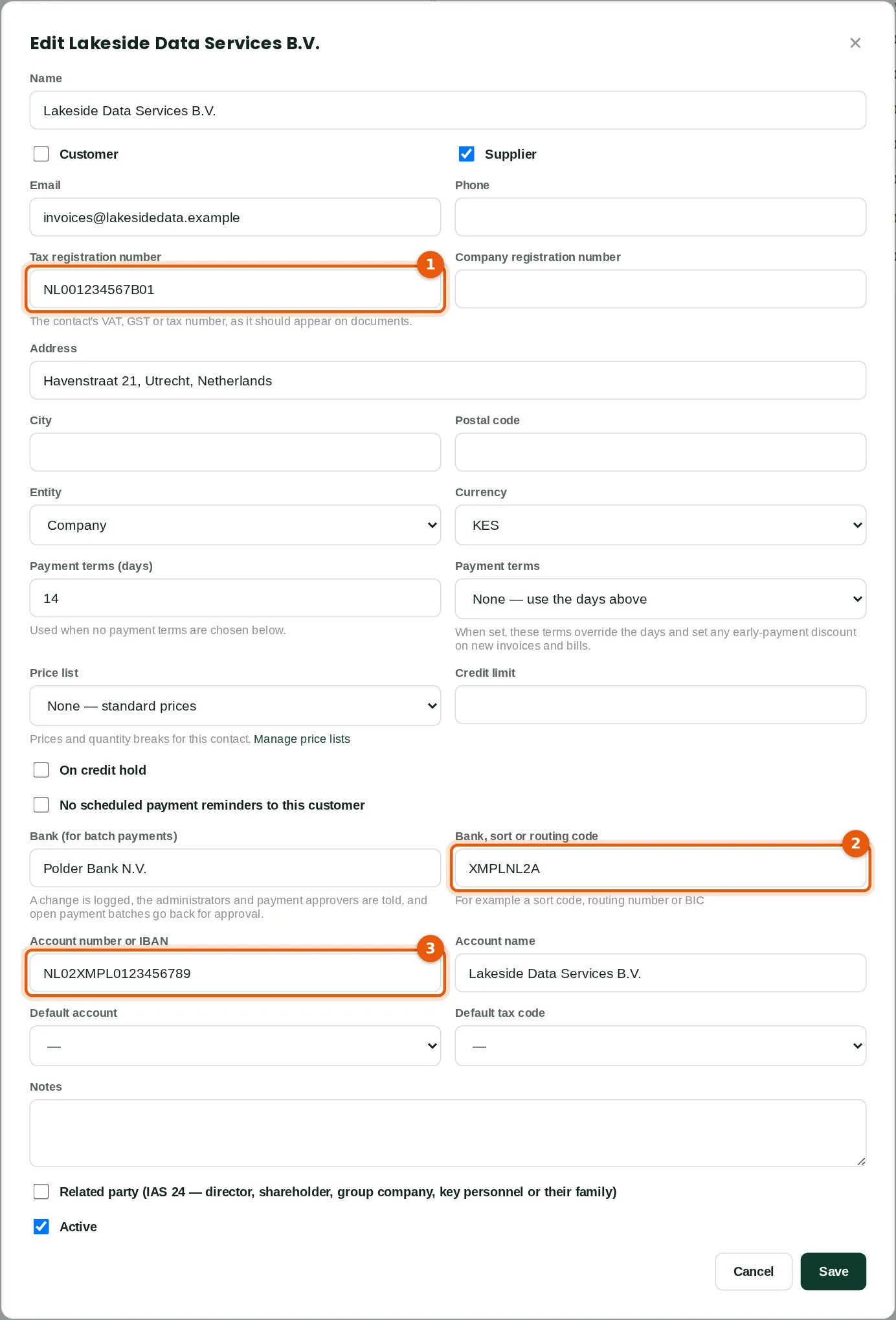
An International company keeps one tax registration number for each contact (1), as it should appear on documents. There are no Nigerian TIN, RC or NIN checks. For payment batches, the bank details take a bank, sort or routing code or BIC (2) and an account number or IBAN (3). Spaces are removed when it is saved. A change of bank details is logged and the approvers are told, as for a Nigerian company (chapter 21).
Who
Purchases clerk; bank details need purchases at Approve level.
What to do
- Type the contact's tax registration number (1).
- For a supplier you pay by batch, type the bank, the bank code (2), the account number or IBAN (3) and the account name. Click Save.
26.8 An invoice with a tax code
Why
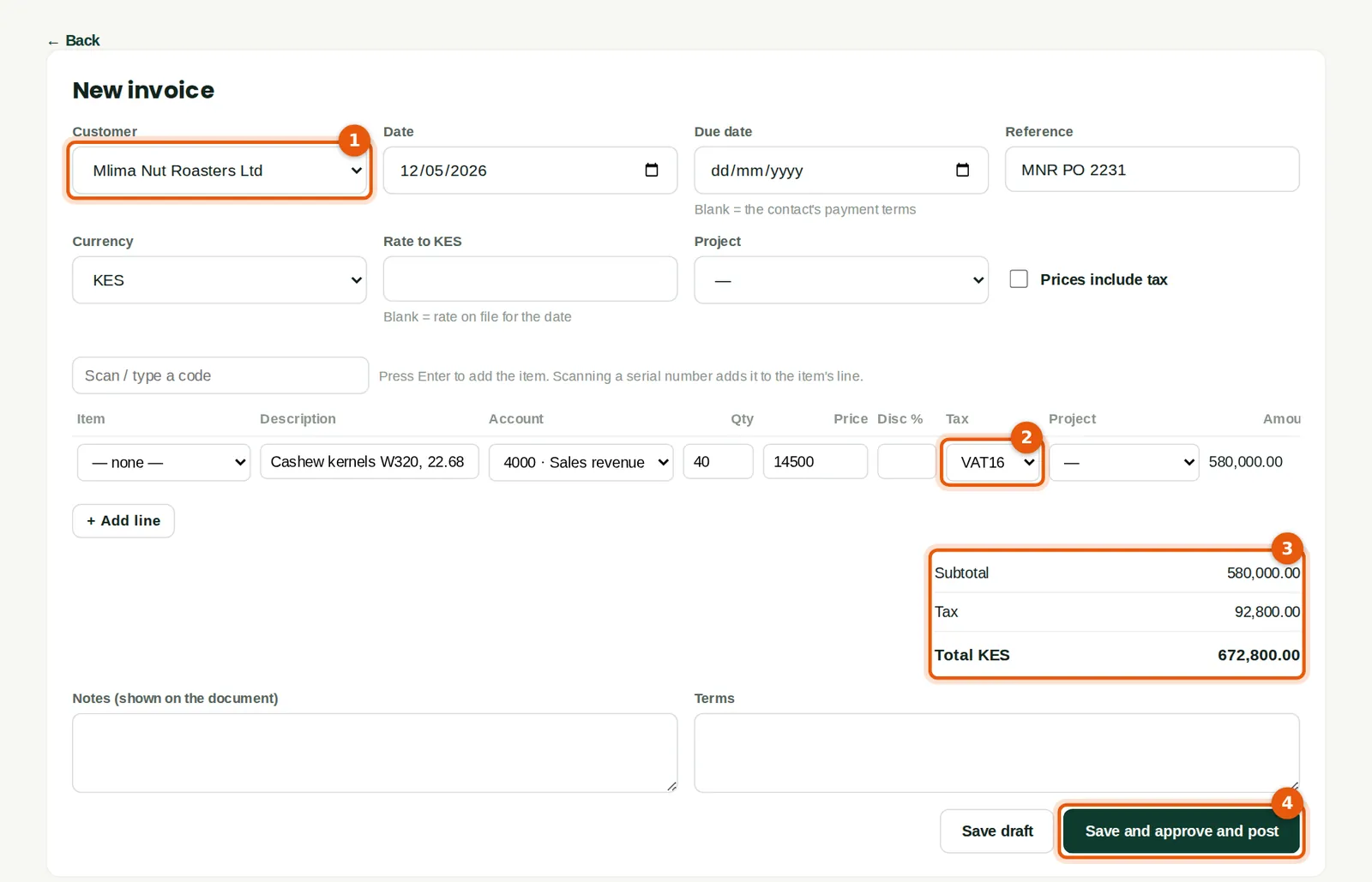
Invoices work as in chapter 7, in the company's own currency. Each line has a tax code (2). Here Chukwudi invoices Mlima Nut Roasters Ltd (1) for 40 cartons of cashew kernels at KES 14,500, with VAT16. The totals (3) show KES 580,000.00 net, KES 92,800.00 tax and KES 672,800.00 in total. Switched-off codes are not offered on a new line.
Who
Sales or accountant.
What to do
- Choose the customer (1), the date and the reference.
- On each line, type the description, account, quantity and price, and choose the tax code (2).
- Check the totals (3) and click Save and approve and post (4).
26.9 The posted invoice
Why
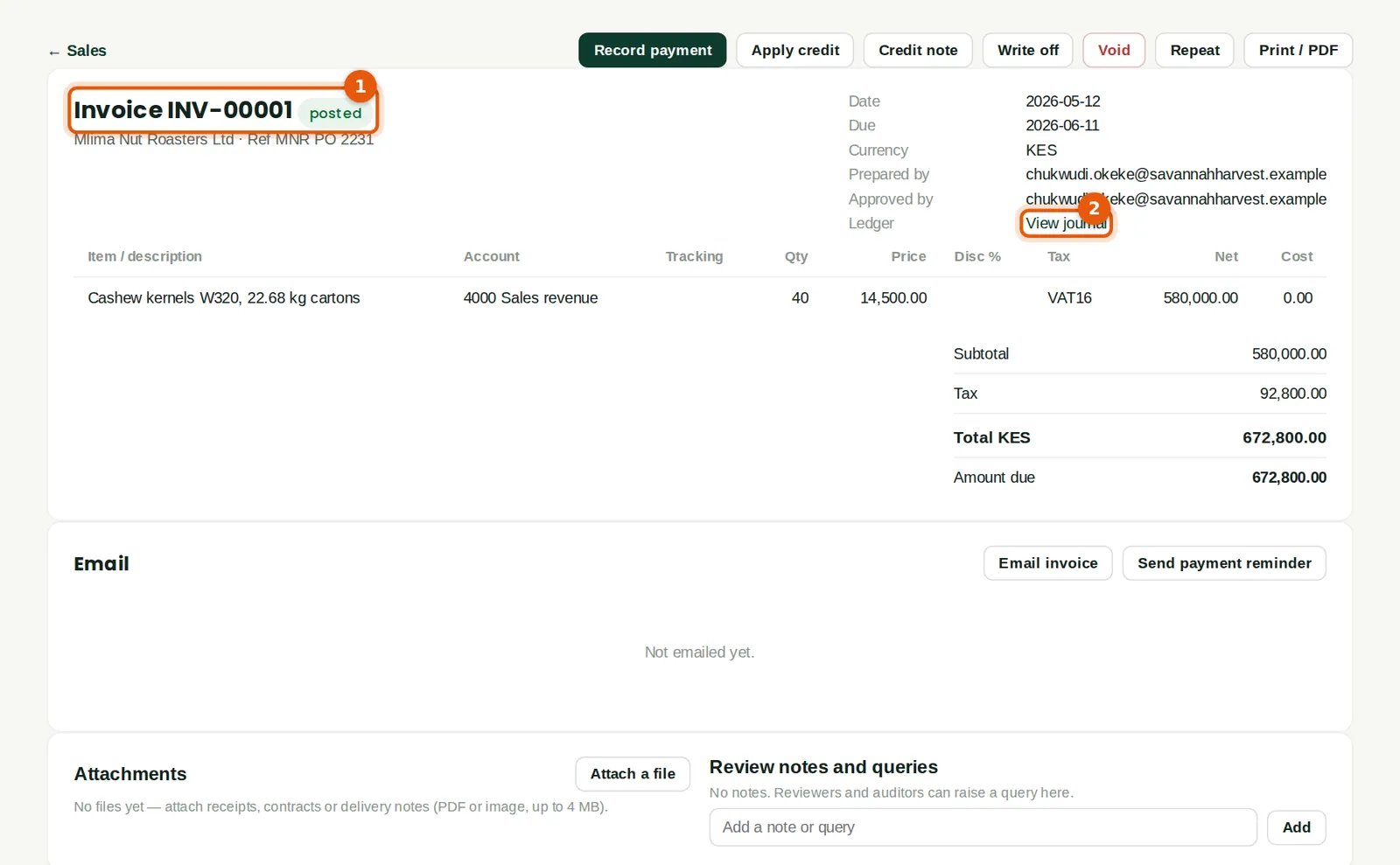
The invoice is posted (1). The tax goes to 2100 Output tax; the journal line says "Tax VAT16". View journal (2) shows the entries. The printed invoice shows "Tax" and the company's tax registration number. There is no NRS panel or IRN for an International company.
Who
Sales or accountant.
26.10 A bill with a reverse-charge code
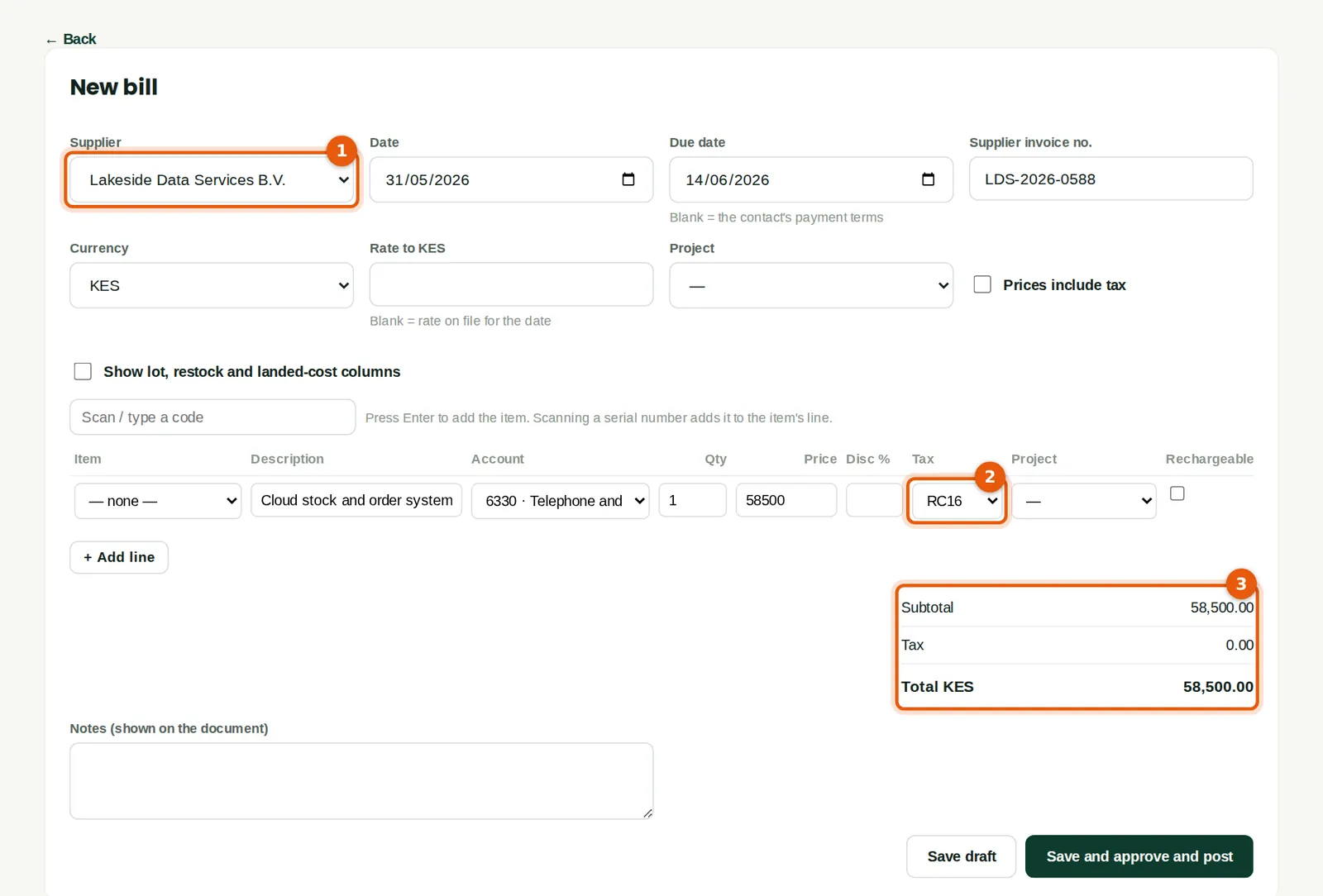
Why
Lakeside Data Services B.V. (1), in the Netherlands, bills KES 58,500 a month for the cloud stock system and charges no Kenyan tax. The line uses RC16 (2). The bill's tax (3) is nil, because the supplier is paid only the net amount. BookTrove accounts for the 16% itself when the bill posts.
Who
Accountant or purchases clerk.
What to do
- Choose the supplier (1) and type the supplier's invoice number.
- Choose the reverse-charge code (2) on the line. Check that the total (3) is what the supplier charged, then click Save and approve and post.
26.11 How the reverse charge posts
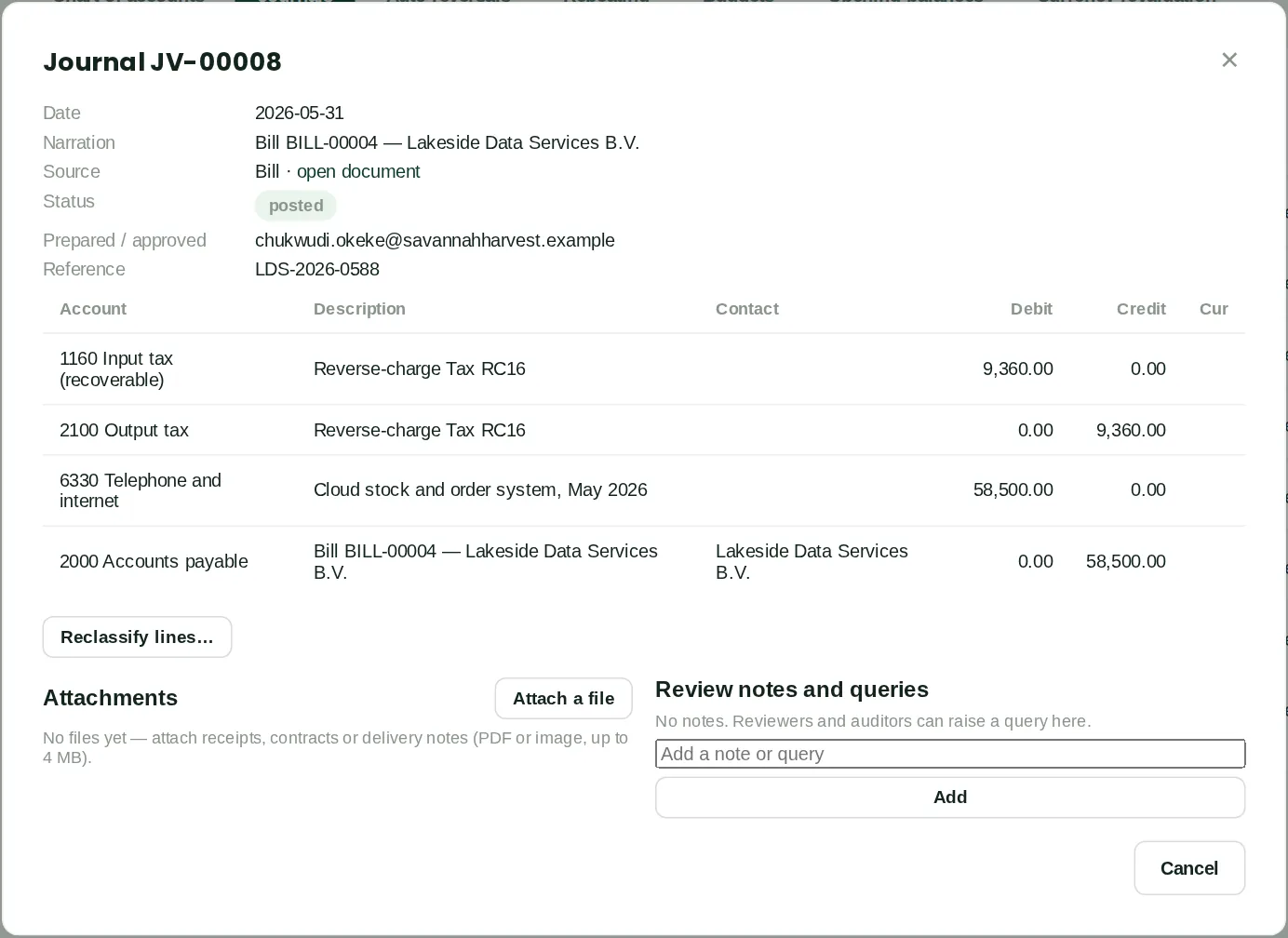
Why
The bill posts the cost (KES 58,500.00 to 6330 Telephone and internet) and the amount owed to the supplier. The reverse charge adds KES 9,360.00 of output tax (credit 2100) and, because the code's input tax can be recovered, the same amount of input tax (debit 1160). The two cancel out in the tax return, but both are reported. If Input tax can be recovered is not ticked, the 9,360.00 is added to the cost instead of going to 1160, and the tax is payable.
Who
Accountant.
26.12 A switched-off code is refused when a document posts
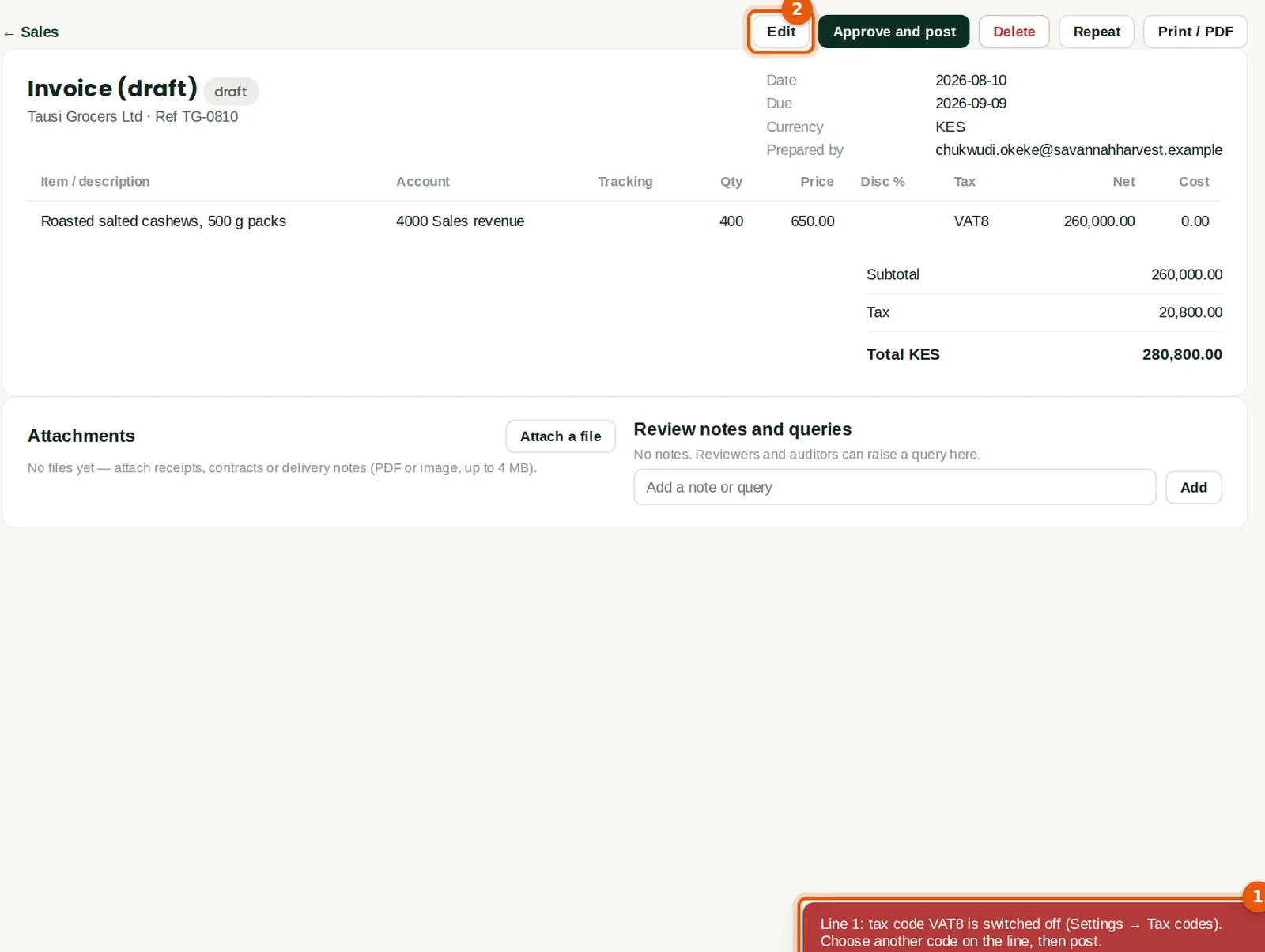
Why
The company sells nothing at the reduced rate, so on 12 August Chukwudi switched VAT8 off. A draft invoice to Tausi Grocers, saved on 10 August, still had VAT8 on its line. When a document posts, BookTrove checks each tax code again. The code must be switched on and be allowed on that side (sales or purchases). Here it is switched off, so nothing posts and the invoice stays a draft (1): "Line 1: tax code VAT8 is switched off (Settings → Tax codes). Choose another code on the line, then post." The same check runs when a document is approved after waiting for approval. A switched-off code is no longer offered on new lines, so this happens only to drafts saved before the code was switched off.
Who
Sales or accountant.
What to do
- Click Edit (2), choose another code on the line named in the message, and save.
- Click Approve and post again. Chukwudi changed the line to VAT16 and posted the invoice.
26.13 Tax codes are checked when journals post
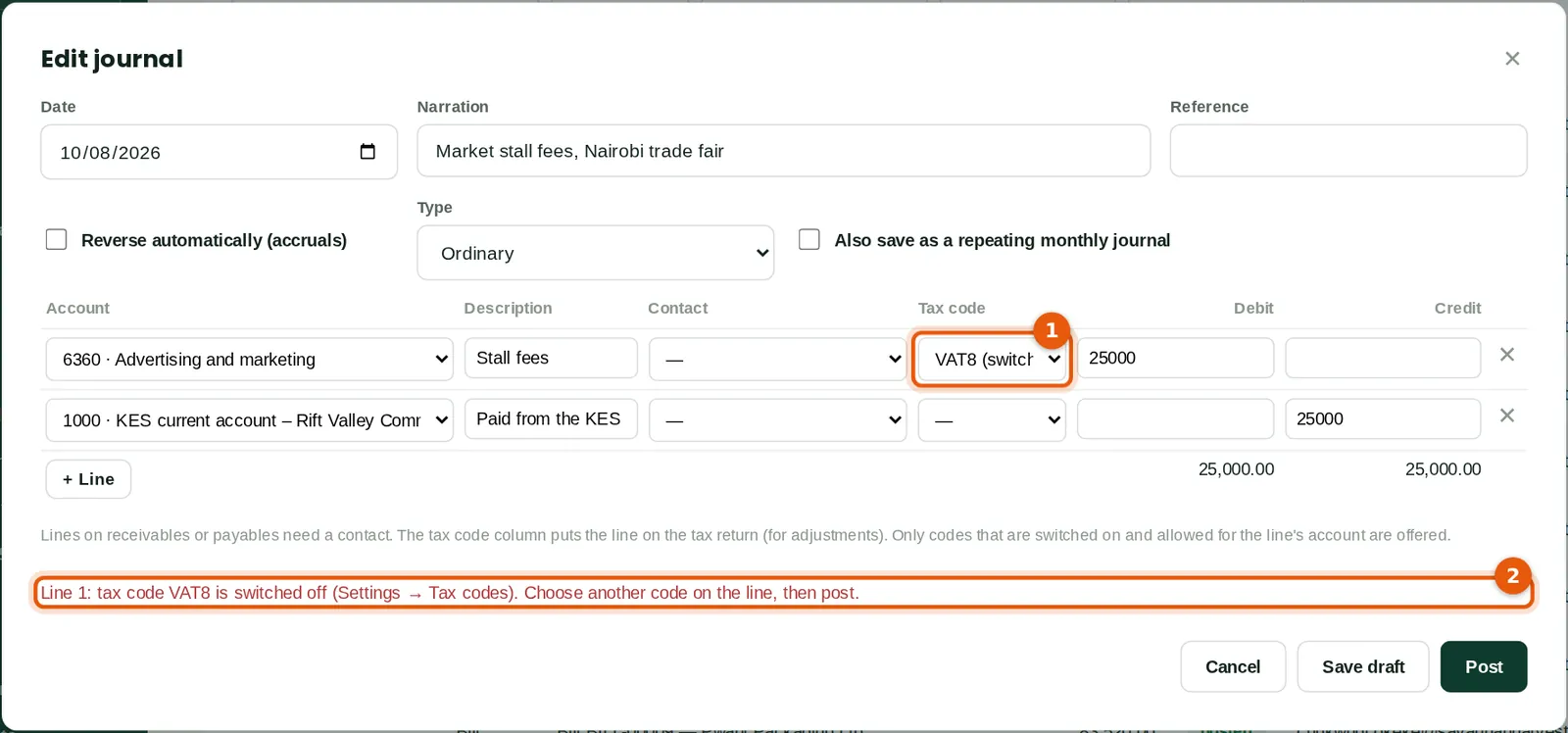
Why
A journal line can carry a tax code, so that it counts in the tax return. A new line offers only the codes that are switched on and allowed for its account. On a cost line here that is EXEMPT, NOTAX, RC16 and VAT16; the sales-only code VAT0 is not offered. On 10 August Chukwudi saved a draft journal for market stall fees with VAT8, which was then still switched on. When he opens it on 14 August, the line keeps its code, marked "VAT8 (switched off)" (1). A code no longer allowed for the line's account would be marked "(not for this line)". When the journal posts, BookTrove checks every code again, so it is refused (2): "Line 1: tax code VAT8 is switched off (Settings → Tax codes). Choose another code on the line, then post." The check also applies to journals approved after waiting, repeating journals and imported journals.
Who
Accountant.
What to do
- Choose another code on the line named in the message (1), or clear it, then click Post again.
26.14 Take the bank payment file (CSV)
Why
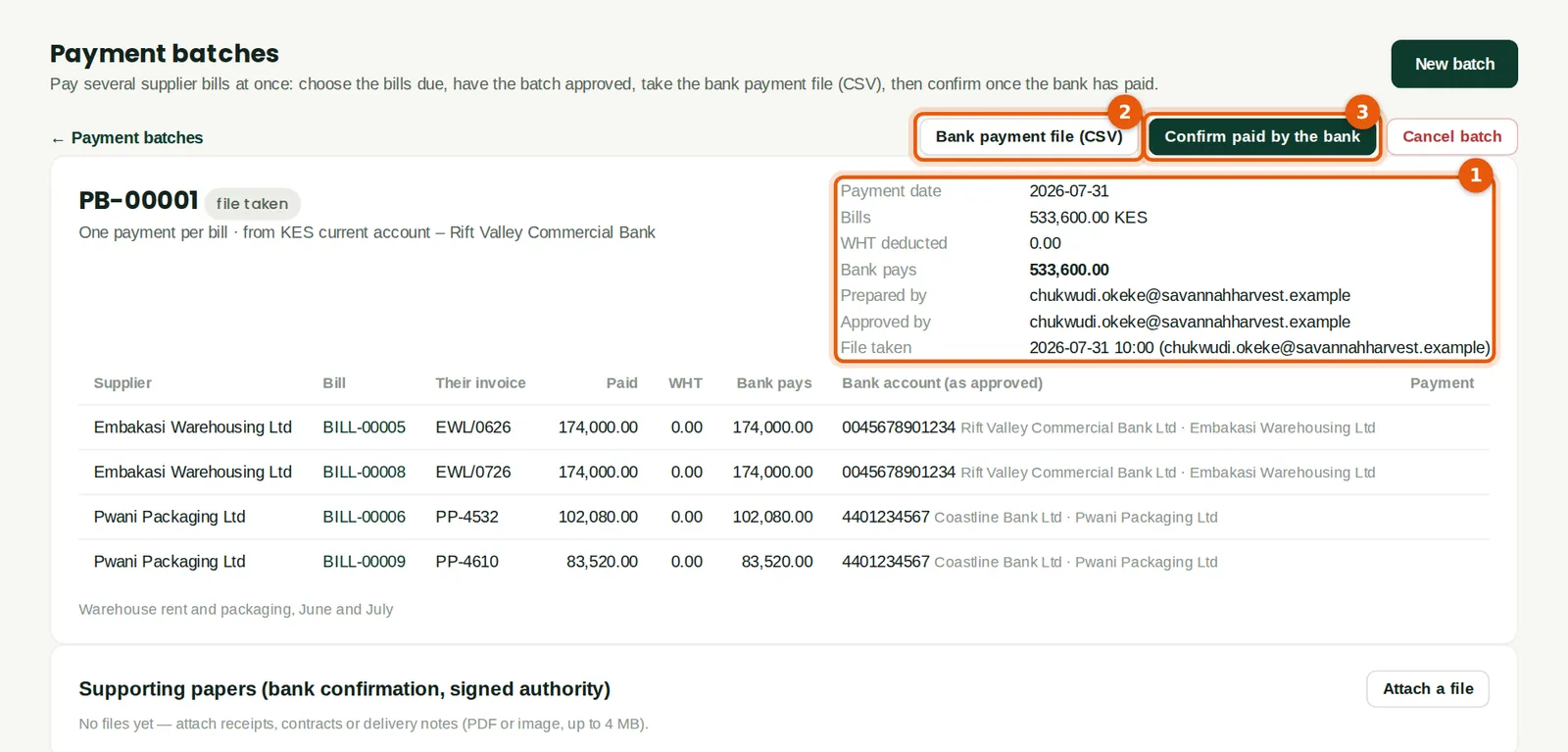
Payment batches work as in chapter 21. On 31 July Chukwudi pays the June and July bills of Embakasi Warehousing and Pwani Packaging: four bills, KES 533,600.00 (1). An International company has no withholding tax, so the bank pays the full amounts. The approved batch gives one file, Bank payment file (CSV) (2), for the bank's bulk payment upload. A supplier with no account number, or no bank, sort or routing code, is flagged before the file is made.
Who
Accountant or finance manager (purchases at Approve level).
What to do
- Click Bank payment file (CSV) (2) and upload the file on your bank's bulk payment page, or copy its columns into the bank's own template.
- When the bank has paid, click Confirm paid by the bank (3).
26.15 The bank payment file

Why
One row for each payment: payee name, account number (or IBAN), bank, sort or routing code, bank, amount, currency, payment date and a reference made of the batch number and the supplier's invoice number. There is no single international layout: before the first upload, compare the columns with your bank's bulk payment template.
Who
Accountant or finance manager.
26.16 The Tax return report
Why
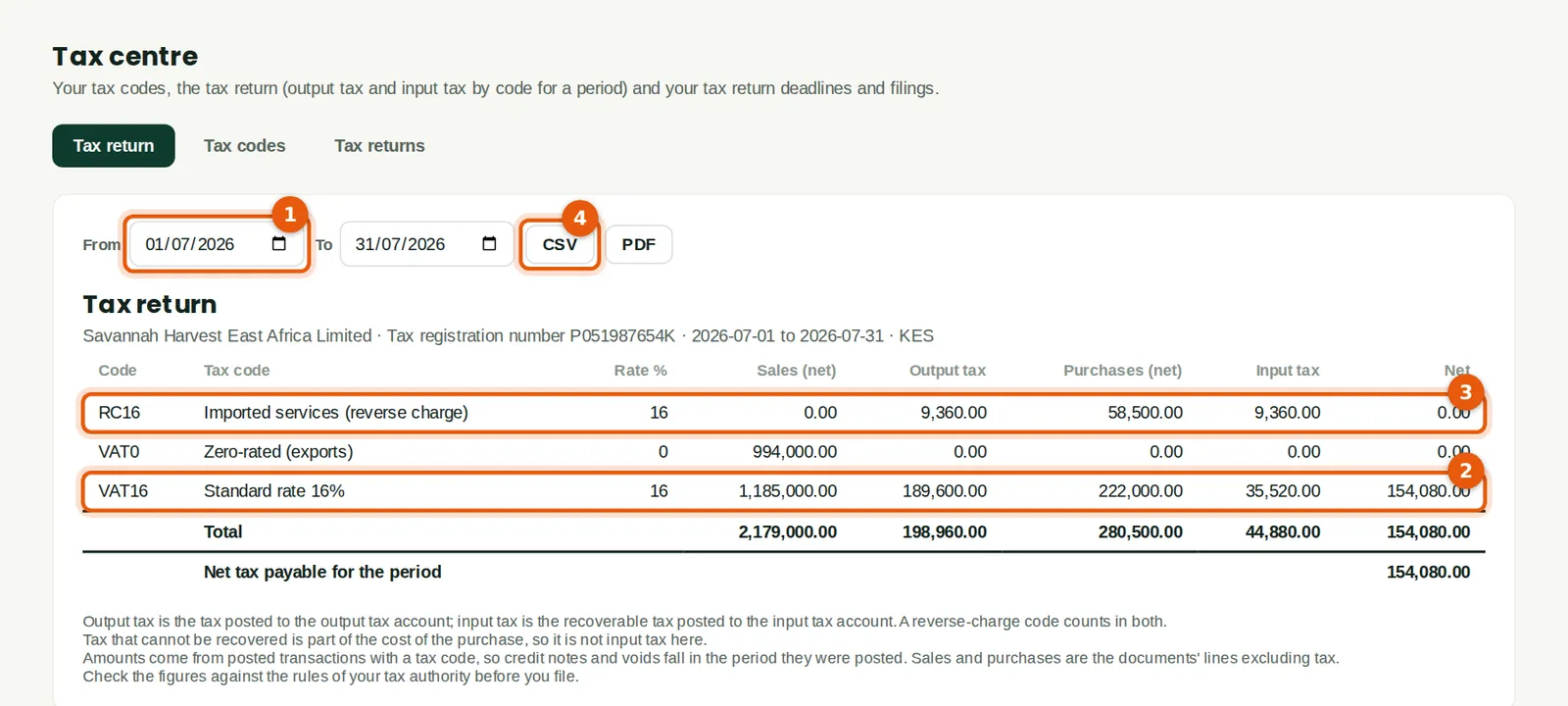
For the dates chosen (1) the return shows each tax code with its sales (net), output tax, purchases (net), input tax and the net. The tax comes from the output and input tax accounts; the sales and purchases come from the documents' lines without tax. In July, VAT16 (2) gave KES 189,600.00 of output tax on KES 1,185,000.00 of sales, and KES 35,520.00 of input tax on KES 222,000.00 of purchases. The exports to Uganda are under VAT0 (KES 994,000.00, no tax). The reverse-charge code RC16 (3) counts in both output and input tax. The net tax payable for July is KES 154,080.00.
Who
Accountant (tax access) or anyone with reports access.
What to do
- Open Tax centre → Tax return. It opens on last month; change From (1) and To for another period.
- Click CSV (4) or PDF to keep a copy with the return. The same report is under Reports → Tax return.
- Check the figures against the rules of your tax authority, then file the return there.
26.17 Set up the tax return deadlines
Why
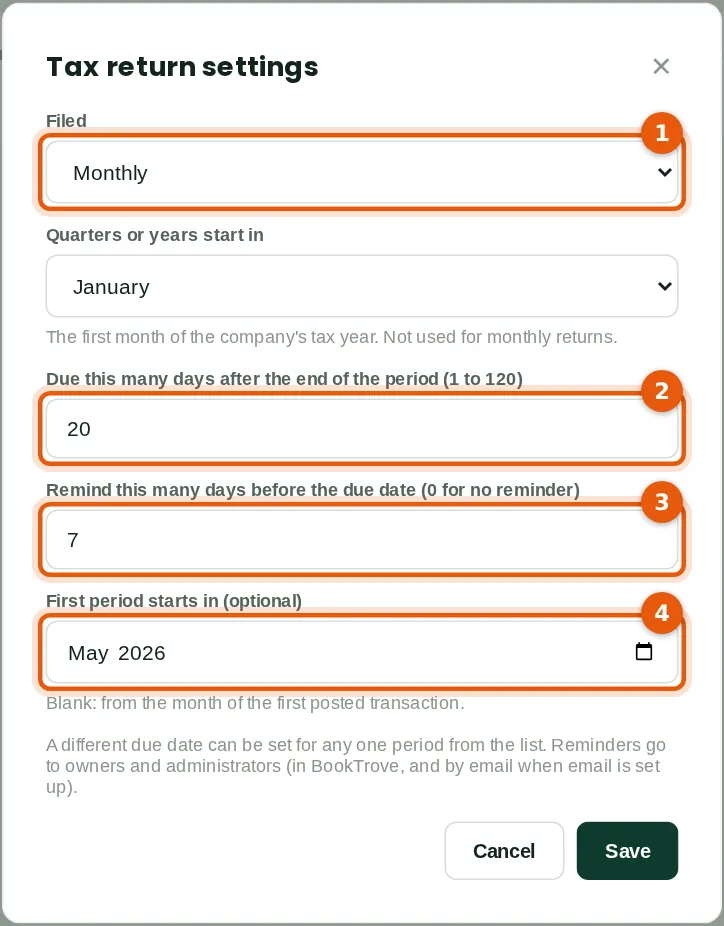
These settings tell BookTrove how often the return is filed and when it is due. Filed (1) is monthly, quarterly or yearly. For quarterly or yearly returns, choose the month the quarters or the year start in. Due (2) is the number of days after the end of the period, from 1 to 120. Reminder (3) is how many days before the due date the reminders start (0 for none). First period starts in (4) is optional; if it is blank, the periods start in the month of the first posted transaction. Savannah Harvest East Africa files monthly, 20 days after the month end, with a reminder 7 days before. Each change is in the audit trail.
Who
Owner or administrator.
What to do
- Open Tax centre → Tax returns and click Set up (later: Change settings).
- Choose the frequency (1), type the due days (2) and the reminder days (3), and choose the first period (4). Click Save.
26.18 Mark a period as filed
Why
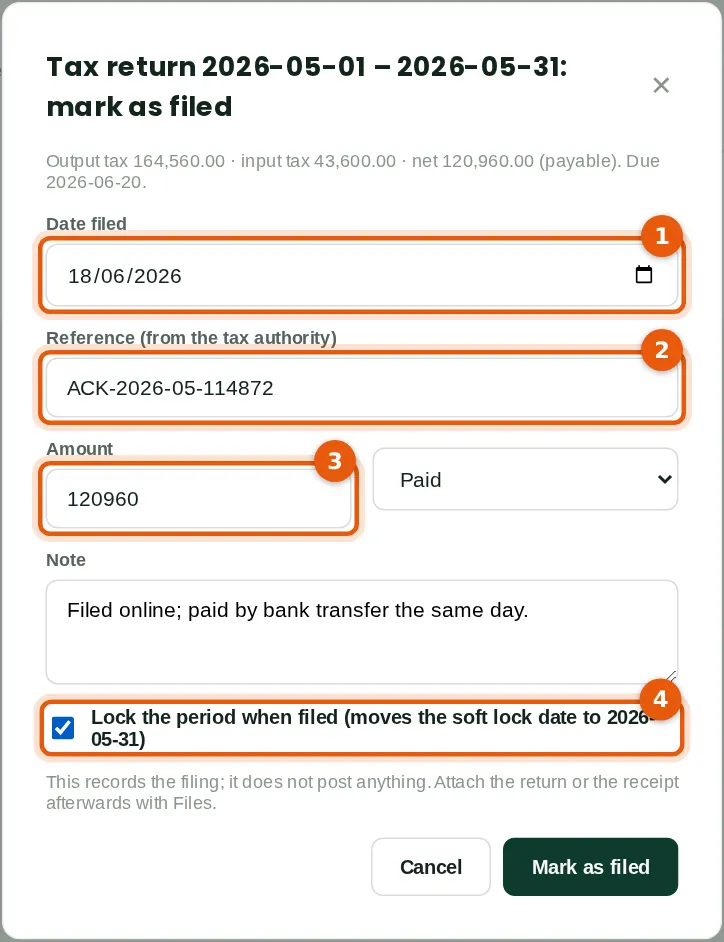
After filing the May return with the tax authority on 18 June, Chukwudi records it. The top line shows the figures from the Tax return for the period: output tax KES 164,560.00, input tax KES 43,600.00, net KES 120,960.00 payable. The date filed (1) cannot be before the end of the period or in the future. The reference (2) is the acknowledgement from the tax authority. The amount (3) is what was paid, or refunded or carried forward. Lock the period when filed (4) moves the soft lock date to the end of the period, so nobody can change May by mistake. Marking a return as filed posts nothing to the ledger.
Who
Accountant, administrator or owner (tax at Approve level).
What to do
- Click Mark as filed on the period. It is offered only once the period has ended.
- Type the date filed (1), the reference (2) and the amount (3), with Paid or Refunded. Add a note if useful.
- Tick Lock the period when filed (4) if the period should be closed. Click Mark as filed.
26.19 The filed period
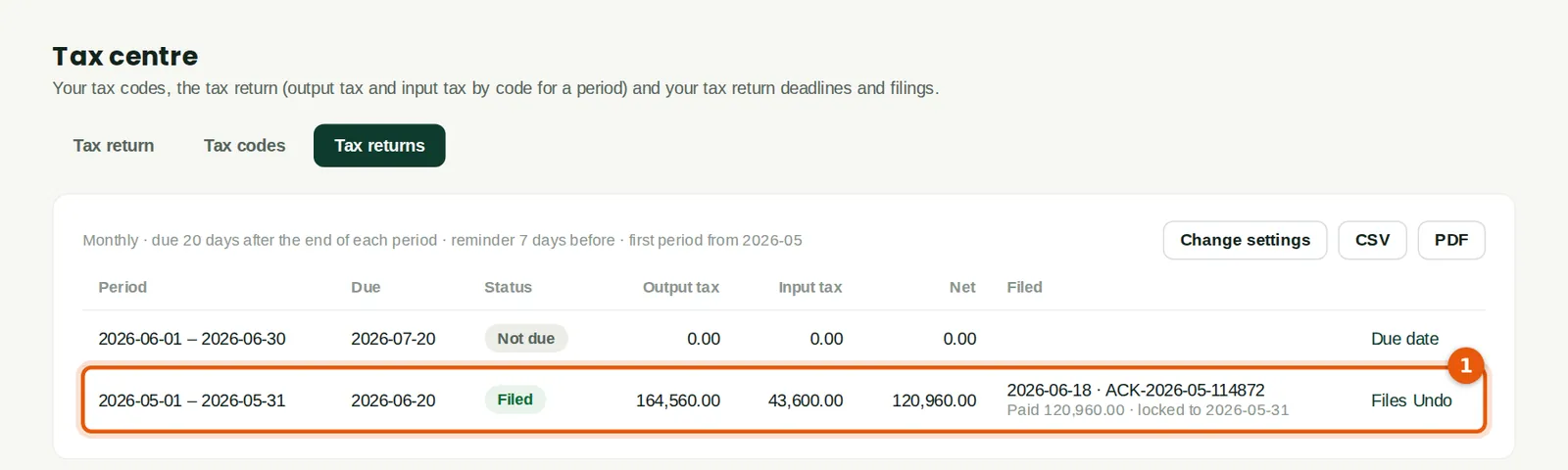
Why
May is now Filed (1), with the date, the reference, the amount paid and the lock date. The figures at the time of filing are kept with the record. June has not ended, so it is Not due. Each period's output tax, input tax and net come from the Tax return report for its dates, so they always agree with it.
Who
Anyone with tax access.
26.20 The Tax returns list
Why
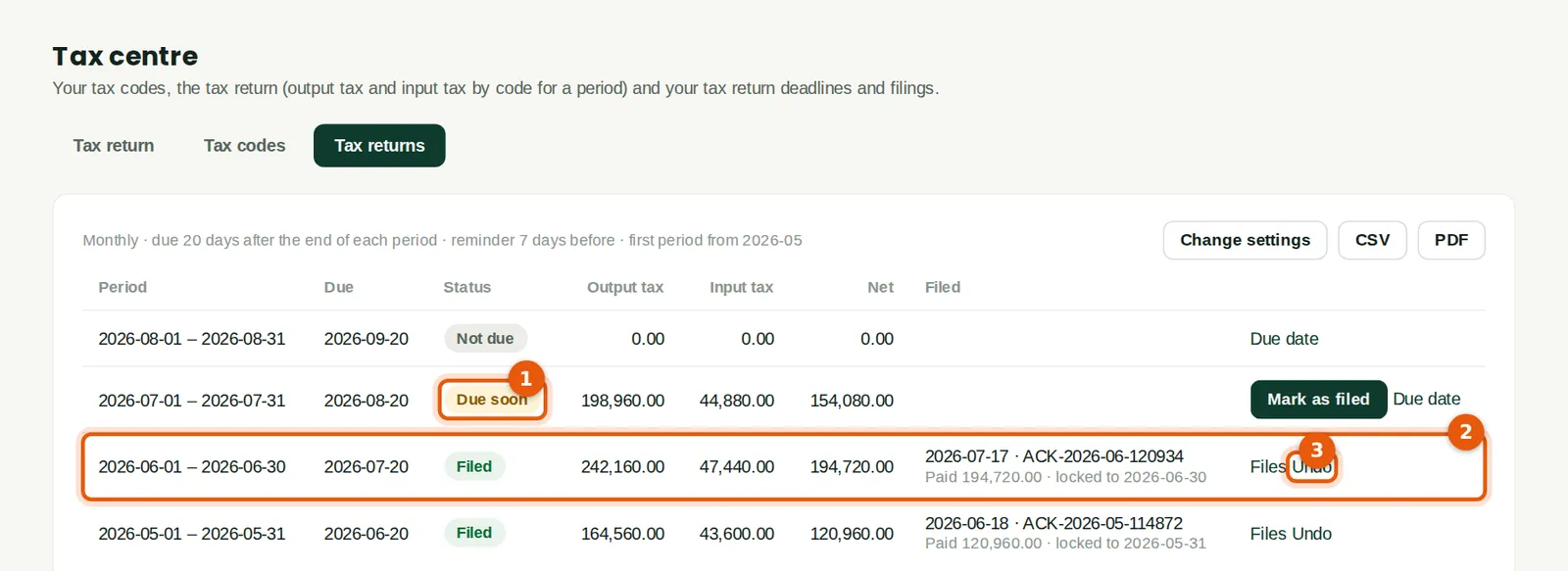
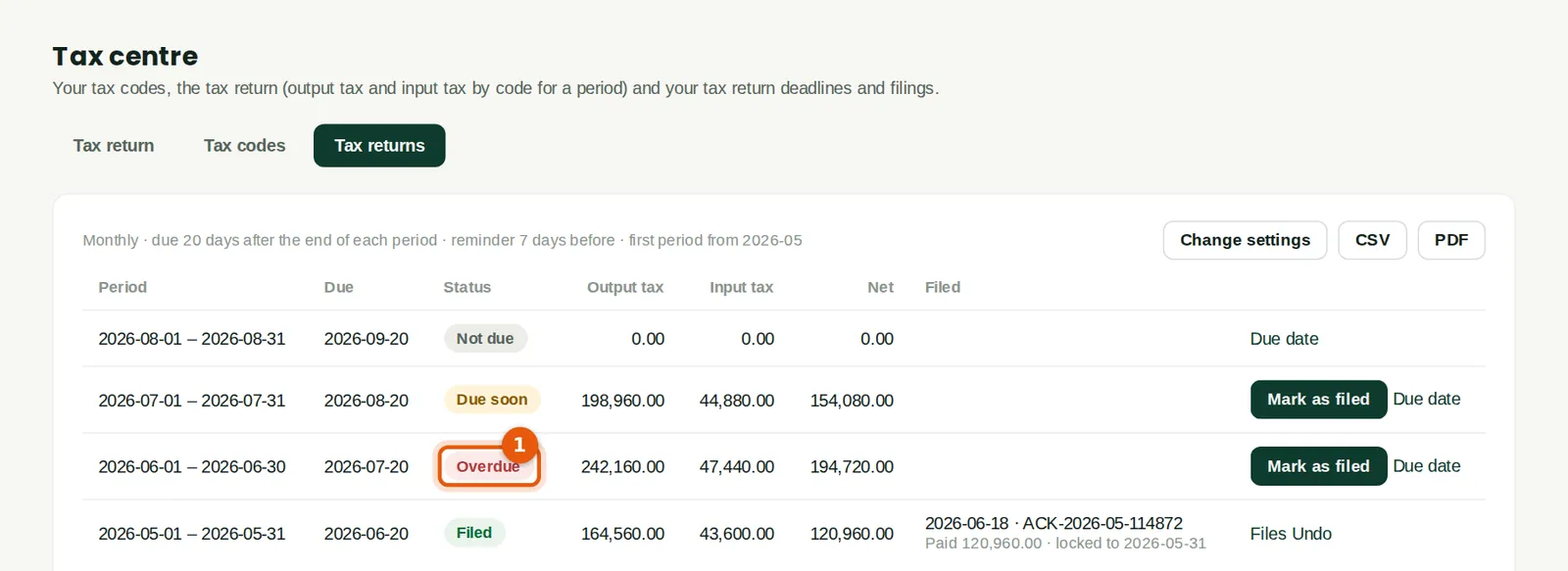
The periods are listed newest first, up to 24. Chukwudi filed June on 17 July. On 14 August the July return is Due soon (1): it is due on 20 August and the reminder starts 7 days before. A period becomes Overdue the day after its due date. June (2) is Filed, with Files and Undo (3). A period that has not ended is always Not due. If the frequency changes, periods filed under the old frequency stay in the list, marked "earlier frequency".
Who
Anyone with tax access.
What to do
- Use Mark as filed, Due date, Files and Undo on each row.
- CSV and PDF at the top give the same list as a report.
26.21 A different due date for one period
Why
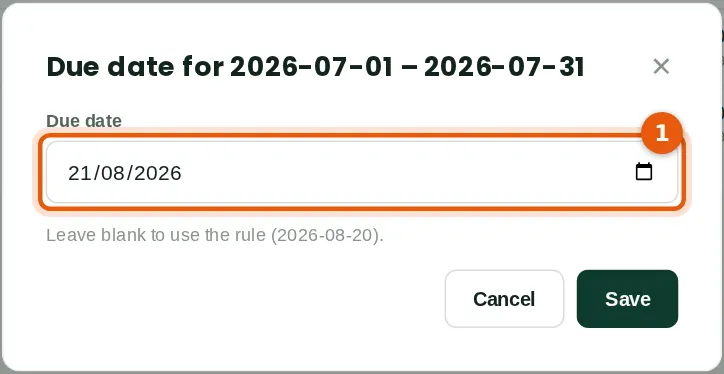
If the tax authority gives a different date for one period, for example an extension, set it here (1). It must be after the end of the period. The list then shows "(set for this period)". Leave the date blank to go back to the rule (here 20 August). The date cannot change once the period is filed. Each change is in the audit trail.
Who
Accountant, administrator or owner.
What to do
- Click Due date on the period, type the date (1) and click Save. Here Chukwudi only looks, and clicks Cancel.
26.22 Attach the return or the receipt
Why
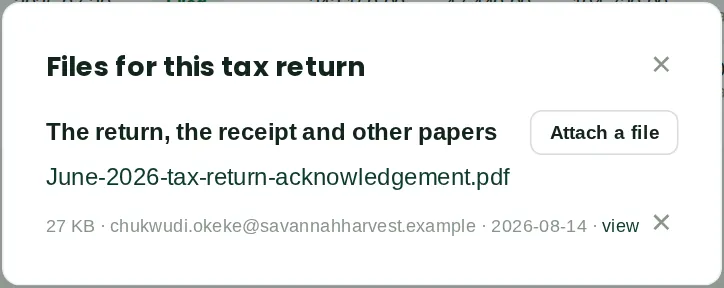
Keep the evidence with the filing: the return, the acknowledgement from the tax authority or the payment receipt. The files stay with the period even if the filing is undone, and they are in the company export.
Who
Accountant, administrator or owner.
What to do
- Click Files on a filed period, then Attach a file.
26.23 Undo a filing
Why
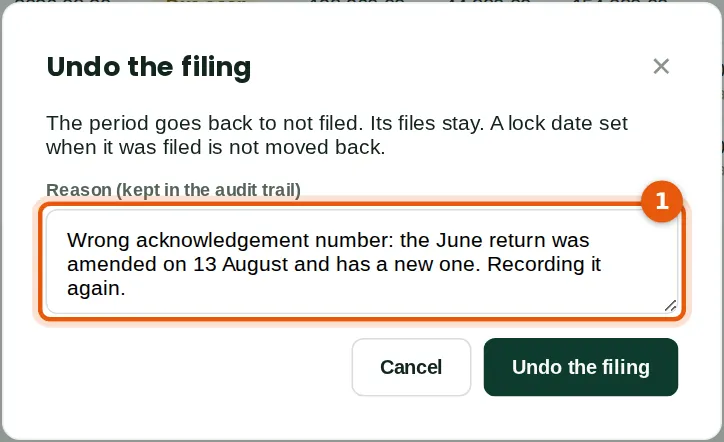
The June return was amended on 13 August and has a new acknowledgement number, so the first record is wrong. Undo puts the period back to not filed. The reason (1), at least 5 characters, is kept on the record with who undid it and when, and in the audit trail with the record as it was. The files stay. A lock date set when the period was filed is not moved back: lock dates change only in Settings (chapter 10).
Who
Accountant, administrator or owner.
What to do
- Click Undo on the filed period, type the reason (1) and click Undo the filing.
- Mark the period as filed again with the right details.
26.24 The period is open again
Why
June is open again. Its due date, 20 July, has passed, so it is Overdue (1) until it is recorded again. Chukwudi records it again the same day, with the new reference and the date of the amended return, 13 August.
Who
Anyone with tax access.
26.25 Deadlines on the dashboard
Why
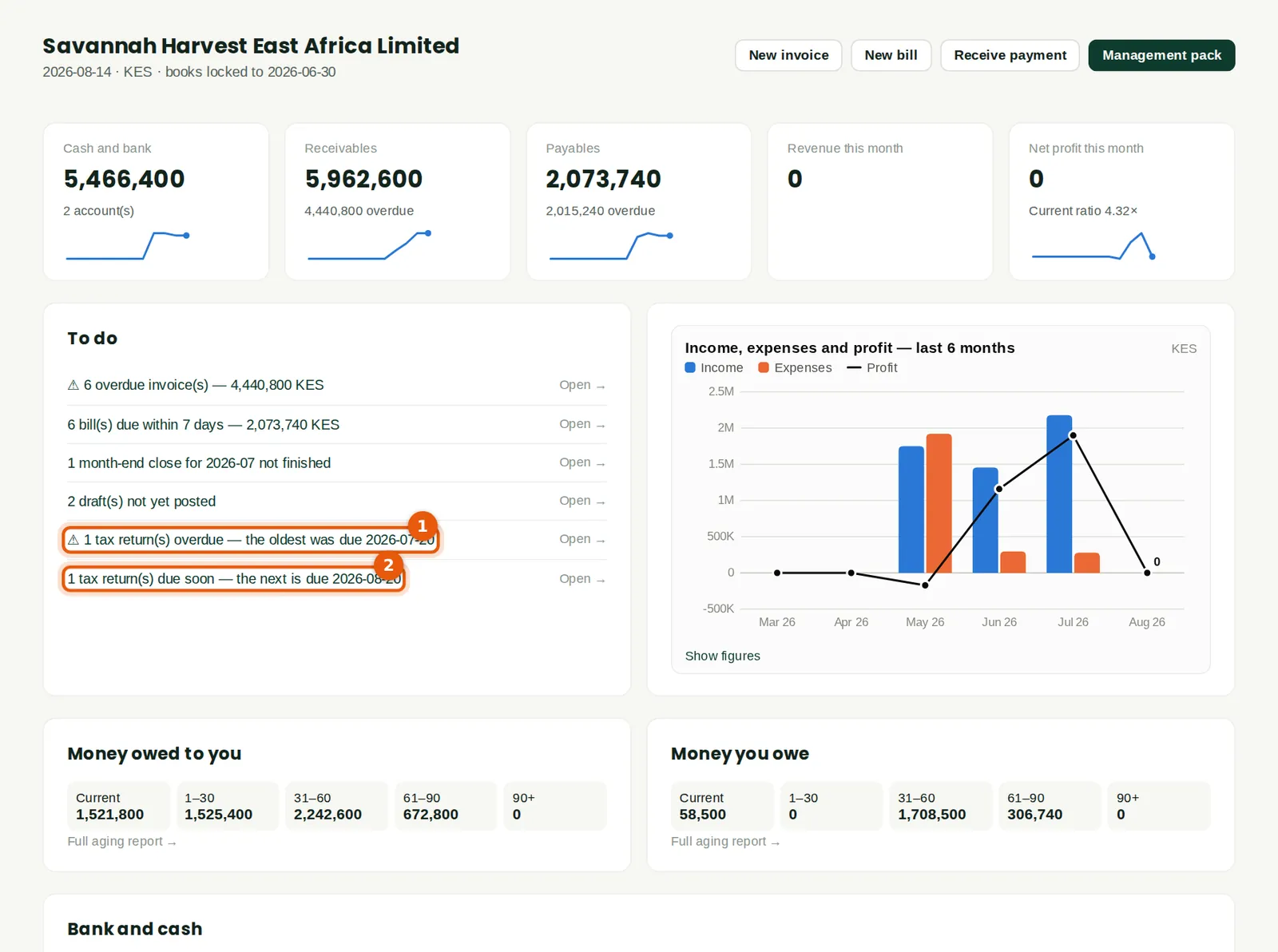
The To do list shows the tax return deadlines: "1 tax return(s) overdue — the oldest was due 2026-07-20" (1) as a warning, and "1 tax return(s) due soon — the next is due 2026-08-20" (2). Open goes to Tax centre → Tax returns. The month-end checklist ticks its tax return task when the return of the period ending in that month is filed, and the year-end checklist checks that every period ending in the year is filed.
Who
Everyone who sees the dashboard.
What to do
- Click Open on the task to go to the list.
26.26 Tax returns in the practice hub
Why
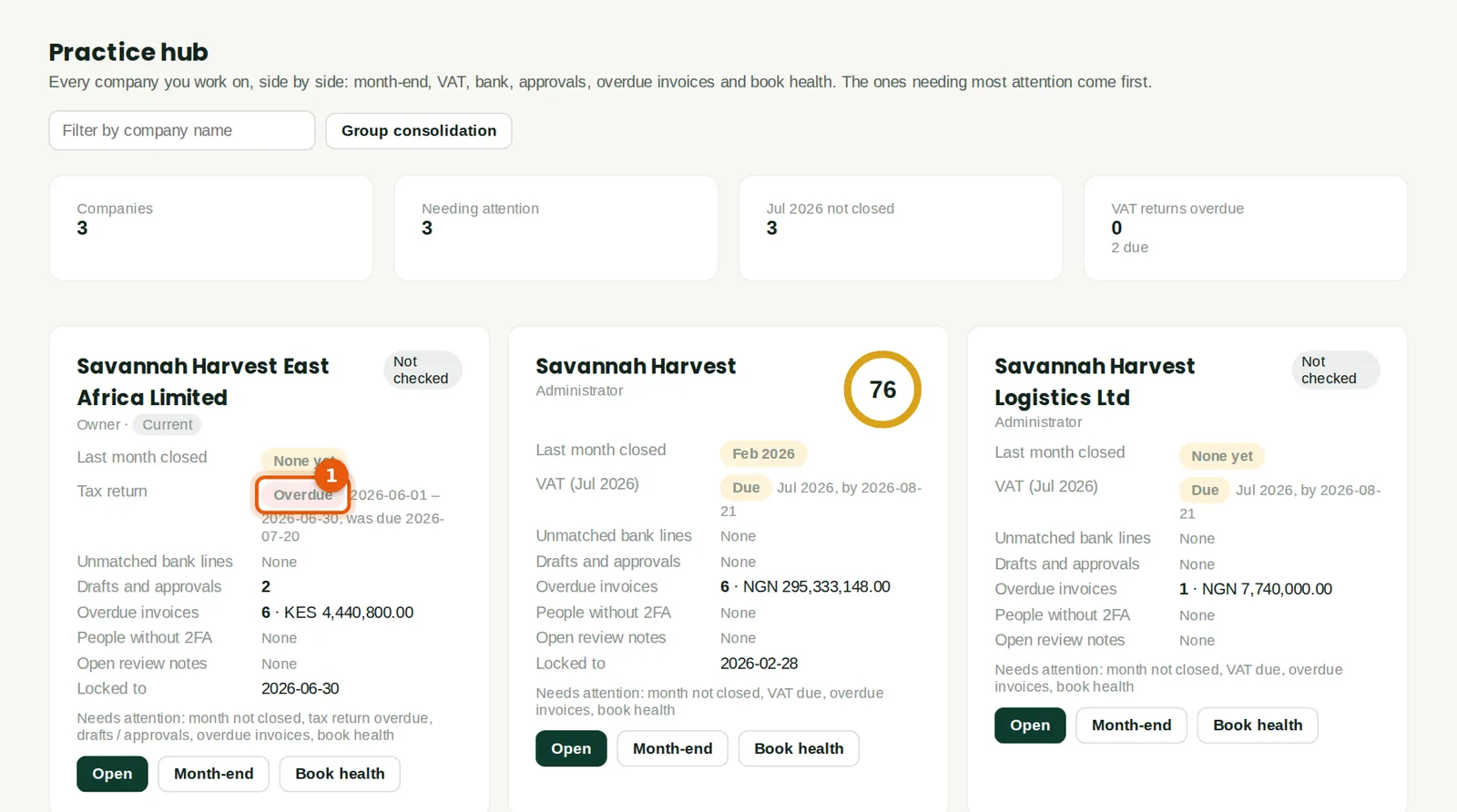
For an International company with filing set up, the practice hub shows a Tax return line instead of VAT (1). It shows the oldest overdue period, otherwise the next one due, otherwise the latest period that has ended. The card is flagged "tax return overdue" or "tax return due", and the companies needing most attention come first. The Nigerian companies beside it still show their VAT.
Who
Accountants and advisers who work on several companies.
26.27 The Tax returns report
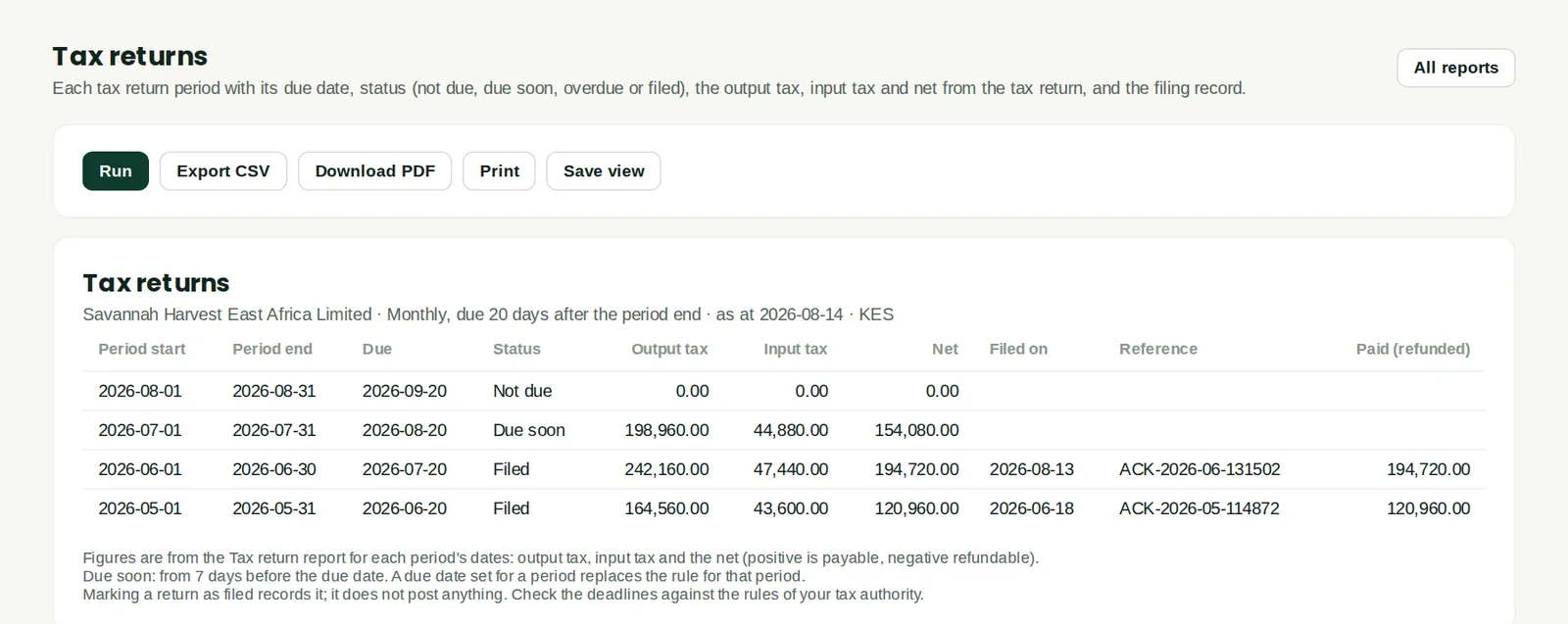
Why
Every period with its dates, due date and status, the output tax, input tax and net, and the filing record: date filed, reference and the amount paid (a refund is shown as negative). Export CSV and Download PDF give a copy for the auditors or the board. For an International company it takes the place of the Nigerian tax calendar, also in the management pack.
Who
Anyone with tax or reports access.
26.28 Registration numbers in the annual report
Why
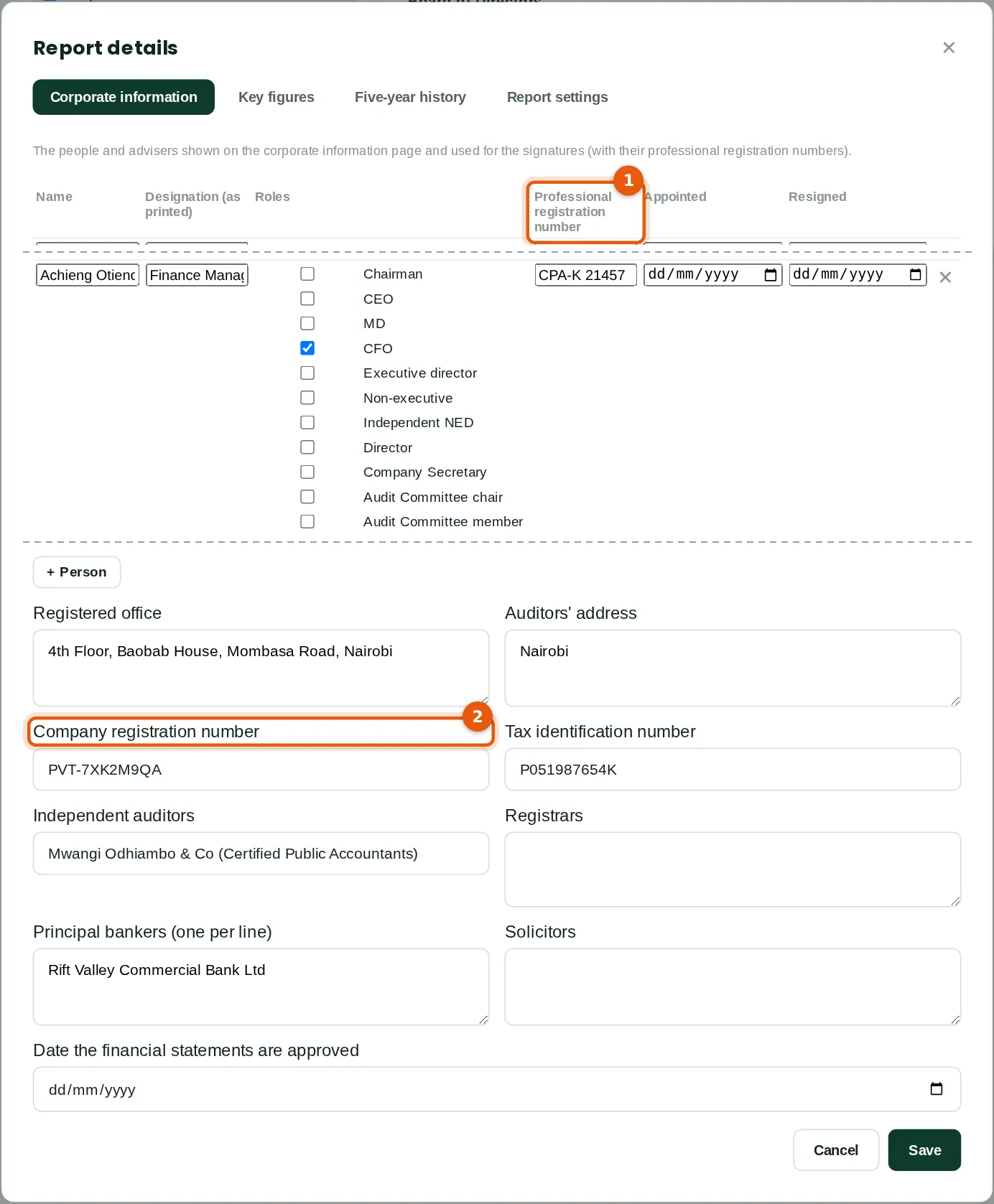
The annual financial statements work as in chapter 25. For an International company the labels are neutral. Each person has a Professional registration number (1), for example the finance manager's accountancy body number, instead of the Nigerian FRC number. The company's number is the Company registration number (2), instead of the RC number. Here Chukwudi starts a draft for the year ending 31 December 2026: four people, the registered office, the company registration number PVT-7XK2M9QA and the tax identification number.
Who
Accountant, administrator or owner.
What to do
- Open Accounting → Annual financial statements and click Details.
- Add the directors, the company secretary and the finance manager with + Person. Type each professional registration number (1) where there is one.
- Type the company registration number (2) as it appears on the certificate, without a prefix. Click Save.
26.29 The corporate information page
Why
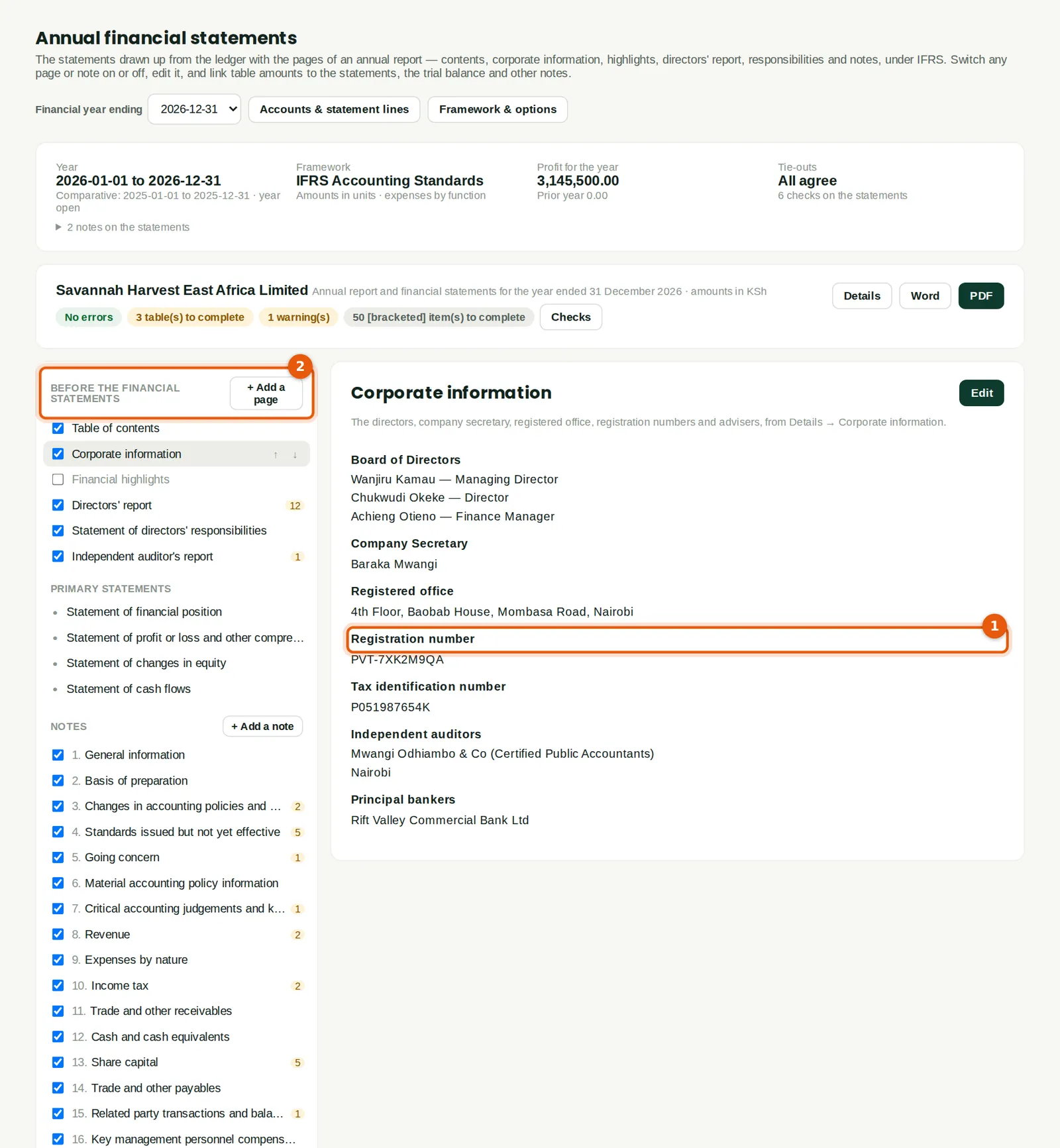
The corporate information page prints the number under Registration number (1), exactly as typed. A Nigerian company's number is printed as "RC 1847263". The pages before the statements (2) are the contents, corporate information, financial highlights, directors' report, statement of directors' responsibilities and the auditor's report. The Nigerian pages and notes are not offered, and they are not in the contents, the PDF or the Word file. The page intro says the statements are drawn up under IFRS.
Who
Accountant, administrator or owner.
What to do
- Check the people and numbers on the page. Click Edit to change the wording.
- Use + Add a page or + Add a note for anything else the company's law asks for.
26.30 The cover of the annual report
Why
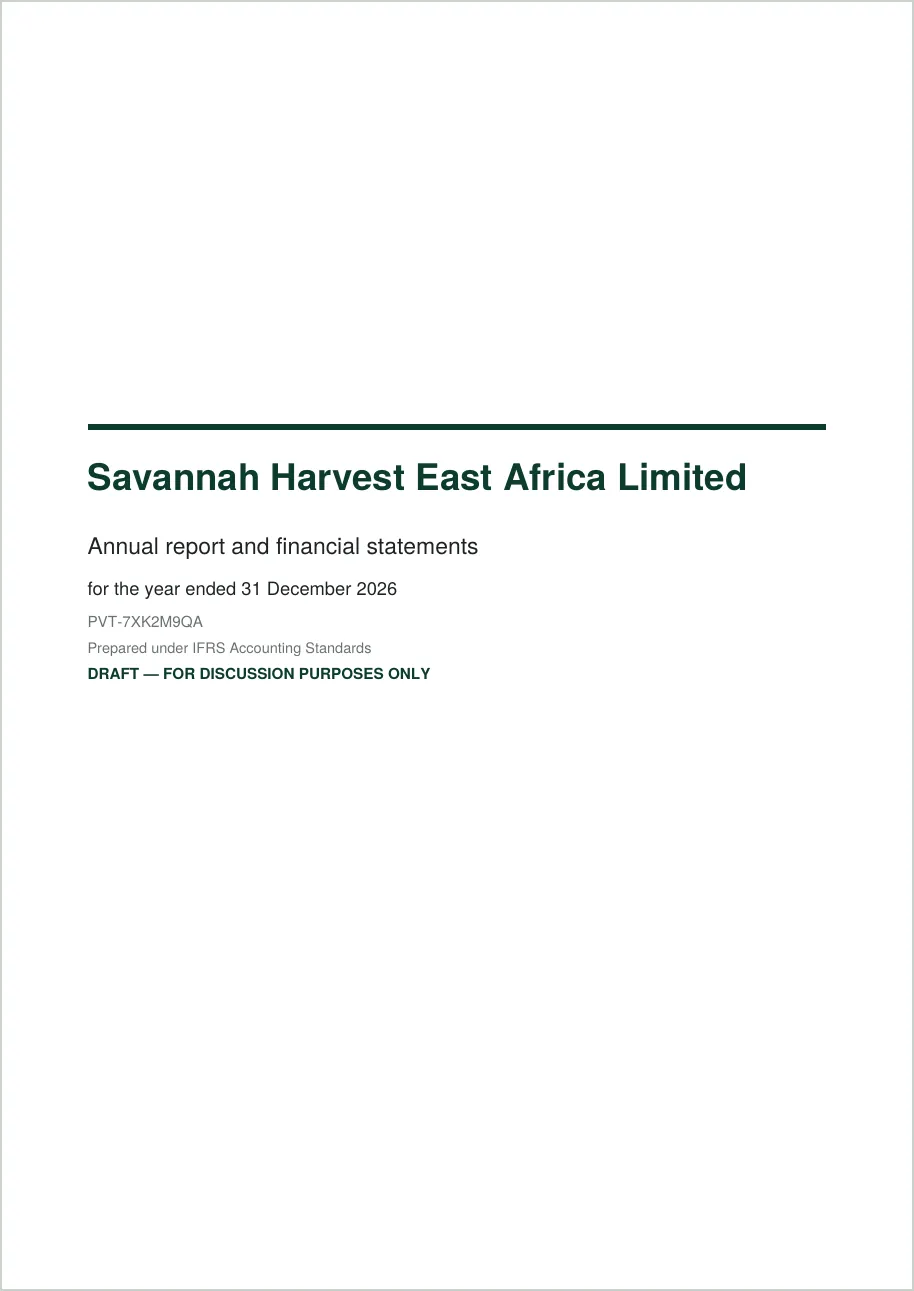
The cover shows the company name, the year, the company registration number as typed (no "RC") and the framework, IFRS Accounting Standards. A draft is marked "Draft — for discussion purposes only" until the statements are approved. The Word file has the same cover.
Who
Accountant, administrator or owner.
What to do
- Click PDF or Word at the top of the annual financial statements.